1. Uvod
The Zebra ZQ220 Plus is a versatile mobile thermal printer designed for on-the-go professionals. This portable device offers reliable, high-quality receipt and label printing capabilities, making it suitable for various applications including retail, hospitality, and field services. Featuring Bluetooth 5.0 connectivity and a durable design, the ZQ220 Plus ensures efficient operation in diverse working environments. Its thermal printing technology eliminates the need for ink or toner, simplifying maintenance.
2. Sigurnosne informacije
- Read all instructions before operating the printer.
- Do not expose the printer to extreme temperatures, direct sunlight, or high humidity.
- Use only Zebra-approved accessories and power sources.
- Avoid dropping the printer or subjecting it to severe impacts.
- Držite štampač podalje od vode i drugih tečnosti.
- Ne pokušavajte sami rastavljati ili popravljati štampač. Obratite se kvalifikovanom servisnom osoblju.
3. Sadržaj paketa
Provjerite da li su sve stavke prisutne u paketu:
- Zebra ZQ220 Plus Mobile Thermal Printer
- Punjiva baterija
- USB kabl za punjenje
- Vodič za brzi početak
- Sample Thermal Paper Roll
4. Proizvod je gotovview
Familiarize yourself with the components of your ZQ220 Plus printer.

Slika 4.1: Prednja strana View of the ZQ220 Plus Printer
This image displays the front of the ZQ220 Plus printer, highlighting its compact design. The top panel features an LCD display and three control buttons: Power, Settings, and Connectivity. The paper output slot is visible below the control panel.
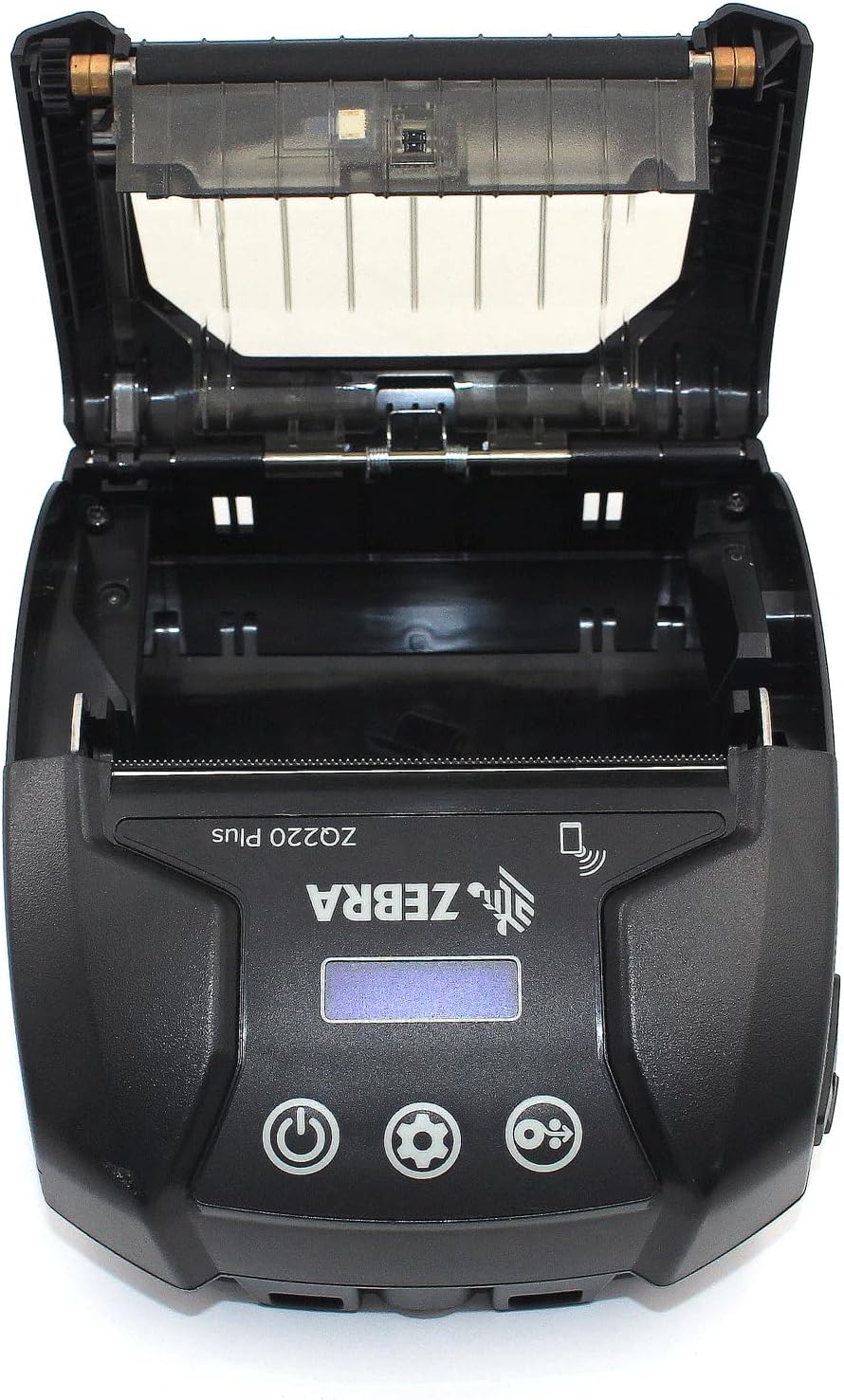
Figure 4.2: Media Compartment Open
This image shows the printer with its top cover open, providing access to the media compartment. The thermal printhead is visible, along with the spindle for loading paper rolls. This view is essential for understanding how to load printing media.

Figure 4.3: Media Roll Insertion
This image demonstrates the media loading process. The side view with the cover open clearly shows how a roll of thermal paper is placed into the printer's media bay, ensuring correct alignment for printing.
5. Podešavanje
5.1. Instalacija baterije
- Uverite se da je štampač isključen.
- Locate the battery compartment cover on the back or bottom of the printer.
- Open the cover and insert the rechargeable battery, ensuring the contacts align correctly.
- Čvrsto zatvorite poklopac odeljka za baterije.
5.2. Loading Print Media
- Open the media compartment cover (refer to Figure 4.2).
- Place the thermal paper roll into the compartment with the leading edge feeding from the bottom of the roll.
- Pull a small amount of paper past the printhead.
- Close the media compartment cover firmly until it latches.
5.3. Početno uključivanje i punjenje
- Connect the USB charging cable to the printer and a power source (e.g., USB wall adapter, vehicle USB port).
- Allow the battery to fully charge before first use. The charging indicator light will show the status.
- Press and hold the Power button until the printer powers on. The LCD display will illuminate.
6. Upravljanje štampačem
6.1. Bluetooth uparivanje
- Ensure the printer is powered on and within range of your host device (smartphone, tablet, etc.).
- On your host device, navigate to the Bluetooth settings and enable Bluetooth.
- Traži available devices. The printer will appear as 'ZQ220 Plus' or a similar identifier.
- Select the printer from the list to initiate pairing. If prompted, enter the default PIN (usually '0000' or '1234').
- Once paired, the Bluetooth icon on the printer's display will indicate a successful connection.
6.2. Štampanje
- Ensure the printer is paired with your host device and has sufficient media loaded.
- Open your printing application (e.g., ZLabel Designer Mobile App for Android or iOS, or other compatible software).
- Select the ZQ220 Plus as your target printer within the application.
- Initiate the print command from your application. The printer will begin printing the document or label.
6.3. USB punjenje
The ZQ220 Plus supports simple USB charging. Connect the printer to any standard USB power source using the provided USB cable. This allows for convenient charging in vehicles or from portable power banks.
7. Održavanje
7.1. Čišćenje štampača
- Eksterijer: Obrišite vanjski dio štampača mekom,amp tkanina. Nemojte koristiti jake hemikalije ili abrazivna sredstva za čišćenje.
- glava štampača: Periodically clean the thermal printhead using a printhead cleaning pen or a cotton swab lightly dampened with isopropyl alcohol. Ensure the printer is off and cool before cleaning. Allow to dry completely before use.
- Valjak s pločom: Očistite valjak za štampanje krpom koja ne ostavlja dlačice dampened with isopropyl alcohol to remove paper dust or adhesive residue.
7.2. Skladištenje
When not in use for extended periods, store the printer in a cool, dry place, away from direct sunlight and extreme temperatures. Remove the battery if storing for several months to prevent discharge or damage.
8. Otkrivanje problema
| Problem | Mogući uzrok | Rješenje |
|---|---|---|
| Štampač se ne uključuje | Prazna ili ispražnjena baterija Improperly installed battery | Napunite bateriju Ponovo postavite bateriju ispravno |
| Nema izlaza za ispis | No paper loaded Papir je pogrešno ubačen Printhead dirty or damaged | Load thermal paper Reload paper correctly Očistite glavu štampača |
| Loš kvalitet štampe | Dirty printhead Niska baterija Neispravan tip medija | Očistite glavu štampača Napunite bateriju Ensure correct thermal media is used |
| Povezivanje putem Bluetooth-a nije moguće | Bluetooth nije omogućen na uređaju Printer not in pairing mode Van dometa | Enable Bluetooth on host device Ensure printer is discoverable Move device closer to printer |
| Printer stops during operation | Niska baterija Zastoj papira Pregrijavanje | Napunite bateriju Clear any paper jam Allow printer to cool down |
9. Specifikacije
| Feature | Specifikacija |
|---|---|
| Naziv modela | ZQ220 PLUS |
| Tehnologija štampe | Direct Thermal |
| Rezolucija štampanja | 203 DPI (tačaka po inču) |
| Maksimalna brzina štampanja (monohromatski) | 20 ppm |
| Supported Media Widths | 80 mm (3.14 in), 76.2 mm (3 in), 58 mm (2.28 in) |
| Povezivanje | Bluetooth 5.0, USB |
| Kapacitet baterije | 2500 mAh |
| Memorija | 8 MB |
| Ocjena izdržljivosti | IP54 (resistance to dust and liquids) |
| Dimenzije proizvoda (D x Š x V) | 3.15" x 2.25" x 3" |
| Težina artikla | 4 unci (0.25 lbs) |
| Uključene komponente | Printer, Battery, USB Cable |
10. Garancija i podrška
10.1. Informacije o garanciji
The Zebra ZQ220 Plus Mobile Thermal Printer comes with a Ograničena garancija proizvođača. Please refer to the warranty card included with your product or visit the official Zebra webstranicu za detaljne uslove i odredbe u vezi sa pokrićem, trajanjem i postupcima podnošenja zahtjeva.
10.2. Tehnička podrška
For technical assistance, troubleshooting beyond this manual, or service inquiries, please contact Zebra customer support. Contact information can typically be found on the official Zebra webweb-mjestu ili u dokumentaciji vašeg proizvoda.


