1. Uvod
This manual provides detailed instructions for the installation, operation, and maintenance of your MSI PRO B850-S WIFI6E ATX Motherboard. Designed for AMD Ryzen 9000, 8000, and 7000 series processors, this motherboard features an AM5 socket, DDR5 memory support, PCIe 4.0 x16, M.2 Gen5, Wi-Fi 6E, and 2.5G LAN. Please read this manual thoroughly before proceeding with installation to ensure proper setup and optimal performance.
2. Sigurnosne informacije
Uvijek se pridržavajte sljedećih sigurnosnih mjera opreza kako biste spriječili oštećenje matične ploče ili ozljede:
- Mjere opreza pri elektrostatičkom pražnjenju (ESD): Always wear an anti-static wrist strap or frequently touch a grounded metal object before handling the motherboard or any components. ESD can severely damage electronic components.
- Iskljuciti: Prije instaliranja ili uklanjanja bilo kakvih komponenti provjerite je li napajanje isključeno iz zidne utičnice.
- Pažljivo rukujte: Hold the motherboard by its edges. Avoid touching sensitive components, pins, or circuit traces.
- ventilacija: Osigurajte odgovarajuću ventilaciju unutar kućišta računara kako biste spriječili pregrijavanje.
- Kompatibilnost komponenti: Verify that all components (CPU, RAM, GPU, PSU) are compatible with this motherboard.
3. Sadržaj paketa
Carefully unpack your motherboard and check for the following items:
- MSI PRO B850-S WIFI6E Motherboard
- Wi-Fi antena
- SATA podatkovni kablovi
- Vijci/odstojnici za M.2 SSD
- Quick Installation Guide / User Manual (this document)
- CD/USB sa drajverima (ako je uključen)

4. Izgled matične ploče
Upoznajte se s različitim komponentama i konektorima na vašoj matičnoj ploči.

4.1. CPU Socket (AM5)
The central component for your AMD Ryzen processor. Ensure correct orientation before installation.

4.2. DDR5 Memory Slots
Four DDR5 DIMM slots are available for high-speed memory modules. Refer to the motherboard's QVL (Qualified Vendor List) for compatible memory kits.

4.3. PCIe Slots
The motherboard features a fortified PCIe 4.0 x16 slot for graphics cards and additional PCIe slots for expansion cards.

4.4. M.2 Slots
Includes one M.2 Gen5 x4 128Gbps slot and one M.2 Gen4 x4 64Gbps slot, both with M.2 Shield Frozr heatsinks to prevent thermal throttling.

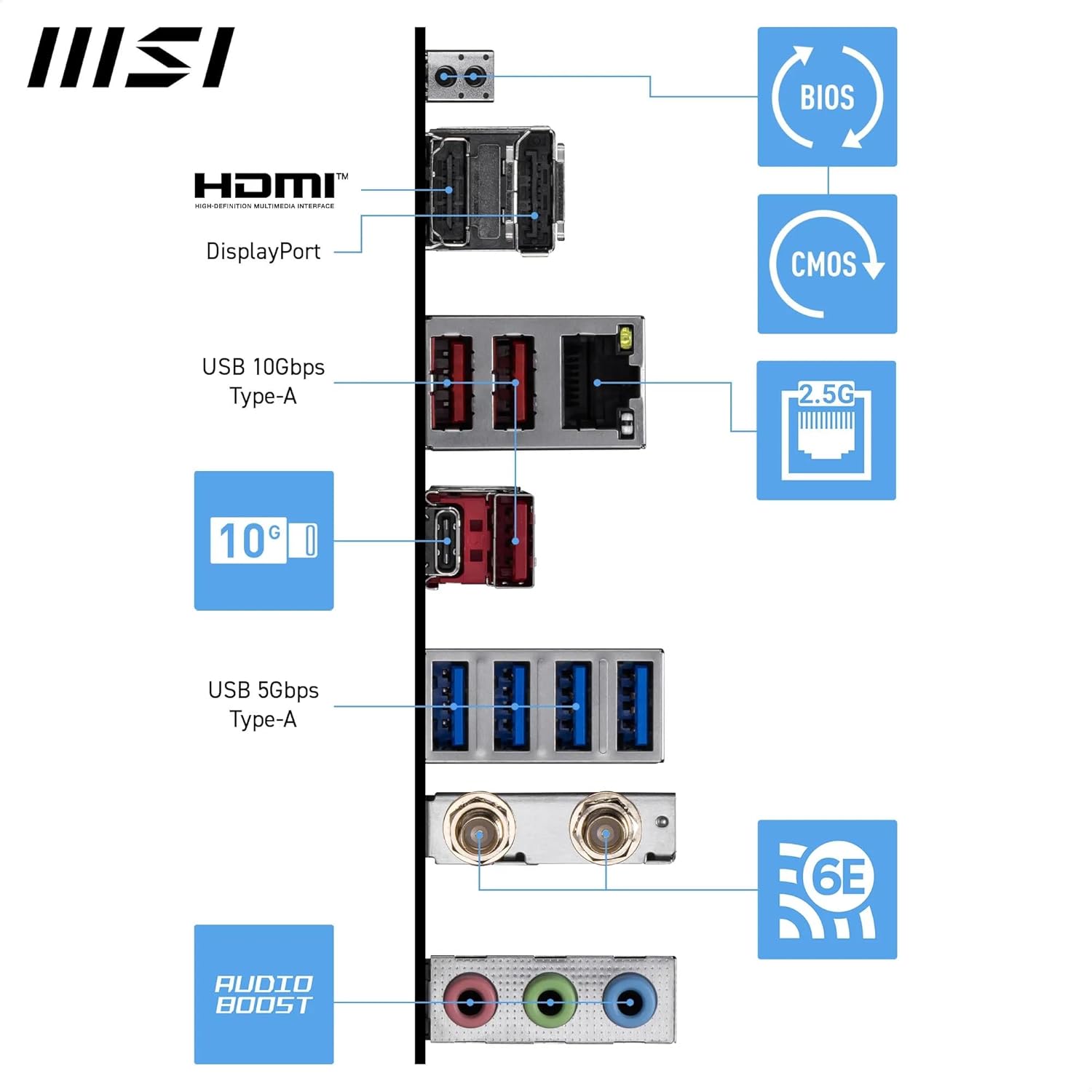
4.5. Zadnja I/O ploča
The rear panel provides various ports for external devices, including USB, LAN, Wi-Fi antenna connectors, and audio jacks.
5. Vodič za instalaciju
Follow these steps carefully to install your motherboard and components.
5.1. Instalacija CPU-a
- Pronađite AM5 socket na matičnoj ploči.
- Open the CPU retention lever.
- Pažljivo poravnajte CPU sa utičnicom, pazeći da se zlatni trougao na CPU-u poklapa sa trouglom na utičnici. Nemojte silom gurati CPU u utičnicu.
- Gently lower the CPU into place.
- Zatvorite polugu za zadržavanje kako biste osigurali CPU.
- Apply thermal paste and install your CPU cooler according to its instructions.
5.2. Instalacija memorije (RAM)
- Otvorite kopče na oba kraja DDR5 DIMM utora.
- Poravnajte zarez na DDR5 memorijskom modulu s ključem u DIMM utoru.
- Čvrsto umetnite memorijski modul u utor dok se kopče ne uklope na svoje mjesto. Provjerite da li su obje kopče zatvorene.
- For dual-channel operation, install memory modules into the recommended slots (refer to your motherboard manual for specific slot pairing).
5.3. Instalacija M.2 SSD-a
- Pronađite M.2 utore na matičnoj ploči.
- Remove the M.2 Shield Frozr heatsink by unscrewing its retention screws.
- Umetnite M.2 SSD u utor pod blagim uglom.
- Gently push down the M.2 SSD and secure it with the provided M.2 screw or EZ M.2 clip.
- Reattach the M.2 Shield Frozr heatsink and tighten its screws.

5.4. PCIe Card Installation (Graphics Card)
- Otvorite kopču za zadržavanje na kraju PCIe 4.0 x16 utora.
- Align your graphics card with the slot and press it down firmly until it seats correctly and the retention clip snaps into place.
- Pričvrstite grafičku karticu na kućište računara vijcima.
- Spojite sve potrebne PCIe kablove za napajanje s vašeg napajanja na grafičku karticu.
5.5. Priključci za napajanje
- Spojite 24-pinski ATX glavni konektor za napajanje iz vašeg napajanja na odgovarajući priključak na matičnoj ploči.
- Connect the dual 8-pin CPU power connectors (EPS12V) from your power supply to the CPU power headers on the motherboard.
5.6. Priključci na prednjoj ploči
Connect your PC case's front panel cables (power button, reset button, USB ports, audio jacks, LED indicators) to the corresponding headers on the motherboard. Refer to the motherboard diagram for exact locations.
5.7. Priključci na stražnjoj ploči
Install the I/O shield into your PC case. Connect your monitor, keyboard, mouse, and other peripherals to the appropriate ports on the rear I/O panel.
6. Upravljanje matičnom pločom
6.1. Prvo pokretanje i podešavanje BIOS-a/UEFI-ja
- Nakon što sastavite sve komponente, povežite monitor, tastaturu i miš.
- Uključite svoj sistem.
- Pritisnite DEL Pritisnite tipku više puta tokom pokretanja da biste ušli u uslužni program za podešavanje BIOS-a/UEFI-ja.
- U BIOS-u možete konfigurirati redoslijed pokretanja, omogućiti/onemogućiti funkcije, postaviti memorijske profesionalce...files (XMP/EXPO), and monitor system status.
6.2. Instalacija drajvera
After installing your operating system, it is crucial to install the latest drivers for your motherboard's components. These include:
- Drajveri čipseta
- LAN drajveri (Realtek 2.5G LAN)
- Wi-Fi/Bluetooth Drivers (Wi-Fi 6E, Bluetooth 5.3)
- Audio Drivers (7.1 HD Audio with Audio Boost)
- Graphics Drivers (for integrated graphics if applicable, or your dedicated GPU)
Drivers can be found on the official MSI webstranicu za vaš specifični model matične ploče.
6.3. Instalacija operativnog sistema
Follow the instructions provided by your operating system (e.g., Windows 11) for installation. Ensure your bootable USB drive or DVD is selected as the primary boot device in the BIOS/UEFI.
7. Održavanje
7.1. Čišćenje
- Regularly clean dust from inside your PC case using compressed air.
- Ensure fans (CPU cooler, case fans) are free of obstructions.
- Always power off and unplug your PC before cleaning.
7.2. BIOS/Firmware Updates
Povremeno provjeravajte MSI website for BIOS/UEFI updates. Updates can improve stability, add support for new CPUs, or fix bugs. Follow MSI's specific instructions for BIOS flashing carefully to avoid damaging the motherboard.
7.3. Ažuriranja upravljačkih programa
Keep your drivers updated to ensure optimal performance and compatibility with new software and hardware. Download drivers only from the official MSI webproizvođači lokacija ili komponenti.
8. Otkrivanje problema
Ako naiđete na probleme, razmotrite sljedeće uobičajene korake za rješavanje problema:
- Nema napajanja: Check all power connections (24-pin ATX, 8-pin CPU, GPU PCIe power). Ensure the power supply switch is on.
- Bez prikaza: Verify monitor connection, ensure graphics card is seated correctly, and try reseating RAM modules. If your CPU has integrated graphics, try connecting to the motherboard's video output.
- Nestabilnost/Padovi sistema: Check RAM seating, ensure CPU cooler is properly installed, and verify component temperatures. Update drivers and BIOS.
- Problemi s pokretanjem: Check boot order in BIOS. Ensure storage drives are properly connected.
- Problemi s mrežnom vezom: Verify LAN cable connection or Wi-Fi antenna installation. Reinstall network drivers.
For more complex issues, consult the detailed troubleshooting section in the full digital manual available on the MSI support webweb-mjesto ili kontaktirajte MSI tehničku podršku.
9. Specifikacije
| Feature | Specifikacija |
|---|---|
| Brand | MSI |
| Naziv modela | PROB850SWIFI6E |
| CPU Socket | Socket AM5 |
| Kompatibilni procesori | AMD Ryzen 9000/ 8000/ 7000 Series Desktop Processors |
| Tip čipseta | AMD B850 |
| Tehnologija RAM memorije | DDR5 |
| Memorijski slotovi | 4 x DDR5 DIMM SMT slots |
| Max Memory Speed (OC) | 8200+ MT/s |
| Interfejs grafičke kartice | PCI Express 4.0 (1 x PCIe 4.0 x16 slot) |
| M.2 konektori | 1 x M.2 Gen5 x4 128Gbps, 1 x M.2 Gen4 x4 64Gbps |
| LAN | Realtek 2.5G LAN |
| Bežično povezivanje | Wi-Fi 6E, Bluetooth 5.3 |
| USB portovi (stražnji) | USB 10Gbps Type-C, USB 5Gbps Type-A |
| Audio | 7.1 HD Audio with Audio Boost |
| Form Factor | ATX |
| Dimenzije (DxŠxV) | 10.7 x 13.6 x 2.9 inča |
| Težina artikla | 3.2 funte |
| Platforma | Windows 11 |
10. Garancija i podrška
10.1. Informacije o garanciji
Your MSI PRO B850-S WIFI6E Motherboard comes with a limited warranty. Please refer to the warranty card included with your product or visit the official MSI webweb stranicu za detaljne uslove garancije specifične za vašu regiju.
10.2. Tehnička podrška
For technical assistance, driver downloads, BIOS updates, or further troubleshooting, please visit the official MSI support webstranica:
You may also contact MSI customer service directly through their webstranica za personaliziranu podršku.


