Uvod
This manual provides instructions for the OMOTON Illuminated Keyboard. Designed with extra-large fonts, this keyboard offers enhanced visibility, making it suitable for users who benefit from clearer visual experiences, including seniors, students, and office workers. It aims to reduce eye fatigue and typing errors. The keyboard features a wired 2-in-1 USB-A/C interface for broad compatibility and includes multimedia keys for efficient control of various functions.
Karakteristike proizvoda
- Large Font Keys: Keys feature oversized characters for improved readability, minimizing typing errors.
- Multimedia Functionality: Dedicated multimedia keys provide quick access to functions such as music, video playback, and volume control.
- Dual USB A/C Compatibility: Equipped with a 2-in-1 USB-A/C cable, allowing connection to a wide range of devices.
- Ergonomski dizajn: Features a user-friendly, ergonomic design with an adjustable kickstand for comfortable typing positions, reducing strain during extended use.
- Windows kompatibilnost: Specifically designed for seamless operation with Windows operating systems.
Setup
The OMOTON Illuminated Keyboard is designed for simple plug-and-play setup.
- Povežite tastaturu: Locate an available USB-A or USB-C port on your computer.
- Priključak: Connect the keyboard's 2-in-1 USB cable to the chosen port. The keyboard will be automatically recognized by your operating system (Windows).
- Potvrdite vezu: Once connected, the keyboard should be ready for use. The backlight will illuminate.

Image: The keyboard features a versatile 2-in-1 USB-A/C cable for easy connection to various devices, including laptops and desktop PCs.
Uputstvo za upotrebu
Kontrola pozadinskog osvetljenja
The keyboard features an adjustable white backlight. Use the following key combinations to control it:
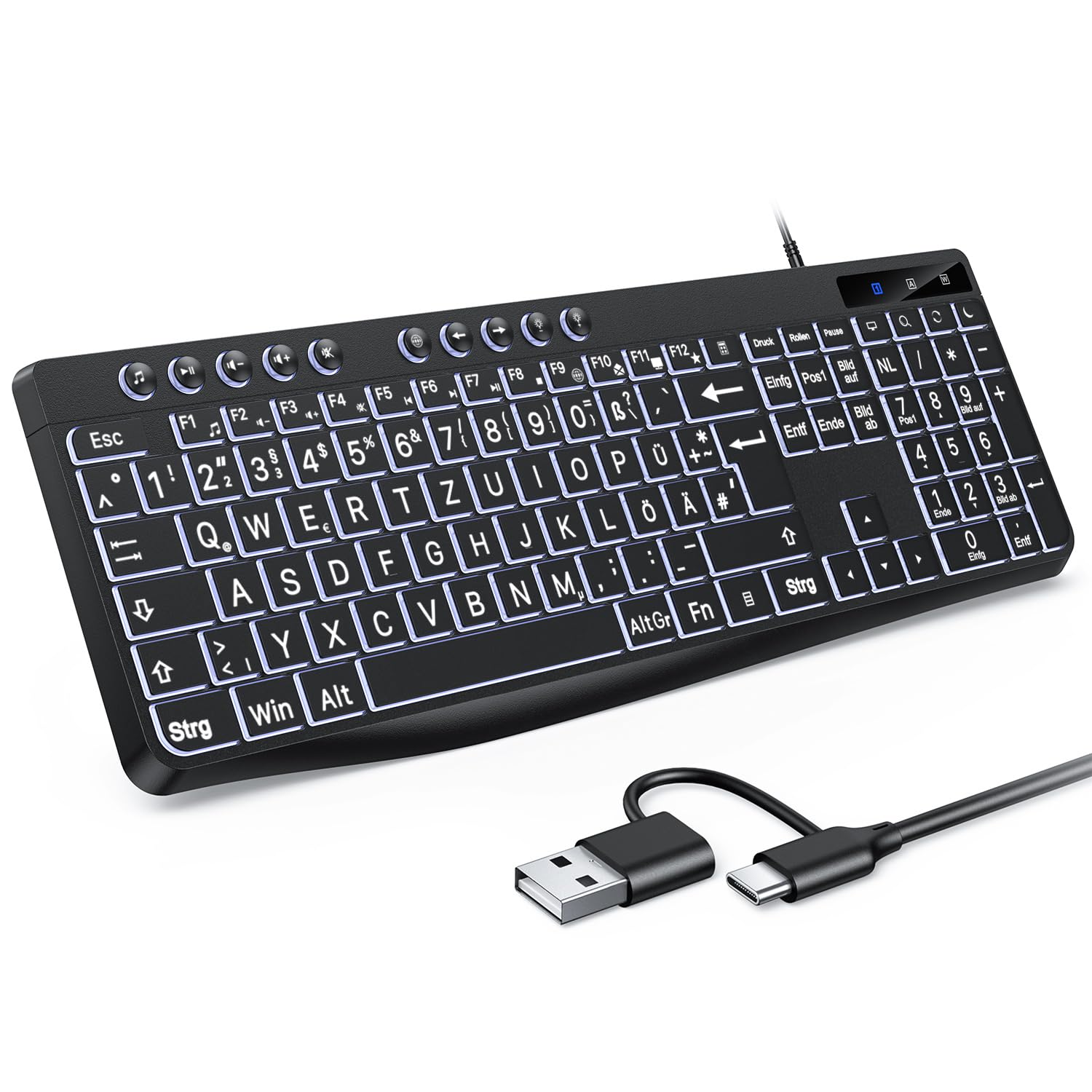
Image: Visual guide for backlight control functions.
- Fn + Print Screen (Druck): Toggles the backlight on or off.
- Fn + Scroll Lock (Rollen): Switches between constant illumination mode and 'breathing' mode.
- In Constant Illumination Mode:
- Fn + strelica gore: Povećava svjetlinu pozadinskog osvjetljenja.
- Fn + strelica prema dolje: Smanjuje svjetlinu pozadinskog osvjetljenja.
- In 'Breathing' Mode:
- Fn + strelica lijevo: Adjusts breathing frequency (slower).
- Fn + strelica desno: Adjusts breathing frequency (faster).
Multimedijalni tasteri
The keyboard includes dedicated multimedia keys (F1-F12) that provide quick access to various functions when pressed in combination with the Fn ključ.

Image: The multimedia keys (F1-F12) offer convenient shortcuts for common tasks.
- Fn + F1-F12: Access functions such as volume control, media playback, email, web browser, and calculator. Refer to the icons on the F-keys for specific functions.
Održavanje
To ensure the longevity and optimal performance of your OMOTON Illuminated Keyboard, follow these maintenance guidelines:
- čišćenje: Regularly clean the keyboard with a soft, dry, lint-free cloth. For stubborn dirt, slightly dampOperite krpu vodom ili blagim rastvorom za čišćenje. Izbjegavajte jake hemikalije ili abrazivne materijale.
- Uklanjanje prašine: Koristite komprimirani zrak za uklanjanje prašine i ostataka između tipki.
- Prolivene tečnosti: U slučaju prolivanja tečnosti, odmah isključite tastaturu iz računara. Okrenite je naopako da biste ocijedili tekućinu i ostavite je da se potpuno osuši prije ponovnog spajanja.
- Skladištenje: Tastaturu čuvajte na hladnom i suhom mjestu, dalje od direktne sunčeve svjetlosti i ekstremnih temperatura.
Rješavanje problema
If you encounter issues with your OMOTON Illuminated Keyboard, refer to the following common troubleshooting steps:
- Tastatura ne reaguje:
- Provjerite da li je USB kabl sigurno priključen i na tastaturu i na računar.
- Pokušajte povezati tastaturu s drugim USB priključkom na računaru.
- Ponovo pokrenite računar.
- Ako koristite USB hub, pokušajte direktno povezati tastaturu sa računarom.
- Pozadinsko osvetljenje ne radi:
- Pritisnite Fn + Print Screen kako biste osigurali da pozadinsko osvjetljenje nije isključeno.
- Podesite svjetlinu pomoću Fn + strelica gore/dolje ključevi.
- Tipke ne funkcionišu ispravno:
- Check for any physical obstructions or debris under the keys.
- Ensure your operating system drivers are up to date (though typically plug-and-play for keyboards).
Specifikacije
| Brand | OMOTON |
| Kompatibilni uređaji | PC |
| Tehnologija povezivanja | USB-A/C |
| Opis tastature | Multimedija |
| Preporučena upotreba za proizvod | Svakodnevna upotreba |
Garancija i podrška
OMOTON products are designed for reliability and performance. For specific warranty details regarding your Illuminated Keyboard, please refer to the warranty card included with your purchase or visit the official OMOTON website.
If you require technical assistance or have questions not covered in this manual, please contact OMOTON customer support through their official channels. Contact information can typically be found on the product packaging or the brand's website.


