1. Uvod
This manual provides essential information for setting up, operating, maintaining, and troubleshooting your Lenovo ThinkPad E14 G7 laptop. Please read this guide thoroughly to ensure proper use and to maximize the performance and longevity of your device.
The ThinkPad E14 G7 is a powerful and versatile laptop featuring an Intel Core 5 210H processor, a 14-inch WUXGA IPS touchscreen display, 16GB DDR5 RAM, and a 512GB NVMe SSD, running on Windows 11 Pro.
2. Podešavanje
2.1 Raspakivanje i početni pregled
Carefully remove all components from the packaging. Verify that all items listed in the "What's in the Box" section are present. Inspect the laptop for any physical damage before proceeding.
- Lenovo ThinkPad E14 G7 Laptop
- Napajanje ispravljač
- Vodič za postavljanje
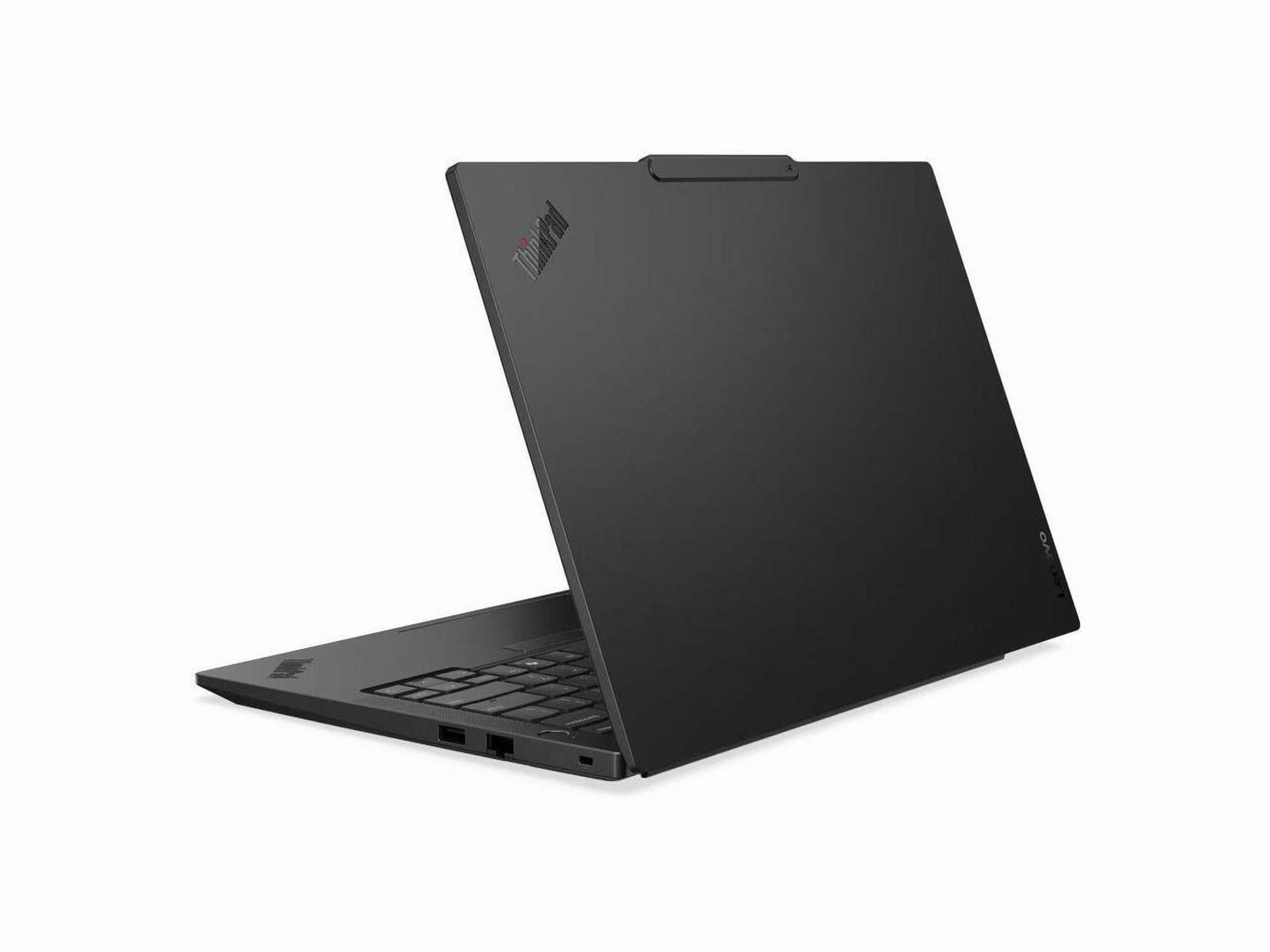
Image of the Lenovo ThinkPad E14 G7 laptop, showcasinsvojim elegantnim dizajnom i 14-inčnim ekranom.
2.2 Povezivanje napajanja
Connect the AC power adapter to the laptop's power input port and then plug the adapter into a wall outlet. It is recommended to fully charge the battery before initial use.
2.3 Početno pokretanje i podešavanje Windowsa
Press the power button to turn on the laptop. Follow the on-screen instructions to complete the Windows 11 Pro setup process. This includes selecting your region, language, creating a user account, and connecting to a Wi-Fi network.
2.4 Povezivanje perifernih uređaja
Utilize the available ports to connect external devices such as a mouse, keyboard, external monitor, or USB drives.
- USB 3.0 portovi: Za standardne USB uređaje.
- Thunderbolt 4 port: For high-speed data transfer, power delivery, and display output.
- HDMI 2.1 port: Za povezivanje s vanjskim ekranima ili projektorima.
- Ethernet Port (Gigabit LAN): Za žičanu mrežnu vezu.
- Audio Jack: Za slušalice ili eksterne zvučnike.
3. Upravljanje laptopom
3.1 Karakteristike ekrana
Your ThinkPad E14 G7 features a 14-inch WUXGA (1920 x 1200) IPS touchscreen display. The IPS technology provides wide viewing angles, and the touchscreen functionality allows for intuitive interaction with Windows 11 Pro.
3.2 Tastatura i tačped
The integrated keyboard provides a comfortable typing experience. The touchpad supports multi-touch gestures for navigation. Refer to the Windows 11 Pro documentation for detailed gesture controls.
3.3 Čitač otiska prsta
For enhanced security and convenient login, configure the integrated fingerprint reader through Windows Hello settings in Windows 11 Pro.
3.4 Bežično povezivanje
The laptop supports Wi-Fi 6E for high-speed wireless internet access and Bluetooth 5.3 for connecting wireless peripherals such as headphones or mice.
- Povezivanje na Wi-Fi: Click the Wi-Fi icon in the taskbar, select your network, and enter the password.
- Uparivanje Bluetooth uređaja: Go to Windows Settings > Bluetooth & devices, and follow the instructions to pair a new device.
4. Održavanje
4.1 Čišćenje laptopa
- ekran: Lagano koristite meku krpu koja ne ostavlja dlačice dampvodom ili sredstvom za čišćenje ekrana. Ne prskajte tečnost direktno na ekran.
- Tastatura i kućište: Za brisanje površina koristite meku krpu. Za tvrdokornu prljavštinu, laganoamp Može se koristiti krpa s blagim sapunom, pazeći da tekućina ne uđe u otvore.
- luke: Koristite komprimirani zrak za nježno uklanjanje prašine iz otvora.
Uvijek isključite laptop i iskopčajte ga iz struje prije čišćenja.
4.2 Njega baterija
To prolong battery life, avoid extreme temperatures and allow the battery to discharge partially before recharging. For long-term storage, charge the battery to approximately 50% and store the laptop in a cool, dry place.
4.3 Ažuriranja softvera
Regularly check for and install Windows updates and Lenovo driver updates to ensure optimal performance, security, and compatibility. You can find Windows updates in Settings > Windows Update, and Lenovo updates via the Lenovo Vantage aplikacija ili podrška kompanije Lenovo website.
7. Garancija i podrška
7.1 Jamstvo za proizvod
For detailed information regarding your product's warranty, please refer to the warranty document included with your laptop or visit the official Lenovo support webstranica. Uslovi garancije mogu se razlikovati u zavisnosti od regije.
7.2 Tehnička podrška
If you encounter issues that cannot be resolved using the troubleshooting steps in this manual, please contact Lenovo technical support. You can find contact information and additional resources on the official Lenovo support webstranica:
https://support.lenovo.com