1. Uvod
Thank you for choosing the Pisichen 24 inch Touch Screen Gaming Monitor. This manual provides essential information for setting up, operating, and maintaining your monitor. Please read it thoroughly before use to ensure optimal performance and safety.
This monitor features a 24-inch QHD (2560x1440P) display with a 165Hz refresh rate, 2ms response time, and 10-point projected capacitive touchscreen functionality. It supports FreeSync and HDR, offering a vibrant and responsive visual experience for both gaming and professional applications.

Image: The Pisichen 24-inch 2K 165Hz Touch Screen Monitor highlighting its key features like HDR, IPS Panel, and 10-point Touch.
2. Sadržaj paketa
Prije nego što nastavite s postavljanjem, provjerite da li su sve komponente prisutne u paketu:
- Pisichen 24 inch Touch Screen Monitor
- Stalak za monitor (baza i vrat)
- DP Cable
- HDMI kabl
- USB B kabel za dodir
- USB CC kabl
- DC adapter
- Korisnički priručnik (ovaj dokument)
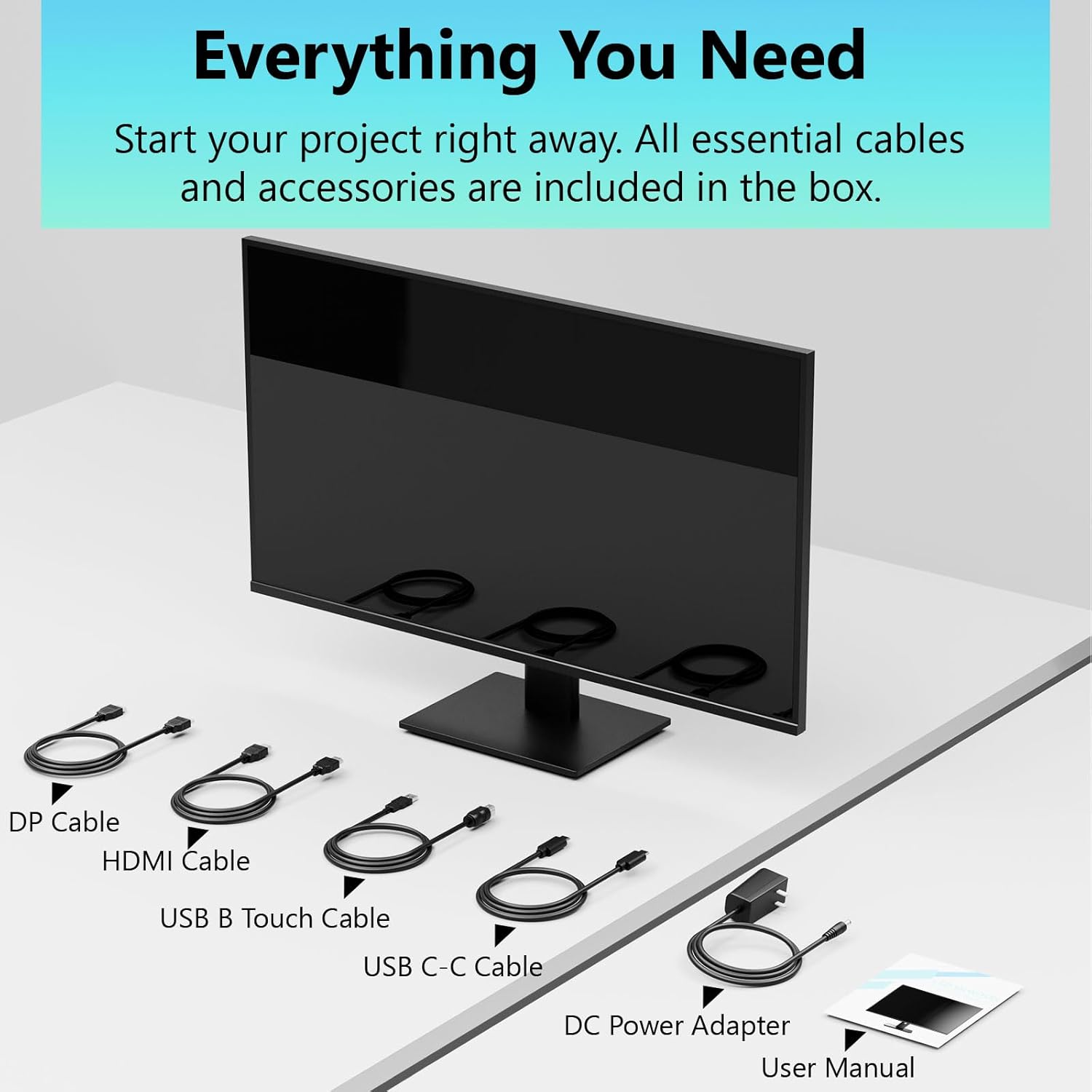
Image: All essential cables and accessories included in the box for the monitor setup.
3. Upute za postavljanje
3.1 Sastavljanje postolja
- Pažljivo izvadite monitor iz ambalaže i postavite ga licem prema dolje na meku, čistu površinu kako biste spriječili ogrebotine.
- Attach the stand neck to the monitor's rear panel.
- Pričvrstite bazu postolja na vrat postolja pomoću priloženih vijaka.
- Prije postavljanja monitora uspravno provjerite jesu li svi priključci čvrsti.
3.2 Instalacija VESA nosača (opciono)
This monitor supports VESA mounting. If you plan to use a VESA-compatible arm or wall mount, remove the stand and attach the VESA mount according to the mount's instructions. The VESA pattern is typically 75x75mm or 100x100mm (refer to specifications for exact details).
3.3 Povezivanje na uređaj
Monitor nudi više opcija povezivanja:
- HDMI: Spojite jedan kraj HDMI kabla na HDMI port monitora, a drugi kraj na HDMI izlaz računara.
- DisplayPort (DP): Connect one end of the DP cable to the monitor's DP port and the other end to your computer's DP output.
- USB Type-C: For compatible devices, connect the USB C-C cable to the monitor's USB Type-C port and your device's USB Type-C port. This single cable can transmit video, data, and power (charging).
- USB Type-B (for Touch Functionality): To enable the touch screen feature, connect the USB B Touch Cable from the monitor's USB Type-B port to an available USB Type-A port on your computer.

Image: The monitor's rear panel with various connectivity options, including HDMI, DisplayPort, and USB-C ports.
3.4 Priključak za napajanje
Connect the DC Power Adapter to the monitor's power input port, then plug the adapter into a power outlet.
3.5 Initial Power On and Touch Compatibility
Press the power button on the monitor. The display should light up. If no image appears, ensure all cables are securely connected and the correct input source is selected on the monitor (via the OSD menu).
For touch functionality, ensure the USB B Touch Cable is connected to your computer. Touch compatibility may vary by operating system and device. Most Windows PCs support multi-touch. For Mac devices, single-touch click is generally supported, but multi-touch may require specific drivers or configurations. Game consoles (PS3/4/5, Xbox, Steam Deck) and some other devices (Fire TV, Apple products like iPhone/iPad) typically do not support touch functionality.

Image: A compatibility chart illustrating which devices support multi-touch or single-touch, and which devices do not support touch functionality with the monitor.
4. Uputstvo za upotrebu
4.1 Uključivanje/isključivanje napajanja
Pritisnite dugme za napajanje koje se nalazi na monitoru da biste ga uključili ili isključili. Indikator napajanja će prikazivati status monitora.
4.2 On-Screen Display (OSD) meni
The OSD menu allows you to adjust various monitor settings. Use the control buttons (usually located on the back or bottom of the monitor) to navigate the menu. Common menu options include:
- Postavke slike: Brightness, Contrast, Sharpness, Color Temperature, HDR mode.
- Postavke ekrana: Aspect Ratio, Input Source selection (HDMI, DP, USB-C).
- Gaming Settings: FreeSync, Response Time (Overdrive), Crosshair.
- Audio postavke: Volume (if internal speakers or audio output are present).
- Postavke sistema: Language, OSD Transparency, Reset to Factory Defaults.
4.3 Funkcionalnost ekrana osjetljivog na dodir
The monitor supports 10-point multi-touch, allowing for intuitive interaction directly on the screen. Ensure the USB B Touch Cable is connected to your computer for this feature to work.
- Jednokratno dodirivanje: Equivalent to a left-click.
- Dodirnite i zadržite: Ekvivalentno kliku desnom tipkom miša.
- Zumiranje štipanjem: Koristite dva prsta za zumiranje ili udaljavanje.
- Prevucite: Navigate through content or scroll.

Image: A user interacting with the monitor's touch screen, highlighting its precision and responsiveness for creative tasks.
4.4 Ergonomska podešavanja
The monitor stand allows for tilt adjustments to achieve the most comfortable viewing and touch angle. Gently adjust the screen to your preferred position.
4.5 Funkcije za njegu očiju
The monitor includes advanced eye-comfort features such as Flicker-Free technology and Low Bluelight mode to reduce eye strain during prolonged use. These settings can typically be adjusted within the OSD menu.

Image: Visual representation of the monitor's advanced eye-comfort features, including Flicker-Free and Low Bluelight technologies.
5. Održavanje
5.1 Čišćenje monitora
- Uvijek isključite monitor i iskopčajte kabel za napajanje prije čišćenja.
- Lagano koristite meku krpu koja ne ostavlja dlačice dampvodom ili blagim, neabrazivnim sredstvom za čišćenje ekrana.
- Ne prskajte sredstvo za čišćenje direktno na ekran. Prvo ga nanesite na krpu.
- Izbjegavajte upotrebu benzena, razrjeđivača, sredstava za čišćenje na bazi amonijaka ili abrazivnih materijala, jer oni mogu oštetiti površinu ekrana.
5.2 Skladištenje
When storing the monitor for an extended period, ensure it is powered off, unplugged, and stored in a cool, dry place away from direct sunlight and extreme temperatures. Use the original packaging if available for best protection.
6. Otkrivanje problema
Ako naiđete na probleme s monitorom, pogledajte sljedeće uobičajene korake za rješavanje problema:
- Nema napajanja: Provjerite je li adapter za napajanje sigurno spojen i na monitor i na ispravnu utičnicu. Provjerite je li indikatorska lampica napajanja upaljena.
- Nema slike/signala:
- Verify that the video cable (HDMI, DP, or USB-C) is securely connected to both the monitor and your computer.
- Provjerite je li u OSD izborniku monitora odabran ispravan ulazni izvor.
- Provjerite postavke ekrana na računaru kako biste bili sigurni da je monitor prepoznat i omogućen.
- Funkcionalnost bez dodira:
- Confirm the USB B Touch Cable is connected from the monitor to your computer.
- Check your computer's device manager to see if the touch screen driver is installed and functioning correctly.
- Refer to the "Initial Power On and Touch Compatibility" section for device-specific limitations.
- Treperenje ili iskrivljena slika:
- Provjerite video kabel na oštećenja ili labave spojeve.
- Pokušajte s drugim video kabelom ili priključkom.
- Podesite brzinu osvježavanja u postavkama ekrana vašeg računara.
- Mrtvi pikseli: A small number of bright or dark pixels are common in LCD/LED technology and are not considered a defect unless they exceed manufacturer specifications.
Ako problem i dalje postoji nakon što ste isprobali ove korake, obratite se korisničkoj podršci.
7. Specifikacije
| Feature | Specifikacija |
|---|---|
| Brand | Pisichen |
| Broj modela | 24IN165HZ-QHD |
| Veličina ekrana | 23.8 inča |
| Rezolucija | QHD Wide 1440p (2560 x 1440) |
| Aspect Ratio | 16:9 |
| Refresh Rate | 165 Hz |
| Vrijeme odgovora | 2 milisekundi |
| Display Type | LED IPS |
| Osvetljenost | 400 kandela (cd/m²) |
| Kontrast Ratio | 3000:1 |
| Viewing Angle | 178 stepeni |
| Gamut boja | 99% |
| Picture Quality Enhancement | HDR |
| Adaptive Sync | FreeSync |
| Tehnologija povezivanja | DisplayPort, HDMI, USB Type-C, USB Type-B |
| Dodatne karakteristike | Tilt Adjustment, 10-Point Touchscreen |
| Dimenzije artikla (D x Š x V) | 0.75"D x 21.5"Š x 12.7"H |
| Težina artikla | 5.38 kilograma |
| Boja | Crna |
8. Informacije o garanciji
This product comes with a 1-year limited warranty from the date of purchase. The warranty covers manufacturing defects and workmanship under normal use. It does not cover damage caused by misuse, accidents, unauthorized modifications, or external factors. Please retain your proof of purchase for warranty claims.
9. Korisnička podrška
For technical assistance, warranty claims, or further inquiries, please contact Pisichen customer support. You may find contact information on the official Pisichen webweb-mjestu ili putem vašeg prodavača.
Za dodatne resurse i informacije o proizvodu, posjetite Pisichen trgovina na Amazonu.


