Uvod
Welcome to the AceGamer Aurora II Wireless Bluetooth Controller instruction manual. This guide provides detailed information on setting up, operating, and maintaining your new gaming controller. Please read this manual thoroughly to ensure optimal performance and a seamless gaming experience across various platforms.
The AceGamer Aurora II controller is designed for multi-platform compatibility, including PC (Windows 7/10 and later), Nintendo Switch, Nintendo Switch 2, iOS, and Android devices. It features Hall Effect joysticks, customizable back buttons, and multiple connection modes for versatile use.
Product Overview
The AceGamer Aurora II controller offers advanced features for an enhanced gaming experience. Key components and features include:
- Džojstici sa Hall efektom: Provides precise and reliable input detection, reducing drift and ensuring accurate in-game movement.
- Customizable Back Keys: Two programmable buttons (M1, M2) on the back for custom trigger combos or other functions. Includes two back button switches for easy access.
- Bežična povezanost: Supports 2.4G wireless transmission and Bluetooth for stable, low-latency connections.
- Baterija velikog kapaciteta: Opremljen baterijom od 1000 mAh za produženo vrijeme reprodukcije.
- Kompatibilnost sa više platformi: Compatible with PC, Nintendo Switch, Nintendo Switch 2, iOS, and Android. Note: Not compatible with Xbox systems.
- Rotary Motors: For immersive haptic feedback.
- RGB rasvjeta: Customizable RGB Hall Effect joysticks.

Image: AceGamer Aurora II Wireless Bluetooth Controller and its retail packaging.

Image: The package includes 1x Wireless Controller, 1x Type-C Data Cable, 1x Wireless Receiver, and 1x User Manual.
Podešavanje i povezivanje
1. 2.4G Wireless Connection (PC)
- Priključite 2.4G prijemnik u dostupan USB port na računaru.
- On the controller, press and hold the 'A' button, then simultaneously press and hold the 'HOME' button for 3 seconds.
- LED1 and LED3 on the controller will light up, indicating pairing mode.
- Wait 3-5 seconds. LED2 will light up, indicating a successful connection.
Video: Demonstrates how to connect the Aurora II controller to a PC using the 2.4G wireless receiver.
2. Bluetooth Connection (PC)
- Enable Bluetooth on your computer and navigate to the 'Add Device' option in your Bluetooth settings.
- On the controller, press and hold the 'HOME' button for approximately 3 seconds until LED2 flashes. This indicates Bluetooth pairing mode.
- On your PC, select 'Xbox Wireless Controller' from the list of available Bluetooth devices to connect.
- After 3-5 seconds, LED2 on the controller will remain lit, indicating a successful Bluetooth connection.
Video: Illustrates the steps for connecting the Aurora II controller to a PC via Bluetooth.
3. Nintendo Switch / Switch 2 Connection
- On your Nintendo Switch/Switch 2, go to the 'Controllers' option from the HOME Menu.
- Select 'Change Grip/Order' to bring up the pairing interface.
- On the Aurora II controller, press and hold the 'Y' button and the 'HOME' button simultaneously. All four LEDs on the controller will flash in sequence.
- Once the controller icon appears on the Switch screen, the connection is successful.
Video: Guide on connecting the Aurora II controller to a Nintendo Switch 2 console.
Video: Instructions for connecting the Aurora II controller to a Nintendo Switch console.
4. iOS and Android Connection
For iOS and Android devices, use Bluetooth connection mode. Follow the general Bluetooth pairing steps: enable Bluetooth on your device, put the controller into pairing mode (hold 'HOME' button until LED2 flashes), and select the controller from your device's Bluetooth list.
Uputstvo za upotrebu
Customizable Back Keys (M1, M2)
The controller features two programmable back buttons, M1 and M2. These can be assigned to perform specific actions or trigger combinations, enhancing your gameplay. Consult the full manual for detailed programming instructions.

Image: The controller features customizable M1 and M2 back buttons for enhanced control.
Džojstici sa Hall efektom
Experience enhanced joystick control with Hall Effect sensors, providing precise and reliable input detection for smooth and accurate in-game movement. This technology minimizes stick drift for a consistent gaming experience.

Image: Detail of the Hall Effect Joysticks, highlighting their precision and durability.
Two-Stage Analog Triggers
The analog triggers offer two distinct stages for varied responsiveness. Use long trigger travel for smooth control in racing games or short trigger travel for quick responsiveness in action games.
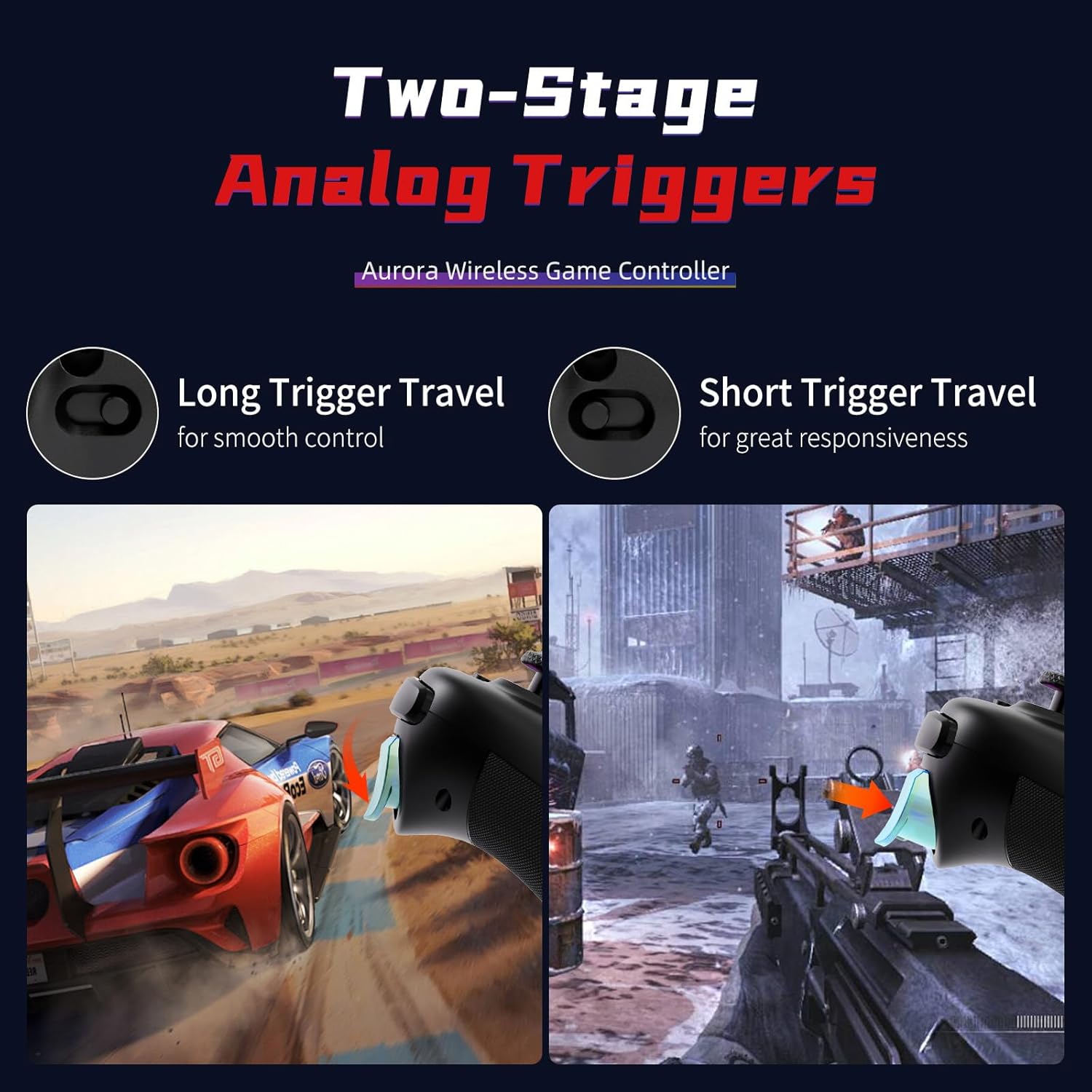
Image: Visual representation of the two-stage analog triggers, showing long and short travel options.
Podešavanje RGB boja
The joysticks feature customizable RGB lighting. You can switch between one-color mode and running light mode to personalize your controller's appearance. Refer to the full manual for specific button combinations to adjust RGB settings.

Image: Demonstrates the RGB color adjustment features, including one-color and running light modes.
Game Operation Mode Adjustment (ABXY Key Swap)
The controller supports ABXY key swap functionality, allowing you to switch between default Xbox mode and Nintendo Switch mode for button layouts. Note that these functions are typically not saved after power off.

Image: Illustrates the ABXY key swap feature, adapting the button layout for different gaming platforms.
FPS Mode (Professional Joystick No Dead Zone)
Activate FPS mode for a professional joystick experience with no dead zone. This mode is designed for precision in first-person shooter games. Note that this setting may not be saved after power off.

Image: Shows the controller in FPS mode, emphasizing the no dead zone feature for precise aiming.
Podesivi nivoi vibracija
The controller features dual vibration motors with 4 adjustable levels, providing immersive haptic feedback for a more engaging gaming experience.
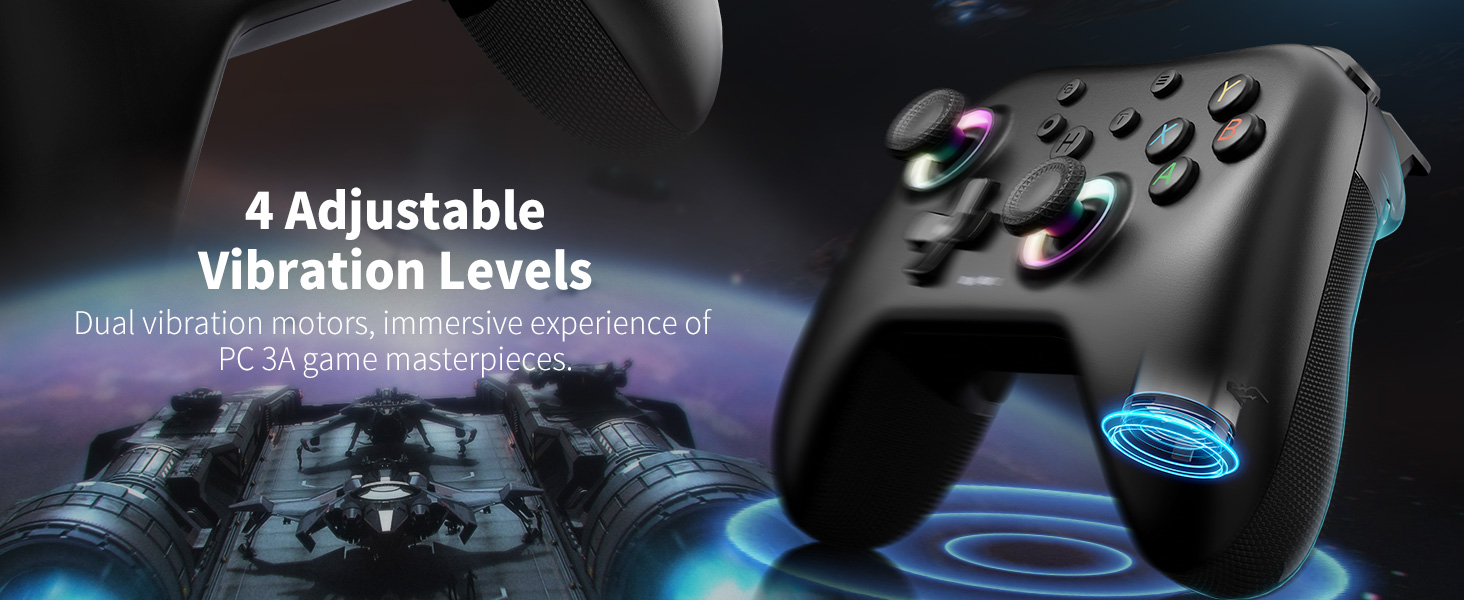
Image: Illustrates the 4 adjustable vibration levels, enhancing the immersive gaming experience.
Punjenje i baterija
The AceGamer Aurora II controller is equipped with a 1000mAh upgraded battery. A full charge takes approximately 2-3 hours and provides an extra-long playtime, typically around 8 hours based on laboratory test data. Connect the controller using the provided Type-C data cable to a USB power source for charging.

Image: The controller's 1000mAh battery being charged via a standard Type-C cable.
Održavanje
To ensure the longevity and optimal performance of your AceGamer Aurora II controller, follow these maintenance guidelines:
- Održavajte kontroler čistim brisanjem mekom, suhom krpom. Izbjegavajte upotrebu jakih hemikalija ili abrazivnih materijala.
- Kontroler čuvajte na hladnom i suhom mjestu, dalje od direktne sunčeve svjetlosti i ekstremnih temperatura.
- Izbjegavajte ispuštanje kontrolera ili njegovo izlaganje jakim udarcima.
- Do not attempt to disassemble the controller, as this may void the warranty and cause damage.
- Redovno punite bateriju, čak i ako je ne koristite često, kako biste održali njeno zdravlje.
Rješavanje problema
If you encounter issues with your AceGamer Aurora II controller, please refer to the following common solutions:
- Kontroler se ne povezuje: Ensure the controller is fully charged. Re-attempt the connection steps for your specific platform (2.4G, Bluetooth, or Switch) as described in the 'Setup and Connection' section.
- Kašnjenje ili prekid ulaza: Ensure the controller is within range of your device. Minimize interference from other wireless devices. For 2.4G connection, ensure the receiver is securely plugged in.
- Dugmad ili džojstici ne reaguju: Check if the controller's battery is low. Try resetting the controller (refer to the full manual for reset instructions if available).
- PC connection issues (recognized as 'GameMacro'): Some users have reported that installing the Xbox accessories app from the Microsoft Store can resolve recognition issues by providing necessary Xbox wireless controller drivers for Bluetooth connections.
- Problemi s punjenjem: Ensure the Type-C cable is properly connected to both the controller and the power source. Try a different charging cable or USB port.
If problems persist, please contact AceGamer customer support for further assistance.
Specifikacije
| Feature | Detalj |
|---|---|
| Broj modela | Aurora II (T47) |
| Povezivanje | 2.4G bežična veza, Bluetooth |
| Kompatibilnost | PC (Windows 7/10+), Nintendo Switch, Nintendo Switch 2, iOS, Android |
| Kapacitet baterije | 1000mAh |
| Trajanje baterije | Approx. 8 hours (usage dependent) |
| Vrijeme punjenja | 2-3 sata |
| Joysticks | Hall Effect with RGB lighting |
| Programabilna dugmad | 2 back keys (M1, M2) |
| Vibracije | Dual motors, 4 adjustable levels |
| Dimenzije proizvoda | 1.21 x 6.5 x 4.07 inča |
| Težina artikla | 11.3 unce |
Garancija i podrška
For warranty information and customer support, please refer to the documentation included with your product or visit the official AceGamer website. Sačuvajte račun o kupovini za reklamacije.


