1. Uvod
Thank you for choosing the Dierya x TMKB M1 Wireless Gaming Mouse. This manual provides detailed instructions on how to set up, operate, and maintain your new gaming mouse. The M1 mouse offers versatile connectivity, high-precision tracking, and customizable features to enhance your gaming and productivity experience.
2. Proizvod je gotovview
2.1 Komponente i kontrole
Familiarize yourself with the various buttons and features of your Dierya M1 mouse:
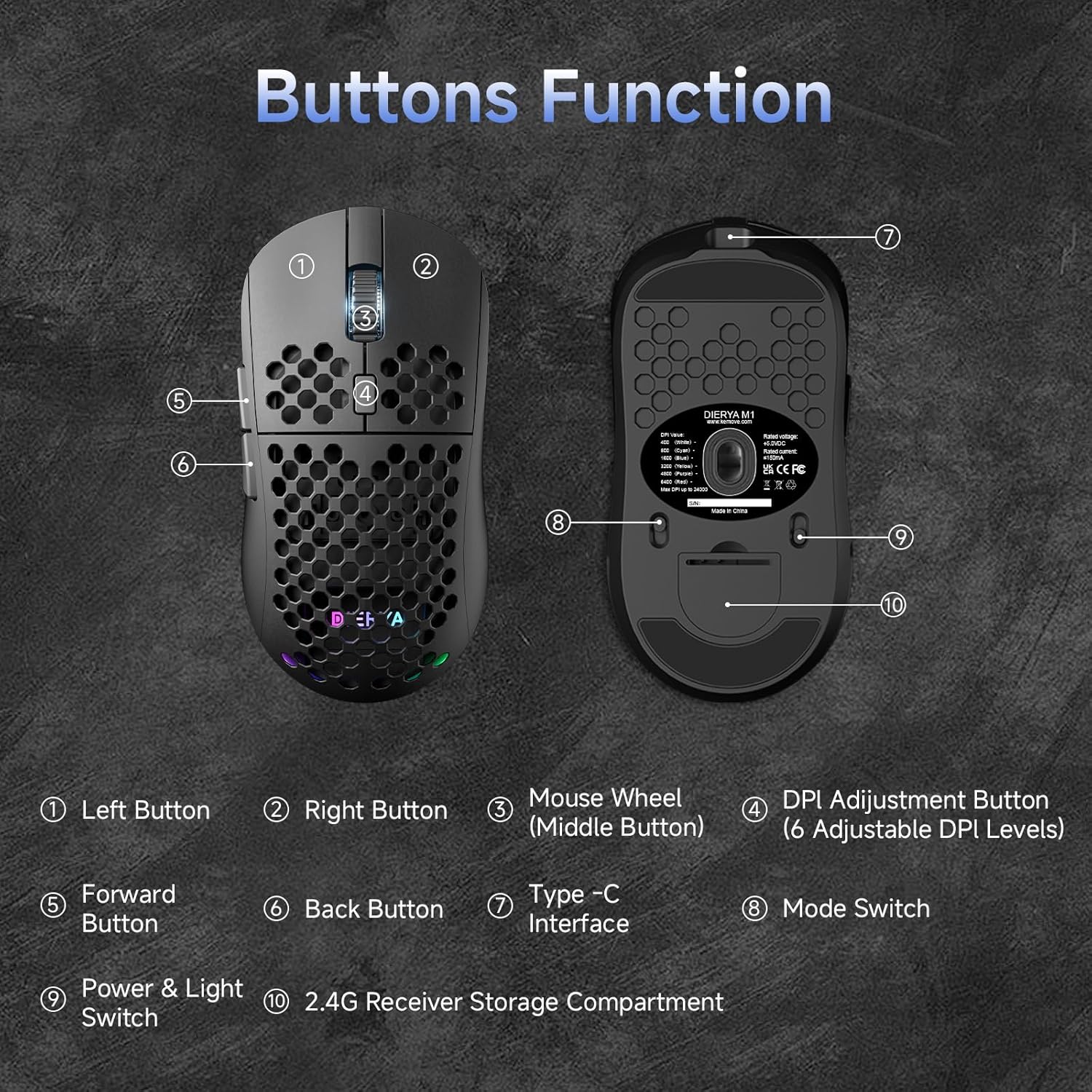
This diagram illustrates the various components of the Dierya M1 wireless gaming mouse. It highlights the Lijevo dugme (1), Desno dugme (2), Mouse Wheel (Middle Button) (3), DPI Adjustment Button (4) with 6 adjustable DPI levels, Forward Button (5), Back Button (6), Type-C Interface (7) for charging and wired connection, Prekidač načina rada (8) for selecting connection type, Power & Light Switch (9), i the 2.4G Receiver Storage Compartment (10) nalazi se na donjoj strani.
2.2 Ključne karakteristike
- Optički senzor od 24,000 DPI: Adjustable DPI range from 200 to 24,000, with 6 preset levels (400-6400 DPI).
- Trostruka povezanost: Supports ultra-fast 2.4GHz wireless, energy-efficient Bluetooth 5.2, and stable USB-C wired connections.
- Dug vijek trajanja baterije: 1000mAh battery provides up to 180 hours in ECO mode or 48 hours with RGB lighting, with 1-hour fast charging.
- Lagan i ergonomski dizajn: Weighs only 90g with a honeycomb shell for breathability and a symmetrical design (125x63x41 mm).
- Programabilna dugmad: 6 customizable buttons via the M1 Driver software (Windows only).
- Dinamičko RGB osvjetljenje: 13 integrated RGB lighting effects with 16.8 million customizable colors.
- Visoke performanse: 125-1000 Hz polling rate, 300 IPS tracking speed, and 35G acceleration.
- Izdržljivi prekidači: Equipped with Huano switches rated for 20 million clicks and 100% PTFE feet for smooth gliding.
3. Podešavanje
3.1 Punjenje miša
Before first use, it is recommended to fully charge the mouse. Connect the provided USB-C cable to the Type-C Interface (7) on the mouse and the other end to a USB power source (e.g., computer USB port, USB wall adapter).
- The mouse charges in approximately 1 hour.
- The scroll wheel LED will indicate charging status (e.g., red for charging, green for fully charged).
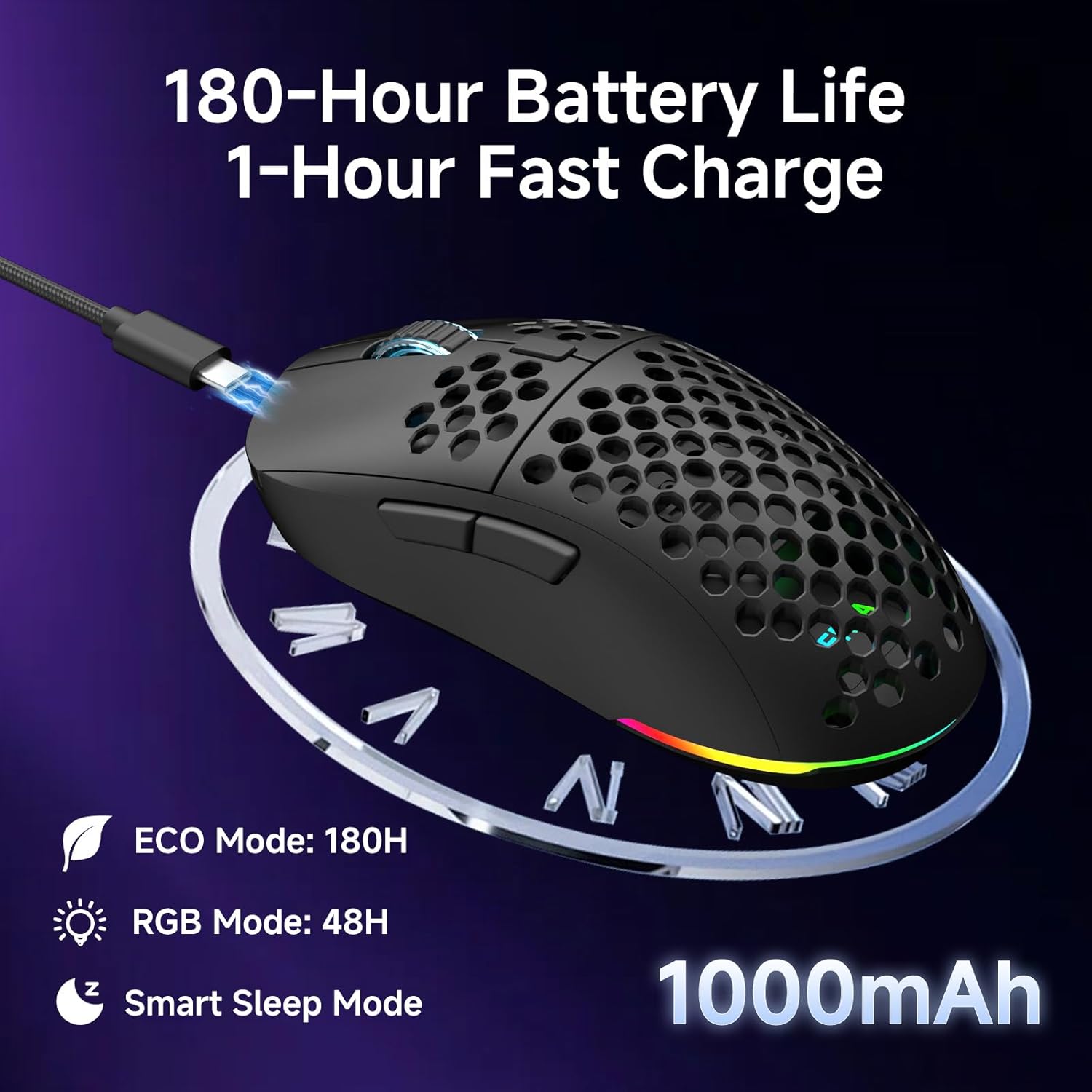
The Dierya M1 mouse features a 1000mAh battery, providing up to 180 hours of use in ECO mode or 48 hours with RGB lighting enabled. It supports fast charging, reaching full capacity in approximately 1 hour via the included USB-C cable. The mouse also includes a smart sleep mode to conserve power during inactivity.
3.2 Povezivanje miša
The Dierya M1 mouse offers three connection modes: 2.4GHz Wireless, Bluetooth 5.2, and USB-C Wired.

The Dierya M1 mouse supports three flexible connection modes: Bluetooth 5.2 for energy-efficient pairing with up to two devices, 2.4GHz Wireless via a USB dongle for ultra-fast response, and a stable USB-C Wired connection for charging and direct use. Each mode offers a different polling rate, with 2.4GHz and wired modes providing 1000Hz, and Bluetooth offering 125Hz.
3.2.1 Bežična veza od 2.4 GHz
- Locate the 2.4G receiver in the storage compartment (10) on the underside of the mouse.
- Priključite 2.4G prijemnik u dostupan USB port na računaru.
- Set the Mode Switch (8) on the underside of the mouse to the '2.4G' position.
- The mouse should connect automatically. The polling rate for this mode is 1000 Hz.
3.2.2 Bluetooth 5.2 veza
- Set the Mode Switch (8) on the underside of the mouse to the 'BT' position.
- Na računaru ili uređaju otvorite postavke Bluetootha i potražite nove uređaje.
- Select 'Dierya M1' from the list of available devices to pair.
- The mouse supports Bluetooth 5.2 and has a polling rate of 125 Hz in this mode.
3.2.3 Žičana USB-C veza
- Connect the USB-C cable to the Type-C Interface (7) on the mouse.
- Drugi kraj USB-C kabla priključite na dostupan USB port na računaru.
- The mouse will automatically switch to wired mode and begin charging. The polling rate for this mode is 1000 Hz.
4. Uputstvo za upotrebu
4.1 DPI podešavanje
The Dierya M1 mouse features a dedicated DPI Adjustment Button (4) to cycle through preset DPI levels. The scroll wheel LED color indicates the current DPI setting.
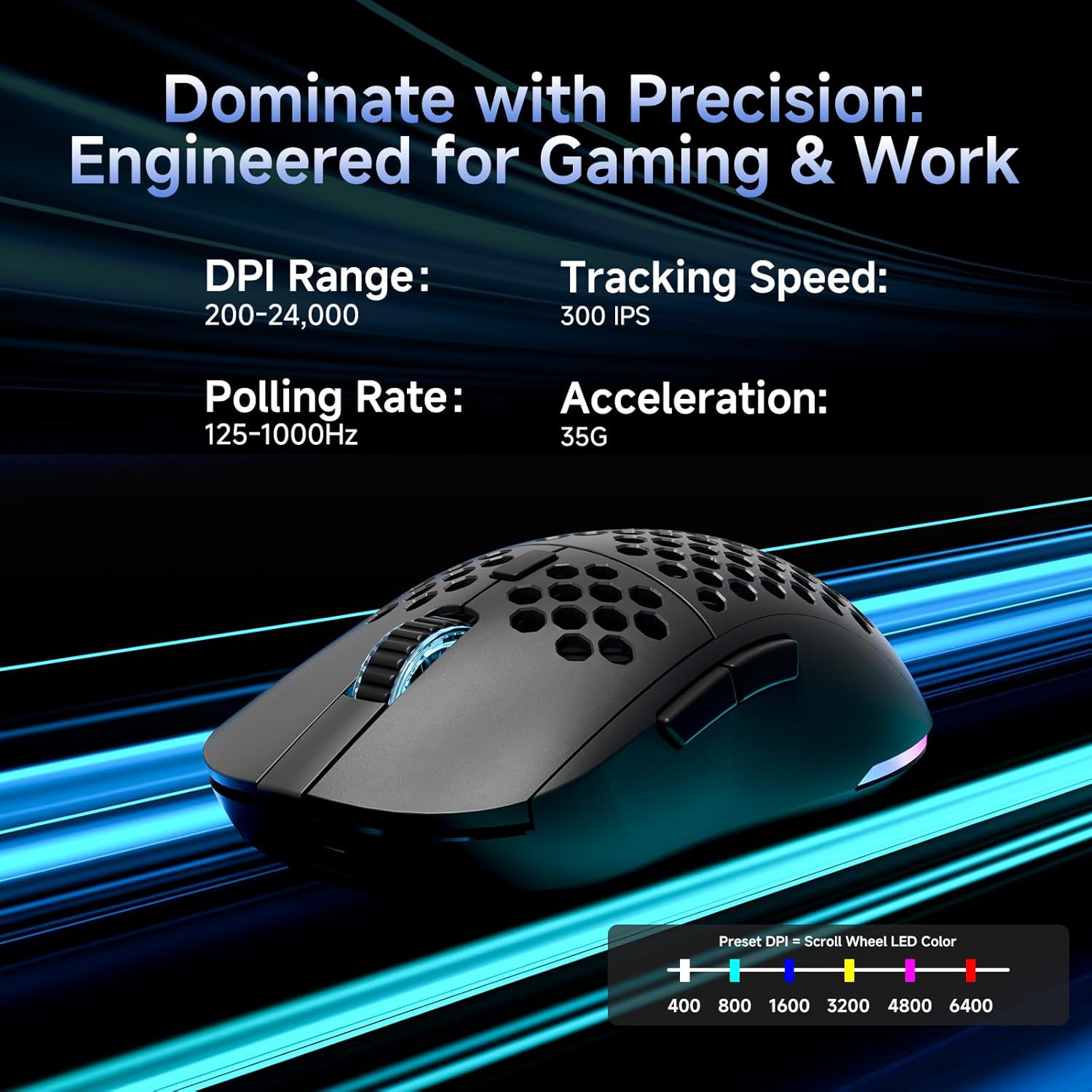
This image details the performance specifications of the Dierya M1 mouse, including a DPI range of 200-24,000, a tracking speed of 300 IPS, a polling rate of 125-1000Hz, and 35G acceleration. It also shows the preset DPI levels (400, 800, 1600, 3200, 4800, 6400) and the color indicators on the scroll wheel for each setting.
- Press the DPI Adjustment Button (4) to cycle through the 6 default DPI settings: 400, 800, 1600, 3200, 4800, and 6400 DPI.
- Each DPI level is indicated by a specific color on the scroll wheel LED.
- For custom DPI settings and a wider range (200-24,000 DPI), use the M1 Driver software.
4.2 Kontrola RGB osvjetljenja
The Dierya M1 mouse features dynamic RGB lighting. You can control the lighting effects and colors using the M1 Driver software.
- The mouse has 13 built-in RGB lighting effects.
- Use the M1 Driver software to customize colors (16.8 million options), brightness, and speed of the lighting effects.
- The Power & Light Switch (9) on the underside can be used to turn the lighting on or off.
4.3 Programabilni tasteri i softver
The M1 mouse has 6 programmable buttons that can be customized using the dedicated M1 Driver software.

The Dierya M1 driver software, currently available for Windows, allows users to customize various aspects of the mouse. This includes reassigning the 6 programmable buttons, creating macros, adjusting DPI settings, modifying the polling rate, and personalizing the 13 dynamic RGB lighting effects with 16.8 million colors.
- Kompatibilnost softvera: The M1 Driver software is currently only available for Windows operating systems.
- Ključni zadatak: Reassign functions to any of the 6 programmable buttons (Left, Right, Middle, DPI, Forward, Back).
- Kreiranje makroa: Create and assign complex macros to streamline in-game actions or productivity tasks.
- DPI & Polling Rate: Fine-tune DPI settings beyond the presets and adjust the polling rate.
- RGB prilagođavanje: Personalize lighting effects, colors, and patterns.
- Profile Menadžment: Save and load different profileza razne igre ili aplikacije.
4.4 Režimi uštede energije
The M1 mouse is designed with automatic power-saving features to extend battery life:
- The mouse will enter an automatic power-saving mode after 1-5 minutes of inactivity.
- This inactivity time can be adjusted via the M1 Driver software.
- Da biste probudili miš, jednostavno ga pomaknite ili kliknite bilo koje dugme.
5. Održavanje
Proper maintenance ensures the longevity and optimal performance of your Dierya M1 mouse.
- čišćenje: Koristite meku, suhu krpu za brisanje površine miša. Za tvrdokornu prljavštinu, laganoamp Može se koristiti krpa, ali pazite da vlaga ne uđe u miš. Izbjegavajte jake hemikalije ili abrazivna sredstva za čišćenje.
- Održavanje senzora: Optički senzor na donjoj strani miša održavajte čistim i bez prašine ili ostataka kako biste osigurali precizno praćenje.
- Održavanje baterije: Avoid fully discharging the battery frequently. For long-term storage, charge the mouse to about 50% and store it in a cool, dry place.
- Skladištenje: Kada se ne koristi, miš čuvajte na čistom i suhom mjestu, dalje od ekstremnih temperatura.
6. Otkrivanje problema
If you encounter issues with your Dierya M1 mouse, refer to the following common troubleshooting steps:
| Problem | Mogući uzrok | Rješenje |
|---|---|---|
| Miš ne reaguje (2.4 GHz) | Slaba baterija, prijemnik isključen iz struje, pogrešan način rada, smetnje. | Charge the mouse. Ensure 2.4G receiver is securely plugged in. Set Mode Switch to '2.4G'. Try a different USB port. Reduce distance to receiver. |
| Miš ne reaguje (Bluetooth) | Low battery, incorrect mode, not paired, Bluetooth off on device. | Charge the mouse. Set Mode Switch to 'BT'. Ensure Bluetooth is enabled on your device. Re-pair the mouse in Bluetooth settings. |
| Miš ne reaguje (žični) | Cable not connected, faulty cable/port. | Ensure USB-C cable is securely connected to both mouse and computer. Try a different USB port or cable. |
| Netačno praćenje | Dirty sensor, unsuitable surface, incorrect DPI. | Clean the optical sensor. Use a mouse pad or a clean, non-reflective surface. Adjust DPI settings. |
| RGB osvetljenje ne radi | Lighting switched off, low battery, software issue. | Check Power & Light Switch (9). Charge the mouse. Check settings in M1 Driver software. |
| Dugmad se ne mogu programirati | M1 Driver not installed/running, not on Windows. | Ensure M1 Driver software is installed and running (Windows only). Check software settings. |
7. Specifikacije
| Naziv modela | M1 |
| Brand | Dierya |
| Tehnologija povezivanja | 2.4 GHz bežično, Bluetooth 5.2, USB-C žičano |
| Tehnologija detekcije pokreta | Optički |
| Raspon DPI-ja | 200 - 24,000 DPI (6 preset levels: 400, 800, 1600, 3200, 4800, 6400) |
| Polling Rate | 125-1000 Hz |
| Brzina praćenja | 300 IPS |
| Ubrzanje | 35G |
| Broj dugmadi | 6 (Programabilno) |
| Kapacitet baterije | 1000 mAh Litijum-jonski |
| Trajanje baterije | Up to 180 hours (ECO mode), 48 hours (RGB mode) |
| Vrijeme punjenja | Pribl. 1 sat |
| Težina | 90 grama |
| Dimenzije | 125 x 63 x 41 mm |
| Tip prekidača | Huano (20 million clicks) |
| Feet Material | 100% PTFE |
| Kompatibilnost operativnog sistema | Windows, macOS, Linux, Chrome OS |
| Driver Software Compatibility | Samo Windows |
8. Garancija i podrška
8.1 Garancija proizvođača
The Dierya M1 Wireless Gaming Mouse comes with a 1-godišnja garancija proizvođačaOva garancija pokriva nedostatke u materijalu i izradi pri normalnoj upotrebi. Molimo sačuvajte dokaz o kupovini za potrebe reklamacije.
8.2 Korisnička podrška
For further assistance, technical support, or warranty inquiries, please refer to the official Dierya website or contact your retailer. Ensure you have your product model (M1) and proof of purchase ready when seeking support.


