1. Uvod
This manual provides instructions for setting up, operating, and maintaining your Logitech MX Master 4 Ergonomic Wireless Mouse. The MX Master 4 is designed for advanced performance, offering features such as haptic feedback, ultra-fast scrolling, and versatile connectivity for enhanced productivity across multiple devices and operating systems.

Image 1.1: The Logitech MX Master 4 mouse in Graphite color, showcasing its ergonomic design and various buttons.
2. Šta se nalazi u kutiji
Provjerite da li su svi artikli prisutni u pakovanju:
- Logitech MX Master 4 Mouse
- USB-C Receiver (dongle)
- Korisnička dokumentacija
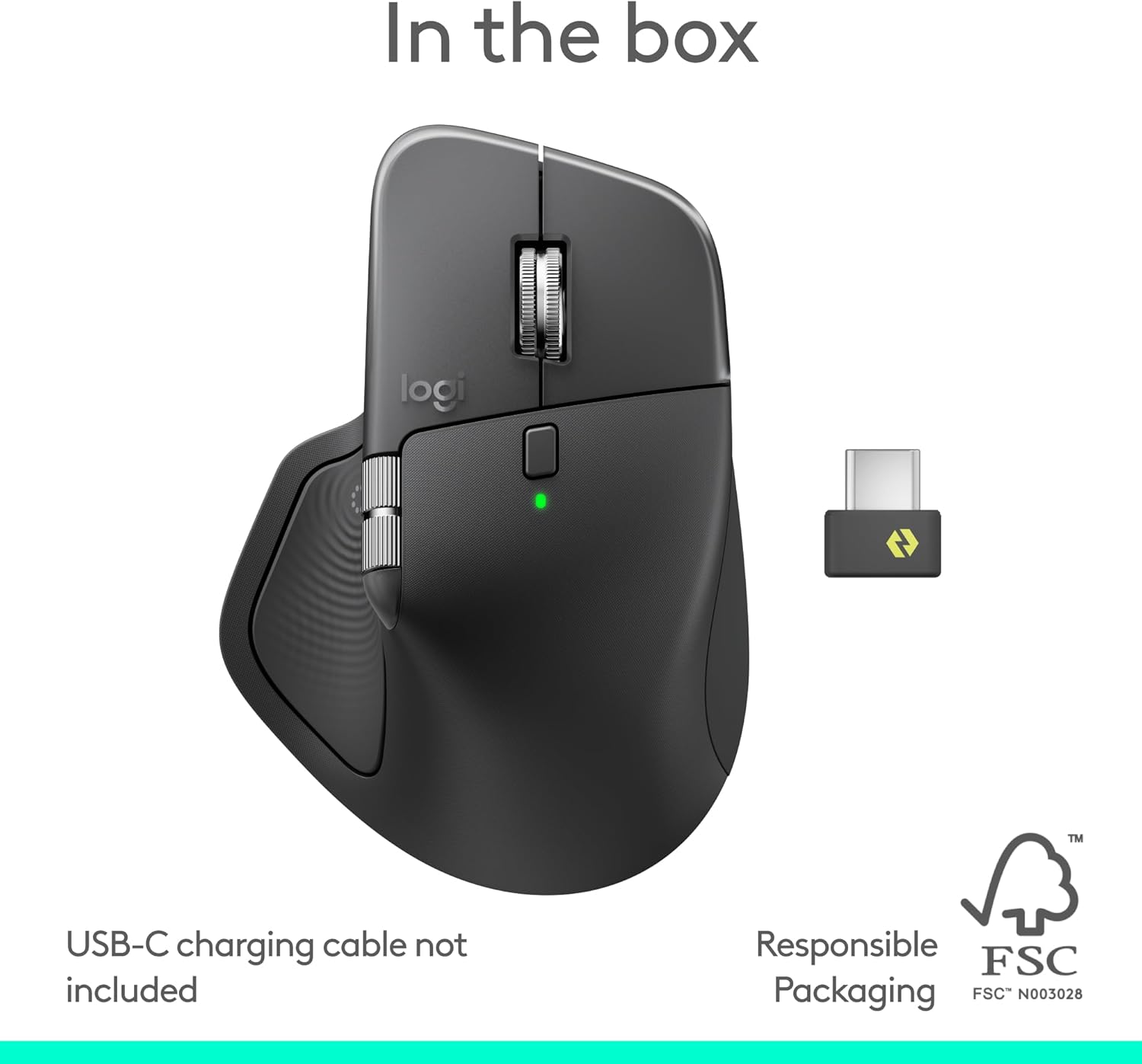
Image 2.1: Contents of the product box, including the MX Master 4 mouse and its USB-C receiver. Note that a USB-C charging cable is not included.
3. Podešavanje
3.1 Početno punjenje
Before first use, it is recommended to fully charge the mouse. Connect a USB-C cable (not included) to the mouse's charging port and to a power source. A one-minute charge can provide approximately three hours of use. A full charge can last up to 70 days, depending on usage.

Slika 3.1: Krupni plan view of the Logitech MX Master 4, highlighting the USB-C charging port located at the front of the mouse.
3.2 Povezivanje miša
The MX Master 4 offers two primary connection methods: the included USB-C receiver or Bluetooth.
3.2.1 Using the USB-C Receiver
- Insert the USB-C receiver into an available USB-C port on your computer.
- Uključite miš pomoću prekidača za napajanje koji se nalazi na dnu.
- The mouse should automatically connect. If not, press the Easy-Switch button on the bottom of the mouse to select an available channel.
3.2.2 Korištenje Bluetooth-a
- Uključite miš pomoću prekidača za napajanje.
- Press and hold one of the Easy-Switch buttons (1, 2, or 3) on the bottom of the mouse until the LED indicator for that channel blinks rapidly, indicating pairing mode.
- On your computer or device, navigate to Bluetooth settings and select "MX Master 4" from the list of available devices to pair.
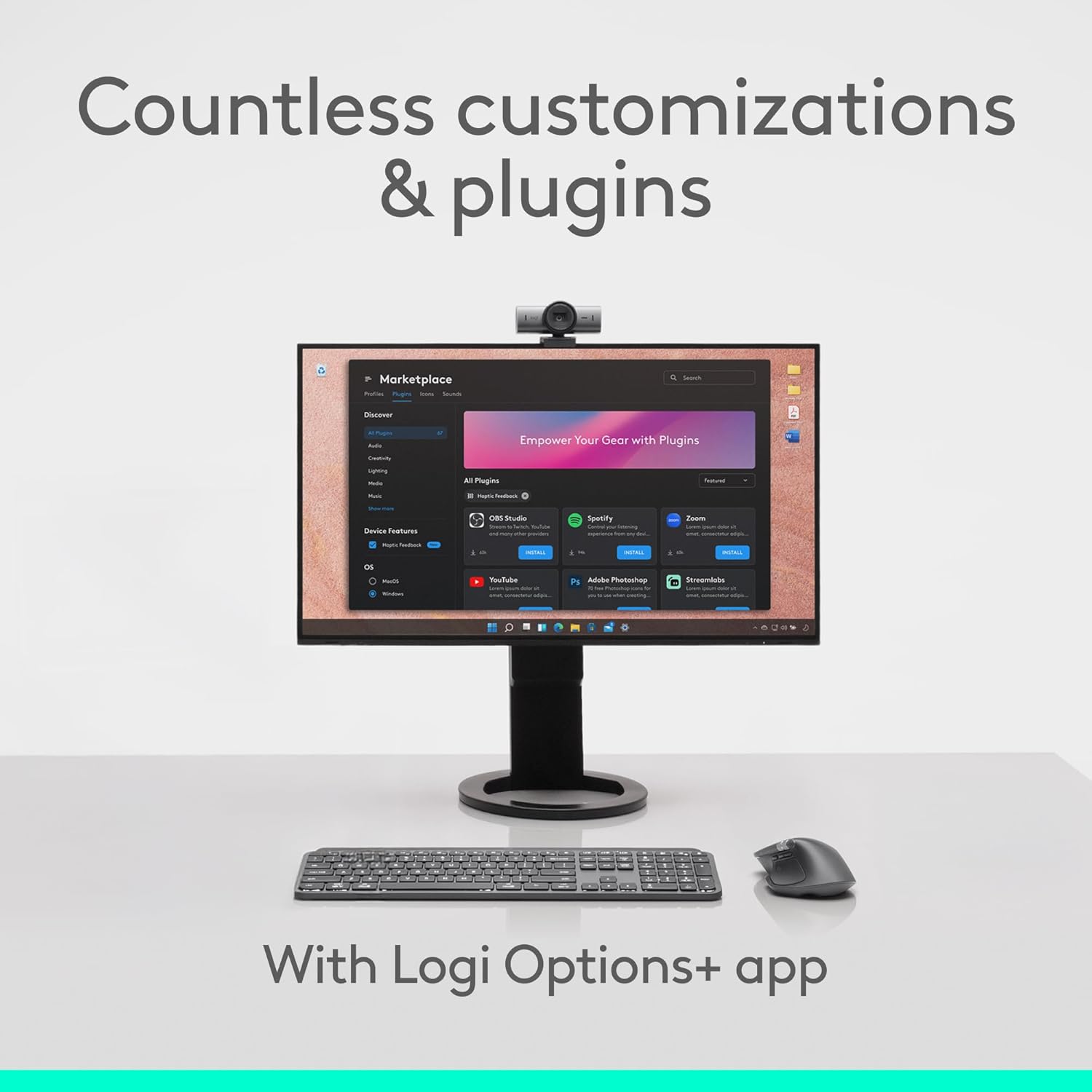
Image 3.2: Diagram illustrating the enhanced connectivity of the MX Master 4 with its USB-C dongle, indicating a strong and reliable wireless connection.
3.3 Installing Logi Options+ Software
For full customization and to utilize advanced features, download and install the Logi Options+ software from the official Logitech website. This application allows you to customize buttons, adjust haptic feedback intensity, and configure application-specific settings.

Image 3.3: Screenshot of the Logi Options+ application interface, showing various customization options and plugins available for the MX Master 4 mouse.
4. Uputstvo za upotrebu
4.1 Haptic Feedback
The MX Master 4 features a Haptic Sense Panel that provides tactile feedback for specific actions, shortcuts, and notifications. This feedback can be customized via the Logi Options+ software to adjust vibration intensity and preferences.

Image 4.1: Close-up of the MX Master 4's thumb rest area, indicating the haptic feedback functionality for immersive control.
4.2 MagSpeed kotačić za pomicanje
The MagSpeed scroll wheel allows for two modes of scrolling:
- Hyper-fast scrolling: Scroll through 1,000 lines per second for rapid navigation through long documents or web stranice.
- Pixel-perfect scrolling: Switch to precise, ratcheted scrolling for detailed work.
The scroll mode can be switched automatically or manually, depending on your settings in Logi Options+.
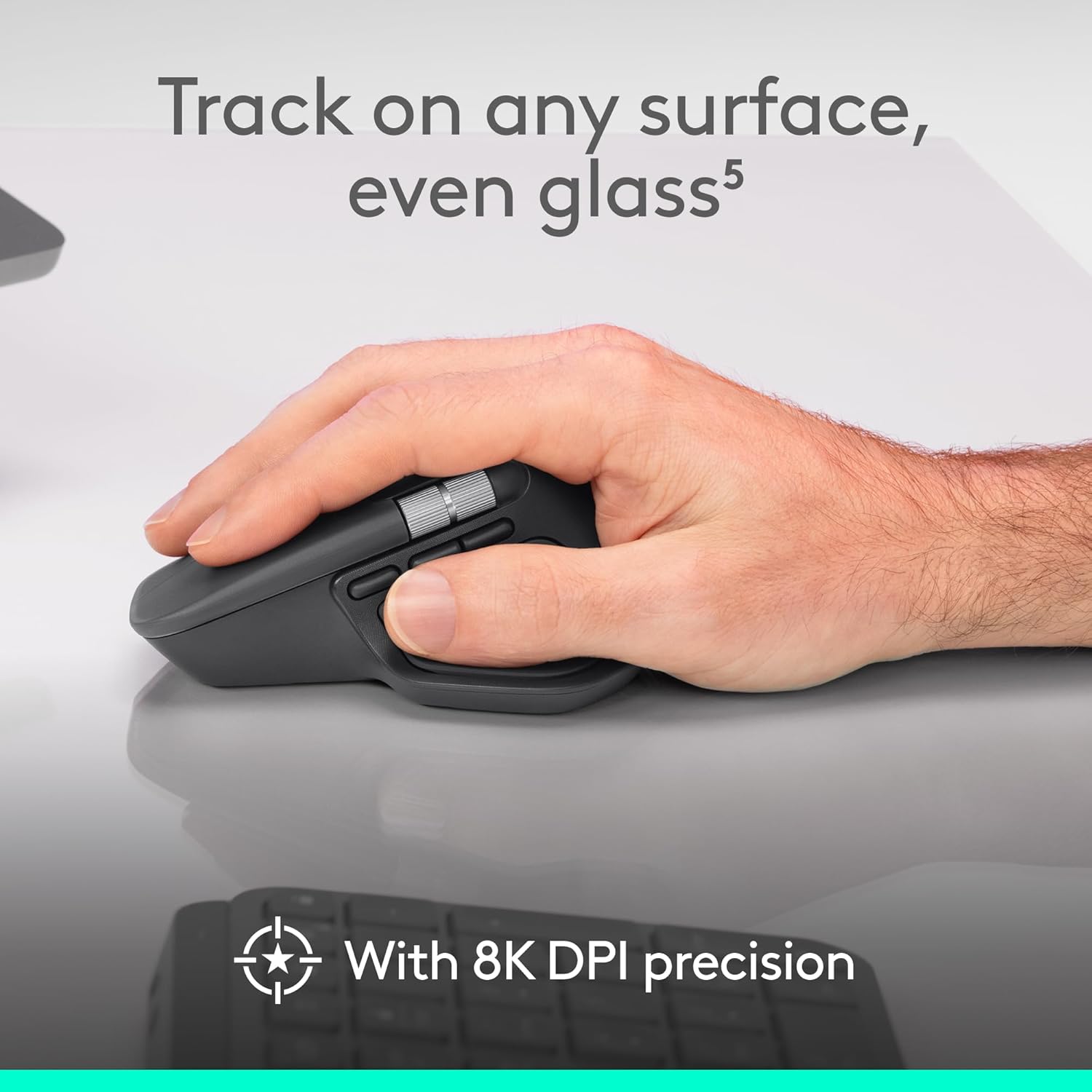
Image 4.2: A hand operating the MagSpeed scroll wheel on the MX Master 4, demonstrating its use for rapid content navigation.
4.3 Actions Ring Shortcuts
The Actions Ring provides customizable shortcuts that adapt to different applications. This feature allows you to access frequently used tools, filters, and adjustments directly at your cursor, potentially reducing repetitive movements and saving time.

Image 4.3: A user working with the MX Master 4, showing an on-screen overlay of the Actions Ring shortcuts for quick access to application tools.
4.4 Multi-Device Control
The MX Master 4 can be paired with up to three devices and allows for seamless switching between them using the Easy-Switch buttons on the bottom of the mouse. With Logi Options+, you can also enable Flow to control multiple computers by simply moving your cursor to the edge of the screen, allowing for file transfer between systems.
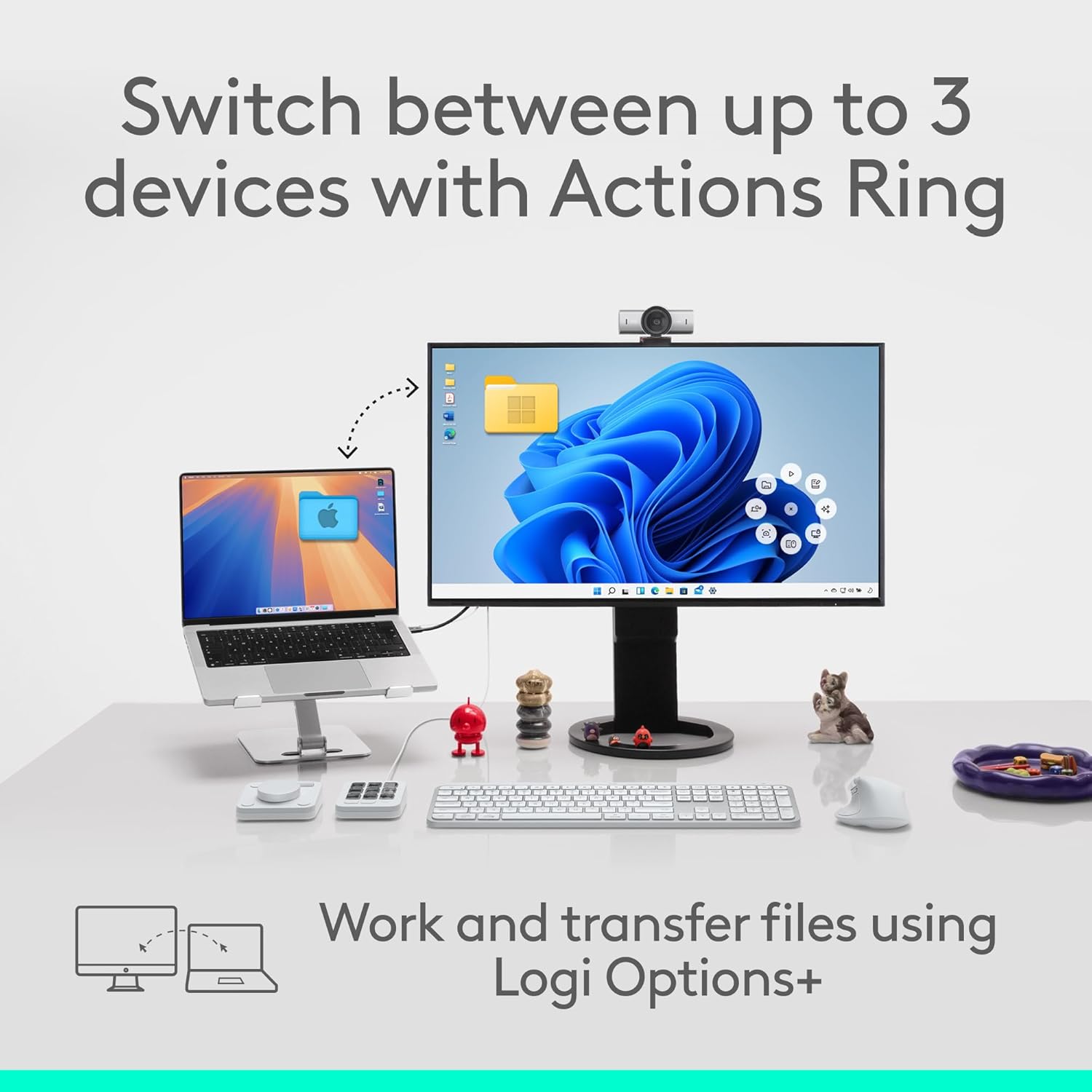
Image 4.4: Illustration depicting the MX Master 4's ability to switch between a laptop and a desktop computer, facilitating multi-device workflows.
4.5 Ergonomic Design and Quiet Clicks
The mouse is designed for comfort, promoting a natural hand posture to reduce strain during extended use. It also features Quiet Clicks, which reduce click noise by up to 90% compared to standard mice, providing a quieter working environment.
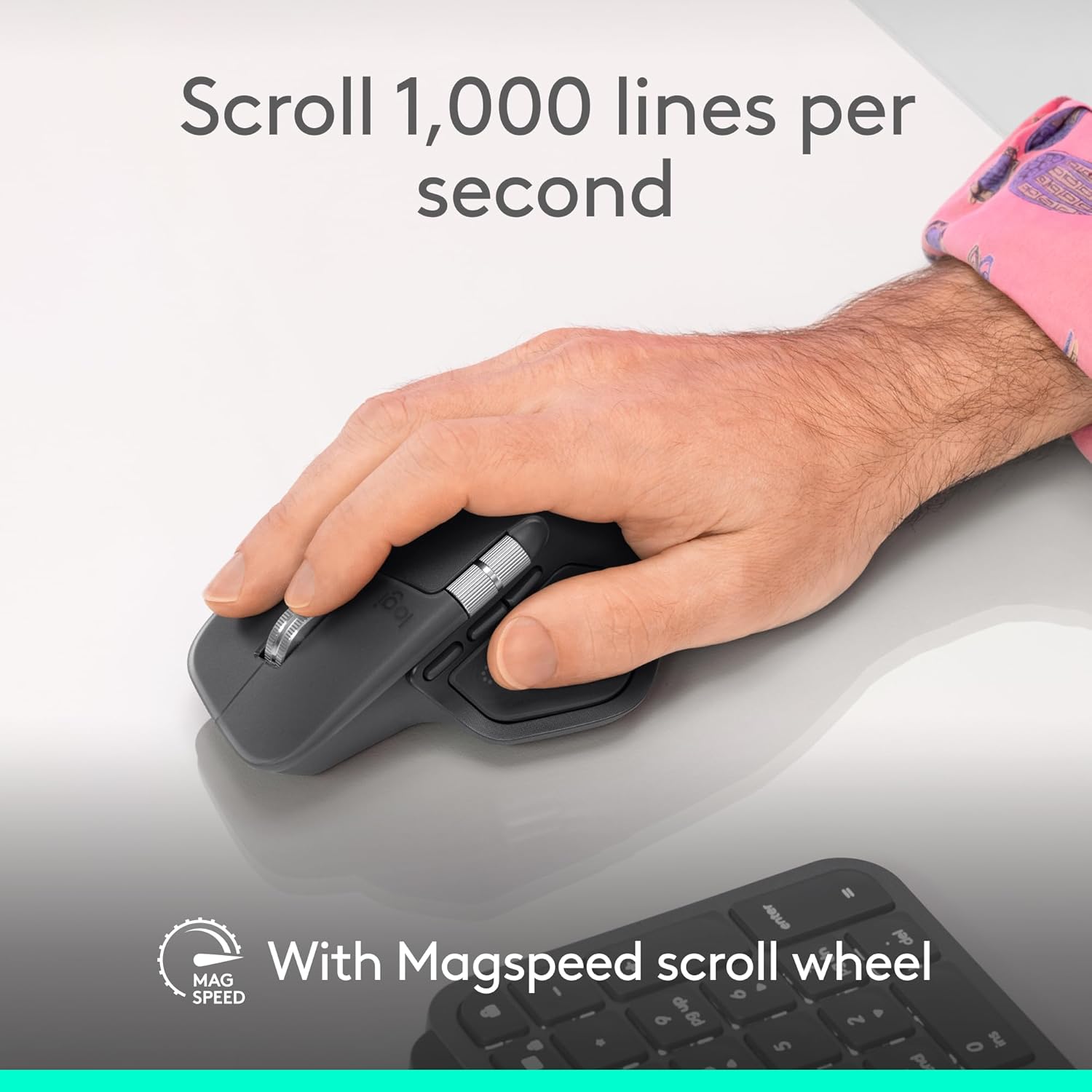
Image 4.5: A hand comfortably resting on the MX Master 4, highlighting its ergonomic shape designed for natural posture.

Image 4.6: A visual representation emphasizing the quiet click functionality of the MX Master 4, indicating reduced noise levels.
5. Održavanje
To ensure optimal performance and longevity of your MX Master 4 mouse:
- čišćenje: Koristite meku, damp cloth to clean the surface of the mouse. Avoid harsh chemicals or abrasive materials. The mouse features improved stain resistance for easier cleaning.
- Održavanje senzora: Keep the optical sensor on the bottom of the mouse clean and free from dust or debris to maintain tracking precision.
- Skladištenje: Kada se miš ne koristi duži period, čuvajte ga na suhom i hladnom mjestu.
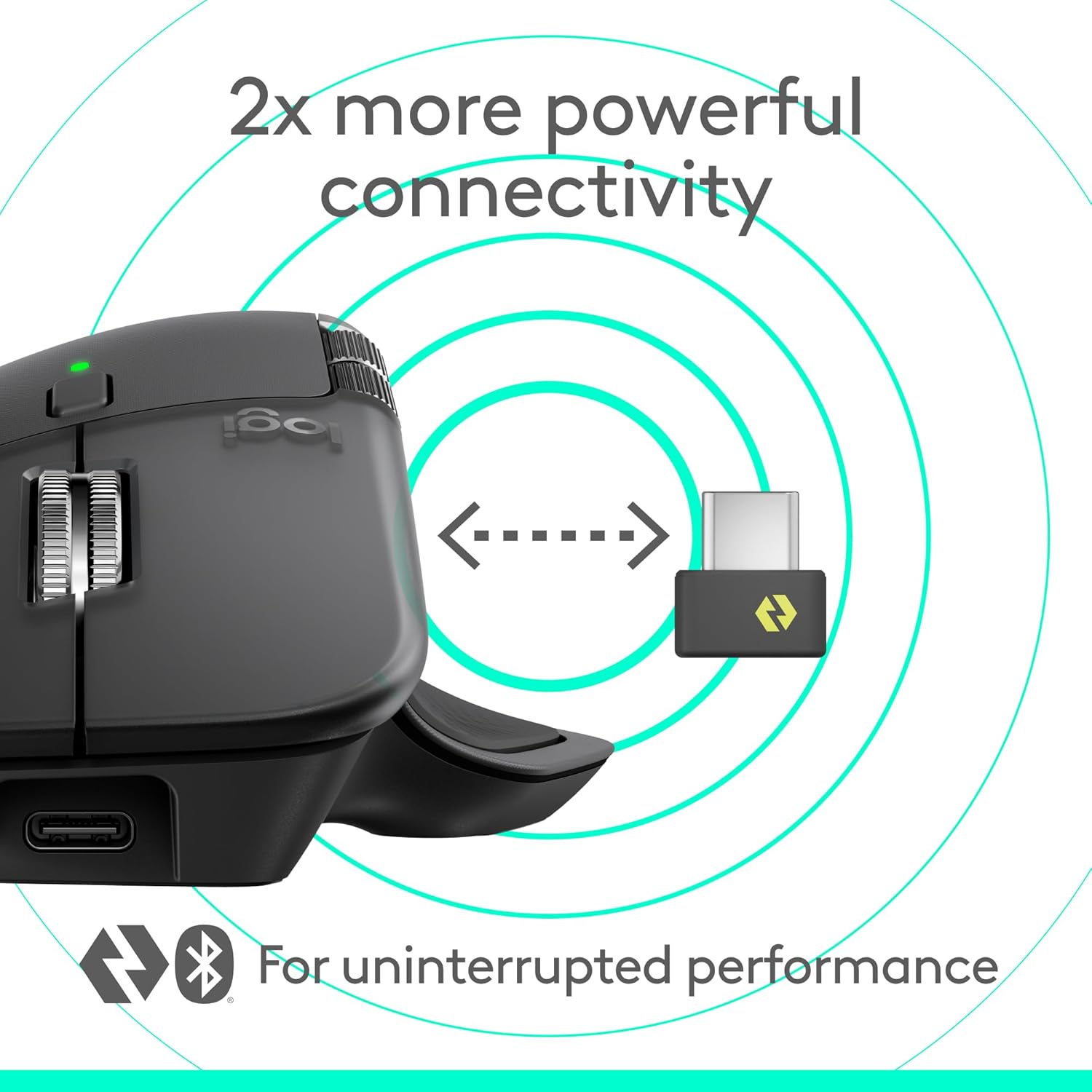
Image 5.1: The MX Master 4 mouse, highlighting its improved stain resistance for easier maintenance compared to previous models.
6. Otkrivanje problema
If you encounter issues with your Logitech MX Master 4 mouse, refer to the following common solutions:
- Nema napajanja: Ensure the mouse is charged. Connect it to a power source using a USB-C cable.
- Problemi sa vezom:
- For USB-C receiver: Try plugging the receiver into a different USB-C port. Ensure the mouse is turned on and selected the correct channel.
- For Bluetooth: Ensure Bluetooth is enabled on your device. Re-initiate pairing mode on the mouse and re-pair from your device's Bluetooth settings.
- Provjerite je li miš u dometu vašeg uređaja (obično do 10 metara).
- Problemi s praćenjem: Clean the optical sensor on the bottom of the mouse. Ensure you are using the mouse on a suitable surface; the 8K DPI sensor tracks on most surfaces, including glass.
- Prilagođavanje ne funkcioniše: Verify that Logi Options+ software is installed and running correctly. Ensure the mouse firmware is up to date.
- Lag or Intermittent Disconnections: Move the mouse closer to the receiver or Bluetooth device. Avoid using the mouse near strong wireless interference sources (e.g., Wi-Fi routers, other wireless devices).
For further assistance, consult the comprehensive user documentation included with your product or visit the official Logitech support website.
7. Specifikacije
| Feature | Detalj |
|---|---|
| Brand | Logitech |
| Broj modela | 910-007558 |
| Tehnologija povezivanja | Bluetooth, Radio Frequency (USB-C Receiver) |
| Tehnologija detekcije pokreta | Optical (8K DPI sensor) |
| Kompatibilnost operativnog sistema | Windows, macOS, Linux, Chrome OS, iPadOS, Android |
| Izvor napajanja | Napajanje na baterije (punjivo) |
| Trajanje baterije | Do 70 dana (zavisi od upotrebe) |
| Posebne karakteristike | Haptic Feedback, MagSpeed Scroll Wheel, Programmable Buttons, Quiet Clicks, Multi-Device Support |
| Boja | Grafit |
| Težina artikla | 10.2 unce |
| Dimenzije paketa | 6.65 x 5.51 x 2.36 inča |
Image 7.1: A detailed diagram of the Logitech MX Master 4, labeling key features such as the MagSpeed scroll wheel, Quiet Clicks, Haptic Sense Panel, Easy Switch button, and Actions Ring button, along with battery life and recycled plastic content.
8. Garancija i podrška
For warranty information, please refer to the user documentation included with your Logitech MX Master 4 mouse. For additional support, product registration, or to access the latest drivers and software, visit the official Logitech support website.
Please note that while this manual provides comprehensive instructions, official product videos may offer additional visual guidance. Refer to Logitech's official channels for any available video tutorials.


