Uvod
This manual provides essential information for the installation, operation, maintenance, and troubleshooting of your Sapphire Nitro+ AMD Radeon RX 9070 XT Gaming OC Graphics Card. Please read this manual thoroughly before installing and using your new graphics card to ensure optimal performance and longevity.

Image: The Sapphire Nitro+ AMD Radeon RX 9070 XT Graphics Card shown alongside its retail packaging.
Sadržaj paketa
Provjerite da li se u paketu vašeg proizvoda nalaze svi artikli:
- Sapphire Nitro+ AMD Radeon RX 9070 XT Graphics Card
- Korisnički priručnik (ovaj dokument)
- Nosač za podršku grafičke kartice
- Power Cable Adapter (if applicable)
- ARGB kabl za sinhronizaciju
Video: An unboxing video demonstrating the contents of the Sapphire Nitro+ AMD Radeon RX 9070 XT Graphics Card package, including the card and accessories.
Postavljanje i instalacija
Slijedite ove korake da biste pravilno instalirali grafičku karticu:
- Priprema: Isključite računar i odspojite sve kablove. Otvorite kućište računara.
- Uklonite staru grafičku karticu (ako je primjenjivo): If you are replacing an existing graphics card, carefully remove it by unscrewing its retention bracket and releasing zasun PCIe utora.
- Umetnite novu grafičku karticu: Align the Sapphire Nitro+ RX 9070 XT with an available PCI Express x16 slot on your motherboard. Press down firmly until the card is securely seated and the PCIe slot latch engages. This card typically occupies three expansion slots.
- Osigurajte karticu: Use screws to secure the graphics card's retention bracket to your computer case.
- Spojite kablove za napajanje: Connect the necessary PCIe power cables from your power supply to the graphics card. Ensure all connections are firm. This model features a hidden power cable design for a cleaner aesthetic.
- Ugradnja potpornog nosača: Due to the size and weight of the card, it is recommended to install the included anti-sag support bracket to prevent GPU sag over time.
- Zatvori slučaj i ponovo se poveži: Close your computer case, reconnect all cables, and power on your system.
- Instalacija drajvera: Once your operating system loads, install the latest AMD Radeon drivers from the official AMD or Sapphire website.

Image: The rear I/O panel of the graphics card, featuring multiple DisplayPort and HDMI outputs for connecting to monitors.

Slika: Dijagram prikazujeasing the STEALTH Hidden Power Cable design, which routes power connectors for a cleaner build appearance.
Upravljanje grafičkom karticom
After successful installation and driver setup, your Sapphire Nitro+ RX 9070 XT is ready for use. Connect your display(s) to the available ports (2 x HDMI, 2 x DisplayPort). For optimal performance, ensure your display cables are securely connected and your monitor is set to the correct input source.
Regularly check for driver updates through the AMD Radeon Software application to benefit from performance improvements and bug fixes. You can also utilize Sapphire's Trixx software for advanced monitoring, fan control, and RGB lighting customization.

Image: The graphics card displaying its integrated ARGB lighting, which can be customized for various visual effects.
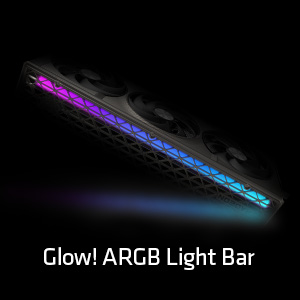
Slika: Detaljna view of the Glow! ARGB Light Bar, highlighting its customizable illumination capabilities.
Održavanje
To maintain optimal performance and extend the lifespan of your graphics card, periodic cleaning is recommended.
- Uklanjanje prašine: Use compressed air to gently clear dust from the fans and heatsink fins. Ensure the fans do not spin rapidly during cleaning to prevent damage.
- Inspekcija ventilatora: Periodically check the fans for any obstructions or unusual noises. The Quick Connect Fan feature allows for easy removal and cleaning of individual fans.
- Generalno čišćenje: Wipe the exterior of the card with a soft, dry, anti-static cloth. Avoid using liquid cleaners directly on the card.

Image: A diagram demonstrating the Quick Connect Fan system, which allows for easy removal and replacement of the cooling fans.
Rješavanje problema
Ako imate problema s grafičkom karticom, razmotrite sljedeća uobičajena rješenja:
- Nema izlaza za prikaz:
- Provjerite je li kabel monitora sigurno spojen i na grafičku karticu i na monitor.
- Verify that the graphics card is fully seated in the PCIe slot and the power cables are properly connected.
- Provjerite je li vaš monitor postavljen na ispravan ulazni izvor.
- Nestabilnost ili padovi sistema:
- Ažurirajte upravljačke programe za grafičku karticu na najnoviju verziju.
- Provjerite da li vaša jedinica za napajanje (PSU) ispunjava minimalnu vatnu snagutagzahtjevi za grafičku karticu i vaš sistem.
- Monitor GPU temperatures using software like AMD Radeon Software or Sapphire Trixx. Overheating can cause instability.
- Loše performanse:
- Confirm that your display is connected to the graphics card, not the motherboard's integrated graphics.
- Check in-game settings to ensure they are appropriate for your system's capabilities.
- Ensure background applications are not consuming excessive system resources.
- Buka ventilatora:
- Clean the fans and heatsink to remove dust buildup.
- Adjust fan curves using AMD Radeon Software or Sapphire Trixx to find a balance between cooling and noise.
If issues persist, consult the Sapphire support webstranice ili kontaktirajte njihovu korisničku službu.
Specifikacije
| Feature | Detalj |
|---|---|
| Broj modela | 11348-01-20G |
| Grafički koprocesor | AMD Radeon RX 9070 XT |
| Veličina memorije | 16 GB GDDR6 |
| Memorijski interfejs | 256-bitni |
| Brzina memorije | 20 GHz |
| Brzina GPU takta | 3060 MHz |
| Maksimalna rezolucija ekrana | 3840x2160 |
| Izlazni portovi | 2 x HDMI, 2 x DisplayPort |
| Težina artikla | 5.72 funte |
| Dimenzije proizvoda (DxŠxV) | 13.02 x 5.06 x 0.04 inča |
Garancija i podrška
Your Sapphire Nitro+ AMD Radeon RX 9070 XT Graphics Card is covered by a manufacturer's warranty. Please refer to the warranty card included in your product packaging or visit the official Sapphire webstranicu za detaljne uslove i odredbe garancije.
Za tehničku pomoć, preuzimanje upravljačkih programa, često postavljana pitanja i dodatnu podršku, posjetite Sapphire Technology website. You may also find helpful resources and community support through the official AMD Radeon channels.


