1. Uvod
This manual provides essential information for the safe and efficient operation of your NexiGo PJ40 Ultra Outdoor Netflix Projector. Please read this manual thoroughly before using the projector and retain it for future reference.
2. Sigurnosne informacije
Pridržavajte se sljedećih sigurnosnih mjera opreza kako biste spriječili oštećenje projektora i osigurali sigurnost korisnika:
- Ne blokirajte ventilacijske otvore. Osigurajte dovoljan protok zraka oko projektora.
- Ne izlažite projektor kiši, vlazi ili ekstremnim temperaturama.
- Koristite samo adapter za napajanje koji dolazi s projektorom.
- Izbjegavajte gledanje direktno u sočivo projektora kada je lamp je uključen.
- Držite projektor dalje od izvora toplote i direktne sunčeve svjetlosti.
- Isključite kabl za napajanje tokom oluje sa grmljavinom ili kada se uređaj ne koristi duži period.
3. Sadržaj paketa
Provjerite da li su sve stavke prisutne u paketu:
- NexiGo PJ40 Ultra Projector
- Daljinski upravljač (sa 2x AAA baterije)
- Adapter za napajanje
- HDMI kabl
- AV kabel
- Krpa za čišćenje leće
- Spare Air Filter
- Uputstvo za upotrebu
4. Proizvod je gotovview
The NexiGo PJ40 Ultra is a high-performance projector designed for versatile entertainment. It features native 1080p resolution, 800 ANSI lumens brightness, and AI image enhancement for clear, vibrant visuals. Integrated 20W speakers provide immersive audio. The projector includes officially licensed streaming apps like Netflix, YouTube, and Prime Video, along with comprehensive connectivity options.

Figure 4.1: NexiGo PJ40 Ultra Projector with projected Netflix screen.
Ključne karakteristike:
- Nativna 1080p rezolucija: Delivers crisp images with incredible detail.
- Osvjetljenje od 800 ANSI lumena: Provides clear visuals in various lighting conditions.
- AI Picture Quality Enhancement: Optimizes clarity, detail, and color reproduction with HDR and HLG support.
- Officially Licensed Streaming: Pre-installed Netflix, YouTube, and Prime Video for immediate access to content.
- AI-Enhanced Surround Sound: 20W speakers with DSP decoding for immersive audio.
- Auto Keystone Correction: Automatski podešava vertikalno izobličenje slike.
- Bežično preslikavanje ekrana: Supports iOS, Android, and Windows devices via 5 GHz Wi-Fi.
- Više opcija povezivanja: Includes 2 USB ports, 2 HDMI inputs, AV port, and 3.5mm audio jack.
5. Podešavanje
5.1 Početno uključivanje
- Spojite adapter za napajanje na ulaz za napajanje projektora, a zatim na električnu utičnicu.
- Pritisnite dugme za napajanje na projektoru ili daljinskom upravljaču da ga uključite.
- Follow the on-screen instructions for initial language and network setup.
5.2 Placement and Screen Size
Position the projector on a stable, flat surface. The projection distance affects the screen size. Refer to the table below for recommended distances.

Figure 5.1: Recommended Projection Distances.
| Screen Diagonal (in.) | Udaljenost projekcije (ft) |
|---|---|
| 72 | 7.68 |
| 100 | 10.5 |
| 120 | 12.4 |
| 150 | 15.52 |
| 300 | 30.18 |
Note: Sizing measured by NexiGo Laboratory. Test measurements do not include the screen border size.
5.3 Fokus i korekcija trapezoidnog izobličenja
- Podešavanje fokusa: Rotate the focus wheel on the projector until the image is clear.
- Automatsko vertikalno iskrivljenje: The projector features automatic vertical keystone correction. Ensure this setting is enabled in the menu for automatic adjustment.
- Manual 4D Correction: For horizontal or more precise adjustments, navigate to the manual keystone settings in the menu.
- Funkcija zumiranja: Use the zoom function in the settings to shrink the screen size from 100% down to 60% without moving the projector.
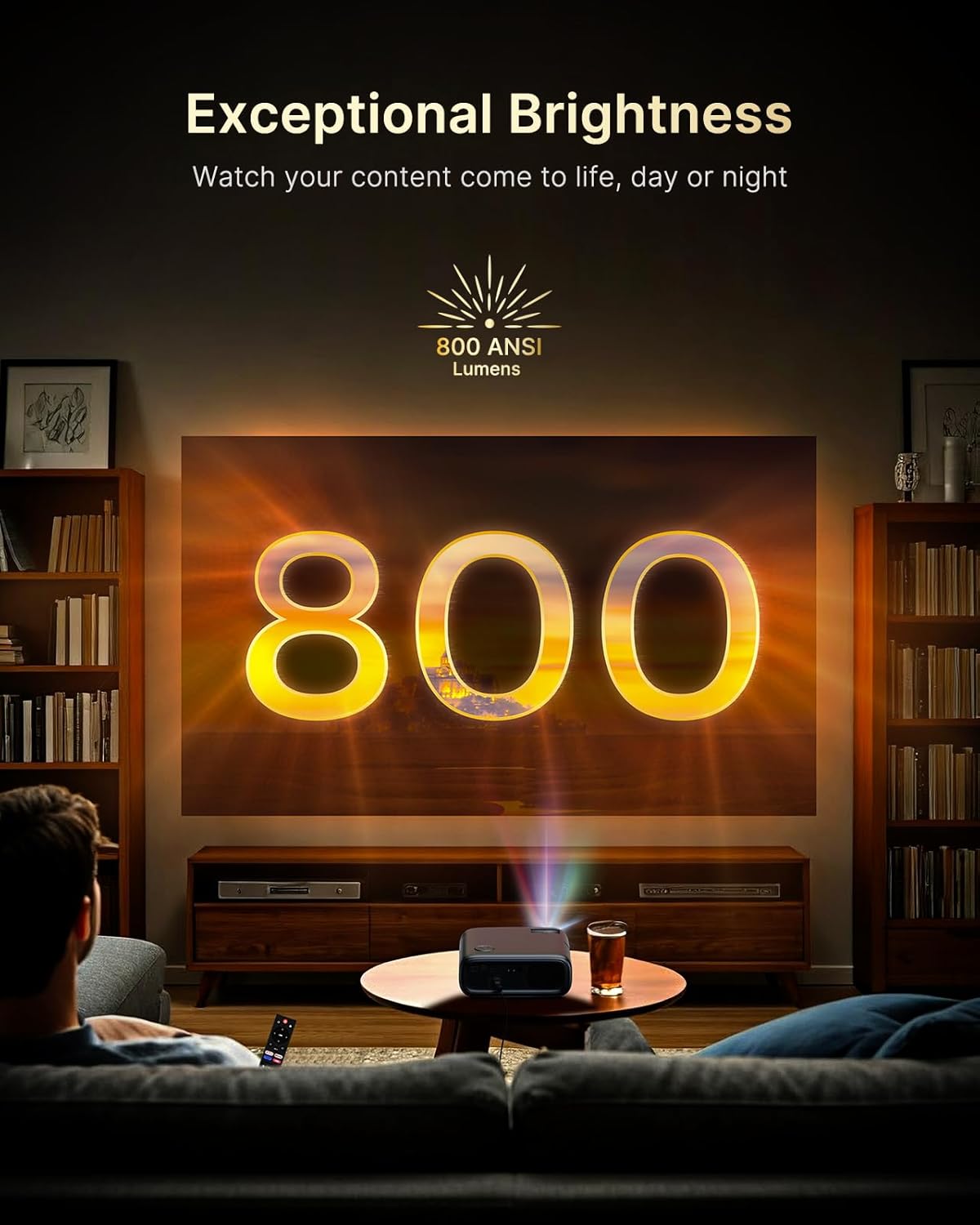
Figure 5.2: Keystone Correction and Zoom Options.
5.4 Mrežna veza
To access streaming services and screen mirroring, connect the projector to a Wi-Fi network:
- Idite na meni 'Postavke'.
- Odaberite 'Mreža' ili 'Wi-Fi'.
- Odaberite željenu Wi-Fi mrežu s popisa i unesite lozinku.

Figure 5.3: Dual-Band Wi-Fi Connectivity.
5.5 Povezivanje vanjskih uređaja
The PJ40 Ultra offers various ports for connecting external devices:
- HDMI Ports (HDMI 1, HDMI 2): Connect gaming consoles (PS5, Nintendo Switch), TV sticks, laptops, or other HDMI-enabled devices. HDMI 1 supports ARC & CEC, HDMI 2 supports CEC.
- USB portovi: Connect USB flash drives or hard drives for media playback.
- AV ulazni port: Povežite starije uređaje pomoću priloženog AV kabla.
- 3.5 mm audio priključak: Spojite eksterne slušalice ili zvučnike.

Slika 5.4: Portovi za povezivanje.
6. Uputstvo za upotrebu
6.1 Navigacija daljinskim upravljačem
Use the included remote control to navigate the projector's interface. The remote allows you to power on/off, adjust volume, select input sources, and access settings and applications.
6.2 Aplikacije za streaming
The projector comes with pre-installed and officially licensed applications:
- Netflix: Access your Netflix library directly.
- YouTube: Browse and watch videos from YouTube.
- Prime Video: Stream content from Amazon Prime Video.
To use these apps, ensure the projector is connected to the internet and log in with your respective account credentials.

Figure 6.1: Officially Licensed Streaming Applications.
6.3 Preslikavanje ekrana
The PJ40 Ultra supports wireless screen mirroring for various devices:
- iOS Devices (AirPlay): Connect your iPhone or iPad to the same Wi-Fi network as the projector and use AirPlay to mirror your screen.
- Android Devices (Screen Mirror): Use the Screen Mirroring feature on your Android device to connect wirelessly.
- Windows Devices (Windows Cast): Utilize Windows Cast functionality for screen sharing from compatible Windows computers.
Note: Due to copyright restrictions, some streaming apps (e.g., Netflix, Amazon Prime, Hulu) may not support direct screen mirroring.
6.4 Audio postavke
The projector features built-in 20W speakers with DSP decoding for enhanced audio. You can also connect external audio devices:
- Bluetooth veza: Pair Bluetooth speakers or headphones for a wireless audio experience.
- 3.5 mm audio priključak: Povežite žičane slušalice ili eksterne zvučnike.

Figure 6.2: AI-Enhanced Surround Sound.
7. Održavanje
7.1 Čišćenje objektiva
Use the provided lens cleaning cloth to gently wipe the projector lens. Avoid using abrasive cleaners or materials that could scratch the lens surface.
7.2 Održavanje vazdušnog filtera
The projector includes an air filter to prevent dust accumulation. Periodically check and clean the air filter to maintain optimal performance and cooling. A spare air filter is included for replacement when necessary.
7.3 Opšta njega
- Projektor držite u čistom i suhom okruženju.
- When not in use, cover the lens with the protective cap.
- Avoid dropping or subjecting the projector to strong impacts.
8. Otkrivanje problema
Uobičajeni problemi i rješenja:
- Nema napajanja: Provjerite je li adapter za napajanje sigurno priključen i na projektor i na ispravnu utičnicu. Pokušajte s drugom utičnicom.
- Nema slike:
- Provjerite je li projektor uključen.
- Verify the input source is correctly selected (e.g., HDMI 1, HDMI 2).
- Ensure the connected device is powered on and outputting a signal.
- Zamućena slika: Adjust the focus wheel on the projector until the image is sharp. Check keystone correction settings.
- Nema zvuka:
- Povećajte jačinu zvuka na projektoru i povezanom izvornom uređaju.
- Check if external speakers or headphones are properly connected or paired via Bluetooth.
- Ensure the audio output setting on the source device is correct.
- Problemi s Wi-Fi vezom:
- Uvjerite se da je lozinka za Wi-Fi ispravno unesena.
- Ponovo pokrenite projektor i Wi-Fi ruter.
- Move the projector closer to the Wi-Fi router to improve signal strength.
- Projector Randomly Powers On: Some users have reported the projector powering on from standby mode unexpectedly. If this occurs, ensure the projector is fully powered off at the main power switch or unplugged when not in use to prevent unintended operation. Check for any available firmware updates that might address this behavior.
9. Specifikacije
| Feature | Specifikacija |
|---|---|
| Brand | NexiGo |
| Broj modela | PJ40 Ultra |
| Dimenzije proizvoda | 11.3 x 10.78 x 4.8 inča |
| Težina artikla | 7.99 funte |
| Rezolucija ekrana | 1920 x 1080 (Native 1080p) |
| Osvetljenost | 800 ANSI lumeni |
| Tehnologija povezivanja | HDMI, USB, Wi-Fi |
| Posebne karakteristike | Official Netflix-Licensed, Built-in 20W Speaker, HDMI CEC Support, Wireless Screen Mirroring, Auto Keystone, 4K Support Input |
| Proizvođač | Nexight INC |
| Datum prve dostupnosti | 2. januara 2025 |
10. Garancija i podrška
NexiGo is committed to customer satisfaction and provides comprehensive support for its products.
- Korisnička podrška: 24-hour customer support is available.
- Return/Exchange Policy: Enjoy a 30-day return or exchange period.
- tehnička podrška: Za vaš proizvod je obezbijeđena doživotna tehnička podrška.

Figure 10.1: NexiGo Customer Support Information.
For further assistance or to contact support, please visit the official NexiGo webweb-mjesto ili pogledajte kontakt informacije koje se nalaze na pakovanju vašeg proizvoda.