1. Uvod
This manual provides essential information for the safe and efficient use of your AOC CQ27G4ZH 27-inch Curved Gaming Monitor. Please read this manual thoroughly before operating the device and retain it for future reference. The AOC CQ27G4ZH monitor features a 27-inch QHD (2560x1440) curved VA panel with a 1500R curvature, a 300Hz refresh rate, and a 0.3ms response time, designed for an immersive visual experience.
2. Sigurnosne informacije
- Izvor napajanja: Use only the power adapter supplied with the monitor. Ensure the power outlet is properly grounded.
- ventilacija: Ne blokirajte ventilacijske otvore. Osigurajte dovoljno prostora oko monitora za pravilan protok zraka.
- plasman: Place the monitor on a stable, level surface. Avoid direct sunlight, heat sources, and excessive moisture.
- čišćenje: Isključite kabel za napajanje prije čišćenja. Koristite meku, suhu krpu. Ne koristite tekuća ili aerosolna sredstva za čišćenje.
- servisiranje: Ne pokušavajte sami servisirati ovaj proizvod. Sve servise prepustite kvalificiranom servisnom osoblju.
3. Šta se nalazi u kutiji
Provjerite da li su sve komponente prisutne u pakovanju:
- AOC CQ27G4ZH Monitor
- HDMI kabl
- Kabl za napajanje
- Korisnički priručnik (ovaj dokument)
4. Podešavanje
4.1 Sastavljanje postolja
- Pažljivo izvadite komponente monitora i postolja iz ambalaže.
- Pričvrstite bazu postolja na vrat postolja pomoću priloženih vijaka.
- Secure the assembled stand to the back of the monitor until it clicks into place. Ensure it is firmly attached.

Figure 4.1: AOC CQ27G4ZH monitor with its ergonomic stand assembled.
4.2 Kablovi za povezivanje
Connect the necessary cables to the monitor and your computer or console.
- Kabl za napajanje: Spojite kabel za napajanje na ulaz za napajanje monitora, a zatim na uzemljenu električnu utičnicu.
- Video kabl: Connect one end of the HDMI or DisplayPort cable to the corresponding port on your monitor and the other end to your computer's graphics card or console. For optimal performance (300Hz refresh rate), use the DisplayPort connection.
- Audio izlaz: Po želji, priključite slušalice ili vanjske zvučnike na 3.5 mm audio izlaz na monitoru.

Slika 4.2: Pozadi view of the monitor displaying the HDMI, DisplayPort, and audio output ports.
4.3 Početno uključivanje
After connecting all cables, press the power button located on the monitor to turn it on. The monitor should automatically detect the input signal. If not, you may need to manually select the input source using the On-Screen Display (OSD) menu.
5. Rukovanje monitorom
5.1 On-Screen Display (OSD) meni
The OSD menu allows you to adjust various monitor settings. Navigate the OSD using the joystick or buttons typically located on the back or bottom edge of the monitor.

Figure 5.1: The OSD control joystick, used for navigating monitor settings.
5.2 Postavke slike
- Svjetlina/kontrast: Prilagodite ih svojim potrebama viewing okruženje.
- Temperatura boje: Select from preset modes (e.g., Warm, Cool, Normal) or customize RGB values.
- HDR način rada: Enable High Dynamic Range for compatible content to enhance contrast and color depth. Note that HDR performance can vary based on content and system configuration.

Figure 5.2: Visual comparison of Standard Dynamic Range (SDR) and High Dynamic Range (HDR) display modes.
5.3 Funkcije za igranje
- Brzina osvježavanja: The monitor supports up to 300Hz via DisplayPort. Ensure your graphics card settings are configured to utilize the maximum refresh rate.
- Vrijeme odgovora: The 0.3ms response time minimizes motion blur. This can often be adjusted in the OSD (e.g., Overdrive settings).
- Adaptivna sinhronizacija: This technology synchronizes the monitor's refresh rate with your GPU's frame rate to eliminate screen tearing and stuttering. Enable it in the OSD and your graphics card control panel.
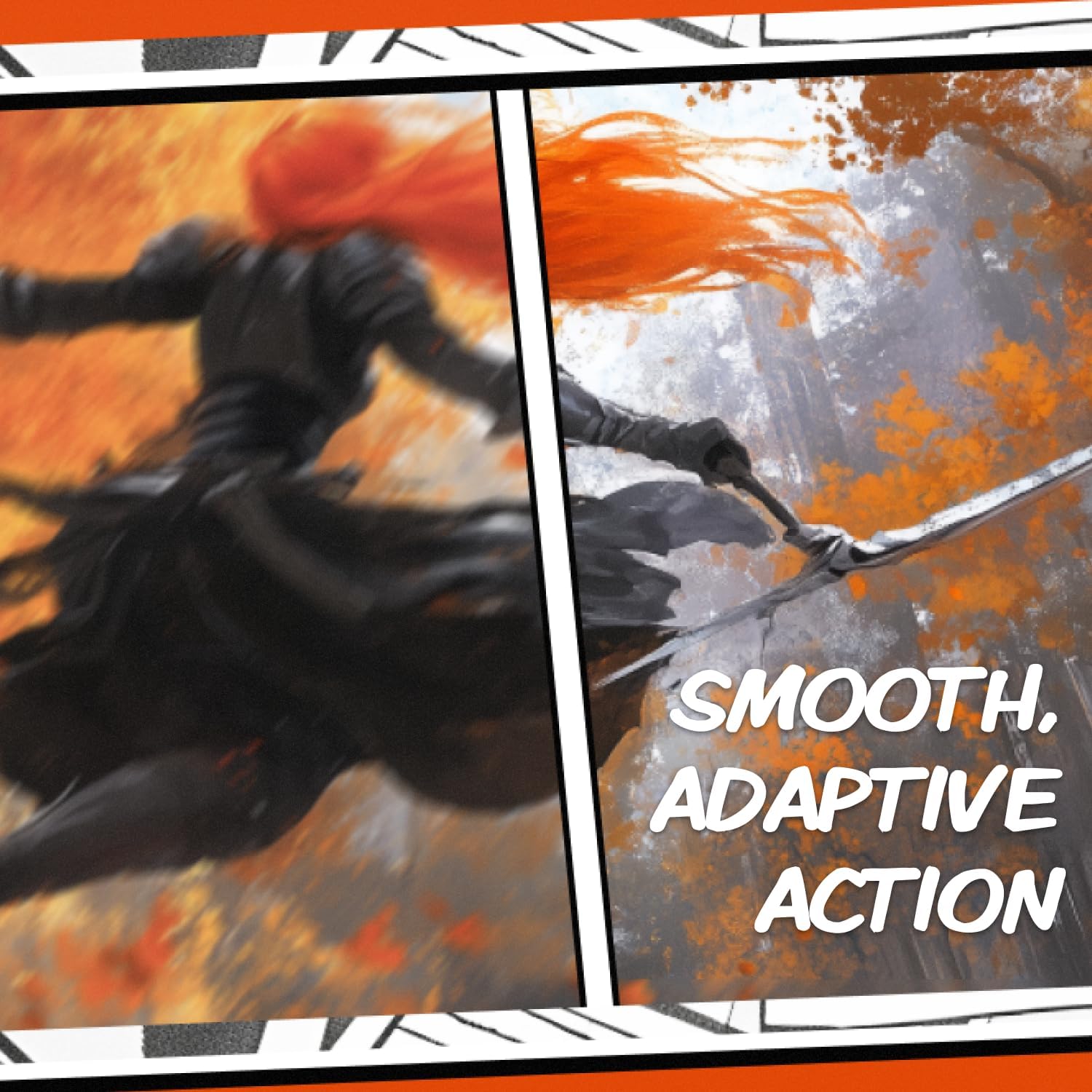
Figure 5.3: The monitor rendering a dynamic scene, showcasing smooth visual performance.
5.4 Eye Care Technologies
- Bez treperenja: This technology reduces screen flickering, which can cause eye strain during prolonged use.
- Slabo plavo svjetlo: Adjusting this setting can reduce the emission of harmful blue light, promoting eye comfort.

Figure 5.4: An illustration of Flicker-Free technology in action, reducing visual discomfort.
6. Održavanje
6.1 Čišćenje monitora
Da biste očistili monitor, provjerite je li isključen i iskopčan iz električne utičnice.
- ekran: Nježno obrišite ekran mekom krpom koja ne ostavlja dlačice. Za tvrdokorne mrlje, laganoampen the cloth with water or a specialized screen cleaner (ensure it is alcohol-free and ammonia-free). Do not spray liquid directly onto the screen.
- Eksterijer: Koristite meku, suhu krpu za brisanje monitora casing. Avoid abrasive materials or harsh chemicals.
6.2 Skladištenje
Ako monitor skladištite duži period, isključite sve kablove i zapakujte ga u originalno pakovanje kako biste ga zaštitili od prašine i fizičkih oštećenja. Čuvajte na hladnom i suhom mjestu.
7. Otkrivanje problema
Ako imate problema s monitorom, pogledajte sljedeće uobičajene probleme i rješenja:
- Nema napajanja:
- Provjerite je li kabel za napajanje sigurno spojen i na monitor i na utičnicu.
- Provjerite da li utičnica funkcioniše tako što ćete priključiti drugi uređaj.
- Nema signala:
- Check that the video cable (HDMI or DisplayPort) is securely connected to both the monitor and your computer/console.
- Provjerite je li u OSD izborniku monitora odabran ispravan ulazni izvor.
- Verify your computer/console is powered on and outputting a signal.
- Problemi s prikazom (npr. mutna slika, netačne boje):
- Adjust the resolution and refresh rate settings in your operating system to match the monitor's native resolution (2560x1440) and desired refresh rate.
- Resetujte postavke slike monitora na fabričke vrijednosti putem OSD menija.
- Ažurirajte upravljačke programe vaše grafičke kartice.
- Flickering or Stuttering:
- Ensure Adaptive Sync is enabled in both the monitor's OSD and your graphics card control panel.
- Provjerite ima li vanjskih smetnji.
- HDR Issues:
- Ensure HDR is enabled in both the monitor's OSD and your operating system's display settings.
- Some users report that HDR performance can be inconsistent on PC. Adjusting settings or using SDR mode might provide a better experience depending on your preference and content.
8. Specifikacije
| Feature | Specifikacija |
|---|---|
| Broj modela | CQ27G4ZH |
| Veličina ekrana | 27 inča |
| Tip panela | VA |
| Zakrivljenost | 1500R |
| Rezolucija | 2560 x 1440 (QHD) |
| Aspect Ratio | 16:9 |
| Refresh Rate | 300Hz (DisplayPort), 144Hz (HDMI) |
| Vrijeme odgovora | 0.3ms (MPRT) |
| Povezivanje | 2x HDMI 2.0, 1x DisplayPort 1.4, 1x audio izlaz |
| VESA kompatibilnost | Da |
| Dimenzije (DxŠxV) | 9.43 x 24.1 x 20.33 inča |
| Težina | 19.76 funte |
9. Garancija i podrška
9.1 Informacije o garanciji
Your AOC CQ27G4ZH monitor is covered by the following warranty program:
- 3-Year Zero Dead Pixel: Coverage for monitors with zero bright or dark pixels.
- 3-Year Advance Replacement: If a defect occurs, a replacement unit will be shipped to you.
- 1-Year One-Time Accidental Damage: Coverage for accidental damage during the first year of ownership.

Slika 9.1: Gotovoview of the AOC Re-Spawned Warranty Program.
Molimo sačuvajte svoj dokaz o kupovini za zahtjeve u vezi s garancijom.
9.2 Tehnička podrška
For further assistance, technical support, or warranty claims, please visit the official AOC support website or contact their customer service. Refer to the documentation included with your product for specific contact details or visit Podrška AOC-a.


