1. Proizvod je gotovview
The Darmoshark M5PRO is a lightweight, tri-mode wireless gaming mouse designed for precision and versatility. It features a PAW3950 optical sensor, up to 30000 DPI, and 5 programmable buttons. The mouse supports 8K wireless, Bluetooth, and wired connections.

Image 1.1: The Darmoshark M5PRO mouse (red) and its 8K wireless receiver.

Image 1.2: Key features of the M5PRO mouse, including its sensor, polling rate, and microcontroller.
Video 1.1: Overview of the Darmoshark M5PRO Wireless Gaming Mouse, showcasing its design and various color options.
2. Upute za postavljanje
2.1 Punjenje miša
Before initial use, ensure the mouse is fully charged. Connect the provided USB-C cable to the mouse and a power source (e.g., computer USB port, USB wall adapter). The LED indicator will show charging status.

Image 2.1: The M5PRO mouse is equipped with a 300mAh lithium battery for extended use.
2.2 Načini povezivanja
The M5PRO mouse supports three connection modes: 8K wireless, Bluetooth, and wired USB-C.
2.2.1 8K Wireless Connection
- Connect the 8K wireless receiver to an available USB port on your computer.
- Turn on the mouse and select the 8K wireless mode using the switch on the bottom of the mouse.
- Miš bi se trebao automatski povezati sa prijemnikom.

Image 2.2: The 8K wireless receiver provides a high-speed connection for the M5PRO mouse.
2.2.2 Bluetooth veza
- Turn on the mouse and select the Bluetooth mode using the switch on the bottom of the mouse.
- Na računaru ili uređaju idite na postavke Bluetootha i potražite nove uređaje.
- Select "Darmoshark M5PRO" from the list of available devices to pair.
2.2.3 Žičano povezivanje
- Connect the USB-C cable to the mouse and the other end to a USB port on your computer.
- Miš će se automatski prebaciti u žični način rada i početi puniti.
3. Uputstvo za upotrebu
3.1 Funkcije dugmadi
The M5PRO mouse features 5 programmable buttons:
- Lijevo dugme
- Desni klik na dugme
- Kotačić za pomicanje (klikajući)
- Dugme za naprijed (sa strane)
- Backward Button (Side)
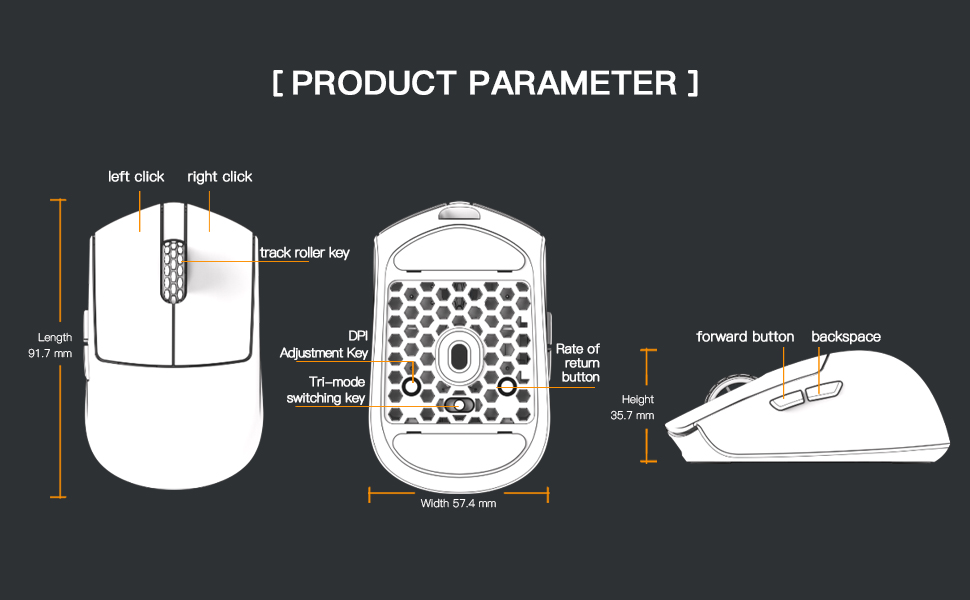
Image 3.1: Diagram illustrating the button layout and dimensions of the M5PRO mouse.
3.2 DPI podešavanje
The DPI (Dots Per Inch) sensitivity can be adjusted using the dedicated DPI adjustment key located on the bottom of the mouse. Press the button to cycle through preset DPI levels. The current DPI level may be indicated by an LED color change (refer to software for specific mappings).
3.3 Promena načina rada
Use the switch on the bottom of the mouse to select between 8K wireless, Bluetooth, and wired modes.
3.4 Prilagođavanje softvera
For advanced customization, including button remapping, macro creation, and DPI fine-tuning, download the proprietary drivers from the official Darmoshark website. The software allows for personalized settings to optimize your experience.
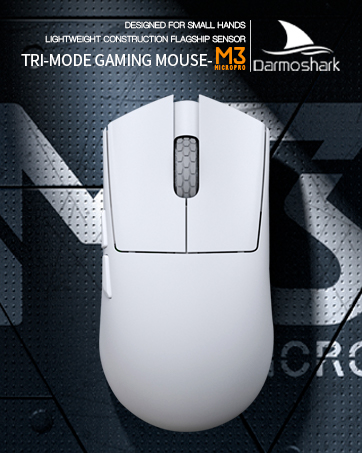
Image 3.2: The proprietary driver software allows for extensive customization of mouse settings.
4. Održavanje
4.1 Čišćenje
Za čišćenje miša koristite meku, suhu krpu. Za tvrdokornu prljavštinu, koristite laganoamp cloth can be used, but ensure no moisture enters the mouse. Avoid using harsh chemicals or abrasive materials.
4.2 Skladištenje
When not in use for extended periods, store the mouse in a cool, dry place away from direct sunlight and extreme temperatures. Ensure the mouse is turned off to conserve battery life.

Slika 4.1: Rastavljeno view of the M5PRO mouse, highlighting its internal structure and lightweight components.
5. Otkrivanje problema
5.1 Miš ne reaguje
- Provjerite bateriju: Ensure the mouse is charged. Connect it via USB-C cable to charge.
- Provjerite vezu: Verify the correct mode (8K wireless, Bluetooth, or wired) is selected on the mouse.
- Receiver/Cable: For 8K wireless, ensure the receiver is securely plugged into a working USB port. For wired, ensure the cable is properly connected.
- Ponovno uparivanje Bluetootha: If using Bluetooth, try removing the device from your computer's Bluetooth settings and re-pairing it.
5.2 Problemi s kretanjem kursora
- Čisti senzor: Ensure the optical sensor on the bottom of the mouse is clean and free from debris.
- Površina: Use the mouse on a suitable surface, preferably a mouse pad, for optimal tracking.
- Postavka DPI: Adjust the DPI sensitivity to a comfortable level.
5.3 Software Not Detecting Mouse
- Žična veza: Connect the mouse via USB-C cable to ensure the software can detect it.
- Ponovna instalacija softvera: Try uninstalling and reinstalling the proprietary drivers.
- Ažuriranje firmvera: Check the Darmoshark website for any available firmware updates for the mouse.
6. Specifikacije
| Feature | Specifikacija |
|---|---|
| Brand | Darmošark |
| Model | M5PRO |
| Tehnologija povezivanja | 8K Wireless, Bluetooth, Wired (USB-C) |
| Tehnologija detekcije pokreta | Optički senzor PAW3950 |
| Maksimalni DPI | 30000 DPI |
| Polling Rate | Up to 8KHz (8K wireless mode) |
| Broj dugmadi | 5 (Programabilno) |
| Težina | Otprilike 38 grama |
| Baterija | 1 litijum-jonska baterija (uključena) |
| Kompatibilnost | Windows, Apple Mac |
Image 6.1: The PAW3950 optical sensor is a core component for precise tracking.
7. Garancija i podrška
For warranty information and technical support, please refer to the official Darmoshark webweb-mjesto ili kontaktirajte njihovu korisničku službu. Sačuvajte dokaz o kupovini za slučaj reklamacije.
Official Darmoshark Webstranica: Darmoshark Store


