1. Uvod
The PeriPage PB40 Bluetooth Thermal Shipping Label Printer is designed for efficient and convenient label printing for various platforms. Utilizing thermal printing technology, it eliminates the need for ink, offering fast and clear output. This manual provides detailed instructions to help you maximize the functionality of your printer.

Image 1.1: The PeriPage PB40 Bluetooth Thermal Shipping Label Printer, shown with a smartphone connected via Bluetooth, printing a shipping label.
Ključne karakteristike:
- Bluetooth štampanje: Seamlessly connect and print from your phone or tablet using the 'PeriPage' app (available on Google Play and Apple Store).
- USB Printing: Connect to Windows and Mac computers via USB for batch and complex printing operations, with drivers provided on a USB stick.
- Multi-Size Compatibility: Supports label widths from 1.41 inches to 4.13 inches (36-105mm), including customized sizes.
- Kompatibilnost široke platforme: Compatible with major shipping platforms such as Amazon, Etsy, Temu, eBay, USPS, Shopify, UPS, PayPal, Poshmark, and Walmart.
- Efficient Thermal Printing: High-speed printing up to 150 mm/sec, capable of printing 72 4x6 labels per minute, without the need for ink.
2. Vodič za postavljanje
2.1. Sadržaj paketa
Prije nego što počnete, provjerite da li su sve stavke prisutne u paketu:
- PeriPage PB40 Label Printer
- USB Stick (containing Windows and Mac drivers, and installation instructions)
- Adapter za napajanje
- USB kabel
- Vodič za brzi početak (ili slična dokumentacija)
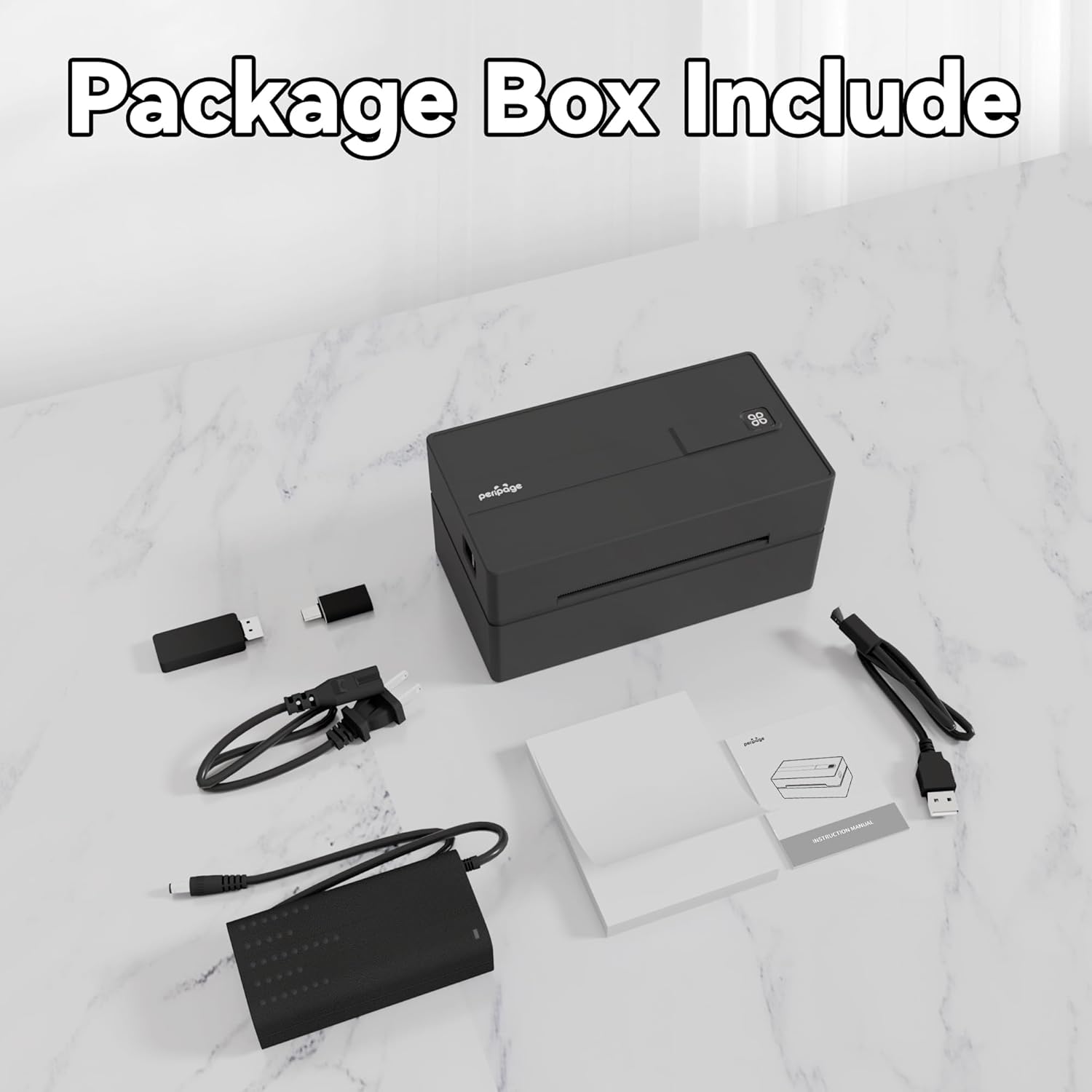
Image 2.1: Contents of the PeriPage PB40 printer package, including the printer, USB stick, and cables.
2.2. Učitavanje naljepnica
- Otvorite gornji poklopac štampača.
- Insert the thermal labels into the paper slot, ensuring the printable side is facing up.
- Adjust the paper guides to fit the label width snugly, without creasing the labels.
- Close the top cover. The printer will automatically calibrate and feed a small portion of the label.

Image 2.2: Illustration of supported label sizes (4"x6", 2"x3", 2.25"x1.25") and the printer's label loading mechanism, emphasizing no waste of paper or jams.
2.3. Priključak za napajanje
Connect the power adapter to the printer's power port and then plug it into a wall outlet. Turn on the printer using the power button.
2.4. Povezivanje s uređajima
The PeriPage PB40 offers both Bluetooth and USB connectivity.
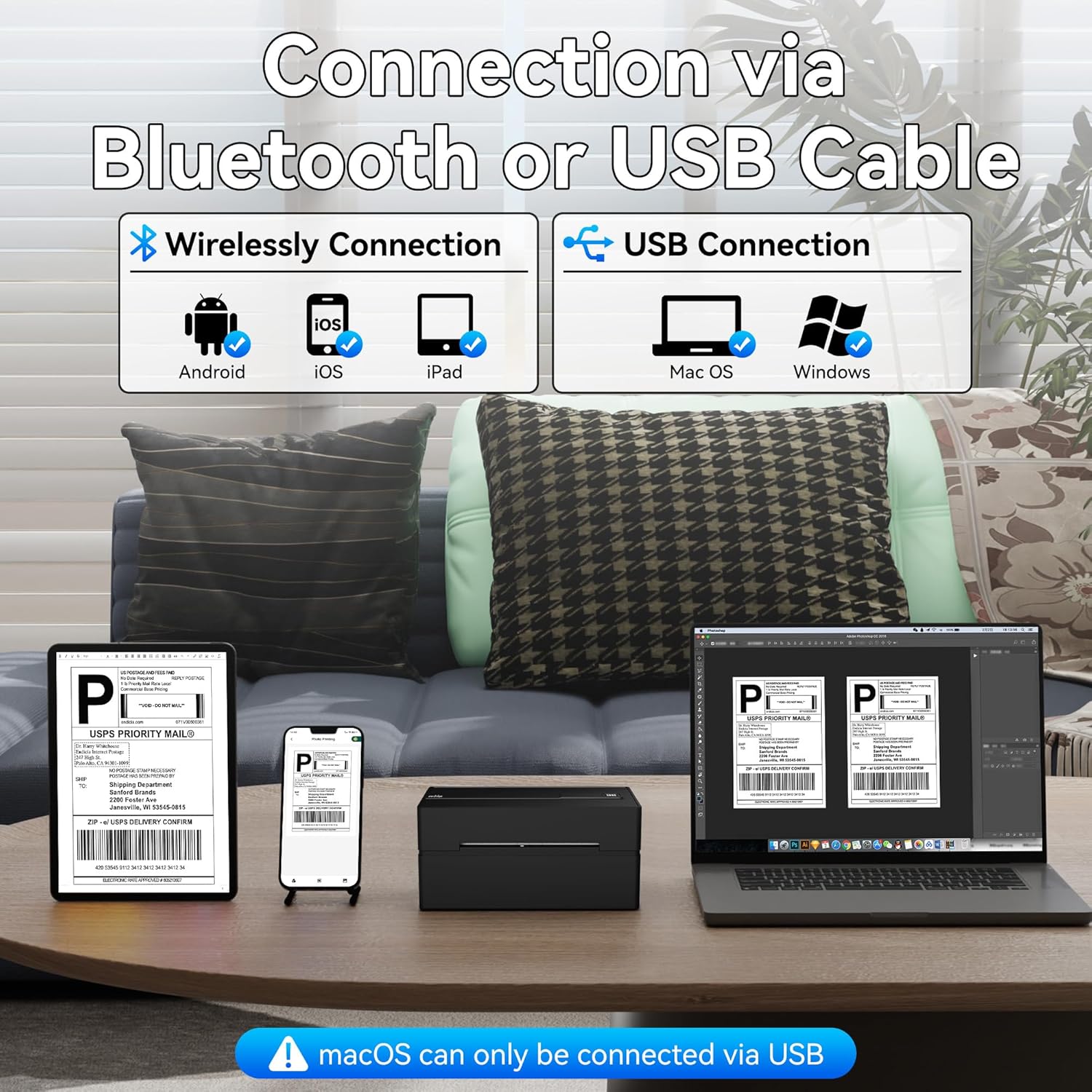
Image 2.3: Visual representation of connecting the printer via Bluetooth to Android/iOS/iPad devices and via USB to Mac OS/Windows computers. Note: macOS can only be connected via USB.
2.4.1. Bluetooth Connection (for Phones/Tablets)
- Download the 'PeriPage' app from Google Play Store (for Android) or Apple App Store (for iOS/iPad).
- Ensure Bluetooth is enabled on your phone or tablet.
- Open the PeriPage app and follow the in-app instructions to search for and connect to your printer. The printer's Bluetooth name typically includes "PeriPage" or "PB40".
- Once connected, the Bluetooth indicator on the printer will illuminate or change status.
2.4.2. USB Connection (for Windows/Mac Computers)
- Insert the provided USB stick into your computer.
- Pronađite i pokrenite instalaciju upravljačkog programa file for your operating system (Windows or Mac).
- Pratite uputstva na ekranu da biste dovršili instalaciju drajvera.
- Povežite štampač sa računarom pomoću priloženog USB kabla.
- Your computer should recognize the printer. You may need to select it as the default printer for label printing.
Note: For macOS, USB connection is the primary method for computer printing.
3. Uputstvo za upotrebu
3.1. Printing from Mobile Devices (Bluetooth)
- Ensure your printer is powered on and connected via Bluetooth to your mobile device through the PeriPage app.
- Within the PeriPage app, navigate to the document or image you wish to print. This could be a shipping label PDF, barcode, or other printable content.
- Select the print option within the app. You may be able to adjust print settings such as label size or density.
- Confirm the print job. The printer will begin printing the label.

Image 3.1: Comparison of printing methods: via Bluetooth for Android, iOS, and iPad devices, and via USB cable for Mac and Windows computers.
3.2. Printing from Computers (USB)
- Ensure your printer is powered on and connected via USB to your Windows or Mac computer, and drivers are installed.
- Open the document (e.g., PDF shipping label) you wish to print using your preferred application.
- Idi na "File" > "Štampaj" (ili pritisnite Ctrl+P/Cmd+P).
- Select the PeriPage PB40 printer from the list of available printers.
- Adjust print settings as needed, such as paper size (e.g., 4x6 inches for shipping labels) and orientation.
- Kliknite na "Štampaj".

Image 3.2: Depiction of the printer's fast printing speed (150 mm/s) and clear output quality (203 DPI), with labels being printed rapidly.
3.3. Label Compatibility and Supported Platforms
The printer supports a wide range of label sizes and is compatible with numerous e-commerce and shipping platforms.
- Širina etikete: From 1.41 inches to 4.13 inches (36-105mm). This includes standard 4x6 inch shipping labels.
- Podržane platforme: Amazon, Etsy, Temu, eBay, USPS, Shopify, UPS, PayPal, Poshmark, Walmart, Stamps.com, ShipWire, Flash Express, ShipWorks, Shippo, XPS Ship, Descartes, DHL, FedEx, J&T Express, Endicia, Kerry Logistics, EasyPost, Ninjavan, Ordoro, ShipStation, Shipwire, Easyship, Shipping Easy.

Image 3.3: A visual display of various e-commerce and shipping platform logos, indicating the printer's broad compatibility.
4. Održavanje
4.1. Čišćenje glave za štampanje
Regular cleaning of the print head ensures optimal print quality and extends the printer's lifespan. Use a lint-free cloth lightly dampnapunjen izopropil alkoholom.
- Isključite štampač i isključite ga iz izvora napajanja.
- Open the top cover to access the print head.
- Gently wipe the print head surface with the dampened cloth. Avoid touching the print head with bare hands.
- Ostavite glavu za štampanje da se potpuno osuši prije nego što zatvorite poklopac i uključite štampač.
4.2. Replacing Labels
When the printer runs out of labels, simply follow the "Loading Labels" instructions in Section 2.2 to replace the roll.
4.3. Opća njega
- Štampač držite u čistom okruženju bez prašine.
- Izbjegavajte izlaganje štampača direktnoj sunčevoj svjetlosti, visokim temperaturama ili prekomjernoj vlazi.
- Do not use abrasive cleaners or solvents on the printer's exterior.
- Osigurajte odgovarajuću ventilaciju oko štampača tokom rada.
5. Otkrivanje problema
This section addresses common issues you might encounter with your PeriPage PB40 printer.
5.1. Printer Not Responding / No Power
- Check if the power adapter is securely connected to both the printer and the wall outlet.
- Ensure the power button is pressed and the power indicator light is on.
- Try plugging the printer into a different power outlet.
5.2. Bluetooth Disconnection / Cannot Connect
- Ensure Bluetooth is enabled on your mobile device and the printer is within range.
- Ponovo pokrenite i štampač i mobilni uređaj.
- Forget the printer from your device's Bluetooth settings and try pairing again through the PeriPage app.
- Ensure the PeriPage app is updated to the latest version.
5.3. Print Quality Issues (Faint, Streaky, or Blank Prints)
- Check if you are using thermal labels. This printer requires thermal labels and does not use ink.
- Ensure the labels are loaded correctly with the printable side facing up.
- Očistite glavu za štampanje kao što je opisano u Odjeljku 4.1.
- Adjust print density settings within the PeriPage app or printer driver settings on your computer.
5.4. Zaglavljivanje papira
- Turn off the printer and carefully open the top cover.
- Gently pull out any jammed labels. Avoid tearing them inside the printer.
- Ensure the label roll is properly seated and the paper guides are adjusted correctly to the label width.
- Close the cover and restart the printer.
5.5. Driver Installation Issues (Windows/Mac)
- Ensure you are running the correct driver for your operating system (Windows or Mac).
- Privremeno onemogućite antivirusni softver tokom instalacije ako vam smeta.
- Try installing the driver in compatibility mode (Windows) or check security settings (Mac) if the installation is blocked.
- Refer to the installation instructions on the provided USB stick for detailed steps.
6. Specifikacije proizvoda
| Feature | Specifikacija |
|---|---|
| Brand | PeriPage |
| Naziv modela | Otisak naljepnica |
| Broj modela stavke | Shipping Label Printer-PB40 |
| Tehnologija povezivanja | Bluetooth, USB |
| Tehnologija štampe | Thermal |
| Izlaz štampača | Monochrome |
| Maksimalna brzina štampanja (monohromatski) | 60 ppm (72 4x6 labels/min) |
| Maksimalna rezolucija crno-belog štampe | 300 dpi |
| Maksimalna veličina medija | 4.13 inča |
| Kompatibilnost veličine listova | 1.41 to 4.13 inches (36-105mm) |
| Maksimalni kapacitet ulaznog lista | 50 |
| Težina artikla | 3.14 funte |
| Dimenzije proizvoda | 8 x 7 x 4.7 inča |
| Uključene komponente | Printer, USB Stick |
| Posebna karakteristika | Prijenosni |
| Boja | Crna |
| Vrsta garancije | Ograničena garancija |
7. Garancija i podrška
7.1. Garancija na proizvod
The PeriPage PB40 Bluetooth Thermal Shipping Label Printer comes with a limited warranty. Please refer to the warranty information provided in your product packaging or contact PeriPage customer service for details regarding warranty terms and conditions.
7.2. Korisnička podrška
For technical assistance, troubleshooting beyond this manual, or warranty claims, please contact PeriPage customer support. Contact information can typically be found on the manufacturer's official webweb-mjestu ili na ambalaži proizvoda.
You may also visit the official PeriPage store on Amazon for additional resources and product information: PeriPage Amazon Store


