1. Uvod
This manual provides essential information for the proper setup, operation, and maintenance of your Arducam B0495C USB 3.0 Global Shutter Camera. This camera module features a 2.3MP AR0234 sensor, offering high-speed imaging at up to 960x600@80fps with a global shutter, ensuring crisp images of fast-moving objects without rolling artifacts. It is designed for seamless integration with Windows and Linux systems, providing a reliable solution for various applications requiring precise and high-quality image capture.

Image 1.1: Arducam B0495C Camera Module with USB 3.0 Type-C Cable.
2. Sadržaj paketa
Please verify that all items listed below are included in your package. If any components are missing or damaged, please contact Arducam support.
- 1 x AR0234 USB3 Camera with Back Cover and Tripod Adapter
- 1 x 1m USB A na Type-C kabel
Image 2.1: The Arducam B0495C camera and its included 1-meter USB A to Type-C cable.
3. Vodič za postavljanje
Follow these steps to set up your Arducam B0495C camera:
- Povežite USB kabl: Insert the USB Type-C end of the provided 1m cable into the camera's USB port.
- Povežite se na računar: Plug the USB Type-A end of the cable into an available USB 3.0 port on your computer (Windows or Linux). For optimal performance, use a USB 3.0 port.
- Instalacija drajvera: The camera is UVC (USB Video Class) compliant, meaning it is plug-and-play and typically does not require additional driver installation on most Windows and Linux operating systems. The system should automatically detect and install the necessary drivers.
- Montaža (opciono): The camera includes a tripod adapter. You can attach it to a standard tripod or other mounting solutions for stable positioning.
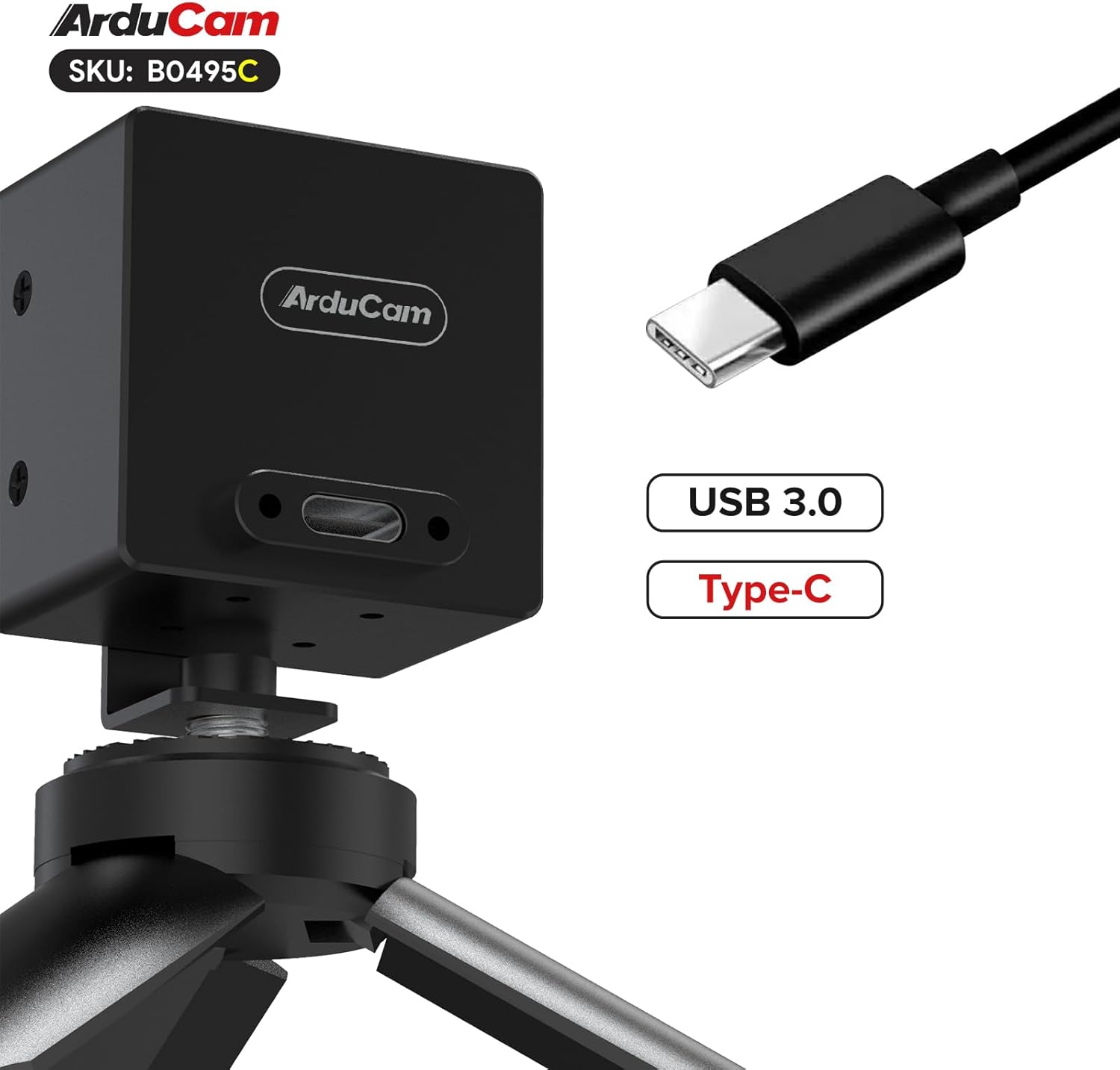
Image 3.1: The Arducam B0495C camera connected via its USB Type-C port, shown mounted on a tripod.
4. Uputstvo za upotrebu
Once connected, your Arducam B0495C camera can be used with various applications that support UVC cameras.
4.1. Kompatibilnost softvera
The camera is compatible with standard webcam software on Windows (e.g., Camera app, OBS Studio) and Linux (e.g., Cheese, VLC, OBS Studio, or custom applications using V4L2). Ensure your chosen software recognizes the camera as a video input device.
4.2. Ručno podešavanje fokusa
The B0495C features a manual focus M12 lens. To adjust focus:
- Open your camera application and view live feed.
- Gently rotate the lens barrel clockwise or counter-clockwise until the image appears sharp and clear at your desired distance.
4.3. Global Shutter Advantage
The global shutter technology captures all pixels simultaneously, eliminating the 'rolling shutter' effect often seen with CMOS sensors when recording fast-moving objects. This results in distortion-free images, crucial for applications like machine vision, industrial inspection, and capturing high-speed events.

Image 4.1: A spinning fan captured by a global shutter camera, showing no motion distortion on the blades.
5. Održavanje
Proper care will extend the life and performance of your camera.
- Čišćenje sočiva: Use a soft, lint-free microfiber cloth specifically designed for optics. For stubborn smudges, a small amount of lens cleaning solution can be applied to the cloth (not directly to the lens). Avoid abrasive materials or harsh chemicals.
- Čišćenje tijela: Wipe the camera body with a dry, soft cloth. Do not use liquid cleaners directly on the camera.
- Skladištenje: When not in use, store the camera in a clean, dry environment, away from extreme temperatures, humidity, and direct sunlight. Protect the lens from dust and scratches.
- Izbjegnite udar: Handle the camera with care to prevent drops or impacts that could damage internal components or the lens.
6. Otkrivanje problema
If you encounter issues with your Arducam B0495C camera, refer to the following common problems and solutions:
- Kamera nije otkrivena:
- Provjerite je li USB kabel sigurno spojen i na kameru i na USB 3.0 priključak na računaru.
- Try a different USB port or a different USB 3.0 cable.
- Ponovo pokrenite računar.
- Check your operating system's device manager (Windows) or `lsusb` command (Linux) to see if the device is recognized.
- No Image or Black Screen:
- Verify that the correct camera is selected as the input device in your software application.
- Ensure there is adequate lighting in the environment.
- Check if the lens cap (if any) has been removed.
- Zamućena slika:
- Adjust the manual focus of the M12 lens as described in Section 4.2.
- Ensure the lens is clean (refer to Section 5).
- Low Frame Rate or Performance Issues:
- Confirm you are connected to a USB 3.0 port, not a USB 2.0 port. USB 2.0 ports will limit bandwidth and frame rate.
- Close other applications that might be consuming significant system resources.
- Ensure your computer meets the minimum system requirements for high-speed video processing.
- Ažuriranje firmvera: In rare cases, a firmware update might be necessary to resolve specific issues or improve performance. Please visit the official Arducam webstranica za najnoviji firmver i upute.
7. Specifikacije
Detailed technical specifications for the Arducam B0495C USB 3.0 Global Shutter Camera:
| Feature | Specifikacija |
|---|---|
| Brand | Arducam |
| Naziv modela | B0495C |
| Senzor | AR0234 (2.3MP) |
| Senzorna tehnologija | CMOS, Global Shutter |
| Maksimalna rezolucija fotografija | 1920x1200 |
| Rezolucija video snimanja | Up to 1080p (interpolated), 960x600@80fps |
| Frame Rate | Programmable up to 960x600@80fps |
| Lens Type | M12 Lens, Manual Focus |
| Polje of View (D) | 95° |
| Tehnologija povezivanja | USB 3.0 (Type-C) |
| Format video snimanja | YUYV |
| Kompatibilnost operativnog sistema | Windows, Linux (UVC compliant) |
| Težina artikla | 4.8 unce |
| Dimenzije paketa | 3.23 x 2.95 x 2.89 inča |
8. Informacije o garanciji
Arducam products are covered by a manufacturer's warranty against defects in materials and workmanship. The specific terms and duration of the warranty may vary by region and product. Please retain your proof of purchase for warranty claims. For detailed warranty information, please refer to the official Arducam websajtu ili kontaktirajte korisničku podršku.
9. Podrška
For further assistance, technical support, or to access additional resources such as drivers, software, and FAQs, please visit the official Arducam webstranica:
You may also contact Arducam customer service directly through the contact information provided on their website.


