1. Uvod
The Accsoon CineView 2 SDI is a state-of-the-art low-latency wireless video transmission system designed for professional filmmakers. It features advanced 2.4GHz and 5GHz dual-band technology, a new antenna design, and supports 1080P 60fps video and audio signals with a range of up to 1500 feet (450 meters) and a low latency of 50ms. This system allows for monitoring on up to four devices, including iOS/Android devices and other CineView series receivers, and offers SDI to HDMI signal conversion and UVC livestreaming capabilities.
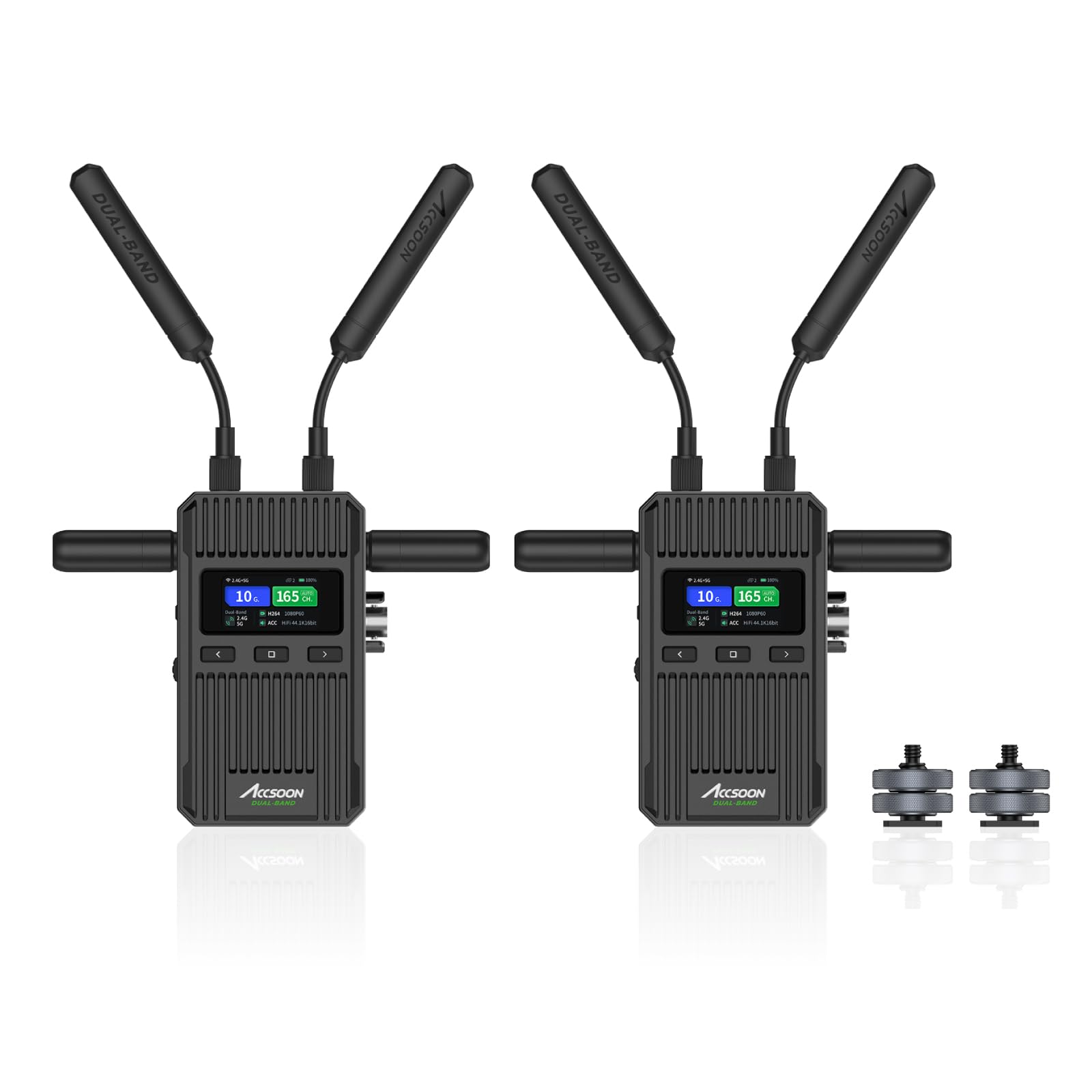
Figure 1: Accsoon CineView 2 SDI Transmitter and Receiver units, showcasing their compact design and dual antennas.
Video 1: Overview of the Accsoon CineView 2 SDI system, highlighting its features and applications in filmmaking.
2. Šta se nalazi u kutiji
The Accsoon CineView 2 SDI package includes the following items:
- Acccoon CineView 2 SDI wireless video transmitter x1
- Acccoon CineView 2 SDI wireless video receiver x1
- Accsoon long antennas x4, short antennas x4
- Accsoon cold shoes x2
- Accsoon user manual x1

Figure 2: Visual representation of the package contents, including transmitter, receiver, antennas, cold shoes, and user manual.
3. Vodič za postavljanje
3.1. Početno podešavanje hardvera
- Pričvrstite antene: Screw the provided antennas onto the transmitter (Tx) and receiver (Rx) units.
- Napajanje jedinica:
- Insert NP-F550/NP-F750/NP-F970 batteries (not included) into the battery slots.
- Alternatively, connect a 7.4-16.8V DC input or a 5V USB-C power source (cables not included).
- Short press the power button to turn on the units. The screen will display the bootup animation.
- Connect Video Source to Transmitter (Tx):
- Connect one side of your video cable (SDI or HDMI) to your camera's output.
- Connect the other side of the cable to the corresponding input port (SDI IN or HDMI IN) on the CineView 2 SDI Transmitter.
- Connect Receiver (Rx) to Monitor:
- Connect one side of your video cable (SDI or HDMI) to the output port (SDI OUT or HDMI OUT) on the CineView 2 SDI Receiver.
- Connect the other side of the cable to your monitor's input.
- Set Group Number: Ensure both the Transmitter (Tx) and Receiver (Rx) are set to the same group number using the physical dial switch on the side of the units. If changing the group number while the unit is on, confirm the reboot prompt.
Video 2: Detailed steps for setting up the Accsoon CineView 2 SDI, including connecting cables, powering the units, and setting the group number.
3.2. Povezivanje aplikacije
To utilize the Accsoon SEE App for monitoring, follow these steps:
- Download Accsoon SEE App: Download the "Accsoon SEE" app from your device's app store (iOS or Android).
- Connect to Transmitter's Wi-Fi:
- On your smart device, go to Wi-Fi settings.
- Find the Wi-Fi network (SSID) of your CineView 2 SDI Transmitter. The SSID is displayed on the Tx unit's menu (e.g., "Accsoon_XXXX").
- Connect to the 5GHz Wi-Fi network. Napomena: Do not connect to similarly-named Wi-Fi containing "2.4G" as this is for dedicated Rx only.
- The default password for CineView 2 SDI is 12345678 for first-time connections.
- Open Accsoon SEE App: Launch the Accsoon SEE App, select "CineView 2 SDI", and press "Monitor" to begin monitoring.
Video 3: Guide on connecting your smart device to the Accsoon CineView 2 SDI via the Accsoon SEE App for monitoring.
4. Uputstvo za upotrebu
4.1. Transmission Modes
The CineView 2 SDI offers different transmission modes to optimize for various shooting conditions:
- Speed Mode (SPD): Lower bitrate for more resilient transmission, best for long-range or high-interference environments. Suitable for still images or minor movement (2-4Mbps) and huge movement scenes (up to 8Mbps). Average goal: 3Mbps.
- Normal Mode (NOR): Default profile with balanced quality and range. Suitable for still images or minor movement (4-6Mbps) and huge movement scenes (up to 12Mbps). Average goal: 5Mbps.
- High Quality Mode (HQ): Highest quality and bitrate, best for short-range scenarios. Suitable for still images or minor movement (6-8Mbps) and huge movement scenes (up to 20Mbps). Average goal: 7Mbps.
To change modes, press the square icon confirm button on the Transmitter (Tx) to enter the Image Quality Modes Selection Menu. Navigate using the arrow buttons and confirm your selection.
Video 4: Introduction to the Accsoon CineView 2 SDI menu, including how to select transmission modes and view informacije o statusu.
4.2. Odabir kanala
After selecting a transmission mode, press the confirm button again to enter the Channel Settings. The default setting is "A" (Auto), which automatically searches for an optimal channel after bootup. You can manually select channels if needed. Channels 36-52 are universally available and recognized by most consumer devices, which can be useful when traveling.
4.3. SDI to HDMI Signal Conversion
The CineView 2 SDI Transmitter can automatically convert SDI signals to HDMI signals. This means you can input an SDI signal from your camera and output it as an HDMI signal from the transmitter's HDMI OUT port.

Figure 3: The CineView 2 SDI Transmitter's capability to convert SDI input to HDMI output, illustrating the port layout.
4.4. UVC Livestreaming
The CineView 2 SDI Receiver supports UVC livestreaming. You can connect the receiver to a computer using a user-provided USB-C cable to transfer the received footage to third-party streaming platforms like OBS, YouTube, TikTok, or Twitch for live broadcasting.

Figure 4: UVC Livestreaming setup with the CineView 2 SDI Receiver connected to a computer for live broadcasting.
4.5. Accsoon SEE App Monitoring Features
The Accsoon SEE App provides a comprehensive suite of professional monitoring tools for iOS and Android devices:
- LUTs (Look-Up Tables)
- Zebra pattern for exposure assistance
- Funkcija ogledala
- Waveform monitor
- False Color for exposure analysis
- Overlay options
- Vektorski opseg
- Audio nadzor
- Marker tools
- Fokus je na vrhuncu
- RGB parade
- Screenshots
- Mreže
- Distort correction
- RTMP livestream support

Figure 5: The Accsoon SEE App interface displaying a range of professional monitoring tools for precise video analysis.
5. Održavanje
- čišćenje: Za čišćenje uređaja koristite meku, suhu krpu. Izbjegavajte upotrebu jakih hemikalija ili abrazivnih materijala.
- Skladištenje: Store the CineView 2 SDI in a cool, dry place away from direct sunlight and extreme temperatures when not in use.
- Ažuriranja firmvera: Regularly check for firmware updates via the Accsoon SEE App to ensure optimal performance and access to new features. Ensure units are sufficiently charged (above 50% battery) before initiating an update.
Video 5: A guide on how to update the firmware for the Accsoon CineView 2 SDI using the Accsoon SEE App, emphasizing battery precautions.
6. Otkrivanje problema
- Nema video signala:
- Check all cable connections (SDI/HDMI) between camera, transmitter, receiver, and monitor.
- Ensure both transmitter and receiver are powered on and have sufficient battery.
- Verify that the group numbers on the Tx and Rx units match.
- Confirm the camera is outputting a video signal and the monitor is set to the correct input.
- Poor Signal Quality/Interference:
- Provjerite da li su antene sigurno pričvršćene i pravilno orijentisane.
- Switch to a different channel in the Tx menu.
- Change the transmission mode to "Speed" for better resilience in challenging environments.
- Reduce the distance between the transmitter and receiver, or clear any obstructions.
- Problemi s vezom aplikacije:
- Ensure your smart device is connected to the 5GHz Wi-Fi network of the transmitter.
- Verify the Wi-Fi password is correct (default: 12345678).
- Perform a network reset on the transmitter if you encounter persistent connection problems. This will factory reset network settings.
- Neuspjeh ažuriranja firmvera:
- Ensure both Tx and Rx units have battery levels above 50% before starting an update.
- Do not close the Accsoon SEE App during the firmware transfer process.
- Maintain a stable internet connection on your smart device during the firmware download phase.
7. Specifikacije
| Feature | Detalj |
|---|---|
| Brand | Acccoon |
| Broj modela | WIT08-S |
| Tehnologija prijenosa | 2.4GHz & 5GHz Dual-band |
| Video Rezolucija | Up to 1080P 60fps |
| Raspon prenosa | 1500 feet (450 meters) Line of Sight |
| Latencija | Manje od 50ms |
| Monitoring Devices | Up to four (iOS/Android devices and CineView series receivers) |
| Ulaz/Izlaz | SDI, HDMI (Transmitter supports HDMI 4K 60FPS input and loop-out) |
| Konverzija signala | Automatic SDI to HDMI conversion by Transmitter |
| Livestreaming | UVC Livestreaming via USB-C from Receiver to computer |
| Opcije napajanja | NP-F550/NP-F750/NP-F970 batteries, 7.4-16.8V DC input, 5V USB-C power, V-Lock batteries (via optional plate) |
| Dimenzije | 4.72 x 3.1 x 2.36 inča (pakovanje) |
| Težina artikla | 1.76 funti (28.22 unce) |
| Boja | Crna |
8. Garancija i podrška
Accsoon is committed to providing high-quality products. For any issues or inquiries regarding your CineView 2 SDI system, please refer to the contact information provided in your product packaging or visit the official Accsoon website for support resources and warranty details. Keep your purchase receipt for warranty claims.
For technical support, you may contact support@accsoon.com.


