1. Uvod
The Microsoft Surface Pro 10 is a versatile 2-in-1 device designed to adapt to various work styles, offering the functionality of both a tablet and a laptop. It features an Intel Core Ultra 5 processor, providing robust performance for daily tasks and advanced applications. This manual provides essential information to help you set up, operate, and maintain your device, ensuring optimal performance and longevity.
2. Šta se nalazi u kutiji
Carefully unpack your Surface Pro 10 and ensure all items are present. The standard package includes:
- Microsoft Surface Pro 10 uređaj
- Power Supply Unit
- Microsoft Surface Pro Keyboard
- Microsoft Surface Pro Slim Pen
- Vodič za brzi početak
- Dokumenti o sigurnosti i garanciji
3. Device Overview
Familiarize yourself with the physical components of your Surface Pro 10.

Slika 3.1: Front view of the Surface Pro 10 with the keyboard attached, showcasinraspored ekrana i tastature.

Slika 3.2: Side view of the Surface Pro 10 in laptop configuration, highlighting the adjustable kickstand and connected keyboard.
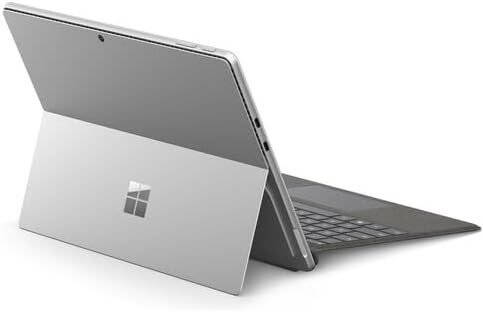
Slika 3.3: Pozadi view of the Surface Pro 10 with the kickstand deployed, revealing the device's sleek design and the iconic Microsoft logo.
Ključne komponente:
- 13-inch PixelSense Flow Display: High-resolution touchscreen for vibrant visuals and touch interaction.
- Prednja kamera: For video calls and facial recognition (Windows Hello).
- Kamera okrenuta nazad: Za snimanje fotografija i videa.
- Dugme za napajanje: Nalazi se sa strane, koristi se za uključivanje/isključivanje uređaja ili njegovo stavljanje u stanje mirovanja.
- Dugmad za jačinu zvuka: Located on the side, for adjusting audio levels.
- USB-C portovi: For charging, data transfer, and connecting external displays or accessories.
- Surface Connect priključak: Za punjenje i povezivanje sa Surface Dock priborom.
- Podnožje: Integrated into the back, allows for multiple viewing angles.
- mikrofoni: For voice commands and audio recording.
4. Podešavanje
4.1 Početno punjenje
- Connect the power supply to the Surface Connect port or one of the USB-C ports on your Surface Pro 10.
- Uključite napajanje u zidnu utičnicu.
- Allow the device to charge for at least 30 minutes before first use, or until the battery indicator shows sufficient charge.
4.2 Uključivanje/isključivanje
- Za uključivanje: Press and hold the Power button until the Microsoft logo appears on the screen.
- Za isključivanje: From the Windows desktop, select Počni > Snaga > Ugasi se. Alternatively, press and hold the Power button for a few seconds, then slide down to shut down.
- Za spavanje: Briefly press the Power button. Press it again to wake the device.
4.3 Početna instalacija Windowsa
Upon first power-on, you will be guided through the Windows 11 setup process. Follow the on-screen prompts to:
- Odaberite svoj jezik i regiju.
- Povežite se na Wi-Fi mrežu.
- Prihvatite uslove licence.
- Prijavite se sa svojim Microsoft računom ili kreirajte novi.
- Set up Windows Hello (facial recognition or fingerprint, if available).
- Konfigurišite postavke privatnosti.
4.4 Attaching the Surface Pro Keyboard
Align the magnetic connector on the keyboard with the corresponding port at the bottom edge of your Surface Pro 10. The keyboard will snap into place magnetically. You can adjust the keyboard to lie flat or tilt it slightly for a more ergonomic typing experience.
4.5 Pairing the Surface Pro Slim Pen
The Surface Pro Slim Pen typically pairs automatically when first used with your Surface Pro 10. If not, follow these steps:
- Idi na Počni > Postavke > Bluetooth i uređaji > Dodaj uređaj > Bluetooth.
- Press and hold the top button on your Slim Pen for 5-7 seconds until the LED light flashes white.
- Select your Surface Slim Pen from the list of available devices and follow any on-screen prompts.
5. Upravljanje vašim Surface Pro 10
5.1 Switching Between Tablet and Laptop Modes
- Režim rada laptopa: Attach the Surface Pro Keyboard and adjust the kickstand for a traditional laptop experience.
- Način rada tableta: Detach the keyboard or fold it back completely. Windows will automatically switch to Tablet Mode, optimizing the interface for touch input.
5.2 Korišćenje ekrana osetljivog na dodir
The PixelSense Flow Display supports multi-touch gestures:
- Dodirnite: Odaberite stavku ili otvorite aplikaciju.
- Dodirnite i zadržite: Access context menus (right-click equivalent).
- Stisnite za zumiranje: Uvećavanje ili smanjivanje slika i web stranice.
- Swipe from Edges: Access quick settings, notifications, or switch between apps.
5.3 Using the Surface Pro Slim Pen
The Slim Pen allows for precise input and creative tasks:
- Pisanje/crtanje: Use the pen directly on the screen in compatible apps like Microsoft Whiteboard or OneNote.
- Odabirom: Tap with the pen to select items.
- gumica: Use the eraser button on the pen to erase digital ink.
- Gornje dugme: Customizable for quick access to apps like OneNote or screenshots.
5.4 Osnovna navigacija u sistemu Windows 11
- Start meni: Access apps, settings, and power options.
- Traka zadataka: Zakačite često korištene aplikacije i view otvorene aplikacije.
- Akcioni centar: Swipe in from the right edge (or click the icon) for quick settings and notifications.
- Widgets: Swipe in from the left edge (or click the icon) for personalized information.
6. Održavanje
6.1 Čišćenje uređaja
- Koristite meku krpu koja ne ostavlja dlačiceampened with water or an approved screen cleaner to wipe the display.
- For the body of the device and keyboard, use a soft, dry cloth.
- Avoid harsh chemicals, abrasive cleaners, or excessive moisture.
6.2 Njega baterija
- Izbjegavajte često potpuno pražnjenje baterije.
- Uređaj čuvajte na hladnom i suhom mjestu kada se ne koristi duži period.
- Use only the official Microsoft power supply or certified compatible chargers.
6.3 Ažuriranja softvera
Regularly check for and install Windows updates to ensure your device has the latest security patches, features, and performance improvements. Go to Počni > Postavke > Windows Update.
7. Otkrivanje problema
7.1 Uređaj se ne uključuje
- Provjerite je li uređaj napunjen. Spojite napajanje i pričekajte nekoliko minuta prije nego što ga pokušate uključiti.
- Perform a force restart: Press and hold the Power button for 15-20 seconds, then release and press it again briefly to turn on.
7.2 Problemi sa ekranom (nema slike, treperenje)
- Ponovo pokrenite uređaj.
- Ensure display drivers are up to date via Windows Update.
- If connected to an external display, try disconnecting it.
7.3 Problemi s povezivanjem putem Wi-Fi ili Bluetooth mreže
- Check if Wi-Fi or Bluetooth is enabled in Quick Settings or Windows Settings.
- Restart your Surface Pro 10 and your router/modem.
- Forget the network/device and try reconnecting.
- Update network drivers via Windows Update.
7.4 Performance Issues (Slowdowns, Freezes)
- Zatvorite nepotrebne aplikacije koje rade u pozadini.
- Check for and install all available Windows updates.
- Run a disk cleanup and optimize drives.
- Osigurajte dovoljno slobodnog prostora za skladištenje.
8. Specifikacije
The following table outlines the key technical specifications for the Microsoft Surface Pro 10 (Intel Core Ultra 5, 16GB RAM, 256GB SSD) model:
| Feature | Specifikacija |
|---|---|
| Naziv modela | Surface Pro 10 (ZEA-00001) |
| Veličina ekrana u stojećem položaju | 13 inča |
| Rezolucija ekrana | 2880 x 1920 piksela |
| Maksimalna rezolucija ekrana | 2880x1920 |
| Procesor | 1.4 GHz Intel Core Ultra 5 |
| Hard Drive | 256 GB SSD |
| Veličina instalirane RAM memorije | 16 GB DDR5 RAM-a |
| Operativni sistem | Windows 11 Pro |
| Marka čipsa | Intel |
| Opis grafičke kartice | Integrisano |
| Bežični tip | 802.11ax |
| Boja | Platinum |
| Dimenzije proizvoda | 11.3 x 8.2 x 0.4 inča |
| Baterije | 1 litijum-jonska baterija (uključena) |
9. Garancija i podrška
Your Microsoft Surface Pro 10 comes with a limited hardware warranty. For detailed warranty information, please refer to the documentation included with your device or visit the official Microsoft Support webstranica. Za tehničku pomoć, vodiče za rješavanje problema i preuzimanje upravljačkih programa, posjetite support.microsoft.com/surface.


