Uvod
The Contour Unimouse is an advanced ergonomic vertical mouse designed to provide comfort and reduce strain during extended computer use. Its unique adjustable angle and customizable thumb rest promote a natural hand position, helping to alleviate discomfort associated with traditional mice. This manual provides comprehensive instructions for setting up, operating, maintaining, and troubleshooting your Unimouse, ensuring optimal performance and ergonomic benefits.

Figure 1: The Contour Unimouse Ergonomic Vertical Mouse, showcasing its unique vertical design and wired connection.
Setup
Sadržaj paketa
Before you begin, ensure all items are present in your Unimouse package:
- Contour Unimouse Ergonomic Vertical Mouse
- USB kabel
Connecting Your Unimouse
The wired Unimouse connects directly to your computer via a USB-C cable. Follow these steps for initial setup:
- Locate the USB-C port on your Unimouse, typically at the front base.
- Connect one end of the provided USB cable to the Unimouse.
- Povežite drugi kraj USB kabla na slobodan USB port na računaru.
- Your computer should automatically detect and install the necessary drivers. No additional software is required for basic functionality.
Operating Your Unimouse
Adjustable Angle (35°-70°)
The Unimouse features a unique friction-based hinge that allows you to adjust the mouse angle between 35 and 70 degrees. This adjustability helps prevent static posture and reduces wrist pain by allowing you to find the most comfortable and natural hand position.
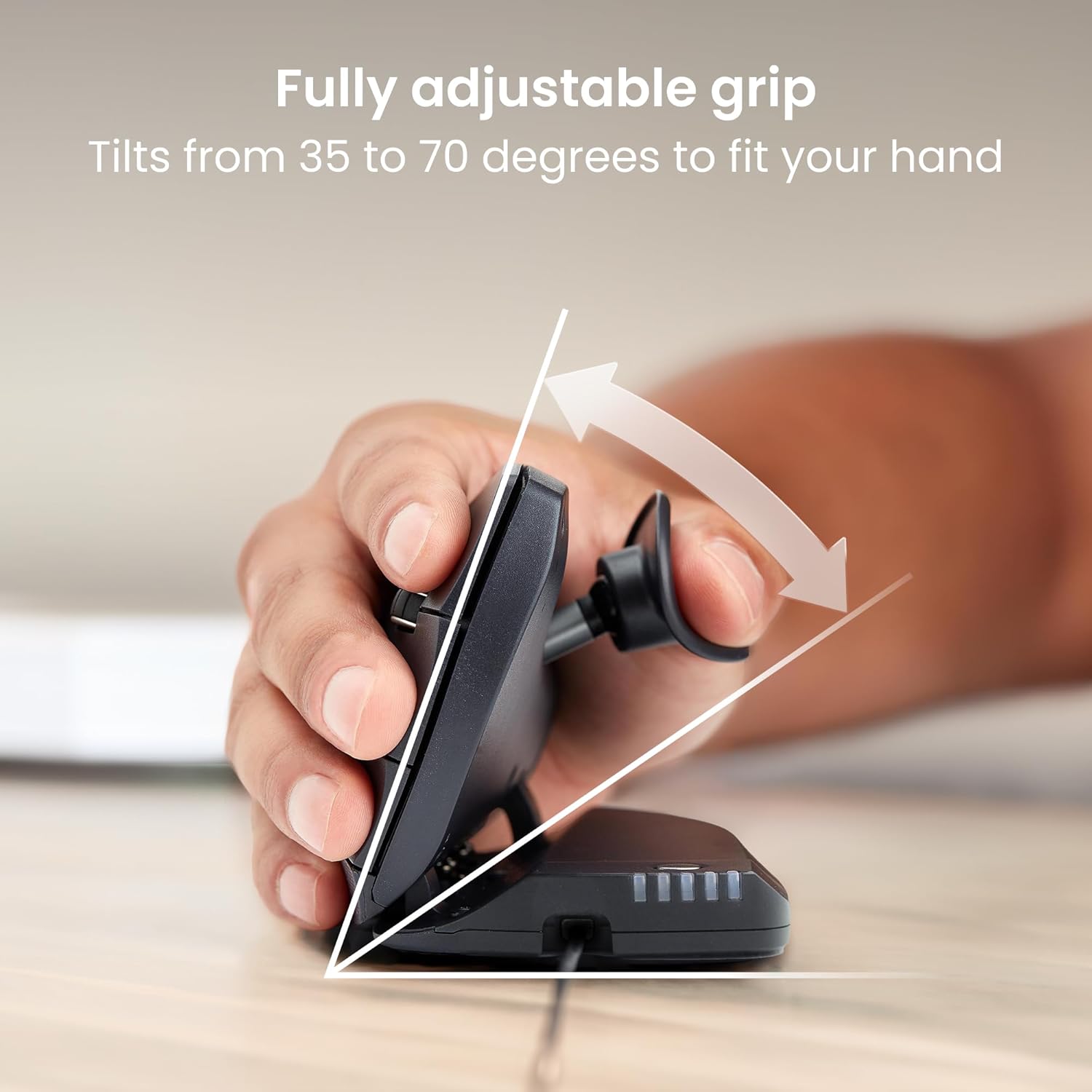
Figure 2: Adjusting the tilt angle of the Unimouse from 35 to 70 degrees for a customized grip.
Customizable Thumb Rest
For maximum comfort, the Unimouse includes a fully adjustable thumb rest. This rest can be moved in multiple directions to provide a relaxed grip and reduce pressure on the thumb base:
- Gore dolje: Adjust the vertical height.
- Ulaz/Izlaz: Adjust the horizontal distance from the mouse body.
- Naprijed/nazad: Adjust the position along the mouse body.
- rotirati: Angle the thumb rest for optimal support.
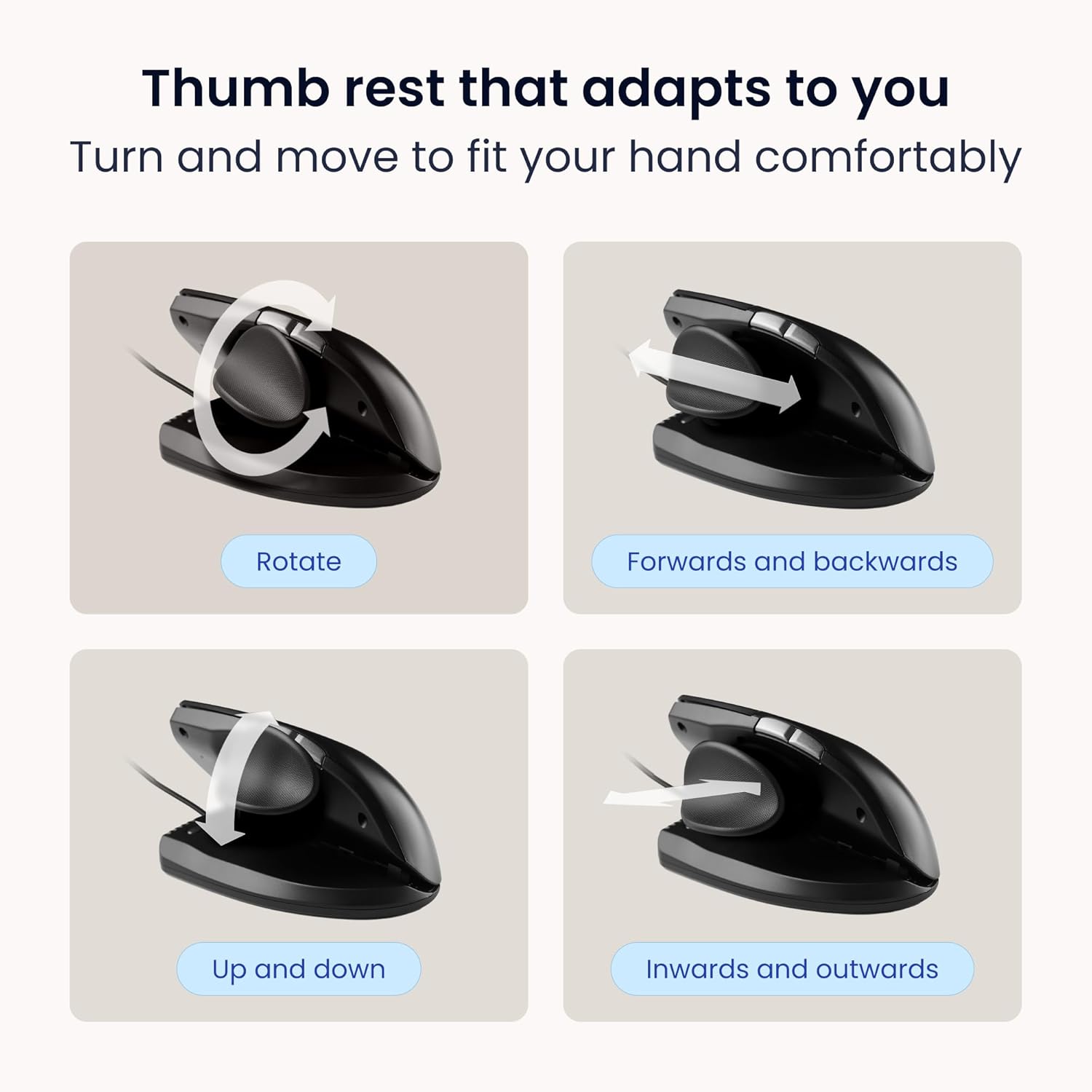
Figure 3: The Unimouse thumb rest can be rotated, moved forwards and backwards, up and down, and inwards and outwards for personalized comfort.
Programabilna dugmad
The Unimouse features six programmable buttons and a smooth scroll wheel, allowing you to customize functions to suit your workflow. The default button assignments are:
- Kliknite lijevo
- Desni klik
- Kotačić za pomicanje (klikajući)
- Double Click Button (default)
- Dugme za nazad
- Dugme naprijed
To customize these buttons, download the free Contour desktop application from the official Contour Design website. This software allows you to reassign functions to optimize your productivity.

Slika 4: Gotovoview of the Unimouse's six customizable buttons and scroll wheel.
Cursor Speed Adjustment (DPI)
The Unimouse offers multiple DPI (Dots Per Inch) settings to adjust cursor speed and precision, catering to different tasks and preferences. You can typically cycle through these settings using a dedicated DPI button or through the software:
- 600 DPI: For fine precision work (e.g., graphic design, CAD).
- 1000 DPI: Standard setting for general office and productivity tasks.
- 2000 DPI: Faster movement for multi-screen setups or quick navigation.
- 4000 DPI: Highest speed for rapid cursor movement across large displays.

Figure 5: The Unimouse allows easy adjustment of DPI settings to match various activities, from precision design work to fast multi-screen navigation.
Održavanje
Čišćenje
To ensure the longevity and optimal performance of your Unimouse, regular cleaning is recommended:
- Koristite meku krpu koja ne ostavlja dlačiceampvodom ili blagim, neabrazivnim sredstvom za čišćenje da biste obrisali površinu miša.
- Izbjegavajte prodiranje vlage u otvore ili otvore.
- Za optički senzor, koristite suhi pamučni štapić ili komprimirani zrak da biste nježno uklonili prašinu ili ostatke.
Skladištenje
When not in use for extended periods, store your Unimouse in a clean, dry environment away from extreme temperatures and direct sunlight.
Rješavanje problema
If you encounter issues with your Contour Unimouse, refer to the following common problems and solutions:
| Problem | Mogući uzrok | Rješenje |
|---|---|---|
| Miš ne reaguje. | Loose connection, incorrect USB port, or driver issue. | Ensure the USB cable is securely connected to both the mouse and the computer. Try a different USB port. Restart your computer. |
| Kretanje kursora je nepravilno ili neprecizno. | Dirty optical sensor, unsuitable surface, or incorrect DPI setting. | Clean the optical sensor. Use the mouse on a clean, non-reflective surface or a mouse pad. Adjust the DPI setting to a suitable level. |
| Programmable buttons not working as expected. | Software configuration issue or driver conflict. | Ensure the Contour desktop application is installed and updated. Verify button assignments within the software. For Mac users, check for potential conflicts with third-party drivers like USB Overdrive. |
| Mouse feels unstable or tips over in vertical position. | Improper hand grip or surface. | Ensure your hand is resting naturally on the mouse and thumb rest. Use on a flat, stable surface. The design is intended to be stable with proper ergonomic use. |
For further assistance, please visit the Contour Design support websajtu ili kontaktirajte korisničku podršku.
Specifikacije
| Feature | Detalj |
|---|---|
| Dimenzije proizvoda | 8.74 x 5.74 x 2.44 inča |
| Težina artikla | 12 unce |
| Proizvođač | Konturni dizajn |
| ASIN | B0CXJCCM28 |
| Broj modela stavke | 50120043 |
| Brand | Konturni dizajn |
| Boja | Žičani |
| Tehnologija povezivanja | Žičani |
| Posebna karakteristika | Ergonomski dizajn |
| Tehnologija detekcije pokreta | Optički |
Garancija i podrška
Contour Design products are manufactured to the highest quality standards. For information regarding warranty coverage, product registration, and technical support, please visit the official Contour Design webstranice ili kontaktirajte njihov odjel za korisničku podršku.
Online podrška: www.contourdesign.com/support


