Uvod
Thank you for choosing the Rapoo V10RGB Wireless Charging Mouse Mat. This manual provides detailed instructions for setting up, operating, and maintaining your new mouse mat. Please read this manual carefully before use to ensure optimal performance and longevity of your device.
Sadržaj paketa
Provjerite da li su sve stavke prisutne u paketu:
- 1 x Rapoo V10RGB Wireless Charging Mouse Mat
- 1 x USB Cable (6ft / 1.8m)
Setup
- Unpack the Mouse Mat: Carefully remove the Rapoo V10RGB Wireless Charging Mouse Mat from its packaging.
- Postavite prostirku: Place the mouse mat on a flat, stable surface on your desk. Ensure there is enough space for comfortable mouse movement.

Image: The Rapoo V10RGB Wireless Charging Mouse Mat laid flat on a desk, showing its overall design and RGB lighting.
- Priključite napajanje: Connect the provided USB cable to the USB-C port on the mouse mat and plug the other end into a compatible USB power source (e.g., computer USB port, USB wall adapter). The RGB lighting will illuminate upon successful connection.
Uputstvo za upotrebu
1. Kontrola RGB osvjetljenja
The Rapoo V10RGB mouse mat features customizable RGB lighting with multiple modes and adjustable brightness levels.
- Promjena RGB načina rada: Press the "RGB Modes" button (usually marked with a refresh or cycle icon) to cycle through various multi-color and solid color backlit modes.
- Podešavanje svjetline: Press the "Brightness +/-" button (usually marked with a sun icon) to adjust the lighting brightness. Options include high, medium, low, and off.

Slika: Krupni plan view of the control buttons on the mouse mat, indicating the RGB Modes button and the Brightness +/- button.
2. Wireless Charging Function
The mouse mat includes a wireless charging pad compatible with Qi-enabled devices.
- Postavite uređaj: Place your Qi-enabled device (e.g., wireless charging mouse, smartphone, earbuds) onto the designated charging area on the mouse mat. This area is typically marked with a lightning bolt icon.
- Indikacija punjenja: The device should begin charging automatically. The mouse mat supports 5W, 7.5W, and 10W output, adjusting automatically based on the device's battery levels to protect your device and extend battery life.
- Detekcija objekata: The charging pad features object detection to prevent charging foreign metallic objects.
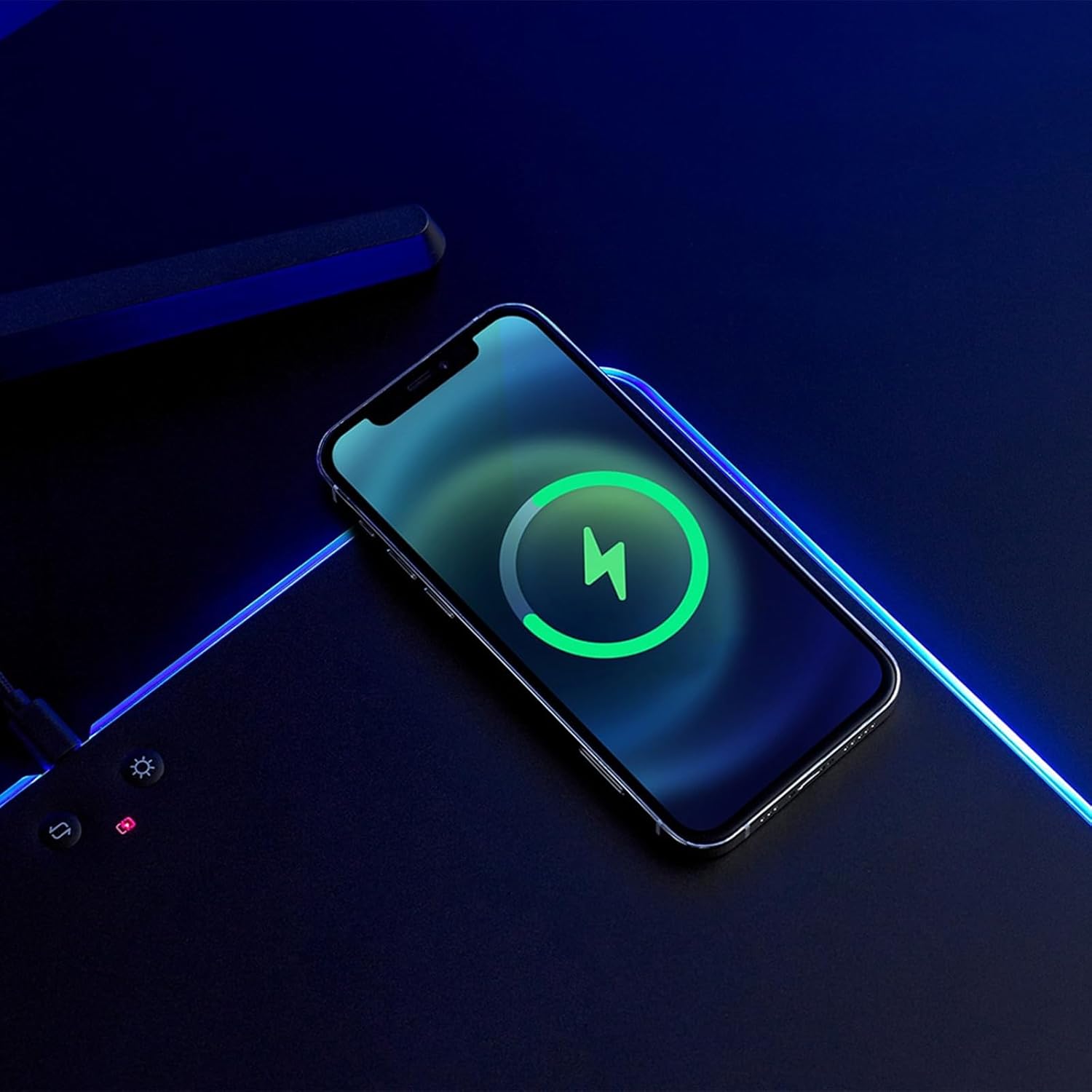
Image: A smartphone placed on the wireless charging area of the mouse mat, displaying a charging indicator on its screen.
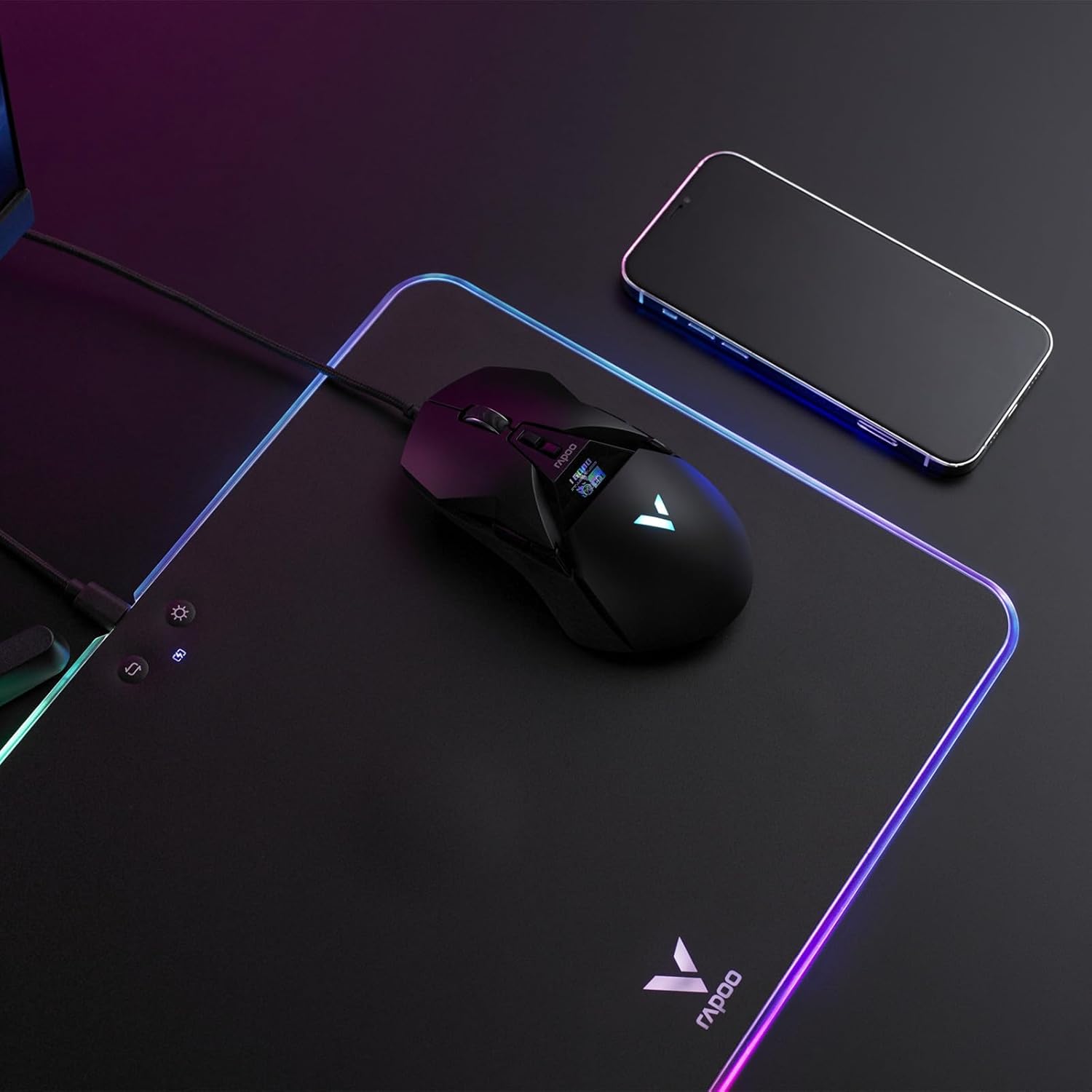
Image: A wireless mouse positioned on the mat for use, with a smartphone placed on the wireless charging area.
3. Hard PC Gaming Surface
The mouse mat features a hard PC gaming surface designed for consistent density, lower friction, and faster response compared to soft foam, rubber, or fabric mouse pads. This provides precise tracking for gaming and general use.
4. Anti-Slip Silicone Base
The underside of the mouse mat is equipped with an anti-slip silicone base. This ensures the mat remains steady and shock-absorbing, preventing unwanted movement during intense use.

Slika: Uvećana view of the hexagonal pattern on the anti-slip silicone base of the mouse mat.
Održavanje
- Čišćenje površine: Koristite meku, damp cloth to gently wipe the hard PC gaming surface. Avoid abrasive cleaners or harsh chemicals, as these may damage the surface or RGB lighting.
- Čišćenje baze: The silicone base can be wiped with a damp cloth if it collects dust. Ensure the mat is completely dry before placing it back on your desk.
- Skladištenje: When not in use for extended periods, store the mouse mat flat or gently rolled to prevent creases or damage to the internal components.
Rješavanje problema
| Problem | Mogući uzrok | Rješenje |
|---|---|---|
| RGB lighting does not turn on. |
|
|
| Bežično punjenje ne radi. |
|
|
| Praćenje miša je nekonzistentno. |
|
|
Specifikacije
| Feature | Detalj |
|---|---|
| Model | V10RGB |
| Dimenzije proizvoda | 14in x 10in / 35.2cm x 25.5cm |
| Težina proizvoda | 1.19 lb / 542 g |
| Materijal | Polycarbonate (Surface), Silicone (Base) |
| Režimi sa pozadinskim osvetljenjem | RGB, Solid Color |
| Nivoi osvjetljenja | Visoko, Srednje, Nisko, Isključeno |
| Ulazna struja | 2A/1.67A |
| Izlaz za bežično punjenje | 5W/7.5W/10W |
| Zaštitne karakteristike | Overcharge Protection, Over Temperature Protection, Object Detection |
| Interface | USB-C |
| Dužina kabla | 6ft / 1.8m |
Garancija i podrška
Za informacije o garanciji i tehničkoj podršci, molimo vas da se obratite službenom Rapoo servisu. webweb-mjesto ili direktno kontaktirajte njihovu korisničku službu. Sačuvajte račun za kupovinu u slučaju reklamacije.
Proizvođač: Shenzhen Rapoo Technology Co., Ltd.


