1. Uvod
This manual provides detailed instructions for the Hyperkin Pixel Art Bluetooth Controller, Miraculous Cat Noir Edition. Please read this manual thoroughly before using the product to ensure proper operation and to maximize your gaming experience. This controller is designed for use with multiple platforms, offering wireless connectivity and a comfortable, ergonomic design.
2. Proizvod je gotovview
The Hyperkin Pixel Art Bluetooth Controller combines a retro aesthetic with modern functionality. It features a unique Miraculous Cat Noir design, wireless Bluetooth connectivity, and a built-in turbo function.
2.1 Ključne karakteristike
- Bežično Bluetooth povezivanje: Enjoy gaming freedom up to 30 feet away.
- Turbo funkcija: Activate rapid-fire action for enhanced gameplay.
- Retro Design with Modern Ergonomics: A classic look combined with comfortable handling for extended play sessions.
- Travel Friendly: Kompaktan dizajn omogućava laku prenosivost.
- High-Quality Symmetrical Sticks: Designed for precision and responsiveness.
2.2 Izgled kontrolera

Slika 2.2.1: Front view of the Hyperkin Pixel Art Bluetooth Controller, Miraculous Cat Noir Edition. This image displays the D-pad, left and right analog sticks with paw print designs, A/B/X/Y buttons, Start/Select buttons, and the Cat Noir character art.

Slika 2.2.2: Side view of the Hyperkin Pixel Art Bluetooth Controller, Miraculous Cat Noir Edition. This image shows the shoulder buttons (L1, R1) and triggers (L2, R2), along with the USB-C charging port and mode switch.

Slika 2.2.3: Close-up view emphasizing the controller's retro design combined with modern ergonomic features for comfortable handling.
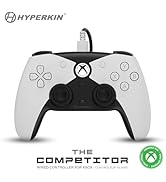
Slika 2.2.4: Close-up view showcasing the high-quality symmetrical analog sticks, designed for precise control during gameplay.
3. Podešavanje
3.1 Punjenje kontrolera
The controller includes a built-in Lithium Polymer battery. To charge, connect the supplied Type-C cable to the controller's charging port and the other end to a USB power source (e.g., a computer USB port, a USB wall adapter). The LED indicator on the controller will show charging status and turn off when fully charged.
3.2 Uparivanje putem Bluetootha
To pair the controller with your device:
- Provjerite da li je kontroler dovoljno napunjen.
- Uključite kontroler pritiskom na dugme Home.
- Put the controller into pairing mode (refer to your device's specific instructions for Bluetooth pairing, as this may vary). Typically, this involves holding a small pairing button or a combination of buttons until the LED indicator flashes rapidly.
- On your device (Nintendo Switch, PC, Mac, Android, iOS, etc.), navigate to the Bluetooth settings.
- Traži available devices and select "Hyperkin Pixel Art Controller" (or similar name) from the list.
- Once connected, the LED indicator on the controller will stabilize.
For Nintendo Switch, navigate to the 'Controllers' menu, then 'Change Grip/Order' to initiate pairing mode on the console.
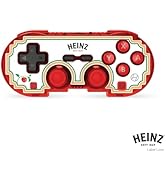
Slika 3.2.1: Illustration of the controller connecting wirelessly via Bluetooth, indicating a range of up to 30 feet.
3.3 Žičano povezivanje
The controller can also be used via a wired connection. Connect the Type-C cable from the controller to a compatible USB port on your device. This mode is often plug-and-play, requiring no additional pairing.
4. Uputstvo za upotrebu
4.1 Osnovne kontrole
The controller features standard gaming buttons:
- D-pad: Usmjereni ulaz.
- Analogne palice: Left and Right symmetrical sticks for precise movement and camera control.
- Dugmad za akcije (A, B, X, Y): Primarna dugmad za interakciju.
- Dugmad za rame (L, R) i okidači (ZL, ZR): Additional input buttons, typically for actions like aiming, firing, or menu navigation.
- Dugmad za pokretanje/odabir: For in-game menus and options.
- Dugme za početnu stranicu: Vraća se na početni ekran sistema.
4.2 Turbo funkcija
The turbo function allows for rapid, repeated input of a button press without continuously pressing the button. To activate or deactivate turbo for a specific button:
- Pritisnite i držite Turbo dugme.
- While holding the Turbo button, press the desired action button (e.g., A, B, X, Y, L, R, ZL, ZR) once to activate turbo for that button.
- Repeat the process (hold Turbo, press the same action button) to deactivate turbo for that button.
5. Kompatibilnost
The Hyperkin Pixel Art Bluetooth Controller is compatible with a wide range of gaming platforms:
- Nintendo Switch
- Nintendo Switch OLED Model
- Nintendo Switch Lite
- Windows 10/11 PC
- Mac
- Chromebook
- Android uređaji
- Apple iOS devices
- Steam
- Steam Deck
- ROG Ally
- Raspberry Pi
- Amazon Games/Amazon Luna
- Tesla
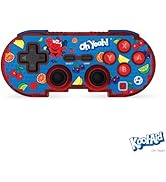
Slika 5.1: Visual representation of the controller's broad compatibility across multiple gaming platforms and operating systems.
6. Održavanje
Da biste osigurali dugotrajnost i optimalne performanse vašeg kontrolera, slijedite ove smjernice za održavanje:
- čišćenje: Koristite meku, suhu krpu za brisanje kontrolera. Za tvrdokornu prljavštinu, laganoampIsperite krpu vodom. Izbjegavajte jake hemikalije ili abrazivna sredstva za čišćenje.
- Skladištenje: Kontroler čuvajte na hladnom i suhom mjestu, dalje od direktne sunčeve svjetlosti i ekstremnih temperatura.
- Održavanje baterije: Izbjegavajte često potpuno pražnjenje baterije. Redovno punite kontroler, čak i ako se ne koristi duži period, kako biste održali zdravlje baterije.
- Izbjegavajte fizički udar: Do not drop or expose the controller to strong impacts, as this can damage internal components.
7. Otkrivanje problema
If you encounter issues with your Hyperkin Pixel Art Bluetooth Controller, refer to the following common problems and solutions:
| Problem | Moguće rješenje |
|---|---|
| Kontroler se ne uključuje. | Ensure the controller is charged. Connect it to a power source using the Type-C cable. |
| Kontroler se ne povezuje putem Bluetootha. |
|
| Dugmad ne reaguju ili reaguju sa zakašnjenjem. |
|
| USB charging port does not work. |
|
| Vibration is too strong or loud. | Some games or systems may offer an option to adjust or disable vibration feedback within their settings. Consult your game or system's options menu. |
8. Specifikacije
| Feature | Detalj |
|---|---|
| Broj modela | M01328-MTCN |
| Povezivanje | Bluetooth (Wireless), USB Type-C (Wired) |
| bežični domet | Do 30 stopa |
| Vrsta baterije | 1 litijum-polimerska baterija (uključena) |
| Dimenzije paketa | 7.4 x 5.2 x 2.4 inča |
| Težina artikla | 9.9 unce |
| Proizvođač | Hyperkin |
9. Garancija i podrška
This product is covered by the manufacturer's standard warranty. For specific warranty terms and conditions, please refer to the documentation included with your purchase or visit the official Hyperkin website. For technical support or further assistance, please contact Hyperkin customer service through their official channels.


