1. Uvod
This manual provides essential instructions for setting up, operating, maintaining, and troubleshooting your Brother MFC-L2800DW Monochrome Multifunction Laser Printer. Please read this manual thoroughly before using the device to ensure proper and safe operation.

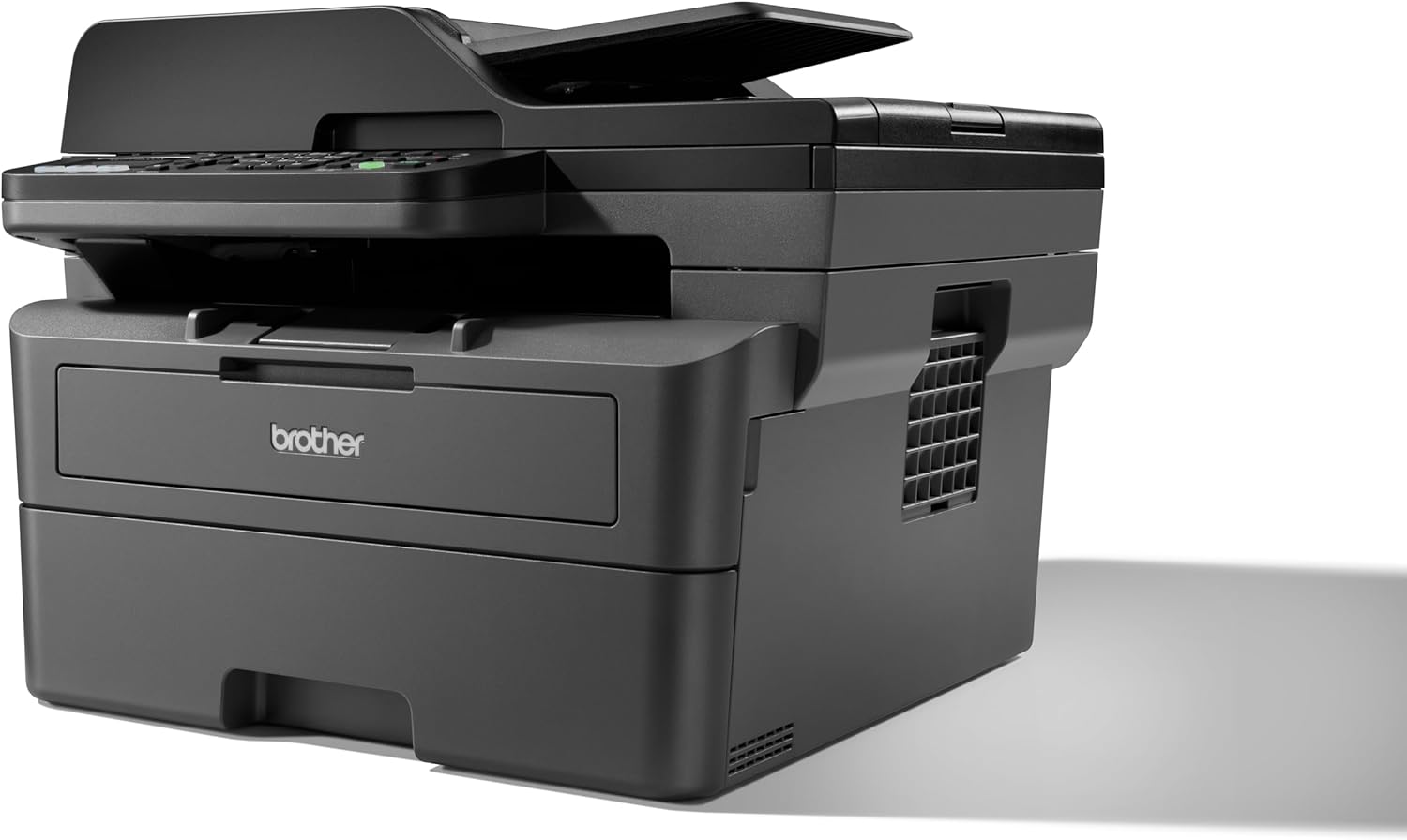
Slika 1.1: Prednja strana view of the Brother MFC-L2800DW printer.
2. Podešavanje
2.1 Raspakivanje i provjera komponenti
Carefully remove the printer from its packaging. Verify that all included components are present:
- Brother MFC-L2800DW Printer
- Toner Cartridge (Starter)
- Drum Unit
- Kabl za napajanje
- Vodič za brzo postavljanje
2.2 Toner and Drum Unit Installation
- Otvorite prednji poklopac štampača.
- Remove the drum unit and toner cartridge assembly from its protective bag.
- Insert the toner cartridge firmly into the drum unit until it locks into place.
- Slide the combined drum unit and toner cartridge assembly into the printer until it stops.
- Zatvorite prednji poklopac.
2.3 Umetanje papira
The printer features a 250-sheet paper input tray and a 50-sheet Automatic Document Feeder (ADF).
- Pull out the paper tray completely.
- Adjust the paper guides to fit the paper size (e.g., A4).
- Umetnite papir u ladicu, pazeći da bude ravna i ispod linije za maksimalno punjenje.
- Pažljivo gurnite ležište za papir nazad u štampač.

Slika 2.1: Od vrha prema dolje view of the printer with the paper tray open, ready for paper loading.
2.4 Priključak na napajanje i početno uključivanje
- Spojite kabel za napajanje s pisačem, a zatim s električnom utičnicom.
- Pritisnite dugme za napajanje da uključite štampač.
- Follow the on-screen instructions on the LCD display to select your language and region.
2.5 Mrežna povezivost
The MFC-L2800DW supports Ethernet, Wi-Fi (5 GHz), and USB connections.
- USB veza: Connect a USB cable from the printer to your computer.
- Ethernet veza: Spojite Ethernet kabel iz pisača na mrežni usmjerivač ili prekidač.
- Wi-Fi veza: Use the printer's control panel to navigate to the Network settings. Select WLAN, then follow the prompts to connect to your wireless network.
2.6 Instalacija upravljačkih programa i softvera
Insert the installation CD (if provided) into your computer or download the latest drivers and software from the official Brother support webstranica. Slijedite upute na ekranu da biste dovršili instalaciju.
3. Upravljanje štampačem
3.1 Kontrolna tabla prekoview
Slika 3.1: Krupni plan view of the printer's control panel with LCD display and buttons.
The control panel features a 2-tier LCD display for menu navigation and status updates, along with various buttons for functions like Copy, Scan, Fax, Wi-Fi, and Start.
3.2 Štampanje dokumenata
- Provjerite je li štampač uključen i povezan s računarom ili mrežom.
- Otvorite dokument koji želite isprintati na računaru ili mobilnom uređaju.
- Odaberite opciju ispisa iz vaše aplikacije.
- Choose the Brother MFC-L2800DW from the list of available printers.
- Po potrebi prilagodite postavke ispisa (npr. broj kopija, veličinu papira, dvostrani ispis).
- Kliknite na 'Štampaj'.

Image 3.2: The Brother MFC-L2800DW printer actively printing a document.
3.3 Kopiranje dokumenata
- Place the document face down on the scanner glass or face up in the Automatic Document Feeder (ADF).
- Pritisnite Kopiraj dugme na kontrolnoj tabli.
- Use the arrow keys to select copy options (e.g., number of copies, reduction/enlargement, 2-sided copy).
- Pritisnite Počni.
3.4 Skeniranje dokumenata
- Postavite dokument na staklo skenera ili u ADF.
- Pritisnite Skeniraj dugme na kontrolnoj tabli.
- Select your desired scan destination (e.g., PC, Email, FTP).
- Adjust scan settings as prompted by the display.
- Pritisnite Počni.
3.5 Faksiranje dokumenata
- Place the document face down on the scanner glass or face up in the ADF.
- Pritisnite Fax dugme na kontrolnoj tabli.
- Unesite broj faksa primaoca pomoću numeričke tastature.
- Pritisnite Počni.
4. Održavanje
4.1 Zamjena toner kasete
When the 'Toner Low' or 'Replace Toner' message appears on the LCD, it is time to replace the toner cartridge.
- Otvorite prednji poklopac.
- Remove the drum unit and toner cartridge assembly from the printer.
- Press the green lock lever and remove the old toner cartridge from the drum unit.
- Unpack the new toner cartridge and gently shake it horizontally several times.
- Insert the new toner cartridge firmly into the drum unit until it locks.
- Slide the assembly back into the printer and close the front cover.
4.2 Zamjena bubnja
The drum unit is a consumable item that needs replacement after a certain number of pages. The LCD will indicate when replacement is necessary.
- Follow steps 1-3 for toner replacement to remove the old toner and drum assembly.
- Remove the old toner cartridge from the old drum unit.
- Raspakujte novu jedinicu bubnja.
- Insert the existing toner cartridge into the new drum unit until it locks.
- Slide the new drum unit and toner cartridge assembly back into the printer and close the front cover.
- Reset the drum counter through the printer's menu.
4.3 Čišćenje štampača
- Eksterijer: Wipe the exterior with a soft, lint-free cloth.
- Staklo skenera: Clean the scanner glass with a soft, dry cloth. For stubborn marks, use a small amount of glass cleaner applied to the cloth (not directly to the glass).
- Koronska žica: Periodically clean the corona wire inside the drum unit by gently sliding the green tab from left to right several times. Return the tab to its home position.
5. Otkrivanje problema
This section addresses common issues you might encounter. For more detailed troubleshooting, refer to the official Brother support website.
5.1 Zaglavljivanje papira
If a paper jam occurs, the LCD will display an error message. Follow these general steps:
- Isključite štampač i izvucite kabl za napajanje.
- Open the front cover and carefully remove the drum unit and toner cartridge assembly.
- Gently pull out any jammed paper. Check all paper paths, including the back cover and duplex tray.
- Reinstall the drum unit and toner cartridge assembly, close the cover, and reconnect the power cord.
- Uključite štampač.
5.2 Problemi s kvalitetom ispisa
- Faded Print: Toner may be low. Replace the toner cartridge.
- Streaks or Spots: Clean the corona wire in the drum unit. If the issue persists, the drum unit may need replacement.
- Uneven Density: Provjerite da postavka za vrstu papira odgovara umetnutom papiru.
5.3 Problemi s povezivanjem
- Nema konekcije: Verify all cables are securely connected (USB/Ethernet). For Wi-Fi, ensure the printer is connected to the correct network and the signal is strong.
- Printer Offline: Check printer status on your computer. Restart both the printer and your computer.
6. Specifikacije
| Feature | Specifikacija |
|---|---|
| Naziv modela | MFC-L2800DW |
| Tehnologija štampe | Laser |
| Izlaz štampača | Monochrome |
| Maksimalna brzina štampanja (monohromatski) | 32 ppm |
| Maksimalna rezolucija ispisa (crno-bijelo) | 1200 x 1200 dpi |
| Dvostrano štampanje | Da |
| Tip skenera | ADF |
| Rezolucija skenera | 1200 x 1200 |
| Maksimalna brzina kopiranja (crno-bijelo) | 32 ppm |
| Maksimalan broj kopija po pokretanju | 50 |
| Tehnologija povezivanja | Ethernet, USB, Wi-Fi (5 GHz) |
| Maksimalni kapacitet ulaznog lista | 250 listova |
| Automatski ulagač dokumenata (ADF) | 50 listova |
| Maksimalna veličina medija | A4 |
| Display Type | LCD (2-tier) |
| Kapacitet memorije | 128 MB |
| Potrošnja energije | 480 Watts |
| Dimenzije proizvoda (DxŠxV) | 39.9 x 41 x 31.9 cm |
| Težina artikla | 11.6 kilograma |
| Uključene komponente | Toner Cartridge, Drum Unit, 250 Sheets Paper Input Tray, 50 Sheets Automatic Document Feeder |
7. Garancija i podrška
7.1 Jamstvo za proizvod
Your Brother MFC-L2800DW printer is covered by a manufacturer's warranty. Please refer to the warranty card included with your product or visit the official Brother webweb stranicu za detaljne uslove garancije specifične za vašu regiju.
7.2 Korisnička podrška
For further assistance, technical support, driver downloads, or to access frequently asked questions, please visit the official Brother support webstranica:


