1. Uvod i krajview
This manual provides detailed instructions for the setup, operation, and maintenance of your Samsung 34-inch ViewFinity S65VC Series Ultrawide QHD Curved Monitor. This monitor features a 34-inch 1000R curved display with a 21:9 aspect ratio, Ultra-WQHD resolution, HDR10 support, a 100Hz refresh rate, and a built-in FHD camera. It also includes a USB-C port for power delivery and data transmission, an adjustable stand, and Intelligent Eye Care features.

Slika 1.1: Front view Samsung-a ViewFinity S65VC curved monitor. The monitor displays a colorful abstract image and has a slim bezel design with a central stand.
2. Sadržaj paketa
Provjerite da li se u kutiji proizvoda nalaze svi artikli:
- Samsung 34-inčni ViewFinity S65VC Monitor
- Power Cable
- HDMI kabl
- USB kabel tipa C
- USB 3.0 kabel
- Quick Setup Guide (not included in this digital manual)
3. Upute za postavljanje
3.1. Sastavljanje postolja
- Pažljivo izvadite komponente monitora i postolja iz ambalaže.
- Pričvrstite vrat postolja na ploču monitora. Provjerite da li je sigurno uglavljen na svoje mjesto.
- Pričvrstite bazu postolja na vrat postolja i zategnite vijak na dnu baze.
- Postavite sastavljeni monitor na stabilnu, ravnu površinu.
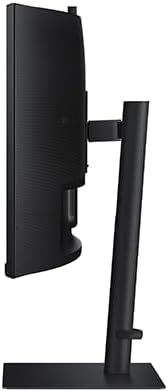
Slika 3.1: Side view of the monitor, illustrating the adjustable stand. The stand allows for height, tilt, and swivel adjustments.
3.2. Povezivanje kablova
Connect the necessary cables to the corresponding ports on the back of the monitor and your computer or other devices.

Slika 3.2: Pozadi view of the monitor, detailing the various input ports. Ports include HDMI IN, DisplayPort IN, USB-C, PC IN, LAN IN, USB/SERVICE, USB 3.0, and Headphone IN.
- Kabl za napajanje: Spojite jedan kraj na ulaz za napajanje monitora, a drugi na električnu utičnicu.
- Video Cable (HDMI/DisplayPort/USB-C):
- For HDMI connection, use the provided HDMI cable.
- For DisplayPort connection, use a DisplayPort cable (sold separately).
- For USB-C connection, use the provided USB Type-C cable. This cable can also provide power to compatible devices and transmit data.
- USB 3.0 Cable: Connect the upstream USB 3.0 cable from your computer to the monitor to enable the monitor's USB ports.
- LAN kabel: If using the monitor's built-in Ethernet port, connect a LAN cable.
- slušalice: Connect headphones to the Headphone IN port if desired.
3.3. Početno uključivanje
After connecting all cables, press the power button on the monitor. The monitor will power on and display the input source. If no signal is detected, ensure your computer is on and the correct input source is selected.
4. Uputstvo za upotrebu
4.1. Navigacija kroz meni na ekranu (OSD)
The monitor's settings are controlled via a 5-position joystick button located on the bottom center of the monitor. This button allows you to navigate the OSD menu.
- Pritisnite: Za otvaranje OSD menija ili potvrdu odabira.
- Pomicanje gore/dolje/lijevo/desno: Za navigaciju kroz opcije menija ili podešavanje vrijednosti.
4.2. Odabir izvora ulaza
To switch between input sources (HDMI, DisplayPort, USB-C):
- Pritisnite džojstik da biste otvorili OSD meni.
- Navigate to the "Input" or "Source" menu.
- Odaberite željeni izvor ulaza.
4.3. Display Settings Adjustment
Pristupite OSD meniju da biste podesili različite postavke ekrana:
- slika: Podesite svjetlinu, kontrast, oštrinu, temperaturu boja i gamu.
- Boja: Fine-tune color settings for optimal viewing.
- ekran: Adjust aspect ratio, screen size, and other screen-related options.
- Sistem: Configure language, OSD timeout, and other general settings.
4.4. Using the Built-in FHD Camera
The monitor includes a built-in Full HD camera. Ensure the USB-C or USB 3.0 cable is connected to your computer to enable camera functionality. The camera can be used with video conferencing applications.
4.5. Funkcionalnost USB-C priključka
The USB-C port supports 90W power delivery, allowing you to charge compatible laptops or devices directly from the monitor. It also transmits video, audio, and data signals through a single cable.
4.6. Intelligent Eye Care Features
The monitor incorporates Intelligent Eye Care technology to reduce eye strain:
- Adaptivna slika: Automatski podešava svjetlinu i temperaturu boje na osnovu ambijentalnog osvjetljenja.
- Način rada za uštedu očiju: Reduces blue light emissions to minimize eye fatigue.
- Bez treperenja: Eliminiše treperenje ekrana za ugodniji rad viewing iskustvo.
These features can be enabled or configured through the OSD menu.
4.7. Podesivi stalak
Stalak za monitor omogućava ergonomska podešavanja:
- Podešavanje visine: Podignite ili spustite monitor po želji viewvisina.
- Podešavanje nagiba: Tilt the screen forward or backward to optimize your viewing kut.
- Podešavanje okretanja: Okrenite monitor horizontalno na njegovom postolju.
5. Održavanje
5.1. Čišćenje monitora
- Uvijek isključite monitor i iskopčajte kabel za napajanje prije čišćenja.
- Koristite meku krpu koja ne ostavlja dlačiceampoprati vodom ili specijaliziranim sredstvom za čišćenje ekrana.
- Ne prskajte sredstva za čišćenje direktno na ekran ili monitor casing.
- Avoid using abrasive cleaners, alcohol, benzene, or thinners, as these can damage the monitor's surface.
5.2. Opća njega
- Držite monitor dalje od direktne sunčeve svjetlosti, izvora toplote i prekomjerne prašine.
- Osigurajte adekvatnu ventilaciju oko monitora.
- Izbjegavajte stavljanje teških predmeta na monitor ili njegove kablove.
6. Otkrivanje problema
| Problem | Mogući uzrok | Rješenje |
|---|---|---|
| Nema struje | Kabl za napajanje nije priključen ili utičnica nije aktivna. | Ensure the power cable is securely connected to the monitor and a working power outlet. Check the power button. |
| Nema slike na ekranu | Video cable not connected or incorrect input source selected. | Verify the video cable (HDMI, DisplayPort, USB-C) is securely connected to both the monitor and the computer. Select the correct input source using the OSD menu. Ensure the computer is powered on. |
| Slika je mutna ili iskrivljena | Incorrect resolution or refresh rate settings. Loose video cable. | Set the display resolution to the monitor's native resolution (3440 x 1440) and refresh rate to 100Hz in your computer's display settings. Check video cable connections. |
| Built-in camera not working | USB-C or USB 3.0 cable not connected. Driver issues. | Ensure the USB-C or USB 3.0 upstream cable is connected between the monitor and your computer. Check device manager for camera drivers. |
| OSD menu difficult to navigate | Unfamiliarity with the 5-position joystick. | Practice using the joystick button for navigation. Press to select, move in directions to navigate. |
7. Specifikacije
| Feature | Detalj |
|---|---|
| Brand | Samsung |
| Broj modela | LS34C654VANXGO |
| Veličina ekrana | 34 inča |
| Screen Resolution (Max) | 3440 x 1440 Pixels (Ultra-WQHD) |
| Aspect Ratio | 21:9 |
| Zakrivljenost | 1000R |
| Refresh Rate | 100Hz |
| Osvetljenost | 350 nit |
| HDR podrška | HDR10 |
| Ugrađena kamera | FHD kamera |
| Povezivanje | HDMI, DisplayPort, USB-C (90W PD), USB 3.0, LAN, Headphone IN |
| Karakteristike postolja | Adjustable Height, Tilt, Swivel |
| Posebne karakteristike | Intelligent Eye Care (Adaptive Picture, Eye Saver Mode, Flicker Free), KVM Switch, Built-in Speakers |
| Težina artikla | 17.9 funte (8.12 kg) |
| Dimenzije proizvoda (DxŠxV) | 9.5 x 31.76 x 22.1 inča (24.13 x 80.67 x 56.13 cm) |
| Boja | Crna |
8. Garancija i podrška
Za informacije o garanciji i tehničkoj podršci, pogledajte garantni list koji ste dobili uz proizvod ili posjetite službenu Samsungovu stranicu za podršku. website. You can typically find support resources, FAQs, and contact information for your region on their website.
Samsung podrška Webstranica: https://www.samsung.com/us/support/


