Uvod
This manual provides detailed instructions for the Taiahiro 201 Gaming Keyboard. This 87-key mechanical keyboard is designed for an enhanced typing and gaming experience, featuring non-conflicting keys for simultaneous presses without lag. Its compact and ergonomic design ensures comfortable use across various devices.
Sadržaj paketa
- Taiahiro 201 Mechanical Keyboard
- USB-C na USB-A kabel
- Uputstvo za upotrebu
Product Overview
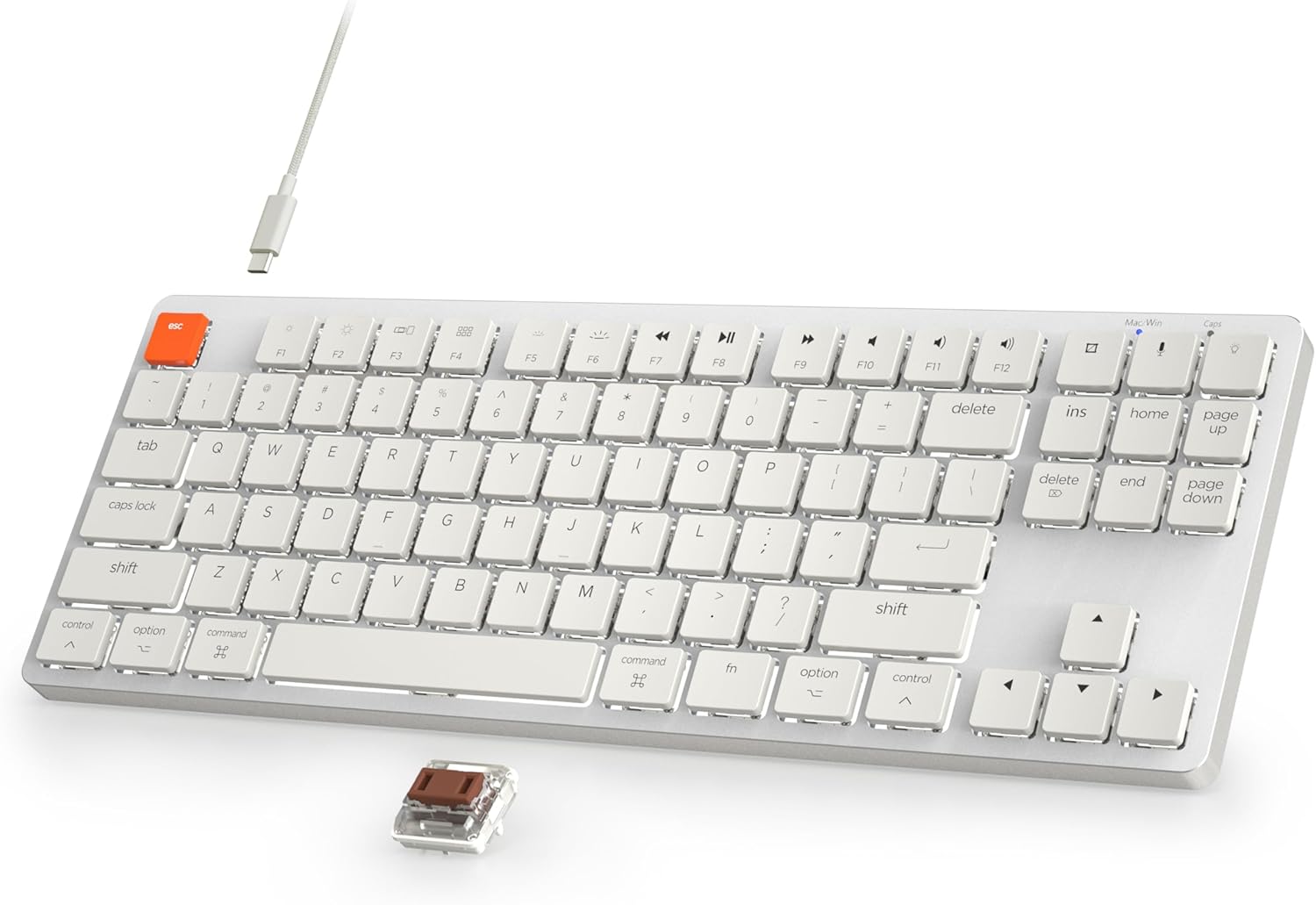
Figure 1: Taiahiro 201 Mechanical Keyboard. This image shows the full keyboard with its white keys and silver frame, connected via a white USB-C cable.
The Taiahiro 201 keyboard features an 87-key layout, providing a compact form factor without sacrificing essential functionality. It includes dedicated function keys and multimedia controls.
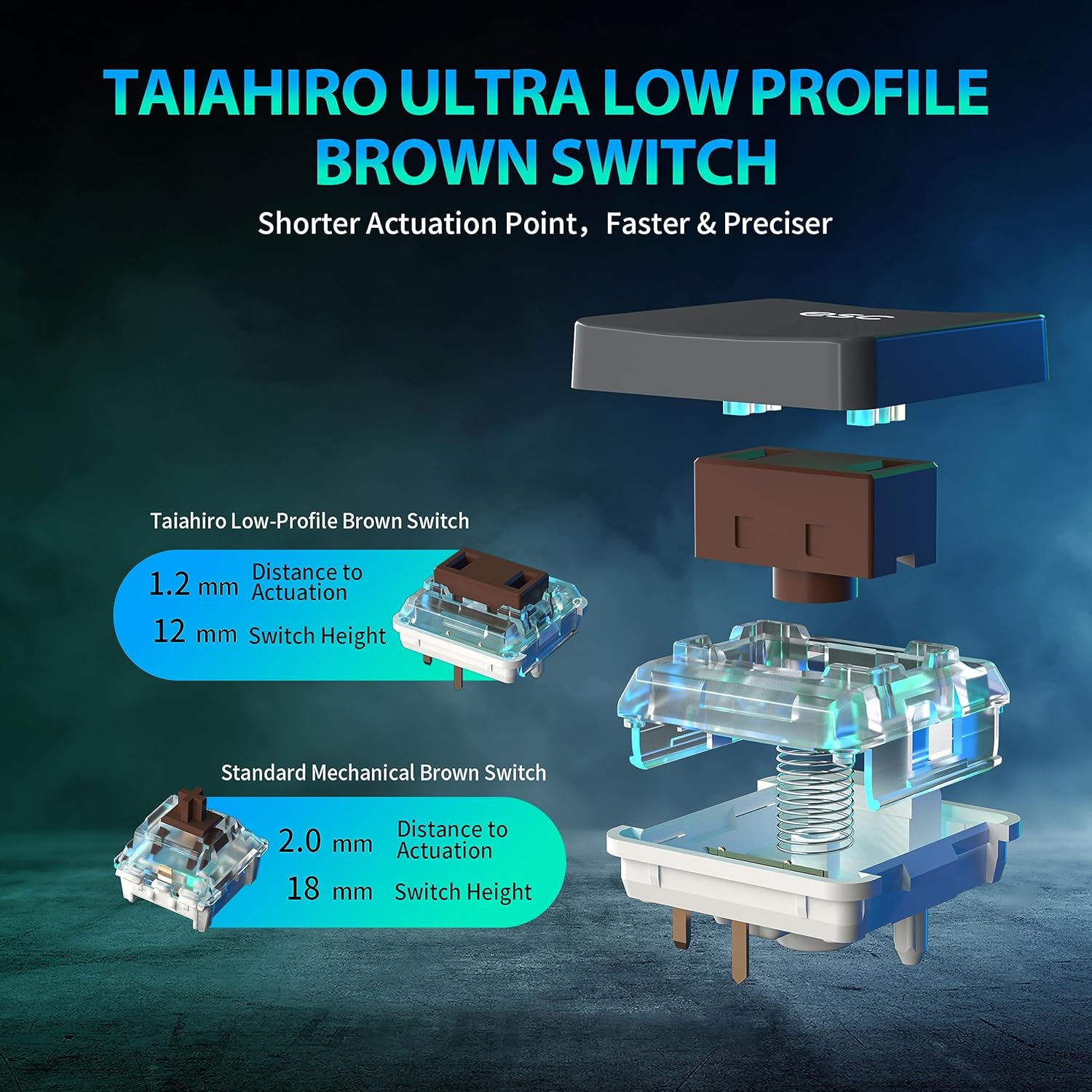
Figure 2: Taiahiro Low-Profile Brown Switch. This diagram illustrates the internal components and dimensions of the low-profile brown switch compared to a standard mechanical brown switch, highlighting its shorter actuation point and overall height.
The keyboard utilizes Taiahiro Low-Profile Brown Switches, designed for a shorter actuation point, resulting in faster and more precise keystrokes. The switch height is 12mm with a 1.2mm actuation distance.
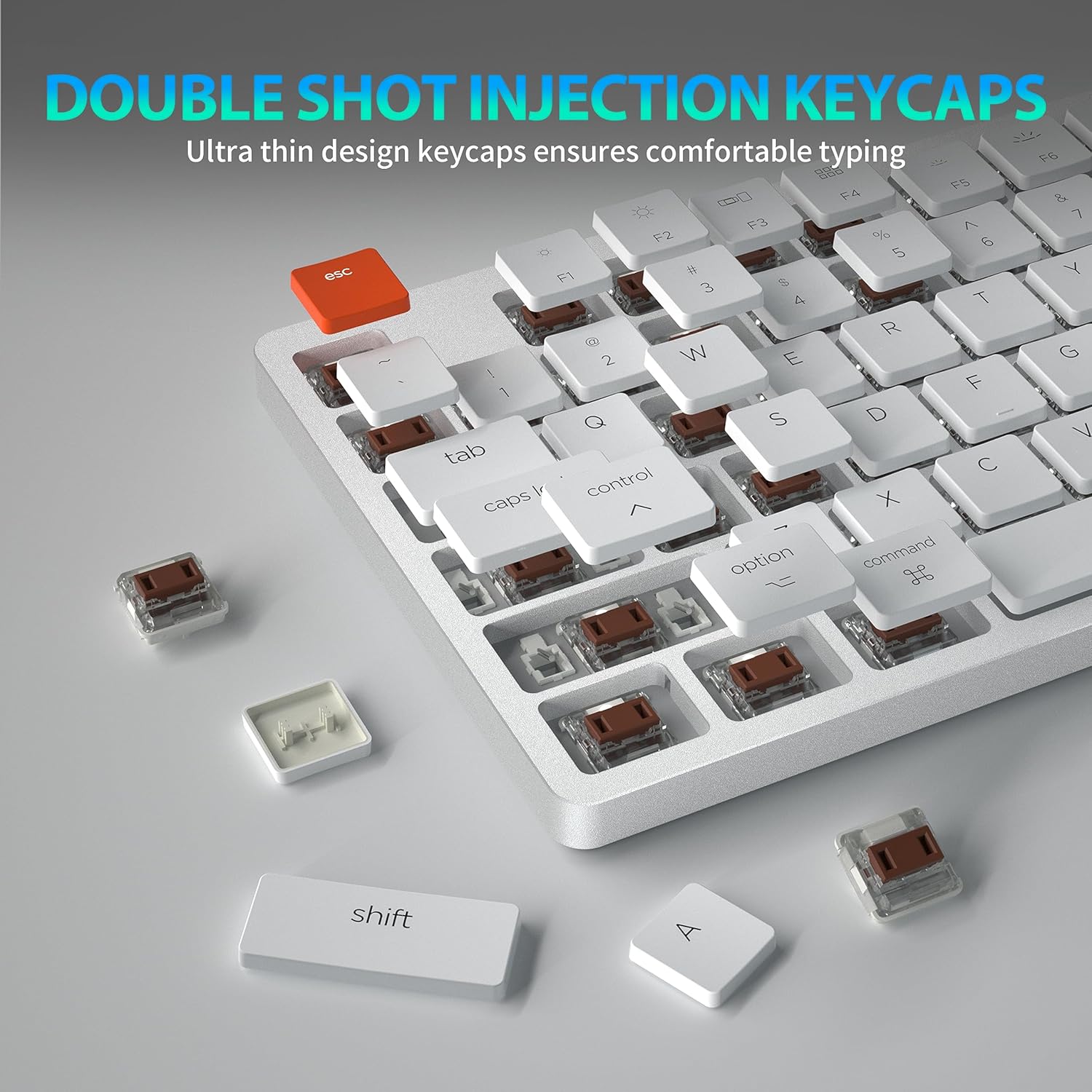
Figure 3: Double Shot Injection Keycaps. A close-up view of the keyboard showing several keycaps removed, revealing the double-shot injection molding process which ensures durability and clear legends.
Keycaps are manufactured using double shot injection, ensuring durability and preventing legends from fading over time. The ultra-thin design contributes to a comfortable typing experience.
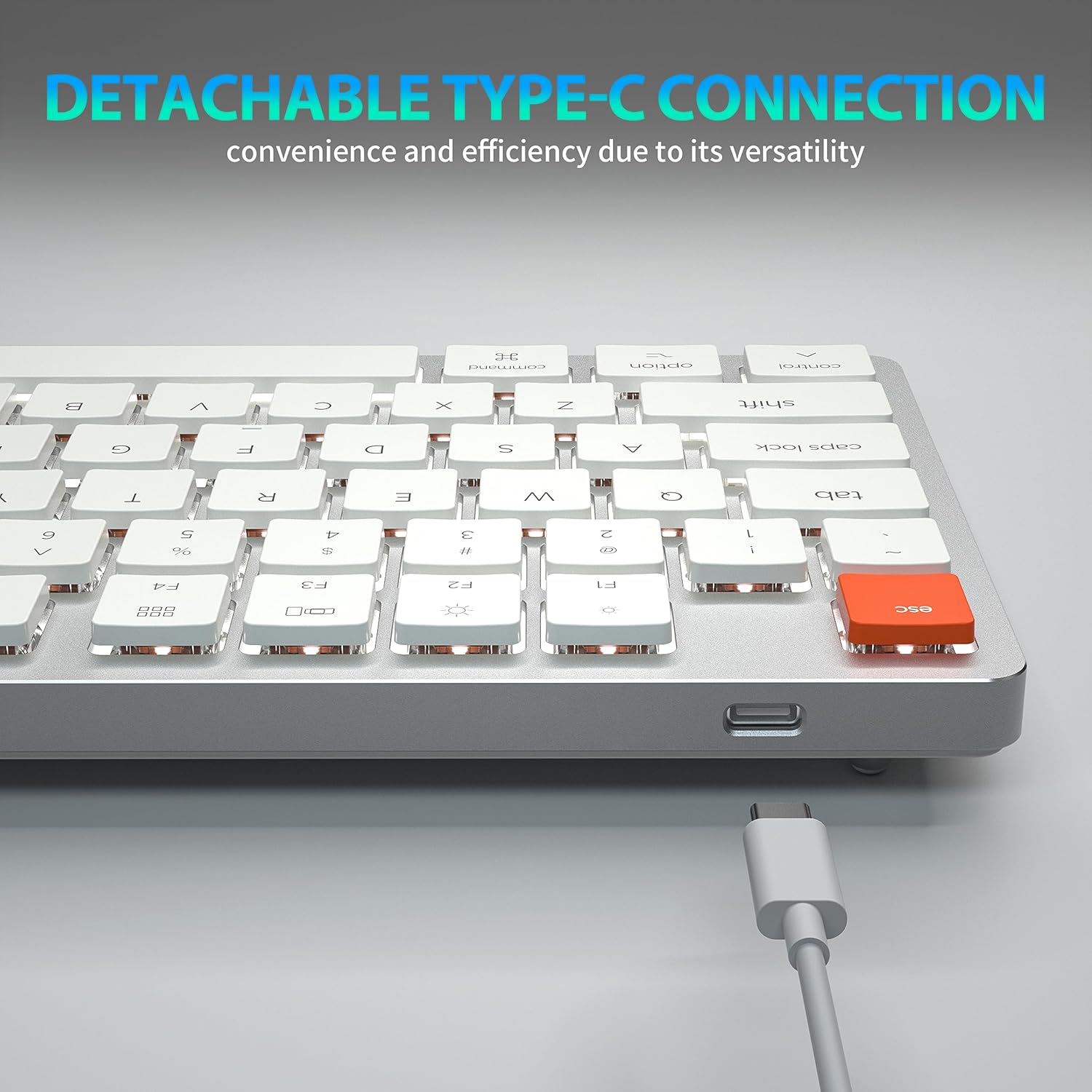
Figure 4: Detachable Type-C Connection. This image highlights the USB-C port on the keyboard and the detachable cable, emphasizing its versatility and ease of transport.
The keyboard features a detachable USB Type-C connection, offering convenience and efficiency due to its versatile and widely compatible interface.
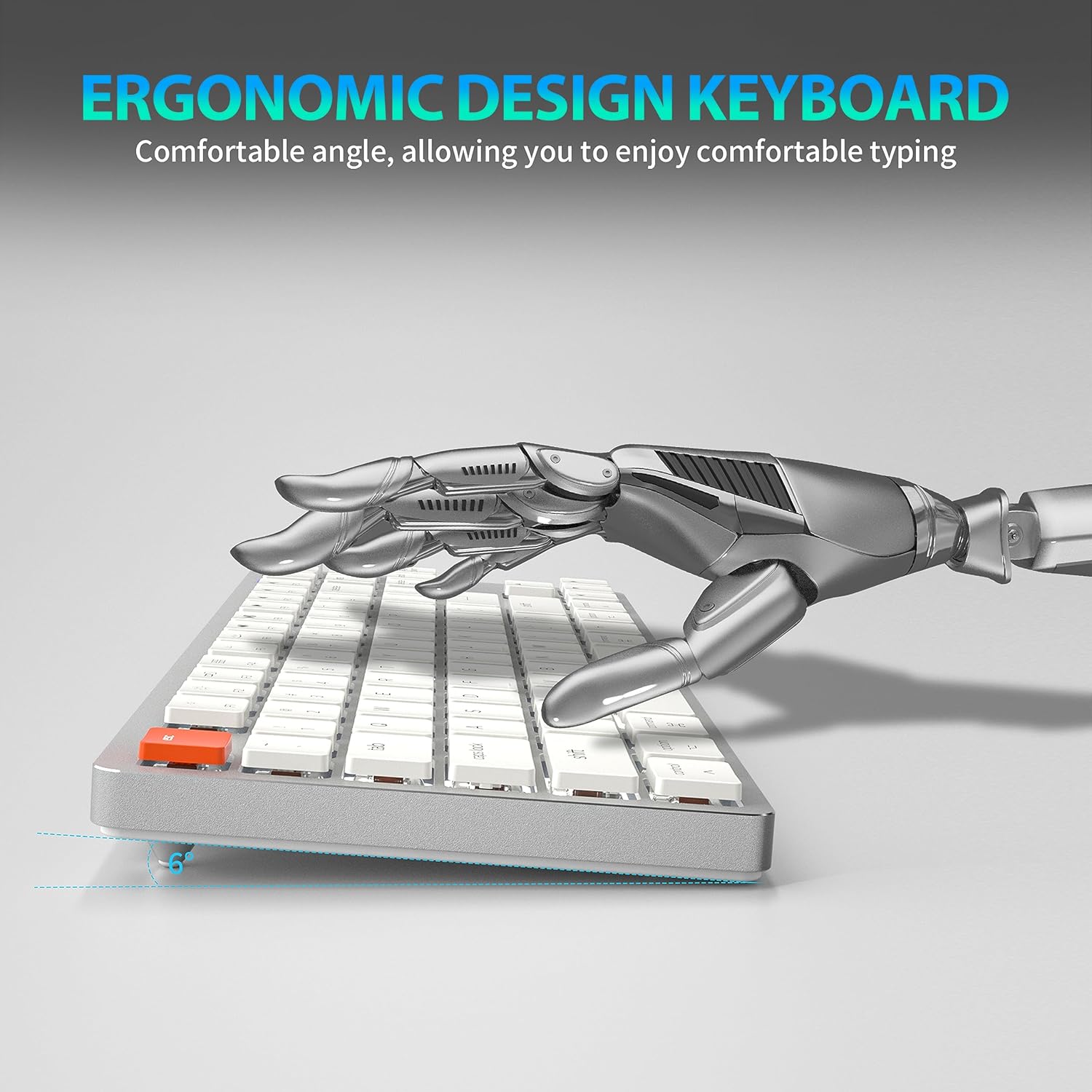
Figure 5: Ergonomic Design. A side view of the keyboard illustrating its comfortable typing angle, designed to reduce strain during extended use.
The ergonomic design provides a comfortable angle for typing, reducing wrist strain during prolonged use.
Setup
Žičana veza (USB-C)
- Spojite USB-C kraj priloženog kabla na USB-C port tastature.
- Connect the USB-A end of the cable to an available USB port on your computer or device.
- Tastatura će biti automatski prepoznata i spremna za upotrebu.
Wireless Connection (Bluetooth 5.1)
The keyboard supports stable Bluetooth 5.1 connectivity, allowing effortless switching between up to 3 devices.
- Provjerite je li tastatura napunjena ili povezana putem USB-C priključka.
- Turn on the keyboard's power switch (usually located on the back or side).
- Da uđete u način uparivanja, pritisnite i držite Fn + Q, Fn + W, ili Fn + E for 3-5 seconds. The indicator light for the selected channel (Q, W, or E) will flash rapidly, indicating it's ready for pairing.
- Na vašem uređaju (računar, laptop, tablet, telefon) omogućite Bluetooth i potražite nove uređaje.
- Select "Taiahiro 201 Keyboard" (or similar name) from the list of available devices.
- Once connected, the indicator light will stop flashing and remain solid for a few seconds, then turn off.
- Za prebacivanje između uparenih uređaja, jednostavno pritisnite Fn + Q, Fn + W, ili Fn + E.
Uputstvo za upotrebu
Kontrola pozadinskog osvetljenja
The Taiahiro 201 keyboard features adjustable backlighting. Use the following key combinations to control the backlight:
- Fn + \ |: Cycle through backlight modes.
- Fn + ↑: Povećajte svjetlinu pozadinskog osvjetljenja.
- Fn + ↓: Smanjite svjetlinu pozadinskog osvjetljenja.
- Fn + ←: Decrease backlight speed (for dynamic modes).
- Fn + →: Increase backlight speed (for dynamic modes).
Multimedia Keys and Function Keys
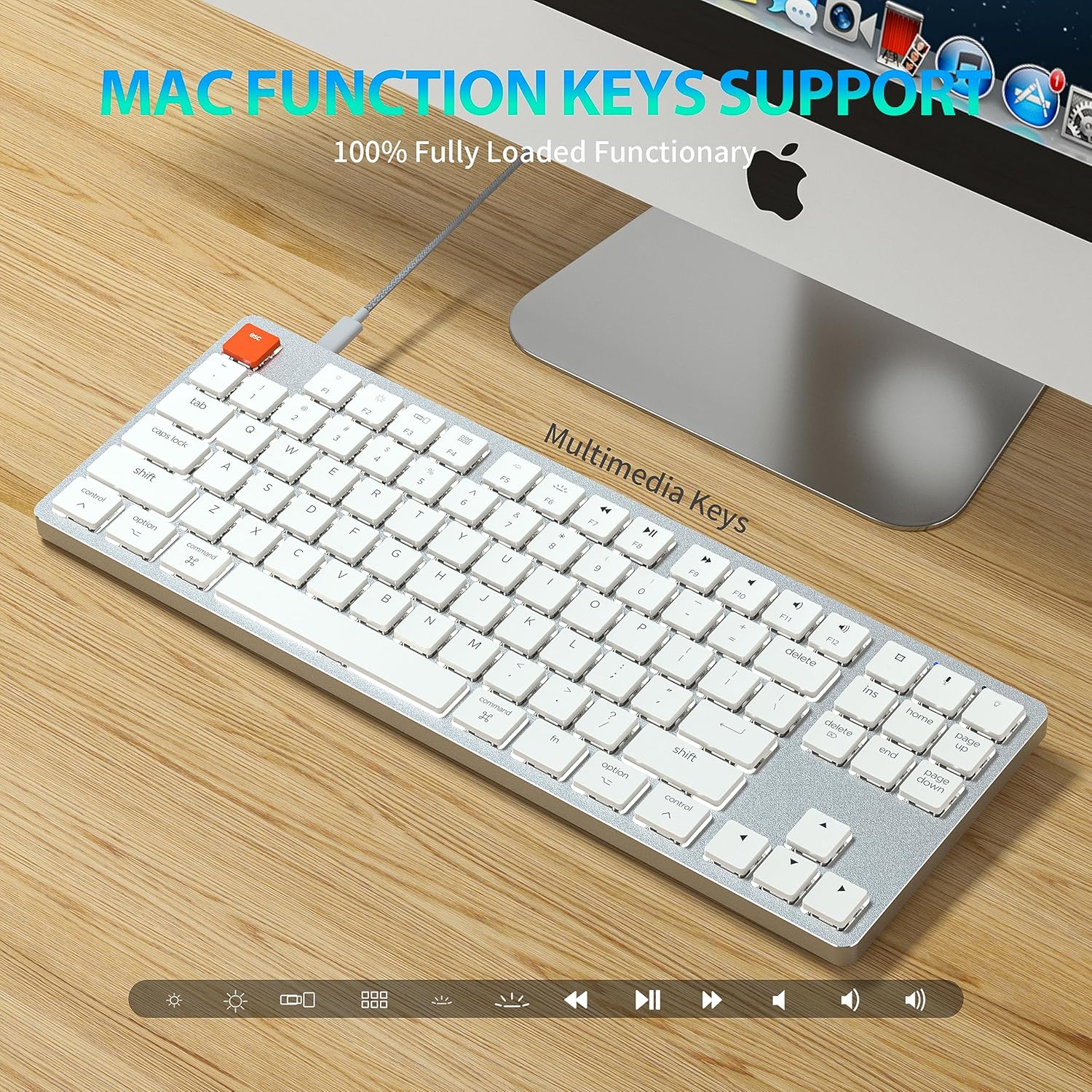
Figure 6: Mac Function Keys Support. This image shows the keyboard in a Mac setup, highlighting the multimedia and function keys (F1-F12) and their compatibility with macOS.
The keyboard supports full functionality for both Windows and Mac operating systems. Use the Fn key in combination with the F-keys for multimedia and system functions:
- Fn + F1: Decrease screen brightness
- Fn + F2: Increase screen brightness
- Fn + F3: Mission Control (Mac) / Task View (Windows)
- Fn + F4: Launchpad (Mac) / Search (Windows)
- Fn + F5: Backlight mode cycle
- Fn + F6: Backlight color cycle
- Fn + F7: Prethodna numera
- Fn + F8: Pusti/pauza
- Fn + F9: Sljedeća pjesma
- Fn + F10: Mute
- Fn + F11: Stišavanje zvuka
- Fn + F12: Pojačavanje zvuka
- fn + A: Switch to Mac layout (Command/Option keys)
- Fn + S: Switch to Windows layout (Ctrl/Alt keys)
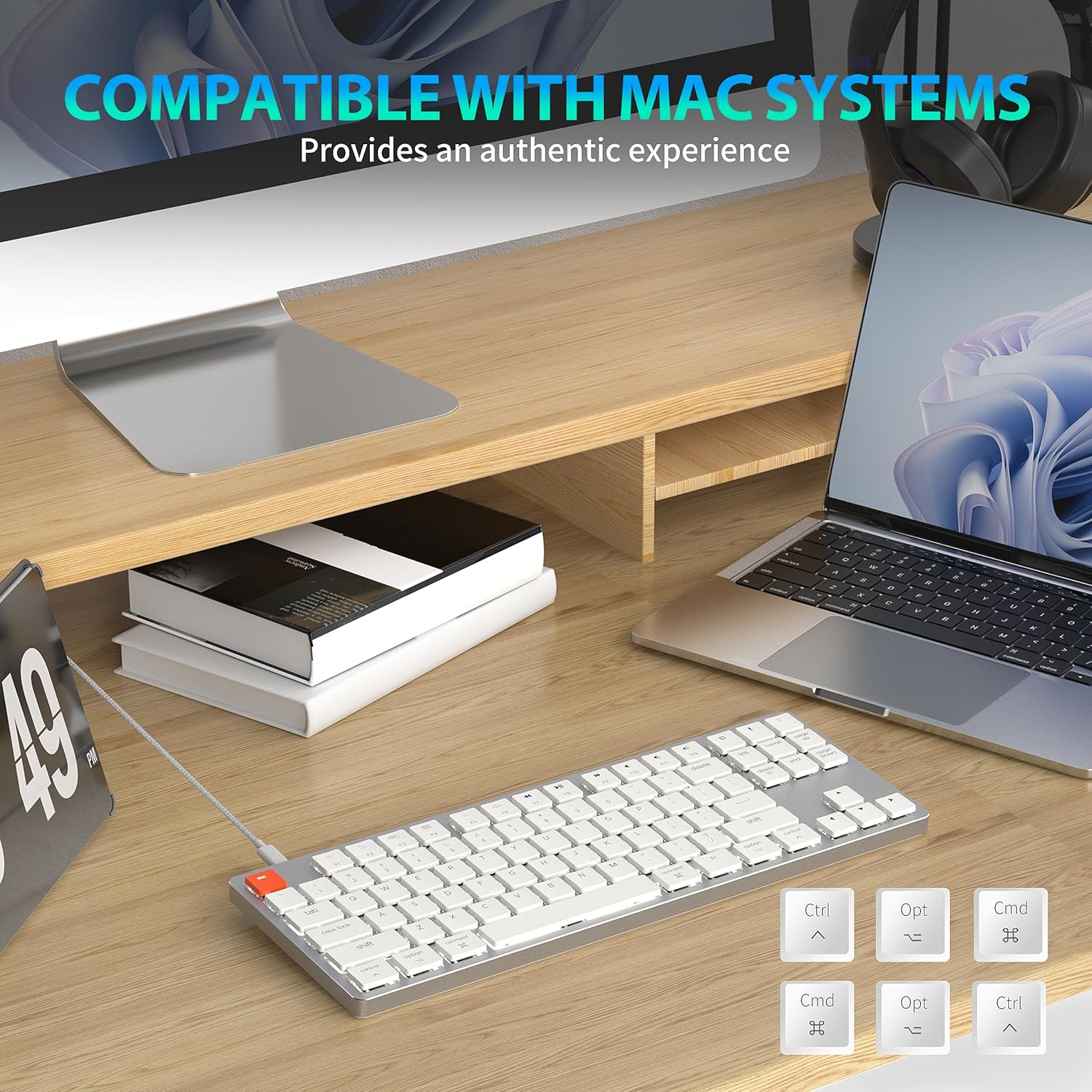
Figure 7: Compatibility with Mac Systems. This image shows the keyboard connected to a Mac setup, with an inset displaying alternative keycaps for Command, Option, and Control, indicating full compatibility and an authentic experience for Mac users.
The keyboard is fully compatible with Mac systems, providing an authentic experience with dedicated Mac function keys and layout options.
Održavanje
- čišćenje: Use a soft, dry cloth to wipe the keyboard surface. For deeper cleaning, gently remove keycaps and use compressed air to clear debris.
- Skladištenje: Tastaturu čuvajte na hladnom i suhom mjestu, dalje od direktne sunčeve svjetlosti i ekstremnih temperatura.
- Izloženost tečnosti: Avoid exposing the keyboard to liquids. In case of spills, immediately disconnect the keyboard and allow it to dry completely before re-connecting.
Rješavanje problema
Tastatura ne reaguje
- Ožičeni način: Provjerite je li USB-C kabel sigurno povezan i s tastaturom i s računarom. Pokušajte s drugim USB priključkom ili kabelom.
- Bežični način rada:
- Provjerite je li tastatura uključena.
- Provjerite da li je tastatura napunjena.
- Provjerite je li Bluetooth omogućen na vašem uređaju.
- Re-pair the keyboard with your device (see Wireless Connection section).
- Ensure you are on the correct Bluetooth channel (Fn+Q/W/E).
Backlight Not Working/Dim
- Povećajte svjetlinu pomoću Fn + ↑.
- Prođite kroz režime pozadinskog osvetljenja pomoću Fn + \ |.
- Ensure the keyboard is not in a low-power state. Charge the keyboard if using wireless mode.
Bluetooth Disconnection Issues
- Ensure the keyboard is within the effective range of your device.
- Minimizirajte smetnje od drugih bežičnih uređaja.
- Ponovo uparite tastaturu.
- Update Bluetooth drivers on your device if applicable.
Specifikacije
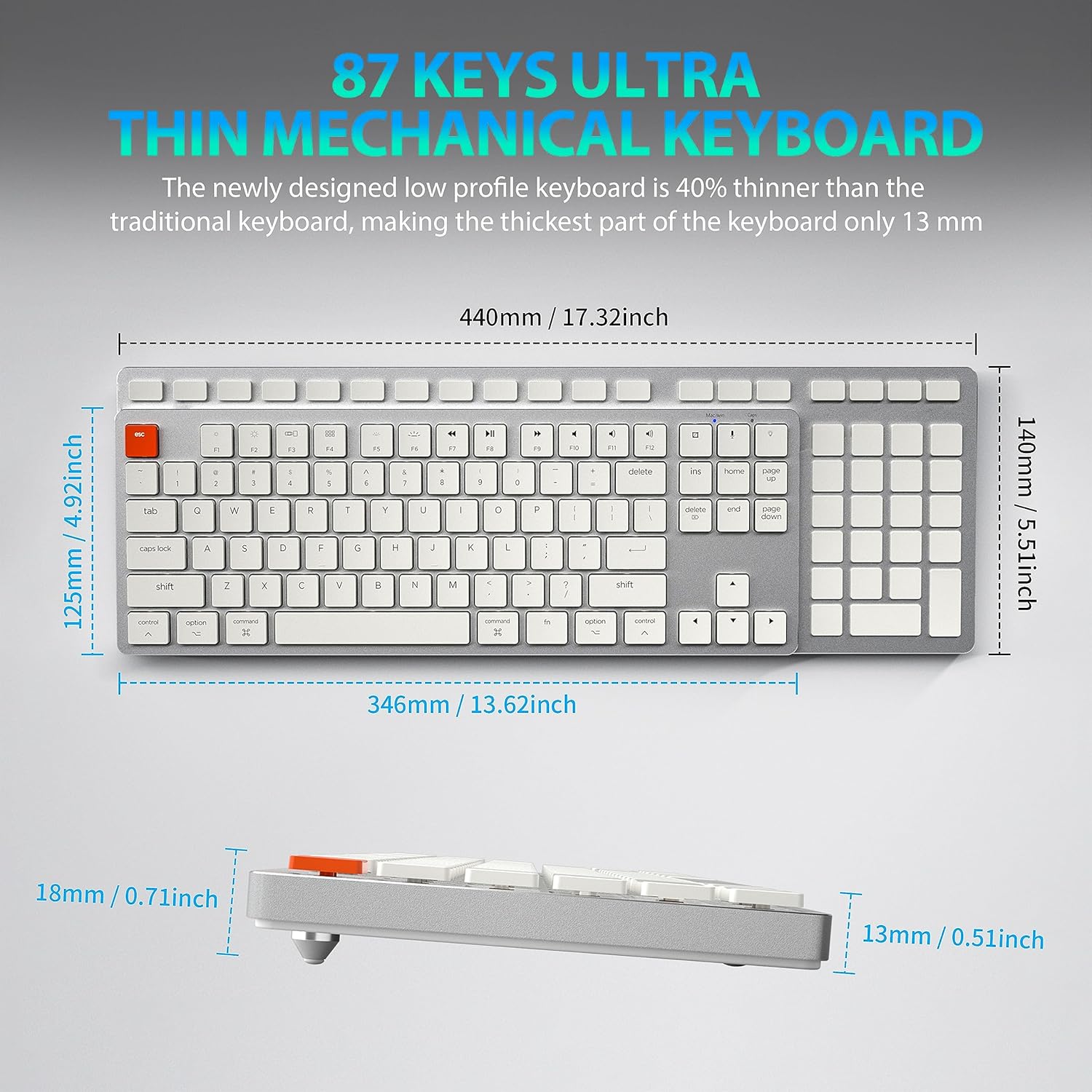
Figure 8: Keyboard Dimensions. This diagram provides precise measurements of the keyboard's length, width, and thickness, illustrating its ultra-thin profile.
| Brand | Taiahiro |
| Naziv modela | 201 |
| Tehnologija povezivanja | Bluetooth, USB-C (Wired) |
| Opis tastature | Mehanički |
| Broj ključeva | 87 |
| Posebna karakteristika | Ergonomic, N-Key Rollover, Backlit |
| Kompatibilni uređaji | PC, Laptop, Pad, Phone (Mac/Windows compatible) |
| Težina artikla | 2.18 funte |
| Dimenzije paketa | 16.93 x 6.69 x 1.54 inča |
| Proizvođač | Tehnologija Taiahiro |
Garancija i podrška
For warranty information and technical support, please refer to the contact details provided with your product packaging or visit the official Taiahiro website. Sačuvajte račun o kupovini za reklamacije.


