Uvod
This manual provides essential information for the safe and efficient operation of your BMAX I9 Plus 10-inch Wi-Fi Tablet. Please read it thoroughly before using the device and keep it for future reference.
Sigurnosne informacije
Pridržavajte se sljedećih sigurnosnih mjera opreza kako biste spriječili oštećenje uređaja ili ozljede sebe:
- Ne izlažite tablet ekstremnim temperaturama, direktnoj sunčevoj svjetlosti ili visokoj vlažnosti.
- Izbjegavajte ispuštanje ili izlaganje tableta jakim udarcima.
- Koristite samo isporučeni punjač i dodatnu opremu.
- Ne pokušavajte sami rastavljati ili popravljati tablet.
- Držite tabletu dalje od vode i drugih tekućina.
- Ensure proper ventilation when using the tablet for extended periods.
Sadržaj paketa
Provjerite da li se sve stavke nalaze u vašem paketu:
- BMAX I9 Plus 10-inch Wi-Fi Tablet
- AC Adapter (PSE Certified)
- USB kabel
- Korisnički priručnik (ovaj dokument)
Video: Unboxing the BMAX I9 Plus tablet and its accessories. This video demonstrates the contents of the product package.
Product Overview
Familiarize yourself with the physical components of your tablet:

Image: The image above illustrates the various ports and buttons on the BMAX I9 Plus tablet, including the rear camera, front camera, 3.5mm audio jack, volume controls, power button, microphone, USB-C port, and Micro SD/SIM slot.
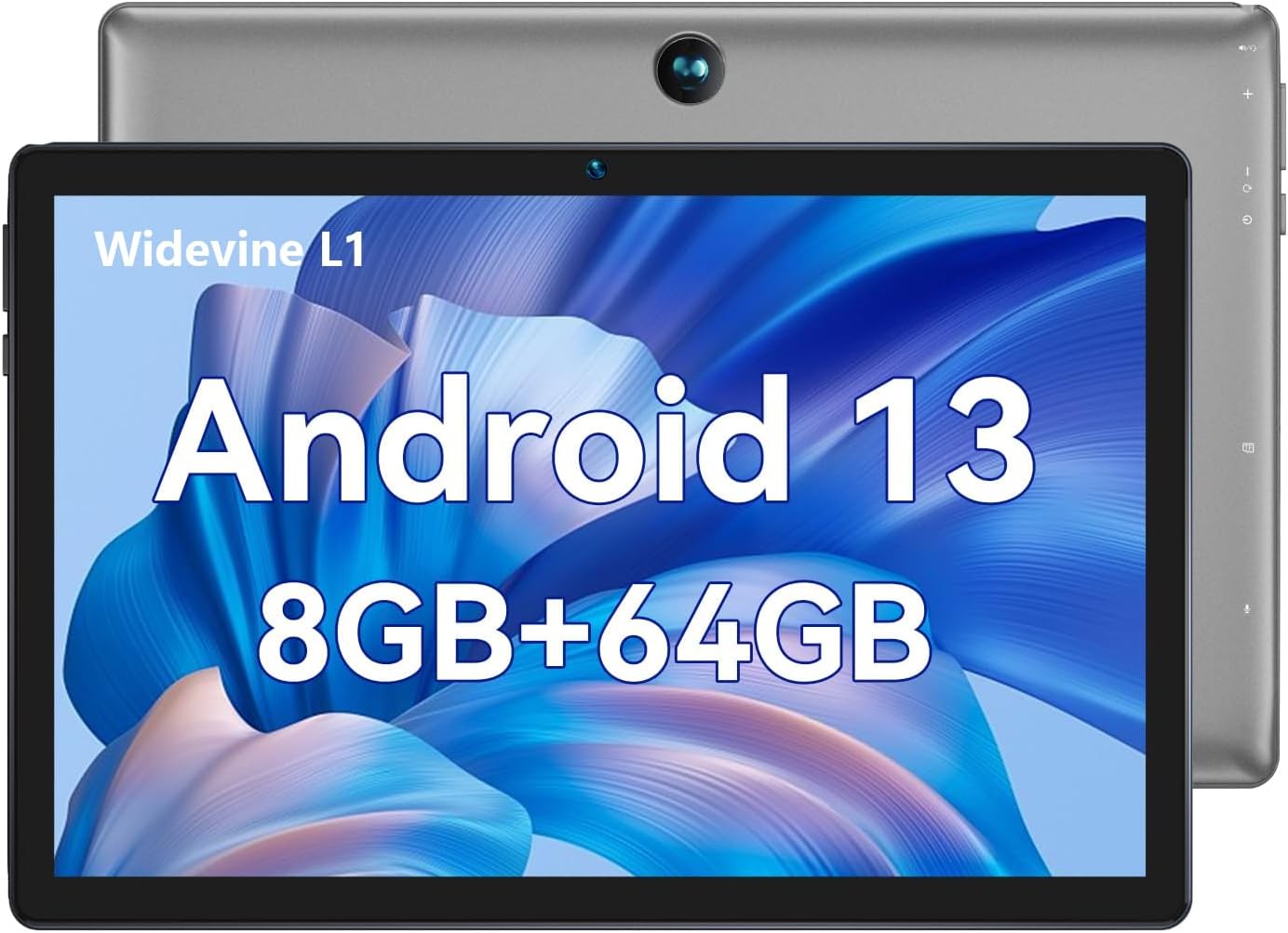
Image: The BMAX I9 Plus tablet features a 10-inch display and runs on Android 13, offering 8GB RAM and 64GB internal storage.
Setup
1. Početno punjenje
Before first use, fully charge the tablet using the provided AC adapter and USB cable. The charging indicator will show progress.
2. Uključivanje/isključivanje
To power on, press and hold the Power button until the BMAX logo appears. To power off, press and hold the Power button, then select 'Power off' from the options.
3. Odabir jezika
During the initial setup, you will be prompted to select your preferred language. You can change the language later in the system settings.
Video: This video demonstrates the procedure for changing the language settings on the tablet.
4. Wi-Fi veza
Navigirajte do Postavke > Mreža i Internet > Internet to connect to a Wi-Fi network. Select your desired network and enter the password if required.
Uputstvo za upotrebu
Karakteristike Androida 13
Your BMAX I9 Plus tablet runs on the latest Android 13 operating system, offering an intuitive user interface and enhanced privacy features. Access all your favorite apps from the pre-installed Google Play Store.

Image: The Android 13 operating system provides a secure and smart interaction method for your device, including access to the Google Play Store.
Funkcionalnost podijeljenog ekrana
The tablet supports split-screen mode, allowing you to use two applications simultaneously for improved multitasking.
Video: This video illustrates the steps to activate and use the split-screen feature on the tablet.
Storage Management
The tablet comes with 64GB of internal storage. You can expand this by up to 1TB using a MicroSD card (sold separately).

Image: The tablet offers ample storage with 8GB (4GB+4GB expandable) RAM, 64GB ROM, and supports up to 1TB MicroSD card expansion, running on Android 13.
Prikaz i vizualni elementi
The 10-inch IPS display with 1280*800 resolution provides wide viewing angles and vibrant colors. It supports Widevine L1 for high-definition video streaming.
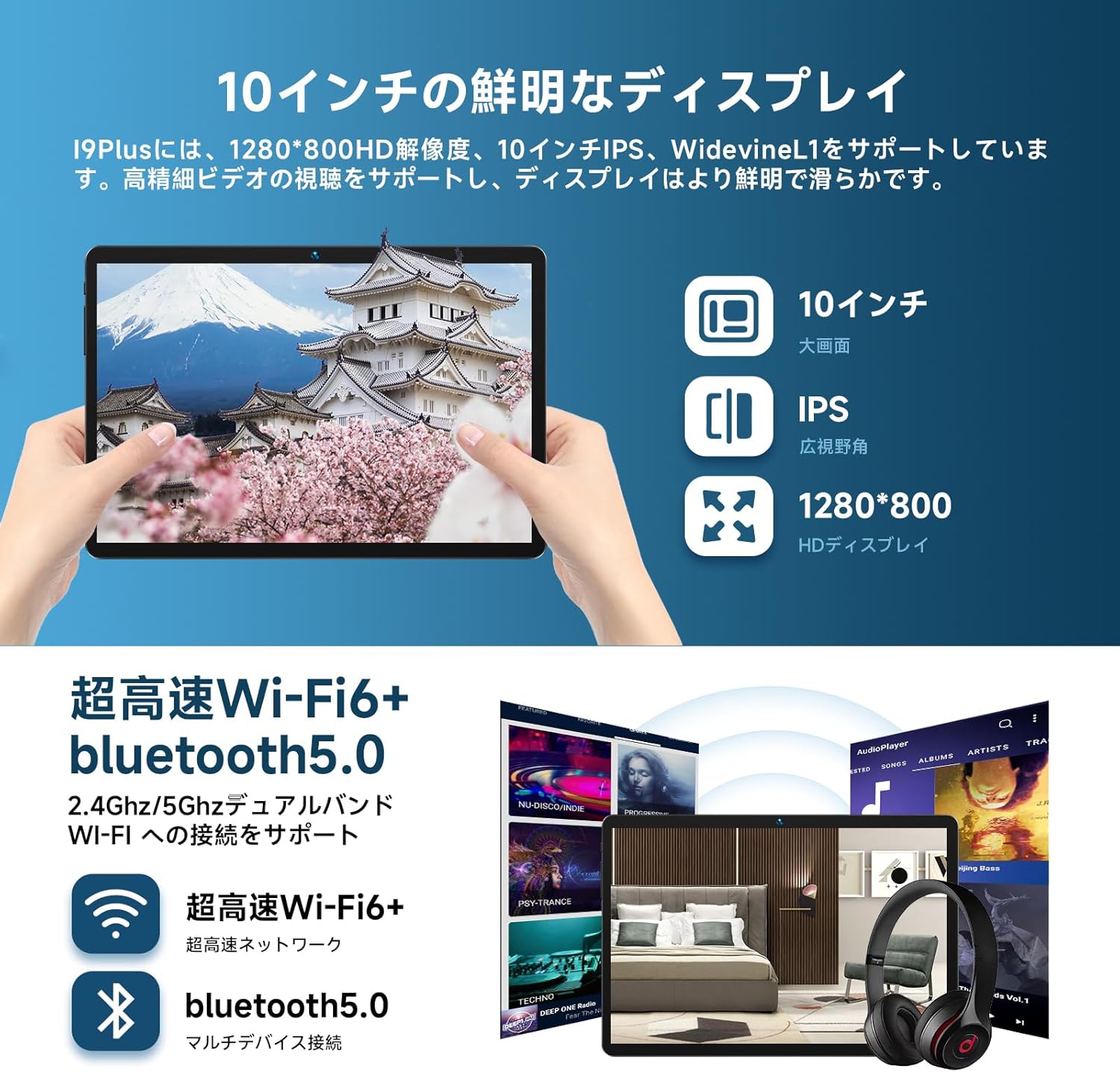
Image: Experience clear and vibrant visuals on the 10-inch IPS HD display with 1280x800 resolution, supporting Widevine L1 for high-quality streaming.
Funkcionalnost kamere
The tablet is equipped with a 5MP rear camera and a 2MP front camera for capturing photos and video calls.

Image: The I9 Plus tablet features a 5MP rear camera and a 2MP front camera, suitable for various photography and video conferencing needs.
Povezivanje
The tablet supports 2.4GHz/5GHz Wi-Fi and Bluetooth 5.0 for fast and stable wireless connections.

Image: Enjoy ultra-fast Wi-Fi 6 and stable Bluetooth 5.0 connectivity for seamless internet browsing and peripheral device pairing.
Održavanje
Battery Care
To prolong battery life, avoid fully discharging the tablet frequently. Charge it regularly, and if storing for a long period, ensure it has at least 50% charge.
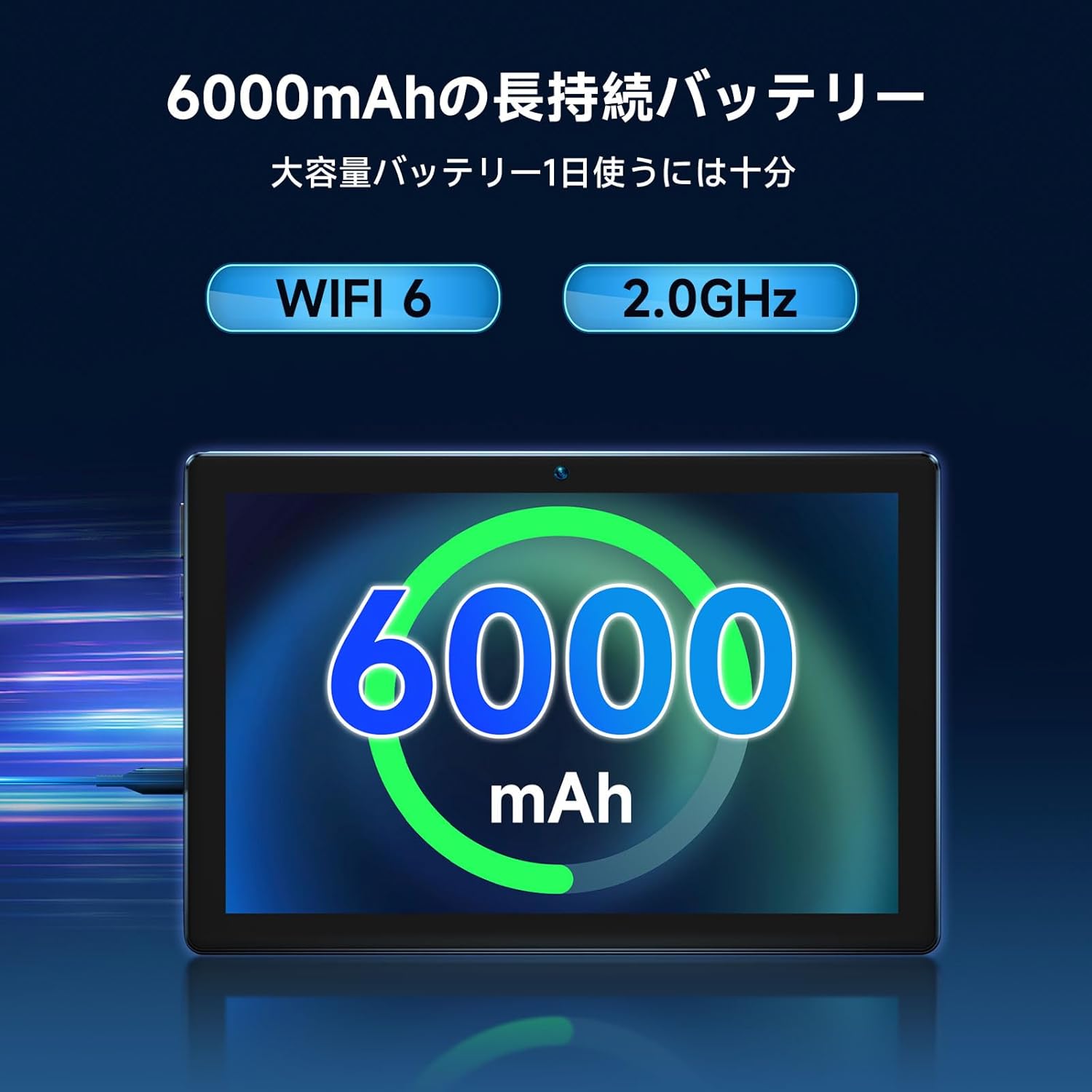
Image: The tablet is equipped with a large 6000mAh battery, providing extended usage time for videos, music, and games.
Čišćenje
Use a soft, lint-free cloth to clean the screen and body of the tablet. Do not use abrasive cleaners or solvents.
Rješavanje problema
Uobičajeni problemi i rješenja
Tablet se ne uključuje:
- Ensure the tablet is charged. Connect the charger and wait a few minutes before attempting to power on again.
Problemi sa Wi-Fi vezom:
- Check if Wi-Fi is enabled in settings.
- Ponovo pokrenite svoj Wi-Fi ruter.
- Zaboravite mrežu i ponovo se povežite.
Spore performanse:
- Zatvorite nekorištene aplikacije.
- Obrišite keš memoriju i podatke za često korištene aplikacije.
- Consider performing a factory reset if issues persist (backup data first).
Specifikacije
| Feature | Specifikacija |
|---|---|
| Brand | Bmax |
| Naziv modela | I9 Plus |
| Operativni sistem | Android 13 |
| Marka CPU-a | Rockchip |
| Brzina procesora | 2 GHz |
| RAM kapacitet | 8 GB |
| Kapacitet memorije | 64 GB |
| Veličina ekrana | 10.1 inča |
| Rezolucija ekrana | 1280x800 piksela |
| Rezolucija prednje kamere | 2 MP |
| Povezivanje | Bluetooth, WiFi |
| Težina artikla | 830 g |
| Dimenzije paketa | 33.7 x 20.3 x 3.4 cm |
Garancija i podrška
Your BMAX I9 Plus tablet comes with a 30-dnevna politika povrata novca i a 12-mjesečna garancija from the date of purchase. The included AC adapter is PSE certified for safety.
For any issues or inquiries, please contact BMAX customer support. You can typically find contact information by clicking on the seller name in your order details and selecting the "Ask a question" button.
Customer support is generally available from 10:00 AM to 7:00 PM (excluding weekends and manufacturer holidays). Responses are usually provided within 24 hours, or within 48 hours on holidays.
Napomena: On Android 13 products, tapping the power button by default jumps to Google Chrome. If this service is not needed, you can change it in System > Gestures > Press and hold power button > Power menu normal use.


