1. Uvod
This manual provides instructions for the MoKo Wireless RGB Backlight Chatpad Keyboard. This accessory is designed to enhance your gaming experience by providing a convenient way to type messages and navigate menus on compatible Xbox controllers.
Sadržaj paketa:
- 1x MoKo Wireless RGB Backlight Chatpad Keyboard
- 1x 2.4G prijemnik
- 1x uputstvo za upotrebu

Image: Contents of the MoKo Wireless RGB Backlight Chatpad Keyboard package, including the keyboard, 2.4G receiver, and manual.
2. Kompatibilnost
The MoKo Wireless RGB Backlight Chatpad Keyboard is compatible with the following Xbox controllers:
- Xbox One Controller
- Xbox One S Controller
- Xbox Series S Controller
- Xbox Series X kontroler
- Xbox Elite Controller
- Xbox Elite 2 Controller
Note: This keyboard is not compatible with Xbox One X controllers.

Image: Visual representation of compatible Xbox controllers, including Xbox One S, Xbox One, Xbox Series X, Xbox Series S, Xbox Elite, and Xbox Elite 2.
3. Postavljanje i instalacija
Follow these steps to install and connect your MoKo Wireless RGB Backlight Chatpad Keyboard:
- Connect Controller to Console: Ensure your Xbox controller is already connected and paired with your Xbox console.
- Prepare Controller: If necessary, open the silicone cover on your controller and turn over the 3.5mm headphone jack to expose the expansion port.
- Priključite tastaturu: Align the keyboard with the bottom of your Xbox controller and firmly press to attach it. The keyboard is designed for a precise and ergonomic fit.
- Insert 2.4G Receiver: Locate the 2.4G receiver (found in the top right of the keyboard or separately in the package) and insert it into an available USB port on your Xbox console.
- Uparivanje: With the controller connected to the console and the keyboard attached, press the pairing key on the keyboard. The blue indicator light will glitter and turn off after successful pairing. For optimal pairing, ensure the console is within 0.5 meters of the keyboard during this step.

Image: Illustration showing an Xbox controller connected to a console.

Image: A hand opening the silicone cover on the controller to access the headphone jack.

Image: The chatpad keyboard being attached to the bottom of an Xbox controller.

Image: The 2.4G receiver being inserted into a USB port on an Xbox console.
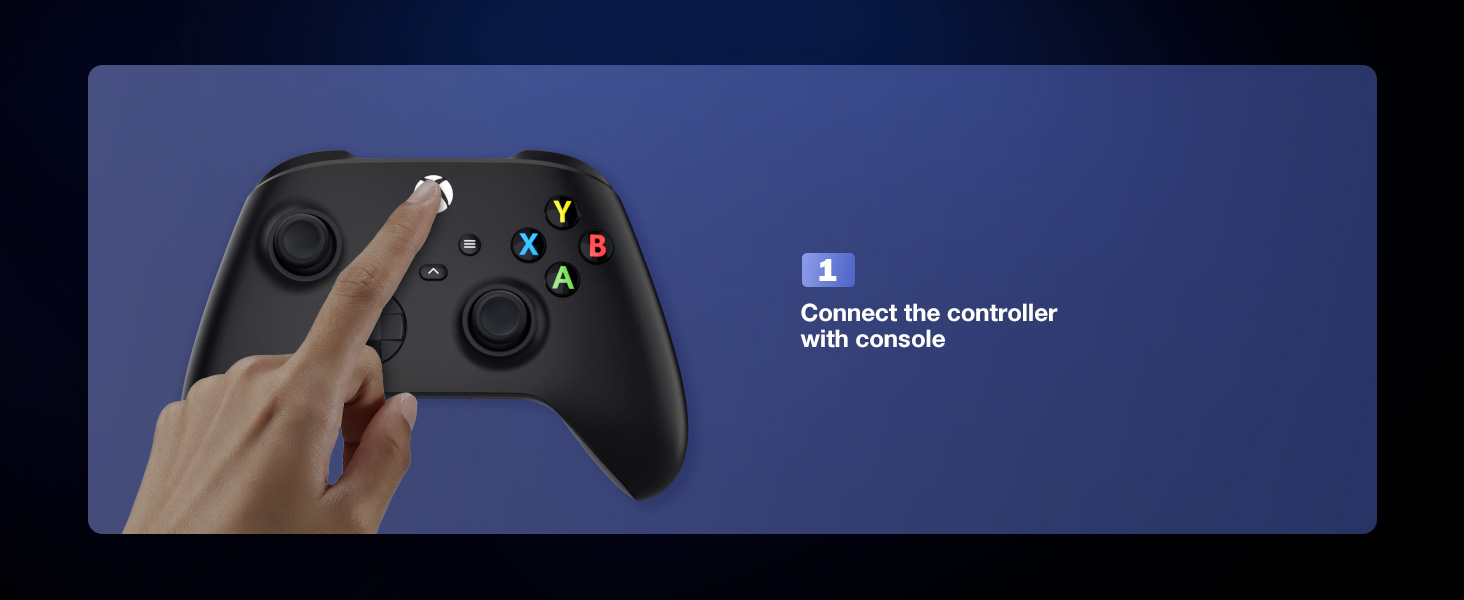
Image: A finger pressing the pairing key on the side of the chatpad keyboard.
Video: This video demonstrates the wireless connection and installation of the MoKo Chatpad Keypad for Xbox One controllers.
Video: This video highlights the ergonomic design and installation process of the MoKo Keyboard for Xbox One.
4. Uputstvo za upotrebu
4.1 Basic Typing and Chat
The 47-key layout allows for quick and easy text input for chatting, messaging, and navigating menus. Simply press the desired keys to type.
4.2 RGB Backlight Modes
The keyboard features three RGB backlight modes to enhance visibility and personalize your gaming setup. The backlight will automatically turn off if there is no operation within 10 seconds and will restore the previous mode upon reactivation.
- Rainbow Breathing Mode: Pritisnite Shift + Q to activate a dynamic rainbow color cycle.
- Trichrome Mode: Pritisnite Shift + W for a three-color display across different key sections.
- Monochrome Mode: Pritisnite Shift + E to cycle through single-color backlighting. Further presses of Shift + R (Orange), Shift + T (Zelena), ili Shift + Y (Pink/Purple) will select specific monochrome colors.
- Turn On/Off Light: Pritisnite Shift + razmak da biste uključili ili isključili pozadinsko osvjetljenje.

Image: Demonstrates the three backlight modes: Rainbow Breathing Mode, Trichrome Mode, and Monochrome Mode.

Image: Close-up of the keyboard displaying the Rainbow Breathing Mode, activated by Shift + Q.

Image: Close-up of the keyboard displaying the Trichrome Mode, activated by Shift + W, showing three distinct color zones.

Image: Close-up of the keyboard displaying the Monochrome Mode, activated by Shift + E, with options for specific colors like orange, green, and pink/purple.
Video: This video demonstrates the newly upgraded MoKo Keyboard for Xbox, showcasing its features and backlight options.
Video: A short demonstration of the fantastic RGB backlight keyboard for Xbox One by MoKo, showing color changes.
Video: This video showcases the RGB backlight keyboard for Xbox One Controller by MoKo, demonstrating its various lighting effects.
4.3 Audio Jack Usage
The integrated 3.5mm audio jack allows you to connect headphones, earphones, or a headset directly to the keyboard for in-game audio and voice chat. Ensure your controller's power is above 20% for normal use, as the keyboard is powered by the Xbox controller.
5. Održavanje
To ensure the longevity and optimal performance of your MoKo Wireless RGB Backlight Chatpad Keyboard, follow these simple maintenance guidelines:
- čišćenje: Koristite meku, suhu krpu za brisanje površine tastature. Za tvrdokornu prljavštinu, laganoamp Može se koristiti krpa, ali pazite da vlaga ne uđe u uređaj.
- Skladištenje: Kada se ne koristi, tastaturu čuvajte na hladnom i suhom mjestu, dalje od direktne sunčeve svjetlosti i ekstremnih temperatura.
- Izbjegavajte tečnosti: Ne izlažite tastaturu vodi ili drugim tečnostima.
- Pažljivo rukujte: Izbjegavajte ispuštanje ili izlaganje tastature jakim udarcima.
6. Otkrivanje problema
If you encounter issues with your MoKo Wireless RGB Backlight Chatpad Keyboard, please refer to the following common solutions:
- Tastatura ne reaguje:
- Ensure the 2.4G receiver is securely plugged into a USB port on your Xbox console.
- Verify that the keyboard is correctly attached to the controller.
- Re-attempt the pairing process (Section 3. Setup and Installation, Step 5).
- Check if your Xbox controller has sufficient battery charge (above 20%).
- Pozadinsko osvetljenje ne radi:
- Ensure the keyboard is paired and connected.
- Pritisnite Shift + razmak to toggle the backlight on.
- The backlight turns off after 10 seconds of inactivity; press any key to reactivate.
- Poor Wireless Connection:
- Ensure the console and keyboard are within the 10-meter valid range.
- Minimize obstructions between the receiver and the keyboard.
- Audio Jack Issues:
- Ensure your headset/earphones are fully plugged into the keyboard's 3.5mm jack.
- Confirm the controller has adequate power.
If these steps do not resolve your issue, please contact MoKo customer support for further assistance.
7. Specifikacije
| Brand | MoKo |
| Broj modela | P723314151540 |
| Kompatibilni uređaji | Xbox One, Xbox Series X/S, Xbox Elite, Xbox Elite 2 Controllers |
| Tehnologija povezivanja | 2.4G bežični |
| Tip tastature | Chatpad, Gaming |
| Backlight Color Support | RGB (Rainbow Breathing, Trichrome, Monochrome) |
| Težina artikla | 2.17 unce |
| Dimenzije proizvoda (DxŠxV) | 5.59 x 2.13 x 1.65 inča |
| Izvor napajanja | Powered by Xbox Controller (No internal battery) |
8. Garancija i podrška
MoKo is committed to customer satisfaction. While specific warranty details are not provided in this manual, if you have any questions, concerns, or require assistance with your product, please do not hesitate to contact MoKo customer support. Your feedback is valuable and helps us improve our products and services.
For support, please refer to the contact information provided on the product packaging or the official MoKo website.


