Uvod
Welcome to the user manual for your new TECLAST F16 Plus 15.6-inch Laptop. This guide provides essential information to help you set up, operate, maintain, and troubleshoot your device. Please read this manual carefully to ensure proper use and to maximize the performance and lifespan of your laptop.
Setup
Raspakivanje i početno podešavanje
Carefully remove the laptop and all accessories from the packaging. Ensure all components are present: the TECLAST F16 Plus laptop, power adapter, and this user manual. Connect the power adapter to the laptop's charging port and then to a power outlet. Allow the laptop to charge for at least 30 minutes before its first use.
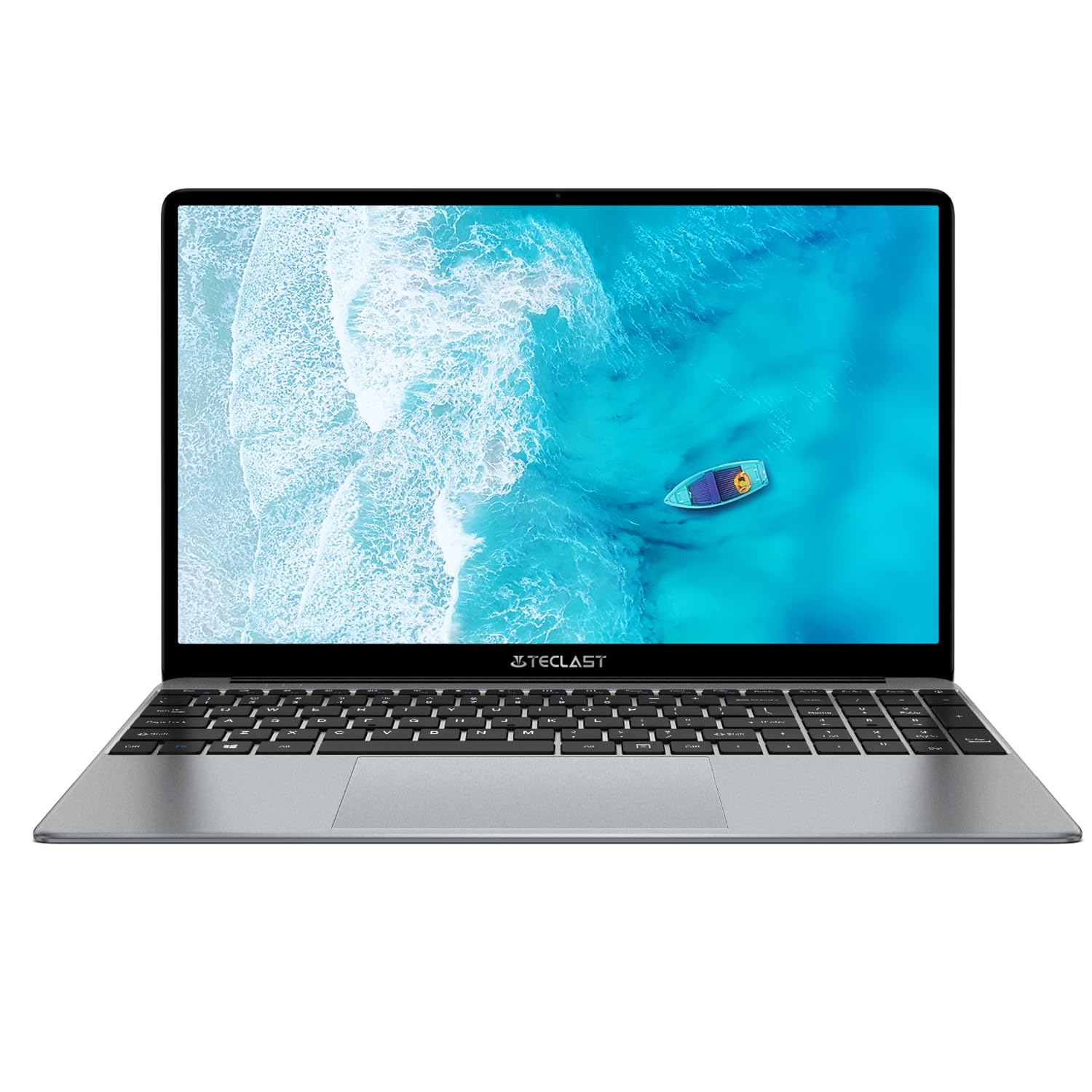
Image: The TECLAST F16 Plus laptop, showcasing its sleek design and 15.6-inch display with the Windows 11 operating system interface.
Uključivanje/isključivanje
- Za uključivanje: Pritisnite i držite dugme za napajanje koje se nalazi u gornjem desnom uglu tastature dok se ekran ne osvijetli.
- Za isključivanje: Click the Start button in Windows 11, then select the Power icon, and choose 'Shut down'.
- Za ponovno pokretanje: Click the Start button, select the Power icon, and choose 'Restart'.
Povezivanje perifernih uređaja
Your TECLAST F16 Plus laptop is equipped with multiple ports for connecting external devices. Insert USB devices such as mice, keyboards, or external storage drives into the available USB ports. For external displays, use the appropriate video output port (e.g., HDMI) if available, and configure display settings in Windows.
Operating
Tastatura i Touchpad
The laptop features a full-sized keyboard and a responsive touchpad. Use the touchpad for navigation and gestures. Many function keys (F1-F12) have secondary functions, activated by pressing the 'Fn' key simultaneously. For example, 'Fn + F5' may control keyboard backlighting.
Display Settings
Adjust screen brightness using the dedicated function keys (often Fn + F5/F6 or similar). To change display resolution or scaling, right-click on the desktop, select 'Display settings', and make your adjustments.
Audio postavke
Control volume using the dedicated function keys (often Fn + F2/F3 or similar) or through the sound icon in the Windows taskbar. Connect headphones or external speakers to the audio jack for private listening or enhanced sound.
Mrežna povezanost
To connect to Wi-Fi, click the network icon in the taskbar, select your desired network, enter the password, and click 'Connect'. Bluetooth devices can be paired via 'Settings > Bluetooth & devices'.
Windows 11 Basics
Your laptop runs on Windows 11. Familiarize yourself with the Start menu, taskbar, and File Explorer for efficient navigation and file management. Regular Windows updates are crucial for security and performance.
Održavanje
Čišćenje laptopa
Koristite meku krpu koja ne ostavlja dlačiceampened with water or a screen cleaner to clean the display. For the keyboard and chassis, use a soft brush or compressed air to remove dust. Avoid harsh chemicals or abrasive materials.
Battery Care
Da biste produžili vijek trajanja baterije, izbjegavajte često potpuno pražnjenje baterije. Preporučuje se da bateriju održavate napunjenom između 20% i 80% kad god je to moguće. Čuvajte laptop na hladnom i suhom mjestu kada ga ne koristite duži period.
Ažuriranja softvera
Regularly check for and install Windows updates and driver updates to ensure your system has the latest security patches and performance enhancements. This can be done through 'Settings > Windows Update'.
Storage Management
The 256GB SSD provides fast storage. To maintain optimal performance, regularly delete unnecessary files, empty the recycle bin, and consider using cloud storage for large files to free up local space.
Rješavanje problema
Uobičajeni problemi i rješenja
- Laptop se ne uključuje: Ensure the power adapter is securely connected and the battery has sufficient charge. Try holding the power button for 15-20 seconds for a hard reset.
- Nema prikaza na ekranu: Connect an external monitor to check if the issue is with the laptop's display. Ensure brightness is not set to minimum.
- Wi-Fi se ne povezuje: Provjerite je li Wi-Fi omogućen u postavkama Windowsa. Ponovo pokrenite ruter i laptop. Provjerite lozinku za Wi-Fi.
- Spore performanse: Close unnecessary applications. Check for background processes in Task Manager. Ensure sufficient free storage space.
- USB uređaji nisu prepoznati: Try connecting the device to a different USB port. Ensure device drivers are installed. Restart the laptop.
Ako naiđete na stalne probleme koji nisu ovdje obuhvaćeni, molimo vas da se obratite odjeljku za podršku za dodatnu pomoć.
Specifikacije
Technical Details
| Feature | Detalj |
| Brand | TECLAST |
| Model | F16Plus |
| Veličina ekrana | 15.6 inča |
| Procesor | Intel Celeron N (4 Cores) |
| RAM | 12 GB |
| Skladištenje | 256 GB SSD |
| Operativni sistem | Windows |
| Boja | New Gray |
| Sastav baterije | Litijum-polimer |
| Input Interface | Tastatura |
| Dimenzije paketa | 50.79 x 29.2 x 7.9 cm |
| Težina paketa | 2.62 kilograma |
Garancija i podrška
Your TECLAST F16 Plus laptop comes with a standard manufacturer's warranty. Please refer to the warranty card included in your product packaging for specific terms and conditions. For technical support, driver downloads, or service inquiries, visit the official TECLAST webweb-mjesto ili kontaktirajte njihovu službu za korisnike. Držite račun za kupovinu i serijski broj proizvoda pri ruci kada tražite podršku.


