1. Uvod
This manual provides detailed instructions for the setup, operation, maintenance, and troubleshooting of your Volcora 80mm Thermal Receipt Printer. This printer is designed for Point-of-Sale (POS) applications, offering fast and efficient thermal printing with an auto-cutter. It supports USB and Ethernet connectivity and is compatible with Android, Windows, and Linux operating systems.
2. Sigurnosne informacije
- Ensure the printer is connected to a grounded power outlet.
- Ne izlažite štampač vodi ili prekomjernoj vlazi.
- Izbjegavajte postavljanje štampača na direktnu sunčevu svjetlost ili u blizinu izvora toplote.
- Use only the power adapter provided with the printer.
- Držite štampač podalje od djece.
- Ne pokušavajte sami rastavljati ili popravljati štampač. Za pomoć se obratite korisničkoj podršci.
3. Sadržaj paketa
Provjerite da li su sve stavke prisutne u paketu:
- Volcora 80mm Thermal Receipt Printer
- Kabl za napajanje
- USB kabel
- Rola testnog papira
- Instalacijski CD

Figure 3.1: Package Contents. The image displays the Volcora Thermal Receipt Printer along with its accessories: a power cord, a USB cable, a roll of test paper, and an installation CD.
4. Proizvod je gotovview
4.1. Priključci i dugmad
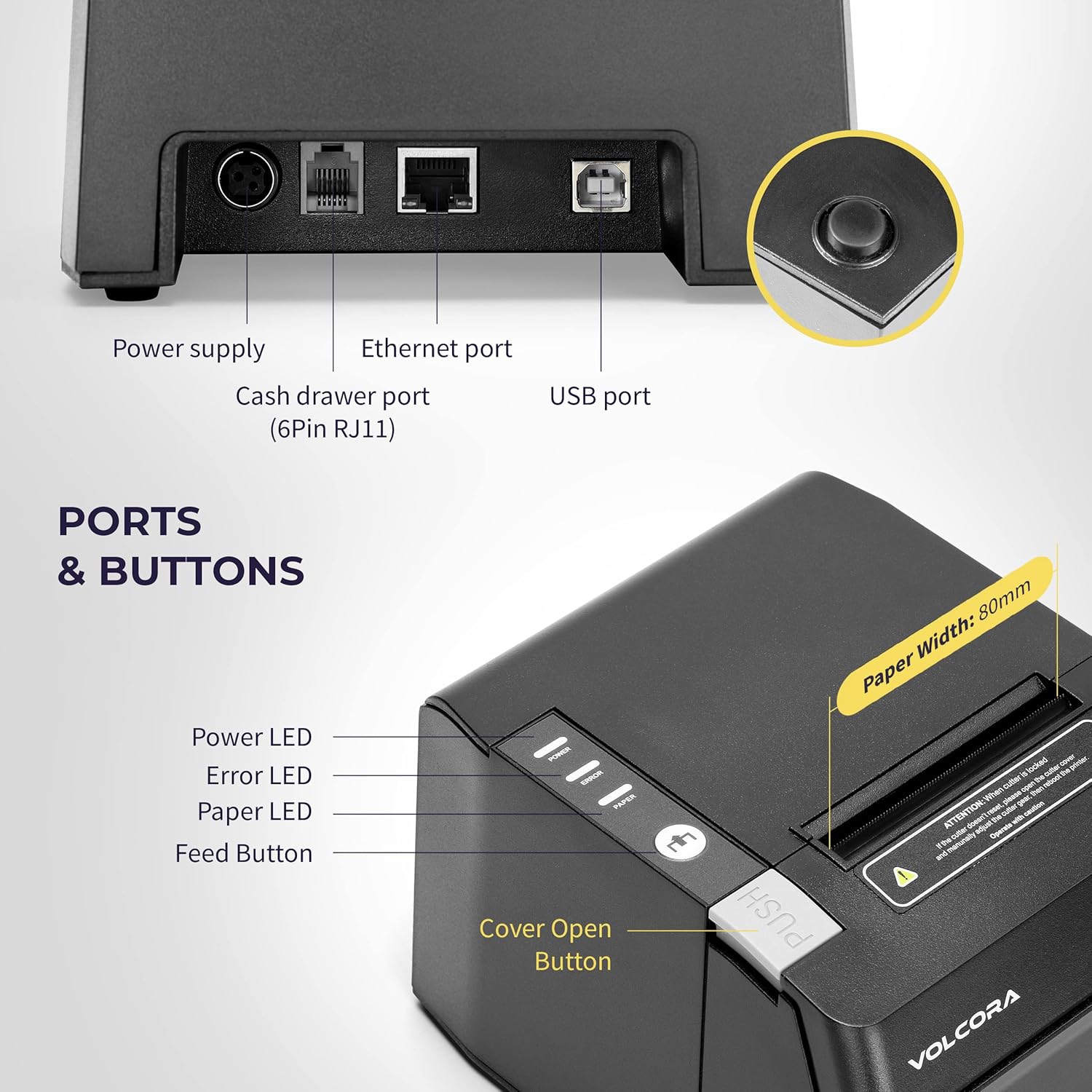
Figure 4.1: Printer Ports and Buttons. This image illustrates the rear ports including Power Supply, Ethernet Port, Cash Drawer Port (6Pin RJ11), and USB Port. It also shows the front panel with Power LED, Error LED, Paper LED, Feed Button, and Cover Open Button.
- Port za napajanje: Povezuje se na strujni adapter.
- Ethernet priključak: For network connectivity (LAN).
- Cash Drawer Port (6Pin RJ11): Connects to a cash drawer.
- USB port: Za direktno povezivanje sa računarom.
- LED za napajanje: Označava status napajanja.
- LED dioda greške: Indicates printer errors.
- Papirna LED dioda: Indicates paper status (e.g., low paper).
- Dugme za unos: Manually feeds paper.
- Dugme za otvaranje poklopca: Releases the printer cover to access the paper roll.

Slika 4.2: Višestruko views of the Volcora Thermal Receipt Printer, showing its compact design and various connection points.
5. Podešavanje
5.1. Unboxing and Connecting
- Otpakujte štampač i uklonite sav materijal za pakovanje.
- Spojite adapter za napajanje na štampač, a zatim na utičnicu.
- Connect the printer to your Windows PC using the provided USB cable.
Video 5.1: Getting Started with Volcora Thermal Receipt Printer. This video demonstrates the unboxing, connecting the printer to power and a Windows PC via USB, and performing a self-test.
5.2. Instalacija rolne papira
- Press the Cover Open Button to open the printer cover.
- Insert the thermal paper roll with the printing side facing up.
- Izvucite mali komad papira pored rezača.
- Čvrsto zatvorite poklopac štampača dok ne klikne na svoje mjesto.
5.3. Driver Installation (Windows)
- Download the latest driver for Windows from the Volcora support webstranica: volcora.com/support.
- Raspakujte preuzeto file i pokrenite program za instalaciju drajvera.
- Follow the on-screen prompts, agreeing to the license and selecting your printer model (e.g., 500108).
- Ensure the printer is connected via USB during installation.
- After successful installation, the printer should be recognized in your computer's "Printers & scanners" settings.

Figure 5.2: Easy Installation Steps. This diagram outlines the four main steps: Download drivers, Install drivers, Connect the printer, and Test print.
5.4. Network Configuration (Ethernet)
If you are using the Ethernet connection, you may need to configure the printer's IP address to match your network's subnet. This can be done using the Setting Tool software.
- First, identify your PC's IP address and subnet mask.
- Perform a printer self-test (see Section 6.2) to get the printer's current IP address.
- If the printer's IP is not in the same subnet as your PC, you will need to adjust either the PC's IP or the printer's IP.
- Open the Setting Tool software (available from volcora.com/support).
- Select the printer model and choose 'NET' for the port type.
- Enter the printer's current IP address and click 'Get Param' to retrieve its network settings.
- Modify the IP address, subnet mask, and gateway to align with your network configuration.
- Click 'Set' to apply the new settings to the printer.
- Perform another self-test to confirm the IP address has been updated.
Video 5.2: How to Modify LAN IP Address of Volcora Receipt Printer. This video guides you through identifying current IP addresses, changing PC host IP, and using the Setting Tool to configure the printer's IP address for Ethernet connectivity.
5.5. Opcije postavljanja

Figure 5.3: Multiple Use & Placement. The printer can be wall-mounted for kitchen use or placed on a counter for receipt printing.
6. Uputstvo za upotrebu
6.1. Osnovno štampanje
Once the printer is connected and drivers are installed, you can print receipts from your POS software or any application that supports printing. The printer features a 203 dpi resolution for clear prints and an auto-cutter for efficient receipt handling.

Figure 6.1: Efficient Printing. This image highlights the printer's fast print speed, low noise operation, and clear 203 dpi output, showing a receipt with a QR code and a barcode.
The printer supports various barcode types including UPC-A, UPC-E, EAN13, EAN8, CODE39, ITF25, CODABAR, CODE93, CODE128, QRCODE, PDF417, and Data matrix.
6.2. Printer Self-Test
A self-test prints the printer's configuration, including its IP address (if connected via Ethernet), and confirms basic functionality.
- Uverite se da je štampač isključen.
- Press and hold the "Feed" button.
- While holding the "Feed" button, power on the printer.
- Continue holding the "Feed" button for approximately 5 seconds until the self-test page begins to print.
6.3. Kompatibilnost
The Volcora Thermal Receipt Printer is compatible with various POS systems and operating environments. It supports ESC/POS commands.

Figure 6.2: Printer Compatibility. This chart lists compatible POS systems such as Loyverse, SumUp, Gloria Food, FoodZaps, TabShop POS, POSAPP.vn POS, Olsera POS, and KaHero POS. It also lists systems that are not compatible, including Square, Toast, Ubereats, Grubhub, Doordash, Postmates, Clover, and Shopify.
Kompatibilni operativni sistemi: Android, Windows, Linux. (Note: A software development kit (SDK) is required for custom application development on Ethernet-supported systems, including Windows, Linux, and MAC.)
Nije kompatibilno sa: Delivery platforms or POS applications such as Ubereats, Grubhub, Doordash, Postmates, Square, Clover, or Shopify. Does not offer Bluetooth or WiFi printing options.

Figure 6.3: Detailed Compatibility Table. This table shows compatibility for USB and Serial connections across various operating systems (Windows, Mac OS, Linux, Android, iOS) and notes about SDK and ESC/POS commands.
7. Održavanje
7.1. Čišćenje
- Redovno čistite spoljašnjost štampača mekom,amp tkanina.
- To clean the thermal print head, use an alcohol swab. Ensure the printer is off and cool before cleaning.
- Uklonite prašinu ili ostatke papira sa putanje papira.
8. Otkrivanje problema
8.1. Uobičajeni problemi i rješenja
| Problem | Mogući uzrok | Rješenje |
|---|---|---|
| Štampač ne reaguje | Power issue, loose cable, driver not installed. | Check power connection. Ensure USB/Ethernet cable is securely connected. Verify driver installation (Section 5.3). |
| Blank pages or faint print | Thermal paper loaded incorrectly, print head dirty. | Reload paper with the thermal side facing up. Clean the thermal print head (Section 7.1). |
| Zastoj papira | Incorrect paper loading, foreign object. | Open the cover, remove jammed paper, and ensure proper loading. Remove any obstructions. |
| Problemi s Ethernet vezom | Incorrect IP address configuration. | Perform a self-test to check the printer's IP. Use the Setting Tool to configure the IP address to match your network (Section 5.4). |
| Printer not compatible with POS software | Software not supported. | Refer to the compatibility list (Section 6.3). Contact your POS software provider for compatibility information. |
For further assistance, refer to the Volcora support center or contact customer service.
9. Specifikacije
| Feature | Detalj |
|---|---|
| Brand | Volcora |
| Broj modela | 500108 |
| Tehnologija štampe | Thermal |
| Brzina štampanja | Do 220 mm/s |
| Rezolucija štampanja | 203 dpi |
| Širina papira | 80 mm (3 1/8") |
| Print Width | 72mm |
| Interface | USB, Ethernet (LAN), Cash Drawer (RJ11) |
| Vijek trajanja automatskog rezača | 1.5 milion posjekotina |
| Input Power | AC 110V/240V, 50-60Hz |
| Izlazna snaga | DC 24V/2A |
| Dimenzije proizvoda | 7"D x 6"W x 4.5"H (approx. 16 x 4 x 16 inches as per some specs) |
| Težina artikla | 3.76 funte |
| Podržani barkodovi | UPC-A, UPC-E, EAN13, EAN8, CODE39, ITF25, CODABAR, CODE93, CODE128, QRCODE, PDF417, Data matrix |
| Printer Command | ESC/POS |
10. Garancija
This Volcora Thermal Receipt Printer comes with a Ograničena garancija. Please refer to the warranty card included in your package or visit the Volcora support websajt za detaljne uslove.
11. Korisnička podrška
For additional assistance, troubleshooting, or to download drivers and tools, please use the following resources:
- Volcora Help Portal: https://help.volcora.com
- Download Support Center: https://volcora.com/support
- E -pošta za korisničku podršku: support@volcora.com
Our U.S. based customer support team is available to assist with any integration issues.


