1. Uvod
Thank you for choosing the UNITED LED40HS82A11 40-inch Full HD Smart Android TV. This television combines a vibrant Full HD display with the power of Android 11, offering a seamless entertainment experience. With built-in Chromecast and Airplay, Wi-Fi, Ethernet, and support for various digital broadcasting standards (DVB/T2/S2/C, MPEG-4, HEVC Main 10), your new TV is designed for versatile use, from watching movies and playing games to browsing the internet.
This manual provides essential information for setting up, operating, and maintaining your television. Please read it thoroughly before using the product and keep it for future reference.

Slika 1.1: Prednja strana view of the UNITED LED40HS82A11 TV with Android TV interface.
2. Sigurnosne informacije
Before operating your TV, please read all safety instructions carefully. Improper use can result in electric shock, fire, or damage to the appliance.
- Napajanje: Ensure the TV is connected to an AC 100-240V, 50/60Hz power supply. Do not overload power outlets.
- ventilacija: Ne blokirajte ventilacijske otvore. Osigurajte dovoljno prostora oko televizora za pravilan protok zraka.
- Voda i vlaga: Ne izlažite TV kiši ili vlazi. Ne stavljajte predmete napunjene tekućinom, poput vaza, na TV.
- Izvori toplote: Držite televizor dalje od izvora toplote kao što su radijatori, grijalice, peći ili drugi uređaji koji proizvode toplotu.
- čišćenje: Isključite televizor iz zidne utičnice prije čišćenja. Koristite meku, suhu krpu. Ne koristite tekuća sredstva za čišćenje ili aerosolna sredstva za čišćenje.
- servisiranje: Ne pokušavajte sami servisirati ovaj proizvod. Sve servise prepustite kvalificiranom servisnom osoblju.
- djeca: Nadgledajte djecu kako biste bili sigurni da se ne igraju s televizorom.
3. Sadržaj paketa
Molimo Vas da provjerite da li su sljedeće stavke uključene u paket Vašeg TV-a:
- UNITED LED40HS82A11 40-inch Full HD Smart Android TV
- Remote Control (with 2x AAA 1.5V batteries)
- Kabl za napajanje
- TV stalak (2 komada) i vijci
- MiniAV Adapter Cable
- Korisnički priručnik (ovaj dokument)
Ako bilo koji artikl nedostaje ili je oštećen, obratite se svom prodavaču.
4. Podešavanje
4.1 Pričvršćivanje postolja
- Pažljivo postavite televizor licem prema dolje na meku, ravnu površinu (npr. ćebe ili pjenu) kako biste spriječili oštećenje ekrana.
- Poravnajte nožice postolja s odgovarajućim utorima na donjoj strani televizora.
- Secure each stand leg with the provided screws. Ensure they are tightened firmly.
- Pažljivo podignite TV u uspravan položaj i postavite ga na stabilnu, ravnu površinu.
4.2 Montiranje na zid (opciono)
This TV is compatible with VESA standard wall mounts. The VESA mounting pattern for this model is typically 200x200mm. Please consult a professional for wall mounting to ensure proper installation and safety. Wall mount bracket and screws are not included.
4.3 Povezivanje vanjskih uređaja
Vaš TV nudi različite mogućnosti povezivanja za eksterne uređaje.
Slika 4.1: Pozadi view of the TV with port layout.
- HDMI: Connect Blu-ray players, game consoles, set-top boxes, or other HDMI-enabled devices. The TV supports multiple HDMI inputs.
- USB: Povežite USB uređaje za pohranu podataka (npr. fleš diskove) za reprodukciju medija fileTV ima 1 USB priključak.
- MiniAV: Use the provided MiniAV adapter cable to connect older devices with composite video and stereo audio outputs.
- Izlaz za slušalice: Priključite slušalice za privatno slušanje.
4.4 Priključak antene/kabla
Connect your terrestrial antenna (DVB-T/T2) or satellite dish (DVB-S/S2) cable to the appropriate input on the back of the TV. For cable TV (DVB-C), connect the cable to the antenna input.
4.5 Network Connection (Wi-Fi & Ethernet)
Your TV can connect to the internet via Wi-Fi or an Ethernet cable.
- Wi-Fi: During the initial setup or via the settings menu, select your Wi-Fi network and enter the password.
- Ethernet: Connect an Ethernet cable from your router to the LAN port on the back of the TV.
5. Prvo podešavanje
- Uključeno: After connecting all necessary cables, plug the power cord into an electrical outlet. Press the power button on the remote control or on the TV.
- Početna konfiguracija: The TV will guide you through the initial setup process.
- Odabir jezika: Odaberite željeni jezik.
- Postavljanje mreže: Connect to your Wi-Fi network or use an Ethernet connection.
- Google račun: Sign in with your Google account to access the Google Play Store, personalized recommendations, and other Android TV features.
- Skeniranje kanala: The TV will prompt you to scan for available channels based on your antenna/cable connection.
- Postavke privatnosti: Review i prilagodite postavke privatnosti po želji.
- Postavljanje završeno: Once all steps are finished, your TV is ready for use.
6. Upravljanje televizorom
6.1 Funkcije daljinskog upravljača
The remote control allows you to navigate the TV's features. Familiarize yourself with the buttons:
- Snaga: Uključuje/isključuje TV.
- Unos: Odabire ulazni izvor (HDMI, AV, TV).
- Navigacijski gumbi (gore/dolje/lijevo/desno): Krećite se kroz menije i opcije.
- OK/Enter: Potvrđuje odabire.
- nazad: Vraća se na prethodni ekran.
- Početna: Pristupa početnom ekranu Android TV-a.
- Pojačavanje/stišavanje glasnoće: Podešava jačinu zvuka.
- Kanal gore/dolje: Mijenja TV kanale.
- Google asistent: Aktivira glasovne komande.
- Dugmad aplikacije: Direktan pristup popularnim aplikacijama za streaming.
6.2 Navigating Android TV Interface
The Android TV home screen provides access to your installed apps, live TV, and recommended content. Use the navigation buttons on your remote to browse categories like Search, Home, Discover, and Apps.

Image 6.1: Android TV home screen with various applications.
6.3 Odabir ulaznog izvora
Pritisnite Input button on your remote control to switch between connected devices (e.g., HDMI 1, HDMI 2, AV) and the built-in TV tuner.
Podešavanje 6.4 kanala
If you connected an antenna or cable, you can access live TV channels. Use the Kanal gore/dolje buttons to change channels. To perform a new channel scan or adjust channel settings, go to the TV's settings menu.
6.5 Korištenje pametnih funkcija
- aplikacije: Preuzmite i instalirajte širok spektar aplikacija iz Google Play trgovine.
- Ugrađen Chromecast: Cast content (videos, photos, music) from your compatible smartphone, tablet, or computer directly to your TV. Look for the Chromecast icon in supported apps.
- emitiranje: For Apple device users, Airplay allows you to stream content or mirror your screen to the TV.
- Pretraživanje interneta: Koristite a web browser app to surf the internet.
7. Održavanje
7.1 Čišćenje televizora
- Uvijek isključite TV iz struje prije čišćenja.
- Koristite meku, suhu krpu koja ne ostavlja dlačice za brisanje ekrana i kućišta.
- Za tvrdokorne tragove na ekranu, lagano očistiteampobrišite krpu vodom ili specijaliziranim sredstvom za čišćenje ekrana (ne prskajte direktno po ekranu).
- Izbjegavajte upotrebu abrazivnih sredstava za čišćenje, voskova ili rastvarača jer mogu oštetiti završnu obradu televizora.
7.2 Ažuriranja softvera
Your Android TV may receive software updates to improve performance and add new features. It is recommended to keep your TV connected to the internet to receive these updates automatically. You can also check for updates manually in the TV's settings menu.
8. Otkrivanje problema
Ako imate problema s televizorom, pogledajte sljedeće uobičajene probleme i rješenja:
- Nema napajanja:
- Provjerite je li kabel za napajanje sigurno priključen u TV i zidnu utičnicu.
- Ensure the wall outlet is working by plugging in another device.
- Pokušajte pritisnuti dugme za napajanje na samom televizoru, ne samo na daljinskom upravljaču.
- Nema slike, ali je zvuk prisutan:
- Provjerite je li odabran ispravan ulazni izvor.
- Check the cable connections to external devices.
- Pokušajte ponovo pokrenuti TV i povezani uređaj.
- Nema zvuka, ali je slika prisutna:
- Provjerite nivo jačine zvuka i uvjerite se da TV nije isključen.
- Verify audio settings in the TV menu and on the external device.
- Try a different HDMI cable or input.
- Daljinski upravljač ne radi:
- Zamijenite baterije u daljinskom upravljaču.
- Provjerite da nema prepreka između daljinskog upravljača i IR senzora televizora.
- Usmjerite daljinski upravljač direktno prema televizoru.
- Problemi sa Wi-Fi vezom:
- Ponovo pokrenite ruter i modem.
- Provjerite je li unesena lozinka za Wi-Fi ispravna.
- Move the TV closer to the router or use an Ethernet cable for a stable connection.
Za složenije probleme, obratite se korisničkoj podršci.
9. Specifikacije
Here are the technical specifications for the UNITED LED40HS82A11 TV:
| Feature | Specifikacija |
|---|---|
| Brand | UNITED |
| Naziv modela | LED40HS82A11 |
| Veličina ekrana | 40 inča |
| Rezolucija ekrana | Full HD (1920 x 1080 piksela) |
| Operativni sistem | Android 11 |
| Tehnologija povezivanja | Wi-Fi, Ethernet, Bluetooth, HDMI, USB |
| Posebne karakteristike | Smart TV, Flat Screen, Chromecast Built-in, Airplay, Pre-installed Apps |
| Tuneri | DVB/T2/S2/C |
| Video Decoding | MPEG-4, HEVC Main 10 |
| Refresh Rate | 60 Hz |
| Aspect Ratio | 16:9 |
| USB portovi | 1 |
| Kompatibilni uređaji | Slušalice |
| Boja | Crna |
| Proizvođač | CHANGHONG EUROPE ELECTRIC SRO |
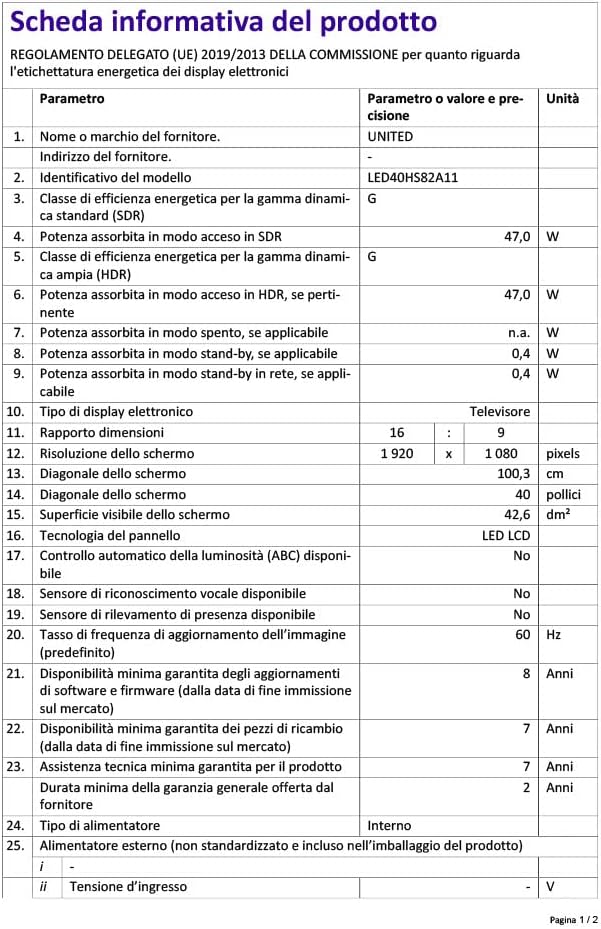
Image 9.1: EU Energy Label for LED40HS82A11.
For detailed product information, including energy consumption data, please refer to the official EU EPREL database via the QR code on the energy label or by visiting https://eprel.ec.europa.eu/qr/1068369.
10. Garancija i podrška
For warranty information, please refer to the warranty card included with your product or contact your retailer. The manufacturer, CHANGHONG EUROPE ELECTRIC S.R.O., provides general support for this product.
Please note that information regarding software update guarantees and spare parts availability is not explicitly provided for this model. For any technical assistance or service inquiries, please contact the customer support channels provided by your point of purchase.


