Uvod
This manual provides essential information for setting up, operating, and maintaining your Dell Pro Tower Desktop PC. This system is designed for business and general computing tasks, featuring a 14th Gen Intel Core i5-14500 vPro processor, 16GB DDR5 RAM, and a 1TB PCIe SSD, running on Windows 11 Pro.
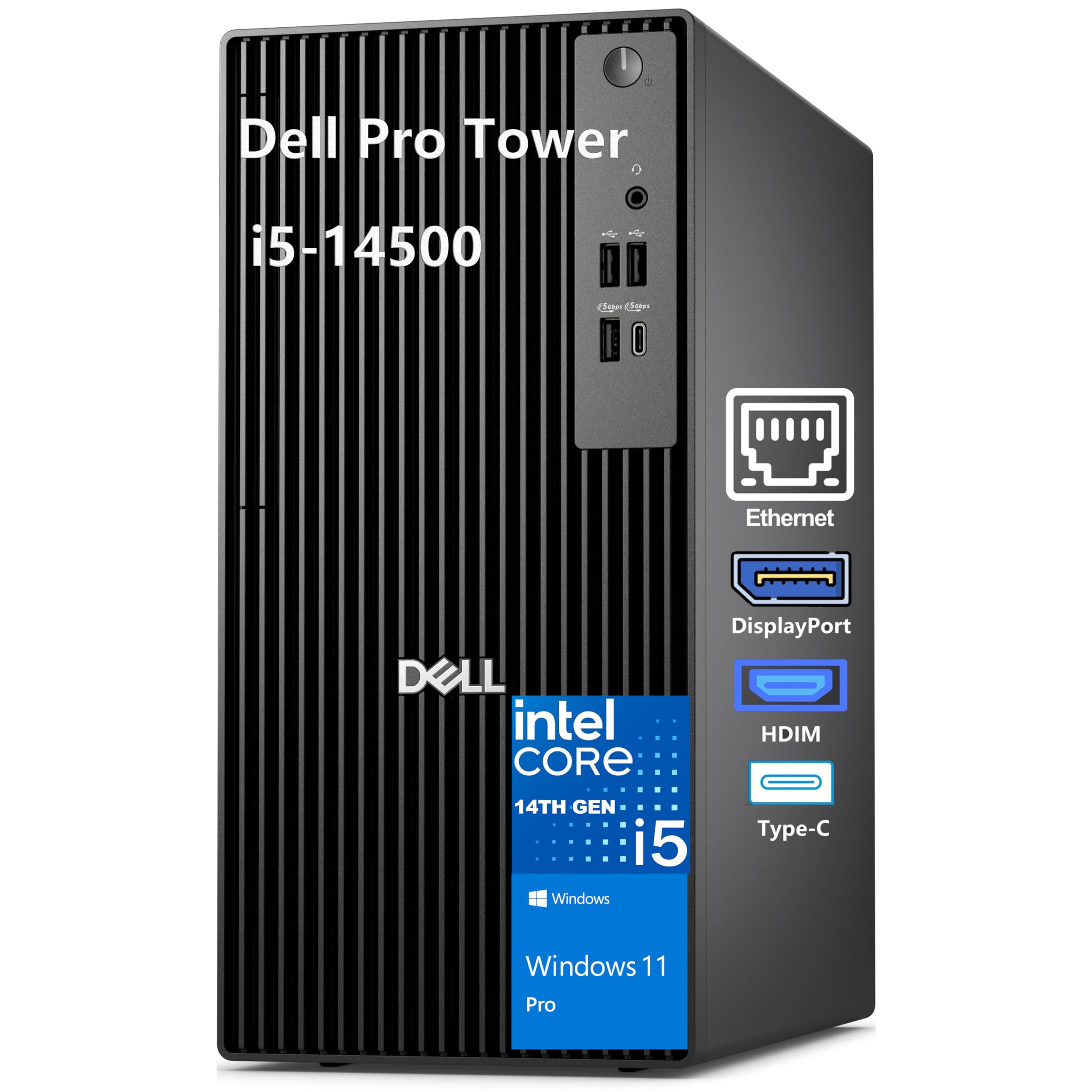
Slika: Front view of the Dell Pro Tower Desktop PC.
Uputstva za postavljanje
1. Raspakivanje i postavljanje
- Pažljivo izvadite računar i svu dodatnu opremu iz ambalaže.
- Place the tower on a stable, flat surface with adequate ventilation. Ensure no vents are obstructed.
2. Povezivanje perifernih uređaja
Connect your monitor, keyboard, mouse, and other devices to the appropriate ports on the computer.

Slika: Front view of the Dell Pro Tower with labeled ports.
Prednji portovi:
- Power Button with diagnostic LED
- Global Headset Jack
- USB 2.0 (480 Mbps) Type-A Port
- USB 2.0 (480 Mbps) Type-A Port
- USB 3.2 Gen 1 (5 Gbps) Type-A Port
- USB 3.2 Gen 1 (5 Gbps) Type-C Port

Slika: Stražnja strana view of the Dell Pro Tower with labeled ports.
Stražnji portovi:
- DisplayPort 1.4a (up to 4096 x 2160 @60Hz)
- HDMI 2.1 (up to 4096 x 2160 @60Hz)
- USB 3.2 Gen 1 (5 Gbps) Type-A Port
- USB 3.2 Gen 1 (5 Gbps) Type-A Port
- USB 2.0 (480 Mbps) Type-A Port with Smart Power On
- USB 2.0 (480 Mbps) Type-A Port with Smart Power On
- Prsten za katanac
- RJ45 Ethernet Port (1 Gbps)
- Three Expansion Slots (PCIe x1, PCIe x1, PCIe x16)
- Kensington Security Cable Slot
- Power-cord Connector Port
- Power-supply Diagnostic Light
3. Priključak za napajanje
- Connect the power cord to the power-cord connector port on the rear of the computer.
- Uključite drugi kraj kabla za napajanje u uzemljenu električnu utičnicu.
4. Početno uključivanje i podešavanje operativnog sistema
- Press the power button on the front of the tower.
- Follow the on-screen instructions to complete the Windows 11 Pro setup. This includes setting up your user account, network connection, and privacy settings.
5. Mrežna veza
- Žična veza: Connect an Ethernet cable from your router or modem to the RJ45 Ethernet Port on the rear of the computer.
- Bežična veza: This model requires a USB WiFi adapter for wireless connectivity. Insert the provided USB WiFi adapter into an available USB port. Follow the on-screen instructions to connect to your wireless network.
Uputstvo za upotrebu
Basic Operation
- Uključivanje/isključivanje: Press the power button to turn the computer on. To shut down, click the Start button in Windows, then select Power > Shut down.
- Ponovno pokretanje: To restart the computer, click the Start button, then select Power > Restart.
- Režim spavanja: To put the computer into sleep mode, click the Start button, then select Power > Sleep.
Postavljanje više ekrana
The Dell Pro Tower supports multiple displays using the HDMI 2.1 and DisplayPort 1.4a outputs. Connect your monitors to these ports. Windows 11 Pro allows you to configure display settings (extend, duplicate, or second screen only) via the Display Settings menu.

Image: Dell Pro Tower connected to multiple monitors in an office setting.
Održavanje
Opća njega
- Računar držite u čistom okruženju bez prašine.
- Avoid placing liquids or food near the computer.
- Osigurajte odgovarajuću ventilaciju kako biste spriječili pregrijavanje.
Čišćenje
- Za čišćenje vanjskih površina koristite meku krpu koja ne ostavlja dlačice.
- Za tvrdokorne mrlje, lagano dampi krpu vodom ili blagim neabrazivnim sredstvom za čišćenje.
- Povremeno koristite komprimirani zrak za čišćenje prašine iz ventilacijskih otvora i otvora.
Ažuriranja softvera
- Regularly check for and install Windows updates to ensure system security and performance.
- Keep device drivers updated, especially for graphics and network components.
Rješavanje problema
Ako naiđete na probleme, pogledajte sljedeće uobičajene korake za rješavanje problema:
- Nema napajanja: Ensure the power cord is securely connected to both the computer and the electrical outlet. Check the power-supply diagnostic light on the rear of the unit.
- Bez prikaza: Verify that the monitor is properly connected to the DisplayPort or HDMI port and is powered on. Try connecting to a different display port or monitor if available.
- No Internet Connection (Wireless): Ensure the USB WiFi adapter is correctly installed and drivers are up to date. Check your router and network settings.
- No Internet Connection (Wired): Verify the Ethernet cable is securely connected. Check your router/modem and network settings.
- Sistem se zamrzava/ne reaguje: Press and hold the power button for 10 seconds to force a shutdown. Restart the computer. If the issue persists, check for recent software installations or updates.
For more complex issues, consult the Dell support webstranice ili kontaktirajte tehničku podršku.
Specifikacije
| Komponenta | Detalj |
|---|---|
| Model | Dell Pro Tower Desktop |
| Procesor | 14th Gen Intel Core i5-14500 vPro (14 Cores, 20 Threads, up to 5.0GHz) |
| Grafika | Intel UHD grafika 770 (integrirana) |
| Operativni sistem | Windows 11 Professional English 64bit |
| Memorija (RAM) | 16GB DDR5 SDRAM |
| Skladištenje | 1TB PCIe SSD |
| Optical Drive | br |
| Bežični | No Built-in Wireless LAN Card (USB WiFi Adapter included) |
| Prednji portovi | 2x USB 2.0, 1x USB 3.2 Gen 1 Type-C, 1x USB 3.2 Gen 1 Type-A, 1x Universal audio jack |
| Stražnji portovi | 2x USB 2.0 (with Smart Power On), 2x USB 3.2 Gen 1 Type-A, 1x DisplayPort 1.4a, 1x HDMI 2.1, 1x RJ45 Ethernet Port |
| Dimenzije (VxŠxD) | 324.30 mm (12.77 in.) x 154.00 mm (6.06 in.) x 293.00 mm (11.54 in.) |
| Težina | Počevši od 5.44 kg (12.00 lb) |
| Napajanje | 180W Bronze Power Supply |

Image: Diagram showing the dimensions of the Dell Pro Tower Desktop PC.
Garancija i podrška
Your Dell Pro Tower Desktop PC comes with a standard manufacturer's warranty. For detailed warranty information, including terms and conditions, please refer to the documentation provided with your purchase or visit the official Dell support website.
For technical assistance, driver downloads, or further support, please visit www.dell.com/support or contact Dell customer service directly.


