1. Uvod
This manual provides detailed instructions for the setup, operation, and maintenance of your KOORUI 27E6QCA 27-inch Curved QHD 180Hz Gaming Monitor. Please read this manual thoroughly before using the product to ensure proper functionality and to prevent damage.
2. Sadržaj paketa
Provjerite da li se u paketu vašeg proizvoda nalaze sve dolje navedene stavke:
- 1 x KOORUI 27E6QCA Monitor
- 1 x kabl za napajanje
- 1 x DisplayPort (DP) kabel
- 1 x Uputstvo za upotrebu
- 1 x adapter za napajanje
- 1 x Postolje za monitor
- 1 x Baza za monitor

Slika: Front view of the KOORUI 27E6QCA Curved Gaming Monitor, showcasing its 27-inch curved display and sleek design.
3. Proizvod je gotovview
The KOORUI 27E6QCA is a 27-inch curved gaming monitor designed for an immersive visual experience. Key features include:
- Prikaz: 27-inch VA Panel with 1500R curvature.
- rezolucija: QHD (2560x1440) for clear and detailed images.
- Brzina osvježavanja: 180Hz za glatko kretanje.
- Vrijeme odgovora: 1ms (MPRT) to minimize motion blur.
- Raspon boja: 85% DCI-P3 for rich and accurate colors.
- Adaptivna sinhronizacija: Compatible with Adaptive Sync technology to reduce screen tearing and stuttering.
- Zaštita očiju: Features like blue light filter and flicker-free technology for reduced eye strain.
- Povezivanje: Multiple HDMI and DisplayPort inputs.
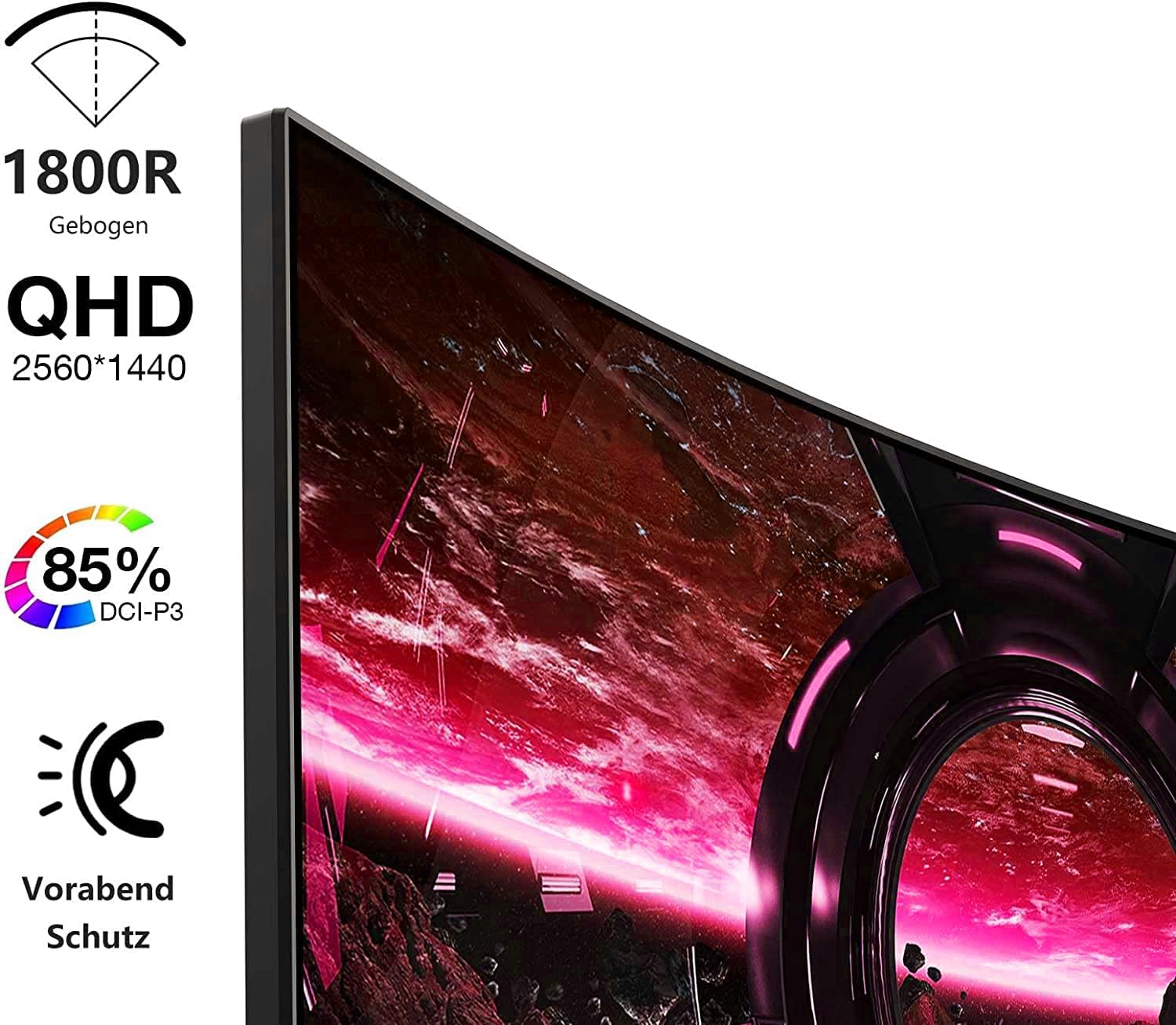
Image: Visual representation of the monitor's key features, including its 1500R curvature, QHD resolution (2560x1440), 85% DCI-P3 color coverage, and eye protection technology.
4. Upute za postavljanje
4.1 Sastavljanje postolja
- Carefully remove the monitor, stand, and base from the packaging.
- Attach the stand to the base, ensuring it clicks securely into place or is fastened with the provided screw.
- Attach the assembled stand to the back of the monitor. Ensure the connection is firm.

Slika: Stražnja strana view of the KOORUI 27E6QCA monitor, showing the attachment point for the stand and the overall back panel design.
4.2 Povezivanje na uređaj
The monitor supports HDMI and DisplayPort connections. Use the appropriate cable for your device.
- DisplayPort (DP): Connect one end of the DP cable to the DisplayPort output on your computer's graphics card and the other end to the DisplayPort input on the monitor. This connection is recommended for achieving the full 180Hz refresh rate and QHD resolution.
- HDMI: Connect one end of an HDMI cable (version 1.4 or higher recommended) to the HDMI output on your device and the other end to one of the HDMI inputs on the monitor.
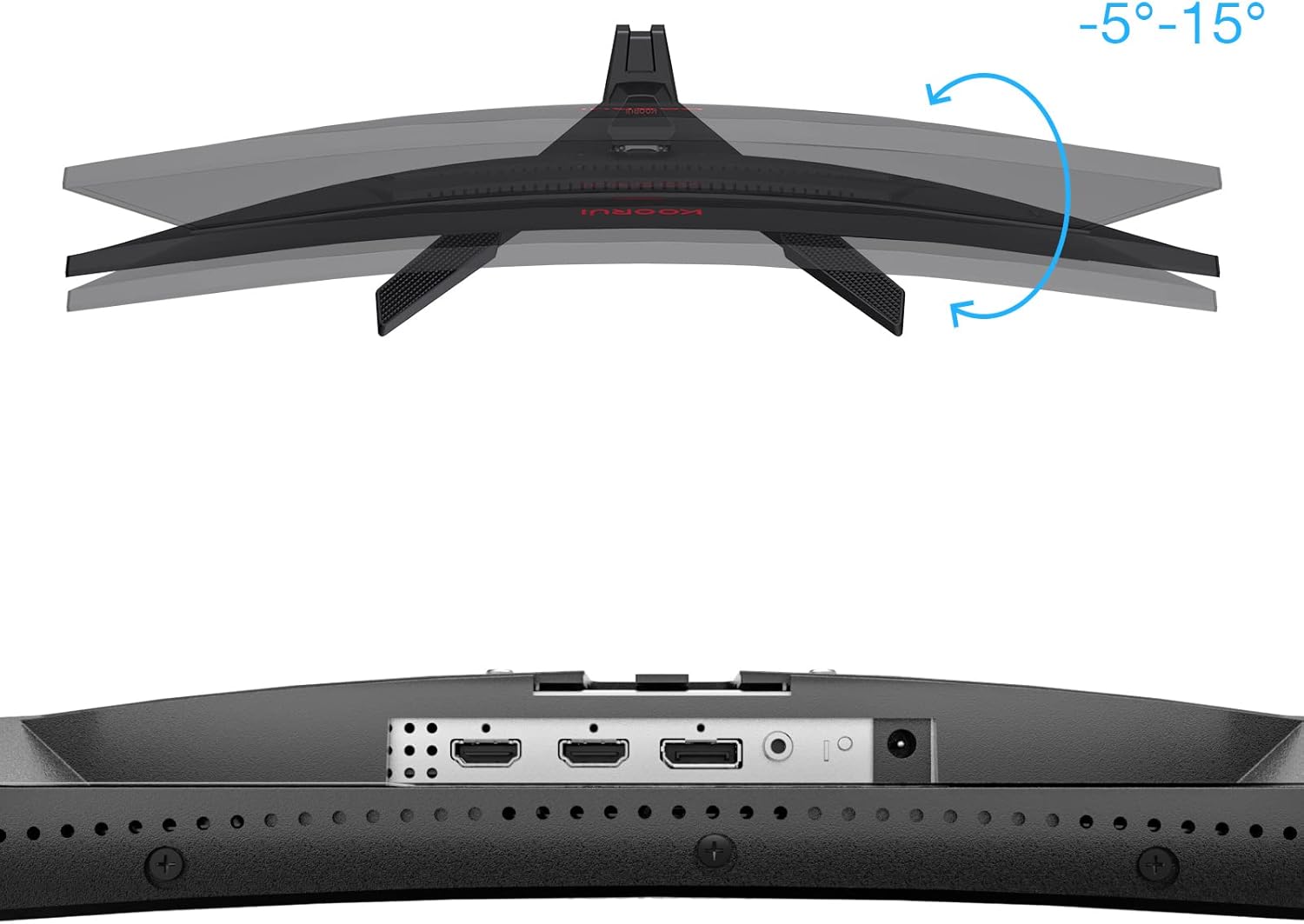
Slika: Krupni plan view of the monitor's rear ports, including HDMI and DisplayPort inputs, along with an illustration of the monitor's tilt adjustment range (-5° to 15°).

Image: Diagram illustrating the monitor's compatibility with various devices such as PS5, Xbox, Laptops, and Nintendo Switch via its multiple connection interfaces.
4.3 Priključak za napajanje
- Spojite adapter za napajanje na ulaz za napajanje monitora.
- Plug the power cable into the power adapter, then plug the other end of the power cable into a wall outlet.
5. Uputstvo za upotrebu
5.1 Uključivanje/isključivanje napajanja
- Uključeno: Short press the multi-function joystick button located on the back of the monitor.
- Iskljuciti: Long press the multi-function joystick button for a few seconds.
5.2 Navigacija izbornikom
The monitor features a single multi-function joystick button for navigating the On-Screen Display (OSD) menu.
- Pristup ekranskom meniju (OSD): Short press the joystick button when the monitor is on.
- Navigacija: Push the joystick left/right/up/down to move through menu options.
- potvrdi: Pritisnite dugme džojstika da biste potvrdili odabir.
- Povratak: Push the joystick up to go back to the previous menu or exit the OSD.

Image: Diagram illustrating the functions of the multi-function joystick button on the rear of the monitor: long press for power off, short press for power on, push left for minus, push right for plus, push up for return, and press for confirm.
5.3 Postavke ekrana
Podesite različite postavke ekrana putem OSD menija:
- Svjetlina/kontrast: Podesite svjetlinu i kontrast slike.
- Postavke boja: Promijenite temperaturu boje, gamu i zasićenost.
- Način slike: Select from preset modes (e.g., Standard, Game, Movie, Text).
- Postavke igre:
- Adaptivna sinhronizacija: Enable this feature to synchronize the monitor's refresh rate with your graphics card, reducing screen tearing and stuttering. Ensure your graphics card supports Adaptive Sync.
- Vrijeme odziva (Overdrive): Adjust for faster pixel response, reducing ghosting.
- Načini igre: Specific modes like RTS, FPS, Reticle, and Timer are available to optimize visuals for different game genres.
- Izvor ulaza: Ručno odaberite između HDMI i DisplayPort ulaza.
For optimal gaming performance, ensure your operating system's display settings are configured to the monitor's native resolution (2560x1440) and highest refresh rate (180Hz).
6. Održavanje
Pravilno održavanje osigurava dugotrajnost i performanse vašeg monitora.
- Čišćenje ekrana:
- Uvijek isključite monitor i iskopčajte kabel za napajanje prije čišćenja.
- Koristite meku krpu koja ne ostavlja dlačiceampoprati vodom ili specijaliziranim sredstvom za čišćenje ekrana.
- Ne prskajte sredstvo za čišćenje direktno na ekran.
- Izbjegavajte upotrebu abrazivnih sredstava za čišćenje, alkohola ili rastvora na bazi amonijaka.
- Čišćenje C-aasing: Koristite meku, suhu krpu za brisanje monitora casing.
- ventilacija: Pazite da ventilacijski otvori monitora nisu blokirani kako biste spriječili pregrijavanje.
7. Otkrivanje problema
Ako naiđete na probleme s monitorom, pogledajte sljedeće uobičajene korake za rješavanje problema:
7.1 Nema napajanja
- Provjerite je li kabel za napajanje sigurno spojen na monitor i utičnicu.
- Provjerite da li utičnica funkcioniše tako što ćete priključiti drugi uređaj.
- Provjerite da li je strujni adapter ispravno povezan.
7.2 Nema signala / Prazan ekran
- Confirm that the video cable (DP or HDMI) is securely connected to both the monitor and your computer/device.
- Provjerite je li u OSD izborniku monitora odabran ispravan ulazni izvor.
- Check if your computer/device is powered on and not in sleep mode.
- Pokušajte s drugim video kabelom ili priključkom ako je dostupan.
7.3 Image Flickering or Tearing
- Enable Adaptive Sync in the monitor's OSD menu and ensure it is enabled in your graphics card settings.
- Verify that your graphics drivers are up to date.
- Check the refresh rate setting in your operating system's display settings. It should be set to 180Hz.
7.4 Ghosting or Motion Blur
- Adjust the "Response Time" or "Overdrive" setting in the OSD menu. Experiment with different levels to find the optimal balance.
- Ensure Adaptive Sync is enabled.
7.5 Incorrect Resolution or Refresh Rate
- Go to your operating system's display settings and set the resolution to 2560x1440 and the refresh rate to 180Hz.
- Ensure you are using a DisplayPort cable or an HDMI cable that supports these specifications.
8. Specifikacije
| Feature | Specifikacija |
|---|---|
| Brand | KOORUI |
| Broj modela | 27E6QCA |
| Veličina ekrana | 27 inča |
| Tip panela | VA |
| Zakrivljenost | 1500R |
| Rezolucija | QHD (2560 x 1440 piksela) |
| Aspect Ratio | 16:9 |
| Refresh Rate | 180 Hz |
| Vrijeme odgovora | 1 millisecond (MPRT) |
| Gamut boja | 85% DCI-P3 |
| Kontrast Ratio | 2000:1 |
| Povezivanje | HDMI (x1), DisplayPort (x1) |
| Podešavanje nagiba | -5° do 15° |
| Potrošnja energije | 78 Watt |
| Dimenzije (D x Š x V) | 61.2 x 45.2 x 18.5 cm |
| Težina | 5.1 kilograma |
| Posebne karakteristike | Blue Light Filter, Curved, Flicker-Free, Adaptive Sync |

Image: Diagram showing the approximate dimensions of the KOORUI 27E6QCA monitor, including height (40cm), width (50cm), and depth (30cm).
9. Garancija i podrška
For warranty information and technical support, please refer to the warranty card included in your product package or visit the official KOORUI webSačuvajte račun kao dokaz o kupovini za reklamacije u slučaju reklamacije.


