1. Uvod
The Poly Studio R30 is an integrated USB video bar designed for small and huddle rooms, providing a comprehensive solution for video conferencing. It combines a 4K camera, advanced microphones, and a powerful speaker into a single device, ensuring high-quality audio and video experiences. This manual provides essential information for setting up, operating, maintaining, and troubleshooting your Poly Studio R30.

Slika 1: Prednja strana view of the Poly Studio R30 4K Video Conference System.
2. Šta se nalazi u kutiji
Provjerite da li su sve stavke prisutne u paketu:
- Poly Studio R30 4K Video Conference System
- Adapter za napajanje
- USB kabel
- Monitor Clamp (included for flexible mounting options)
3. Proizvod je gotovview
The Poly Studio R30 integrates several key components into a sleek bar design:
- 4K kamera: Features a 120-degree field of view and 5x digital zoom for clear video.
- Niz mikrofona: An advanced 3-microphone array designed to capture voices clearly while filtering out background noise.
- Integrisani zvučnik: Provides rich and clear audio output for all participants.
- Opcije montaže: Includes an adjustable monitor clamp for easy attachment to displays.

Slika 2: Bočna strana view of the Poly Studio R30, highlighting its compact design.
4. Podešavanje
The Poly Studio R30 is designed for quick and easy plug-and-play setup:
- Montaža: Attach the Poly Studio R30 to your display using the included monitor clamp. Ensure it is securely fastened and positioned to capture the desired area of the room.
- Priključak za napajanje: Connect the power adapter to the Poly Studio R30 and plug it into an electrical outlet.
- USB veza: Connect the provided USB cable from the Poly Studio R30 to an available USB port on your PC or Mac.
- Prepoznavanje softvera: Your computer should automatically recognize the Poly Studio R30 as a camera, microphone, and speaker device. No additional drivers are typically required.

Figure 3: Illustration of the simple plug-and-play setup for the Poly Studio R30.
5. Uputstvo za upotrebu
Once set up, the Poly Studio R30 integrates seamlessly with popular video conferencing platforms:
- Launch Conferencing Application: Open your preferred video conferencing software (e.g., Zoom, Microsoft Teams, Google Meet).
- Odaberite uređaje: In the application's audio and video settings, select "Poly Studio R30" as your camera, microphone, and speaker.
- Početak sastanka: Begin your meeting. The Poly Studio R30 will automatically activate its intelligent features.
Key Features in Operation:
- Poly DirectorAI: This technology provides automatic framing and tracking, ensuring all participants are seen clearly. It can frame groups or track individual speakers.
- Blokiranje bukeAI: Intelligently blocks distracting background noises, allowing voices to be heard without interruption.
- Akustična ograda: Creates a virtual sound barrier, focusing the microphone pickup on the area within the fence and eliminating sounds from outside that zone.

Figure 4: The 120-degree field of view ensures everyone is seen in the meeting room.

Figure 5: Dynamic video with DirectorAI close-up feature for clear facial expressions and body language.

Figure 6: Remarkable audio features including NoiseBlockAI and Acoustic Fence technology.
6. Menadžment
The Poly Studio R30 can be managed and configured using Poly Lens software:
- Aplikacija za računar Poly Lens: Install the Poly Lens Desktop application on your PC or Mac to control device settings, customize camera behaviors, and update firmware.
- Poly Lens Cloud Management: For IT administrators, Poly Lens cloud management software allows for remote management, monitoring, and deployment of devices over Wi-Fi, providing intelligent insights and scalable control.
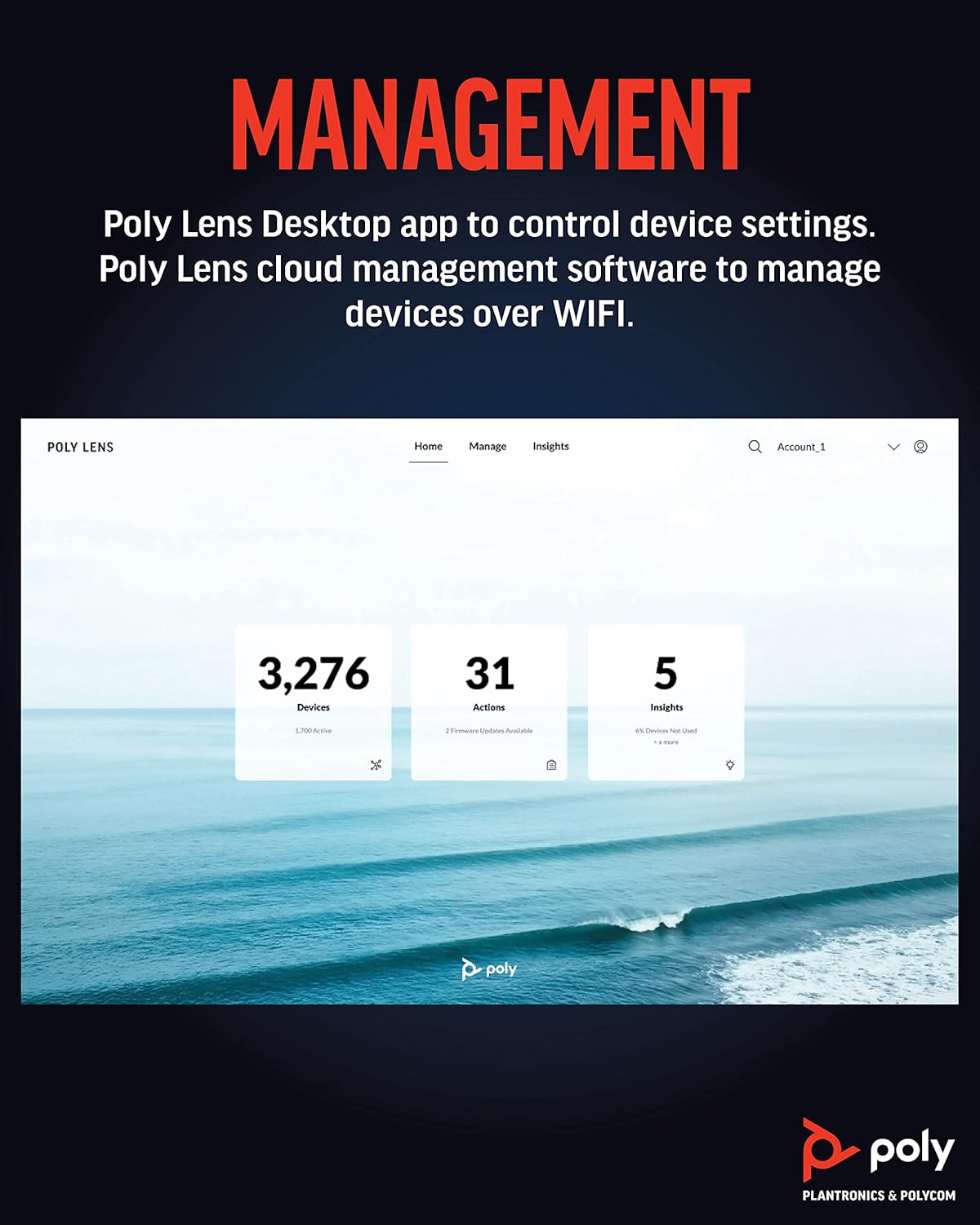
Figure 7: Poly Lens interface for device management and insights.
7. Održavanje
To ensure optimal performance and longevity of your Poly Studio R30, follow these maintenance guidelines:
- čišćenje: Use a soft, dry, lint-free cloth to clean the exterior of the device. Do not use liquid cleaners or aerosol sprays directly on the unit.
- Njega sočiva: Gently wipe the camera lens with a microfiber cloth specifically designed for optics. Avoid abrasive materials.
- Ažuriranja firmvera: Regularly check for and install firmware updates via the Poly Lens Desktop app or cloud management. Updates often include performance improvements and new features.
- Skladištenje: Kada se uređaj ne koristi duži period, čuvajte ga na hladnom i suhom mjestu, dalje od direktne sunčeve svjetlosti.
8. Otkrivanje problema
If you encounter issues with your Poly Studio R30, try the following steps:
| Problem | Moguće rješenje |
|---|---|
| No video/audio in conferencing app |
|
| Loš kvalitet videa |
|
| Poor audio quality (echo, muffled sound) |
|
| Računar ne prepoznaje uređaj |
|
9. Specifikacije
| Feature | Detalj |
|---|---|
| Broj modela | 2200-69390-001 |
| Dimenzije proizvoda | 20.59 x 8.94 x 3.98 inča |
| Težina artikla | 2.87 funte |
| Rezolucija video snimanja | 4K |
| Polje of View | 120 stepeni |
| Digitalni zum | 5x |
| Niz mikrofona | Raspored od 3 mikrofona |
| Audio tehnologije | NoiseBlockAI, Acoustic Fence |
| Video tehnologije | Poly DirectorAI (auto-framing, speaker tracking) |
| Tehnologija povezivanja | USB |
| Boja | Crna |
| Podržane platforme | Zoom, Microsoft Teams, Google Meet, and other PC/Mac video applications |
10. Garancija i podrška
For detailed warranty information, please refer to the warranty card included with your product or visit the official Poly website. For technical support, product registration, and additional resources, please visit the Poly support portal or contact their customer service.
You can find more information and support at the official Poly webstranica: www.poly.com


