1. Uvod
The Logitech Brio 300 is a Full HD webcam designed to enhance your video meeting experience. It features 1080p resolution for natural image quality, RightLight 2 auto light correction to adapt to various lighting conditions, and a noise-reducing microphone for clear audio. The integrated privacy shutter provides instant control over your camera's visibility. This webcam is certified for popular video conferencing platforms such as Zoom, Microsoft Teams, and Google Meet, ensuring seamless integration and hassle-free meetings.
2. Šta se nalazi u kutiji
- Logitech Brio 300 Webcam (Off-White)
- Integrated USB-C Cable (5 ft / 1.5 m)
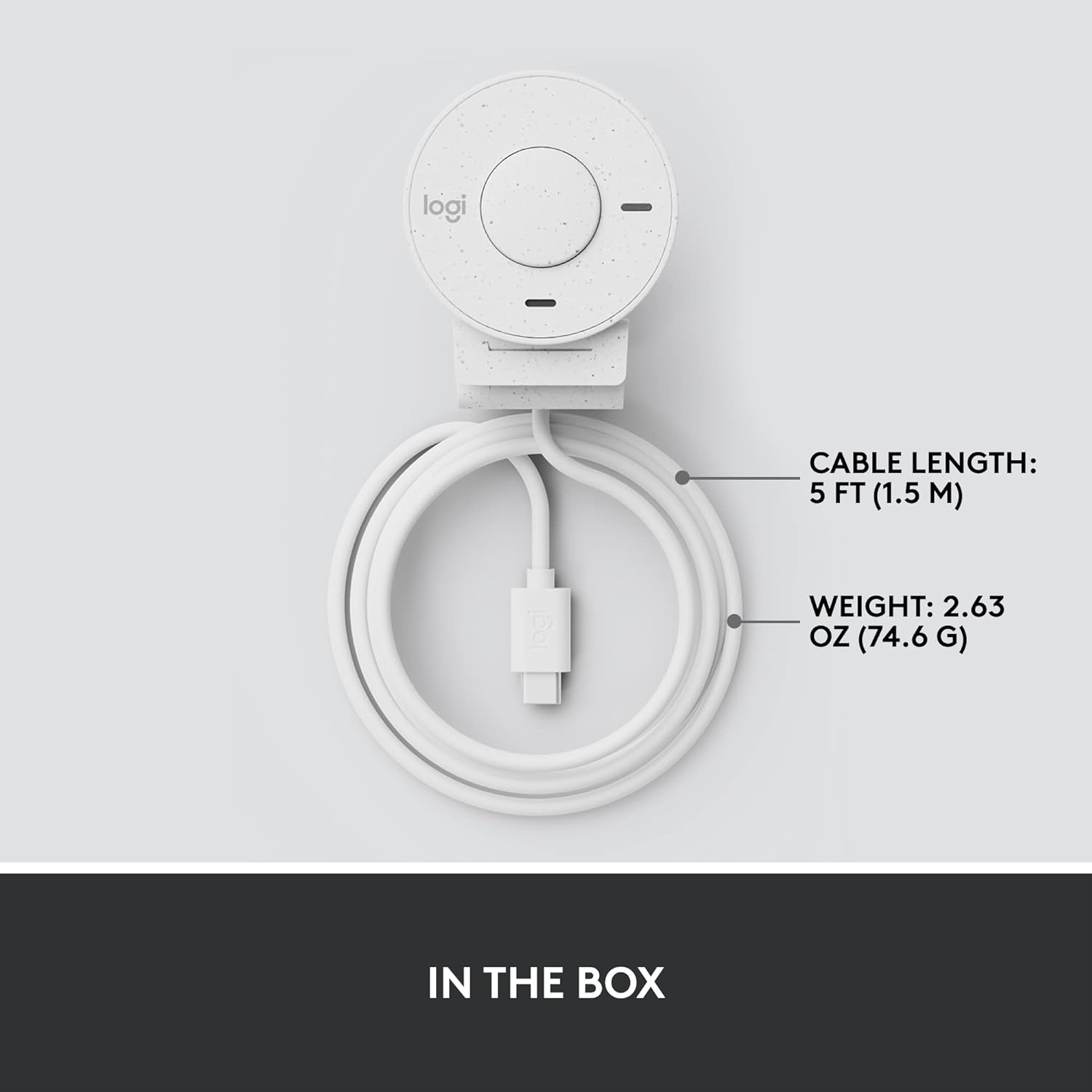
Figure 2.1: Logitech Brio 300 webcam with its integrated USB-C cable, showing the compact design and cable length.
3. Podešavanje
3.1. Plasman
Position the Logitech Brio 300 webcam on your monitor or laptop screen. The integrated mounting clip is designed to securely fit various screen thicknesses without scratching, thanks to its rubberized pads.

Slika 3.1: Logitech Brio 300 webcam, showing its design and how it sits on a monitor.
3.2. Povezivanje
Spojite integrirani USB-C kabel iz webcam directly to an available USB-C port on your computer. The webcam is plug-and-play, meaning it should be automatically recognized by your operating system (Windows, macOS, Chrome OS).
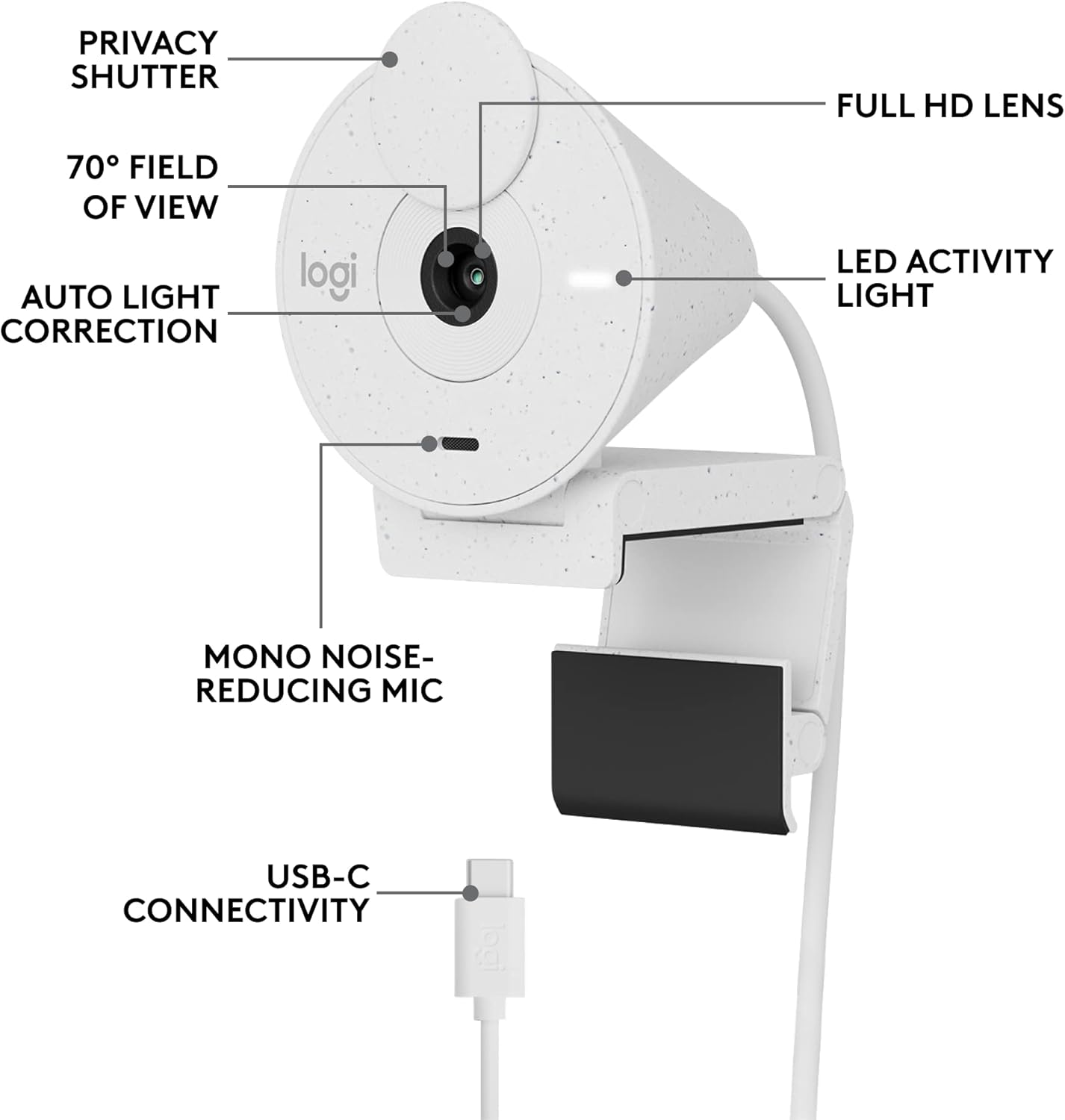
Slika 3.2: Detaljno view of the Logitech Brio 300, highlighting its USB-C connectivity and other key components.
3.3. Instalacija softvera (opcionalno, ali preporučeno)
For advanced customization and optimal performance, download and install the free Logi Tune application from the official Logitech website. Logi Tune allows you to adjust color, image quality, and other settings for your webNarandžasta.
Posjetite Logitech Logi Tune da preuzmete softver.
4. Rukovanje Webcam
4.1. Zaštita privatnosti
The Brio 300 features an integrated privacy shutter. To cover the lens and ensure privacy, simply spin the circular cover over the lens. Spin it back to uncover the lens when you are ready to use the camera.
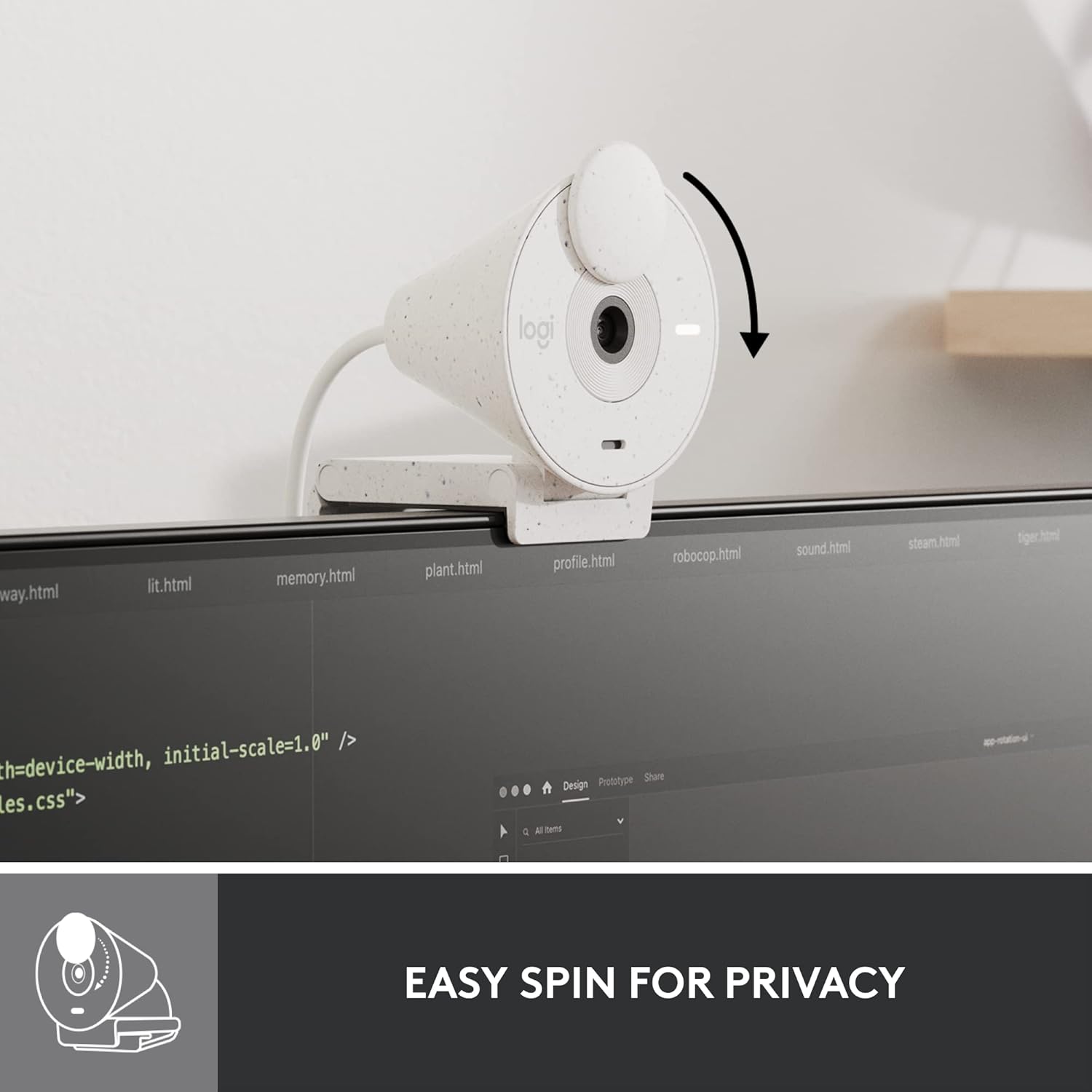
Figure 4.1: Demonstrating the easy-to-use spin privacy shutter on the Brio 300.
4.2. Auto Light Correction (RightLight 2)
The webcam is equipped with RightLight 2 technology, which automatically adjusts to poor lighting conditions. This ensures you appear clear and well-lit, even in dim environments.

Figure 4.2: Visual representation of the Brio 300's auto light correction feature improving image quality in low light.
4.3. Mikrofon za smanjenje šuma
The integrated mono microphone features noise reduction, suppressing background sounds to ensure your voice is heard clearly during calls.
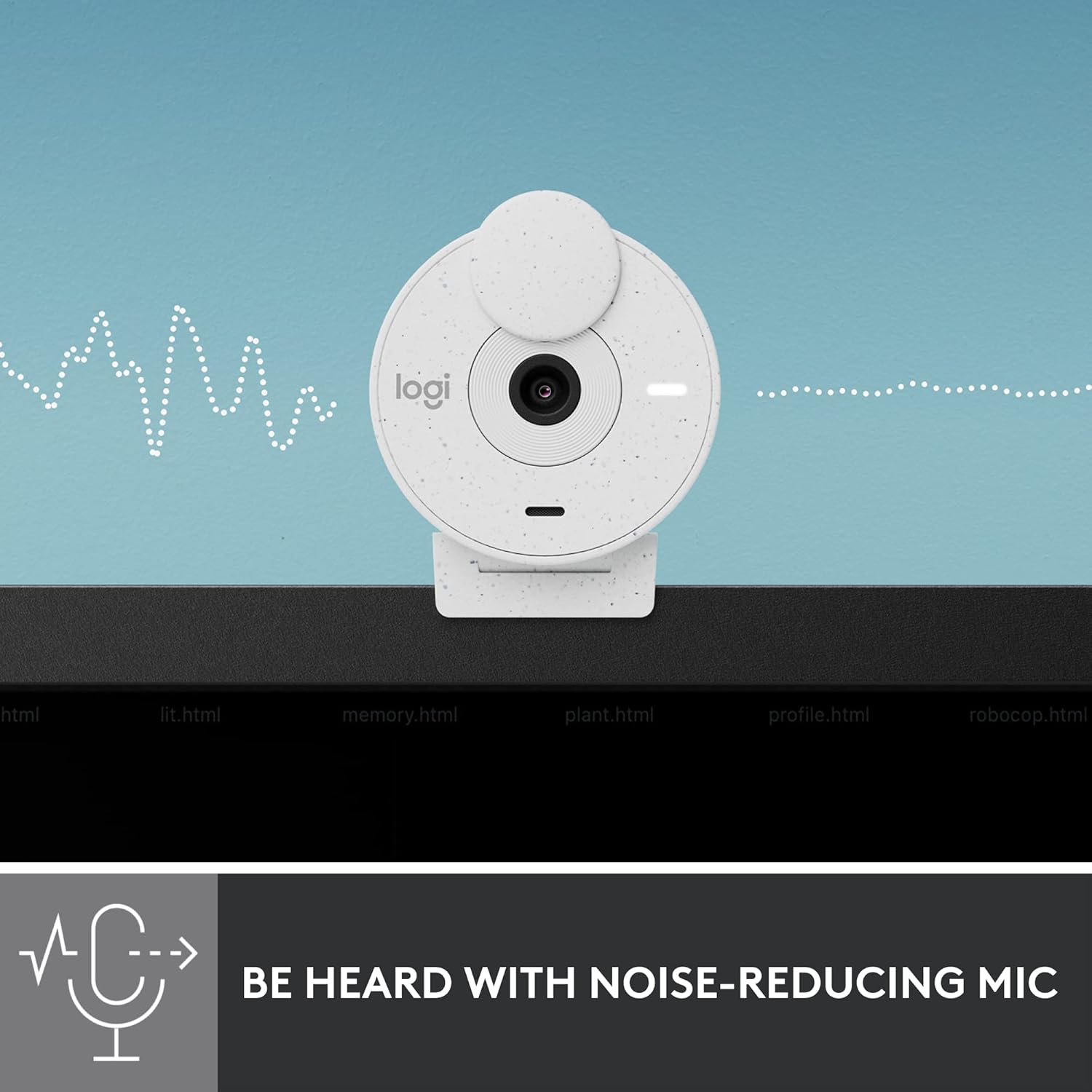
Figure 4.3: Illustration of the Brio 300's noise-reducing microphone capturing clear audio.
4.4. Kompatibilnost
The Brio 300 is certified for Zoom, Microsoft Teams, and Google Meet, ensuring broad compatibility with most video conferencing platforms.

Figure 4.4: The Brio 300 is certified for major meeting platforms, including Zoom, Microsoft Teams, and Google Meet.
5. Održavanje
Da biste osigurali dugotrajnost i optimalne performanse vašeg Logitech Brio 300 miša webkameru, slijedite ove jednostavne smjernice za održavanje:
- Čišćenje sočiva: Pažljivo obrišite objektiv kamere mekom krpom koja ne ostavlja dlačice. Za tvrdokorne mrlje, lagano obrišiteampen the cloth with a lens cleaning solution. Avoid abrasive materials or harsh chemicals.
- Čišćenje tijela: Use a soft, dry cloth to clean the body of the webcam. Do not use liquid cleaners directly on the device.
- Skladištenje: When not in use, especially during travel, ensure the privacy shutter is closed to protect the lens. Store the webČuvajte kameru na čistom i suhom mjestu, dalje od ekstremnih temperatura.
6. Otkrivanje problema
If you encounter issues with your Logitech Brio 300, try the following troubleshooting steps:
- Nema videa/zvuka:
- Provjerite je li USB-C kabel sigurno spojen na oba webkamera i vaš računar.
- Provjerite je li poklopac za privatnost otvoren.
- Proverite da li je webcam is selected as the primary video and audio device in your video conferencing application settings (e.g., Zoom, Microsoft Teams, Google Meet).
- Pokušajte povezati webpriključite kameru na drugi USB-C port ili drugi računar kako biste isključili probleme s portom ili sistemom.
- Loš kvalitet videa:
- Ensure adequate lighting in your environment. While RightLight 2 helps, sufficient ambient light is crucial for optimal image quality.
- Očistite objektiv kamere kako je opisano u odjeljku Održavanje.
- Ažurirajte svoje webcam drivers and the Logi Tune software to the latest version.
- Check your internet connection speed, as a slow connection can affect video streaming quality.
- Loš kvalitet zvuka:
- Pazite da mikrofon nije blokiran.
- Minimizirajte buku u pozadini u vašem okruženju.
- Adjust microphone levels in your computer's sound settings or Logi Tune.
7. Specifikacije
| Feature | Detalj |
|---|---|
| Maksimalna rezolucija ekrana | FHD (1080p) |
| Rezolucija video snimanja | 1080p |
| Tehnologija foto senzora | CMOS |
| Tehnologija povezivanja | USB-C |
| Posebna karakteristika | Low Light Correction (RightLight 2) |
| Mikrofon | Mono, Noise Reduction |
| Funkcija privatnosti | Integrisani zatvarač za privatnost |
| Težina artikla | 3.99 unce |
| Dimenzije proizvoda | 4.6 x 3.5 x 2.7 inča |
| Materijal | Minimum 48% Post-Consumer Recycled Plastic |
8. Garancija i podrška
The Logitech Brio 300 webcam comes with a limited hardware warranty. For detailed warranty information, technical support, and frequently asked questions, please visit the official Logitech support website or refer to the full user manual available in PDF format.
Zvanični korisnički priručnik (PDF): Preuzmite ovdje
For software support and customization, download the Logi Tune application.


