1. Uvod
This manual provides essential information for setting up, operating, and maintaining your TECLAST X11 2-in-1 Laptop/Tablet. The TECLAST X11 is a versatile device designed to function as both a portable tablet and a compact laptop, running on Windows 10 Home. It features a 10.1-inch Full HD display, an Intel N4020 processor, 6GB RAM, and 128GB of internal storage.
2. Šta se nalazi u kutiji
- TECLAST X11 Tablet
- Adapter za napajanje
- USB kabel
- Korisnički priručnik (ovaj dokument)
Note: The keyboard and stylus pen are sold separately and are not included in the standard package.
3. Proizvod je gotovview
3.1 Ključne karakteristike
- 2-u-1 dizajn: Seamlessly switch between tablet and laptop modes.
- Prikaz: 10.1-inch IPS Full HD (1920x1200) touchscreen.
- procesor: Intel Gemini Lake Reflash N4020 CPU (up to 2.8GHz).
- Memorija i pohrana: 6GB RAM, 128GB eMMC ROM (expandable up to 256GB via TF card).
- Operativni sistem: Unaprijed instaliran Windows 10 Home.
- Povezivanje: Dual-band 2.4G/5G WiFi, Bluetooth 4.2.
- kamere: Zadnja kamera od 5 MP, prednja kamera od 2 MP.
- luke: USB 3.0, Mini-HDMI, Headphone Jack, DC Port.
- Podnožje: Adjustable U-shaped kickstand (0° to 145°).
3.2 Izgled uređaja
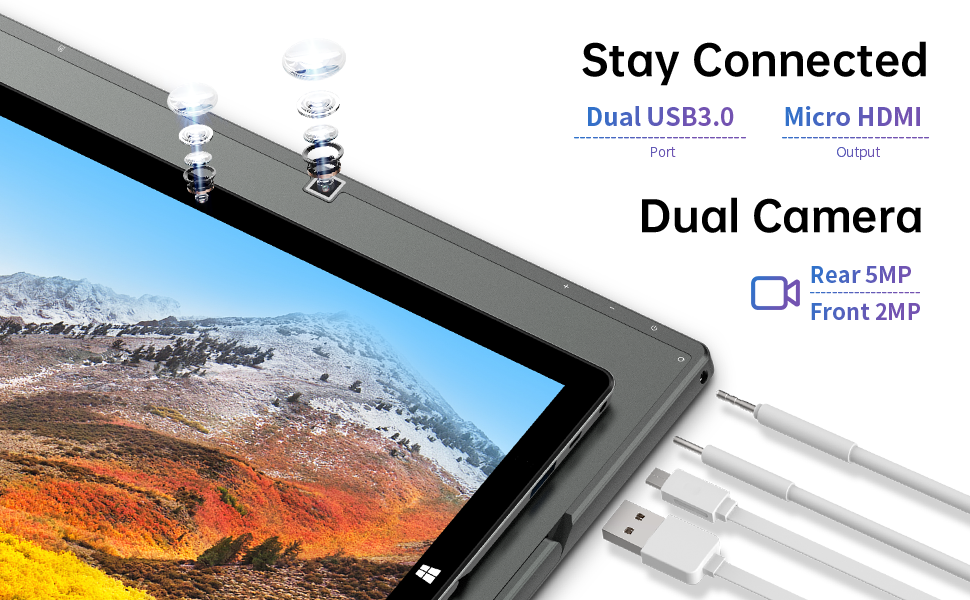
Slika: Sa strane view of the TECLAST X11 tablet highlighting the USB 3.0 port, Micro HDMI output, and front/rear cameras.

Slika: Detaljna view of the TECLAST X11's side ports, including USB 3.0, Mini-HDMI, DC power input, and headphone jack.
4. Podešavanje
4.1 Početno punjenje
Before first use, fully charge your TECLAST X11 tablet. Connect the provided power adapter to the DC port on the device and plug it into a power outlet. The charging indicator will illuminate.
4.2 Uključivanje/isključivanje
- Za uključivanje: Pritisnite i držite tipku za uključivanje / isključivanje dok se zaslon ne uključi.
- Za isključivanje: Press and hold the Power button, then select "Shut down" from the on-screen options. Alternatively, go to Start Menu > Power > Shut down.
- Režim spavanja: Briefly press the Power button to put the device into sleep mode or wake it up.
4.3 Početna instalacija Windowsa
Upon first power-on, follow the on-screen instructions to complete the Windows 10 setup process. This includes selecting your region, language, connecting to a Wi-Fi network, and creating a user account.
5. Uputstvo za upotrebu
5.1 Prebacivanje između načina rada
The TECLAST X11 is designed for flexibility, allowing you to switch between tablet and laptop modes.
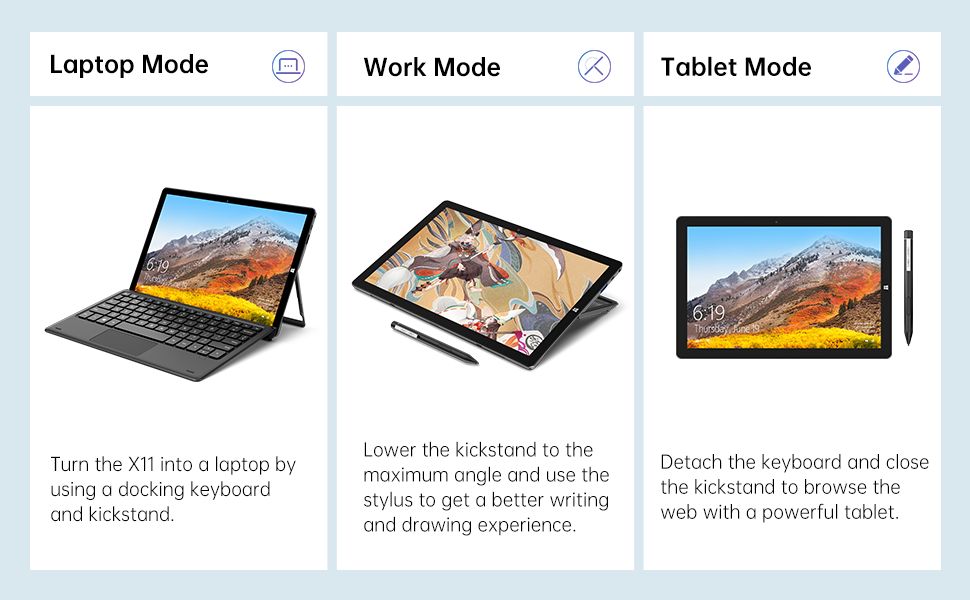
Image: The TECLAST X11 in laptop mode with the keyboard attached and kickstand deployed.
Režim rada laptopa: Attach the magnetic docking keyboard and deploy the integrated kickstand. The device will automatically detect the keyboard and switch to laptop interface.

Image: A user holding the TECLAST X11 in tablet mode, interacting with the touchscreen.
Način rada tableta: Detach the keyboard. The device will automatically switch to tablet mode, optimizing the interface for touch input.

Slika: Stražnja strana view of the TECLAST X11 showing the adjustable kickstand extended.
Upotreba stalka: The integrated U-shaped kickstand can be adjusted from 0° to 145° for comfortable viewing or typing angles.
5.2 Korišćenje ekrana osetljivog na dodir
The 10.1-inch IPS display supports 10-point multi-touch. Use standard touch gestures for navigation, zooming, and interaction with applications.
5.3 Vanjska povezivost
- USB 3.0: Connect external devices such as USB drives, mice, or printers.
- Mini-HDMI: Povežite se s vanjskim monitorom ili TV-om za veći prikaz.
- Bluetooth 4.2: Pair with Bluetooth-enabled accessories like headphones or speakers.
- Wi-Fi: Connect to wireless networks for internet access. Supports 2.4G and 5G bands.
5.4 Video demonstracija
Video: An official TECLAST video demonstrating the features and versatility of the X11 Windows tablet with its detachable keyboard and various usage scenarios.
6. Održavanje
6.1 Čišćenje uređaja
- Za čišćenje ekrana i vanjskih površina koristite meku krpu koja ne ostavlja dlačice.
- Za tvrdokorne mrlje, lagano dampobrišite krpu vodom ili sredstvom za čišćenje ekrana.
- Izbjegavajte upotrebu jakih hemikalija, abrazivnih materijala ili prekomjerne vlage.
6.2 Njega baterija
- Da biste produžili vijek trajanja baterije, izbjegavajte ekstremne temperature.
- Ne ostavljajte uređaj potpuno napunjen ili potpuno ispražnjen duži vremenski period.
- Koristite samo originalni ili certificirani kompatibilni punjač.
6.3 Ažuriranja softvera
Regularly check for and install Windows updates to ensure optimal performance, security, and access to the latest features. Go to Start Menu > Settings > Update & Security > Windows Update.
7. Otkrivanje problema
| Issue | Moguće rješenje |
|---|---|
| Uređaj se ne uključuje | Ensure the device is charged. Connect the power adapter and try again. If unresponsive, press and hold the Power button for 10-15 seconds to perform a hard reset. |
| Problemi sa Wi-Fi vezom | Check if Wi-Fi is enabled in Windows settings. Restart your router and the tablet. Ensure you are within range of the Wi-Fi signal. |
| Tastatura ne reaguje | Ensure the keyboard is securely attached to the magnetic docking port. Restart the tablet. Verify that the keyboard was purchased separately and is compatible. |
| Spore performanse | Close unnecessary applications. Check for Windows updates. Ensure sufficient free storage space. Run a disk cleanup. |
| Rotacija ekrana ne radi | Check if auto-rotate is enabled in Windows Action Center (swipe in from the right edge of the screen or click the icon in the taskbar). |
8. Specifikacije
| Feature | Detalj |
|---|---|
| Naziv modela | X11 2-in-1 Tablet |
| Veličina ekrana | 10.1 inča |
| Rezolucija ekrana | 1920 x 1200 piksela (FHD IPS) |
| Procesor | Intel Gemini Lake Reflash N4020 (1.1GHz - 2.8GHz) |
| RAM | 6 GB DDR4 SDRAM |
| Hard Drive | 128 GB eMMC (expandable up to 256GB via TF card) |
| Graficka kartica | Integrisana Intel UHD Graphics 600 |
| Operativni sistem | Windows 10 Home |
| Bežični tip | Bluetooth 4.2, Dual-band WiFi (2.4G + 5G) |
| Pozadi Webcam Resolution | 5 MP |
| Front Webcam Resolution | 2 MP |
| Luke | USB 3.0, Mini-HDMI, Headphone Jack, DC Port |
| Težina artikla | 2.31 funte (otprilike 1.05 kg) |
| Baterije | 1 litijum-polimerska baterija (uključena) |
9. Garancija i podrška
TECLAST provides a 12-mjesečna garancija for the X11 2-in-1 Laptop/Tablet. If you encounter any issues or have questions regarding your device, please contact TECLAST customer support. Refer to the contact information provided with your product packaging or visit the official TECLAST webstranica za detalje o podršci.


