1. Uvod
Welcome to the user manual for your CiBest W13 Projector and 100-inch Portable Projector Screen. This guide provides detailed instructions for setting up, operating, maintaining, and troubleshooting your new home entertainment system. Please read this manual thoroughly before use to ensure optimal performance and safety.
The CiBest W13 Projector offers a superior viewing experience with its bright display and 1080P support, ideal for movies and presentations. Paired with the 100-inch portable screen, it creates a versatile setup for both indoor and outdoor use.
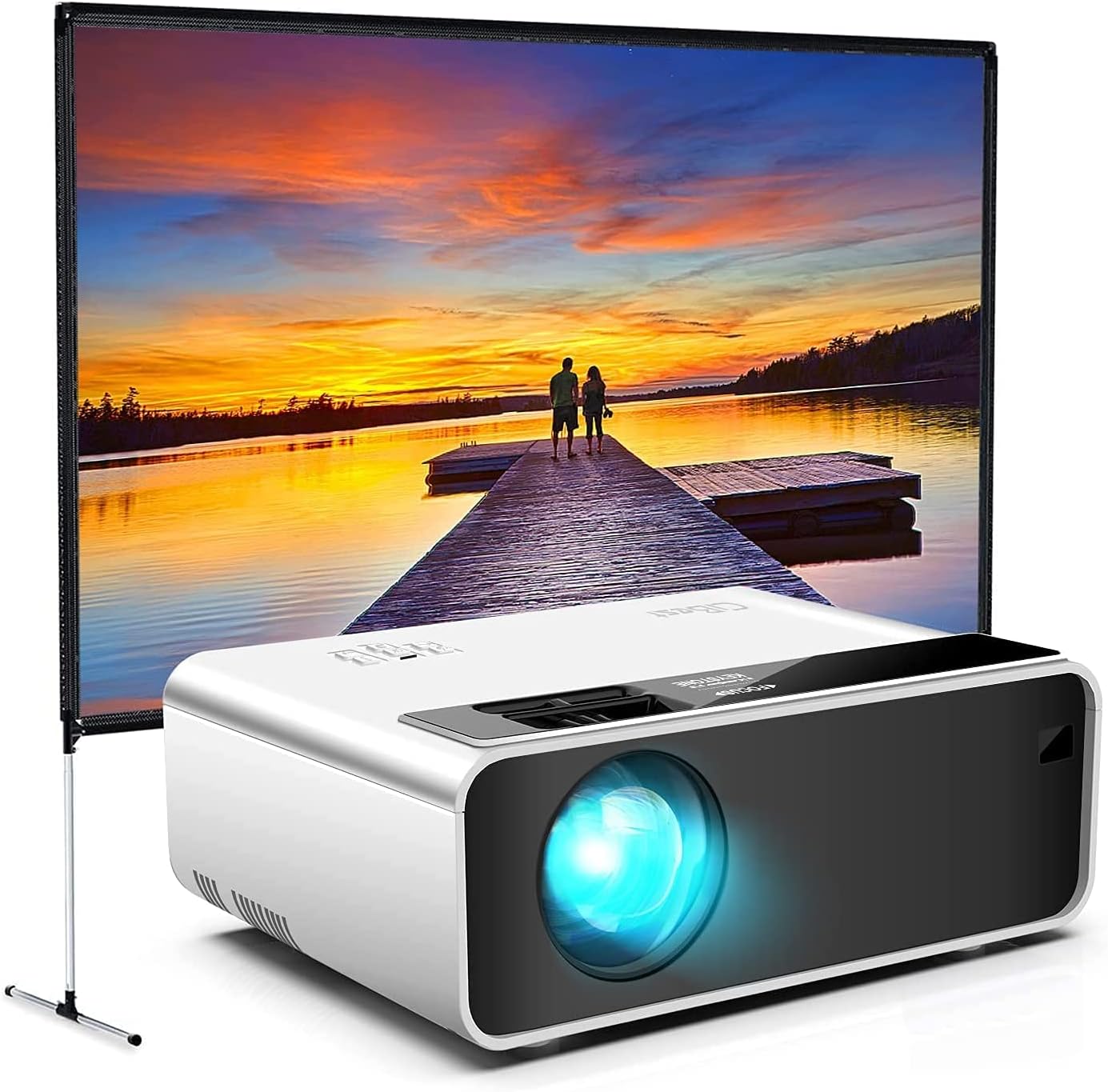
Image: The CiBest W13 Projector positioned in front of the 100-inch portable screen, displaying a vibrant sunset scene over a lake.
2. Važna sigurnosna uputstva
To prevent fire or electric shock, do not expose this appliance to rain or moisture. Always follow basic safety precautions when using electrical appliances.
- Ne blokirajte otvore za ventilaciju.
- Ne postavljajte projektor na nestabilna kolica, postolje ili sto.
- Sav servis prepustite kvalifikovanom serviseru.
- Izbjegavajte direktno izlaganje očiju sočivu projektora kada je lamp je uključen.
- Keep the projector and screen away from water or excessive humidity.
- Osigurajte ispravno napajanje voltage kako je navedeno.
3. Sadržaj paketa
Molimo Vas da prilikom raspakivanja provjerite sadržaj paketa kako biste bili sigurni da su sve komponente prisutne:
- CiBest W13 Projector
- 100-inch Portable Projector Screen
- Projector Screen Stand Components (Crossbar, Brackets, Ground Nails, Ropes, Elbows, Foot Rods)
- HDMI kabl
- Power Cable
- Daljinski upravljač (baterije nisu uključene)
- Uputstvo za upotrebu

Image: The CiBest W13 Projector shown alongside an included HDMI cable, highlighting connectivity options.
4. Vodič za postavljanje
4.1 Projector Setup
- Priključak za napajanje: Spojite kabel za napajanje na projektor, a zatim na električnu utičnicu.
- plasman: Place the projector on a stable, flat surface at the desired distance from the screen.
- Podešavanje fokusa: Turn the focus ring on the projector lens until the image is clear and sharp.
- Keystone korekcija: Adjust the keystone knob to correct any trapezoidal distortion of the image, ensuring a rectangular projection.
4.2 Screen Assembly
The 100-inch portable screen is designed for quick and easy setup, typically in less than 5 minutes.
- Raspakujte komponente: Lay out all screen stand components: crossbar, brackets, ground nails, ropes, elbows, and foot rods.
- Sastavite okvir: Connect the crossbar and brackets to form the top and side supports for the screen.
- Attach Screen: Securely attach the 100-inch screen fabric to the assembled frame.
- Install Stand: Attach the foot rods and elbows to the bottom of the screen frame to create a stable stand. For outdoor use, utilize the ground nails and ropes for added stability.

Slika: Eksplodirala view diagram illustrating the various components required for assembling the portable projector screen, including crossbar, brackets, ground nails, ropes, elbows, and foot rods.

Image: A visual representation of the 100-inch projector screen with its dimensions (86 inches wide, 50 inches high, 74 inches total height with stand), emphasizing its large projection area.
4.3 Placement and Viewing
The screen supports both front and rear projection, offering flexibility in setup. Position the projector to achieve the desired image size and clarity on the screen.

Image: Two projectors are shown, one in front and one behind the screen, demonstrating the capability for both front and rear projection setups.
Ekran nudi široki ugao od 160° viewing angle, ensuring a clear picture from various positions.

Image: A diagram illustrating the 160-degree wide viewing cone of the projector screen, indicating optimal viewing angles for multiple viewers
5. Uputstvo za upotrebu
5.1 Uključivanje/isključivanje napajanja
Press the power button on the projector or the remote control to turn the unit on or off. Allow a few seconds for the projector to warm up or cool down.
5.2 Povezivanje ulaznih izvora
The CiBest W13 Projector supports various input sources:
- HDMI: Connect your laptop, game console, or streaming device via the HDMI port.
- USB: Umetnite USB disk za reprodukciju medija files direktno.
- Smartphone/iPad: For iOS devices, a Lighting to HDMI adapter is required (not included). For Android devices, a Type C/MHL to HDMI adapter is required (not included).

Image: A visual guide demonstrating how to connect smartphones and iPads to the projector using appropriate HDMI adapters (not included).
5.3 Audio izlaz
The projector has a built-in speaker. For enhanced audio, connect external speakers or a soundbar to the projector's audio output port (if available, or via HDMI audio passthrough).
5.4 Podešavanja slike
Use the projector's menu or remote control to adjust image settings such as brightness, contrast, color temperature, and aspect ratio to suit your viewing okruženje.
5.5 Scenariji upotrebe
The CiBest W13 Projector and portable screen are versatile for various uses:
- Kućni bioskop: Enjoy movies and TV shows in a large format.
- igranje igara: Connect your gaming console for an immersive experience.
- Zabava na otvorenom: The portable screen and projector are ideal for backyard movies or camping putovanja.

Image: An outdoor scene depicting the projector and screen set up for a movie night, with people enjoying the projection from a pool and seating area.
6. Održavanje
Regular maintenance ensures the longevity and optimal performance of your projector and screen.
- Čišćenje sočiva: Koristite meku krpu bez dlačica, posebno dizajniranu za optička sočiva. Ne koristite abrazivna sredstva za čišćenje.
- Čišćenje tijela projektora: Obrišite vanjski dio mekom, suhom krpom. Za tvrdokorne mrlje koristite blago suhu krpu.amp krpom, a zatim dobro osušite.
- Čišćenje ekrana: Nježno obrišite površinu ekrana mekom,amp cloth. Avoid harsh chemicals or abrasive materials that could damage the screen.
- Skladištenje: When not in use, store the projector and screen in a cool, dry place, away from direct sunlight and extreme temperatures. The screen and stand are designed to be easily packed away for convenient storage and transport.
7. Otkrivanje problema
If you encounter issues with your CiBest W13 Projector or screen, refer to the table below for common problems and their solutions.
| Problem | Rješenje |
|---|---|
| Nema slike na ekranu | Ensure the projector is powered on. Check all cable connections (HDMI, USB). Select the correct input source on the projector. |
| Slika je mutna ili van fokusa | Adjust the focus ring on the projector lens. Ensure the projector is at the optimal distance from the screen. |
| Slika je trapezoidna (ne pravougaona) | Adjust the keystone correction knob on the projector. Ensure the projector is placed perpendicular to the screen. |
| Nema zvuka iz projektora | Check the volume level on the projector and the input source. Ensure external speakers are properly connected if used. Verify audio settings on the input device. |
| Daljinski upravljač ne radi | Check and replace batteries. Ensure there are no obstructions between the remote and the projector's IR receiver. |
8. Tehničke specifikacije
Below are the key technical specifications for the CiBest W13 Projector and 100" Portable Projector Screen:
| Feature | Detalj |
|---|---|
| Model | W13 |
| Brand | CiBest |
| Display Resolution (Max) | 1920 x 1080 (1080P) |
| Tehnologija povezivanja | USB,HDMI |
| Kontrast Ratio | 2000:1 |
| Osvetljenost | 3000 Lumen (relative to other mini projectors) |
| Veličina ekrana | 100 inča (dijagonala) |
| Omjer širine i visine ekrana | 16:9 |
| Ekran Viewing Angle | 160° |
| Screen Weight (approx.) | 5.9 lbs |
| Boja | Crna |
| Posebna karakteristika | Prijenosni |
9. Garancija i podrška
For information regarding warranty coverage, product registration, or technical support, please refer to the documentation included with your purchase or visit the official CiBest website. You can also find more information and contact details on the CiBest store page on Amazon:
Visit the Official CiBest Store on Amazon
Please have your product model (W13) and ASIN (B09LLS1PCD) ready when contacting support for faster assistance.


