1. Uvod
This manual provides detailed instructions for the setup, operation, and maintenance of your Volcora Thermal Receipt Printer, Model 500204. This high-speed 80mm POS printer features an auto cutter and offers versatile connectivity options including USB and Bluetooth, supporting various operating systems. Please read this manual thoroughly before using the printer to ensure proper functionality and longevity.
2. Sigurnosne informacije
- Ensure the printer is connected to a grounded power outlet.
- Ne izlažite štampač vodi ili visokoj vlažnosti.
- Izbjegavajte postavljanje štampača na direktnu sunčevu svjetlost ili u blizinu izvora toplote.
- Use only the power adapter supplied with the printer.
- Ne pokušavajte sami rastavljati ili popravljati štampač. Za pomoć se obratite korisničkoj podršci.
- Keep hands clear of the auto cutter mechanism during operation.
3. Sadržaj paketa
Provjerite da li se u vašem paketu nalaze sve dolje navedene stavke:
- Volcora Thermal Receipt Printer - Standard
- Adapter za napajanje
- Papirni valjak
- USB kabel
- CD (for drivers and manual)
- Manual
- Sample Receipt Paper

Slika 3.1: Included Components - Thermal Receipt Printer, Power Adapter, USB Cable, Test Paper, and Installation CD.
4. Proizvod je gotovview

Slika 4.1: Front view of the Volcora Thermal Receipt Printer with a sampračun.
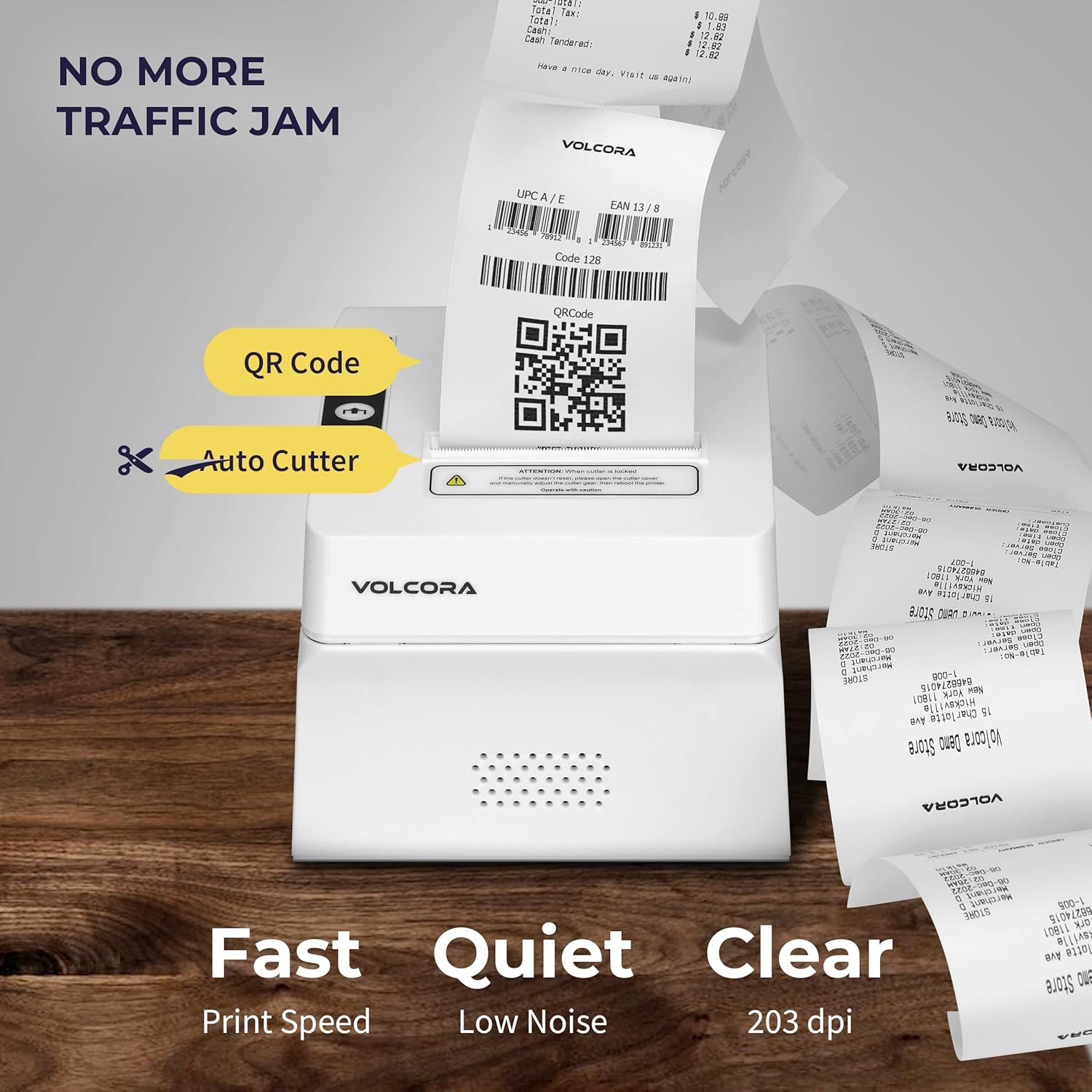
Slika 4.2: Key features include QR code printing, automatic cutter, fast print speed, low noise, and 203 dpi clear printing.
4.1 Portovi i dugmad

Slika 4.3: Rear ports include Power Supply, Cash Drawer Port (6Pin RJ11), and USB Port. Front panel features Power LED, Error LED, Paper LED, Feed Button, and Cover Open Button.
4.2 Opcije smještaja

Slika 4.4: The printer supports both wall mounting (as a kitchen printer) and counter placement (as a receipt printer).
5. Podešavanje
5.1 Initial Connection and Paper Roll Installation
- Unbox the printer and all accessories.
- Spojite adapter za napajanje na štampač i utičnicu.
- Open the paper cover by pressing the "PUSH" button.
- Insert the 80mm thermal paper roll, ensuring the paper feeds from the bottom and the leading edge extends slightly past the cutter.
- Čvrsto zatvorite poklopac za papir dok ne klikne na svoje mjesto.
- Connect the USB cable from the printer to your computer (for initial setup or USB printing).

Slika 5.1: Gotovoview of the installation process: Download drivers, Install, Connect power and USB, and Test print.
5.2 Printer Self-Test
Performing a self-test helps verify the printer's basic functionality and prints its configuration settings.
- Uverite se da je štampač isključen.
- Press and hold the "Feed" button.
- While holding the "Feed" button, power on the printer.
- Release the "Feed" button after approximately 5 seconds. The printer should print a self-test page.
For a visual guide on unboxing, connecting, and performing a self-test, please watch the video below:
Klip 5.1: Getting Started with Volcora Thermal Receipt Printer - Unboxing, Connecting, and Self-Test.
6. Driver Installation and Connectivity
The Volcora Thermal Receipt Printer supports USB and Bluetooth connectivity. Proper driver installation is crucial for seamless operation.
6.1 Kompatibilnost sistema
Molimo review the compatibility chart before proceeding with driver installation:

Slika 6.1: Kompatibilnost je završenaview for USB and Bluetooth connections across various operating systems. Note that Mac OS and iOS are not supported.

Slika 6.2: List of compatible and non-compatible POS software applications.
6.2 Windows Driver Installation (USB)
For Windows users, download the latest drivers from the official Volcora support website. The installation CD also contains the necessary drivers.
- Preuzmite drajver za Windows sa volcora.com/support.
- Raspakujte preuzeto file and open the driver application.
- Follow the on-screen prompts, select your printer model (500204), and complete the installation.
- After installation, the printer should be recognized in your Windows "Printers & Scanners" settings, allowing you to print a test page.
Refer to Video 5.1 for initial connection steps. The video also demonstrates driver installation and testing tools for Windows.
6.3 Bluetooth Connection with Windows PC
This section outlines two methods for connecting your printer via Bluetooth to a Windows PC.
Method 1: Driver Pre-installed with USB Connection
- Ensure the printer driver has been installed using a USB cable connection (refer to Section 6.2).
- Go to Windows Settings > Bluetooth & devices > Add device > Bluetooth.
- Select the printer (e.g., "500203" or "Volcora Thermal Printer") from the list of available devices and pair it. Enter the default PIN (usually "0000" or "1234").
- After pairing, check the printer's properties in "Devices and Printers" to identify the assigned COM port (e.g., COM4).
- Use the Setting Tool (available from volcora.com/support) to select the correct COM port and perform a test print.
Method 2: Driver Installation After Bluetooth Connection
- Start by pairing the printer via Bluetooth directly (Windows Settings > Bluetooth & devices > Add device > Bluetooth). Enter the default PIN.
- Open Device Manager (search in Windows) and expand "Ports (COM & LPT)" to find the COM port used by the Bluetooth printer (e.g., COM3 or COM4).
- Install the printer driver (from volcora.com/support or CD), selecting the identified COM port during the installation process. If the first COM port doesn't work, try the other one listed.
- Once the driver is installed, the printer should appear in "Printers & Scanners" and be ready for use.
Klip 6.3: How to connect your Volcora Thermal Receipt Printer via Bluetooth to a Windows PC.
6.4 Bluetooth Connection with Android Tablets
To connect your printer to an Android tablet, follow these steps:
- Go to your Android tablet's Settings and enable Bluetooth.
- Traži new devices and select your printer (e.g., "500203"). Pair the device using the default PIN (usually "0000" or "1234").
- Download the "PrintDemo Tool" from volcora.com/support.
- Open the PrintDemo Tool, go to "Setting", select "Bluetooth" as the interface, and search for your paired printer.
- Perform a "print test" to confirm connectivity.
- For POS applications like Loyverse POS or W&O POS, navigate to their printer settings, select "Bluetooth" as the interface, and choose your Volcora printer to perform a test print.
Klip 6.4: How to connect your Volcora Thermal Receipt Printer via Bluetooth to an Android Tablet.
7. Uputstvo za upotrebu
Once the printer is successfully connected and drivers are installed, it will function as a standard printer for your compatible system or POS application. Ensure your application is configured to use the Volcora Thermal Printer for receipt printing.
- Štampanje: Send print commands from your software. The printer will automatically feed and cut the receipt.
- Uvlačenje papira: Press the "Feed" button on the front panel to manually advance the paper.
- Indikator greške: The "Error" LED will illuminate if there is a paper jam, paper out, or other issues. Refer to the troubleshooting section.
8. Održavanje
Redovno održavanje osigurava optimalne performanse i produžava vijek trajanja vašeg štampača.
- Čišćenje glave štampača: Koristite meku krpu koja ne ostavlja dlačice dampened with isopropyl alcohol to gently wipe the thermal print head. Ensure the printer is off and cooled down before cleaning.
- Čišćenje valjka za štapiranje: Rotate the platen roller and wipe it with an alcohol-dampened cloth to remove paper dust or adhesive residue.
- Eksterijerno čišćenje: Wipe the exterior of the printer with a soft, dry cloth. Avoid abrasive cleaners.
9. Specifikacije
Detailed technical specifications for the Volcora Thermal Receipt Printer Model 500204:

Slika 9.1: Visual representation of printer dimensions and key specifications.
| Feature | Detalj |
|---|---|
| Dimenzije proizvoda | 4"D x 8"Š x 8"H |
| Brzina štampanja | 220mm/s |
| Širina papira | 80 mm (79.5 millimeters) |
| Print Width | 72 mm |
| Gustina tačaka | 8 dot/mm, 576 dot/line |
| Rezolucija štampanja | 203 dpi (203 x 203 dpi) |
| Printer Command | ESC/POS |
| Vrste barkodova | UPC-A/ UPC-E/ EAN13/ EAN8/ CODE39/ ITF25/ CODABAR/ CODE93/ CODE128/ QRCODE/ PDF417/ Data matrix |
| Input Power | AC 110V/240V, 50-60Hz |
| Izlazna snaga | DC 24V/2A |
| Vijek trajanja automatskog rezača | 1.5 milion posjekotina |
| Tehnologija povezivanja | Bluetooth, USB |
| Tehnologija štampe | Thermal |
| Kompatibilni uređaji | Laptopi, PC računari, tableti |
| Kapacitet memorije | 64 KB |
| Težina artikla | 3.76 funti (1.71 kilograma) |
| Broj modela | 500204 |
| UPC | 810041565044 |
10. Otkrivanje problema
If you encounter issues with your Volcora Thermal Receipt Printer, consider the following common solutions:
- Štampač ne reaguje:
- Provjerite priključke za napajanje i uvjerite se da je štampač uključen.
- Verify USB or Bluetooth connection status.
- Perform a printer self-test (Section 5.2) to confirm internal functionality.
- Reinstall drivers if necessary.
- Loš kvalitet štampe:
- Pazite da koristite visokokvalitetni termalni papir.
- Clean the thermal print head (Section 8).
- Check printer settings for print density or speed adjustments.
- Zaglavljivanje papira:
- Turn off the printer and carefully open the paper cover.
- Remove any jammed paper or debris.
- Ensure the paper roll is correctly installed and not too tight.
- Problemi sa Bluetooth vezom:
- Ensure Bluetooth is enabled on both the printer and your device.
- Unpair and re-pair the printer.
- Verify the correct COM port is selected in your driver or application settings.
For further assistance, please refer to the support information in Section 11.
11. Garancija i podrška
All Volcora products are backed by a limited lifetime warranty. Our US-based customer support team is available to assist with any issues regarding setup, connection, compatibility, or other product-related concerns.
- Visit Help Portal: https://help.volcora.com
- Download Support Center: https://volcora.com/support
- Kontakt korisničke podrške: support@volcora.com

Slika 11.1: Volcora offers US-based customer support for product assistance.


