1. Uvod
This manual provides essential information for the safe and efficient use of your Lenovo IdeaPad Flex 5 14-inch 2-in-1 Laptop. Please read this manual thoroughly before operating your device and retain it for future reference. This device combines the functionality of a laptop with the versatility of a tablet, featuring a 14-inch Full HD touchscreen display and powered by an Intel Core i5-1135G7 processor.
2. Proizvod je gotovview
2.1 Ključne karakteristike
- 2-u-1 dizajn: Seamlessly switch between laptop, tablet, tent, and stand modes.
- Prikaz: 14-inch Full HD (1920x1080) IPS Glossy Touchscreen.
- procesor: 11th Gen Intel Core i5-1135G7 (2.40 GHz, up to 4.20 GHz with Turbo Boost, 4 Cores, 8 Threads, 8 MB Cache).
- Grafika: Integrisana Intel Iris Xe grafika.
- Memorija: 8GB DDR4-3200 SDRAM.
- Skladištenje: 512GB PCIe NVMe M.2 SSD.
- Operativni sistem: Windows 10 Home.
- Povezivanje: Intel Wi-Fi 6 AX 201 (2x2) and Bluetooth 5.
- sigurnost: Physical camera shutter and fingerprint reader.
- Trajanje baterije: Do 9 sata.
2.2 Komponente i portovi
Familiarize yourself with the various components and ports of your IdeaPad Flex 5.

Slika: Od vrha prema dolje view of the Lenovo IdeaPad Flex 5 in laptop mode, highlighting its sleek design and keyboard layout.

Image: The Lenovo IdeaPad Flex 5 demonstrating its 2-in-1 capability, shown in both traditional laptop and tablet orientations.
- 2 x USB 3.2 Gen 1 porta
- 1 x USB Type-C 3.2 Gen 1 port with Power Delivery
- 1 x HDMI 1.4b priključak
- 1 x 4-in-1 card reader
- 1 x Headphone/microphone combo jack
3. Podešavanje
3.1 Početno uključivanje
- Unpack your laptop and all accessories.
- Spojite adapter za napajanje na priključak za napajanje laptopa, a zatim na električnu utičnicu.
- Open the laptop lid and press the power button, typically located on the side or top right of the keyboard deck.
- Slijedite upute na ekranu da biste dovršili početno podešavanje sustava Windows 10, uključujući odabir jezika, mrežnu vezu i kreiranje korisničkog računa.

Image: The Lenovo IdeaPad Flex 5 with its screen displaying the Windows 10 operating system desktop, ready for use.
3.2 Povezivanje na Wi-Fi
During initial setup or anytime thereafter, connect to a wireless network:
- Click the Wi-Fi icon in the taskbar (bottom right of the screen).
- Odaberite željenu mrežu s popisa.
- Unesite sigurnosni ključ mreže (lozinku) ako se to od vas zatraži.
- Kliknite na 'Poveži se'.
4. Uputstvo za upotrebu
4.1 Konvertibilni načini rada
Your IdeaPad Flex 5 features a 360-degree hinge, allowing it to be used in various modes:
- Režim rada laptopa: Standardna konfiguracija laptopa za kucanje i produktivnost.
- Način rada šatora: Preklopite ekran unazad u oblik obrnutog slova 'V', idealno za gledanje videa ili prezentacija u skučenom prostoru.
- Način rada stalka: Fold the keyboard back to act as a stand, positioning the screen for viewing.
- Način rada tableta: Fold the screen completely back against the base for a full tablet experience. The keyboard and touchpad are automatically disabled in this mode.
4.2 Korištenje ekrana osjetljivog na dodir
The 14-inch Full HD touchscreen supports multi-touch gestures for intuitive interaction with Windows 10.

Image: A user's hand performing a touch gesture on the screen of the Lenovo IdeaPad Flex 5, illustrating its responsive touchscreen functionality.
- Dodirnite: Ekvivalentno kliku miša.
- Dodirnite i zadržite: Ekvivalentno kliku desnom tipkom miša.
- Stisnite za zumiranje: Koristite dva prsta za zumiranje ili udaljavanje.
- Prevucite: Navigate through content or open system menus.
4.3 Tastatura i tačped
The integrated keyboard and touchpad provide traditional input methods. The keyboard may feature backlighting for use in low-light conditions.
4.4 Using the Included Pen Drive
Your laptop includes a 64GB TW Pen Drive for portable storage. Insert the pen drive into an available USB port to access its contents or store files.
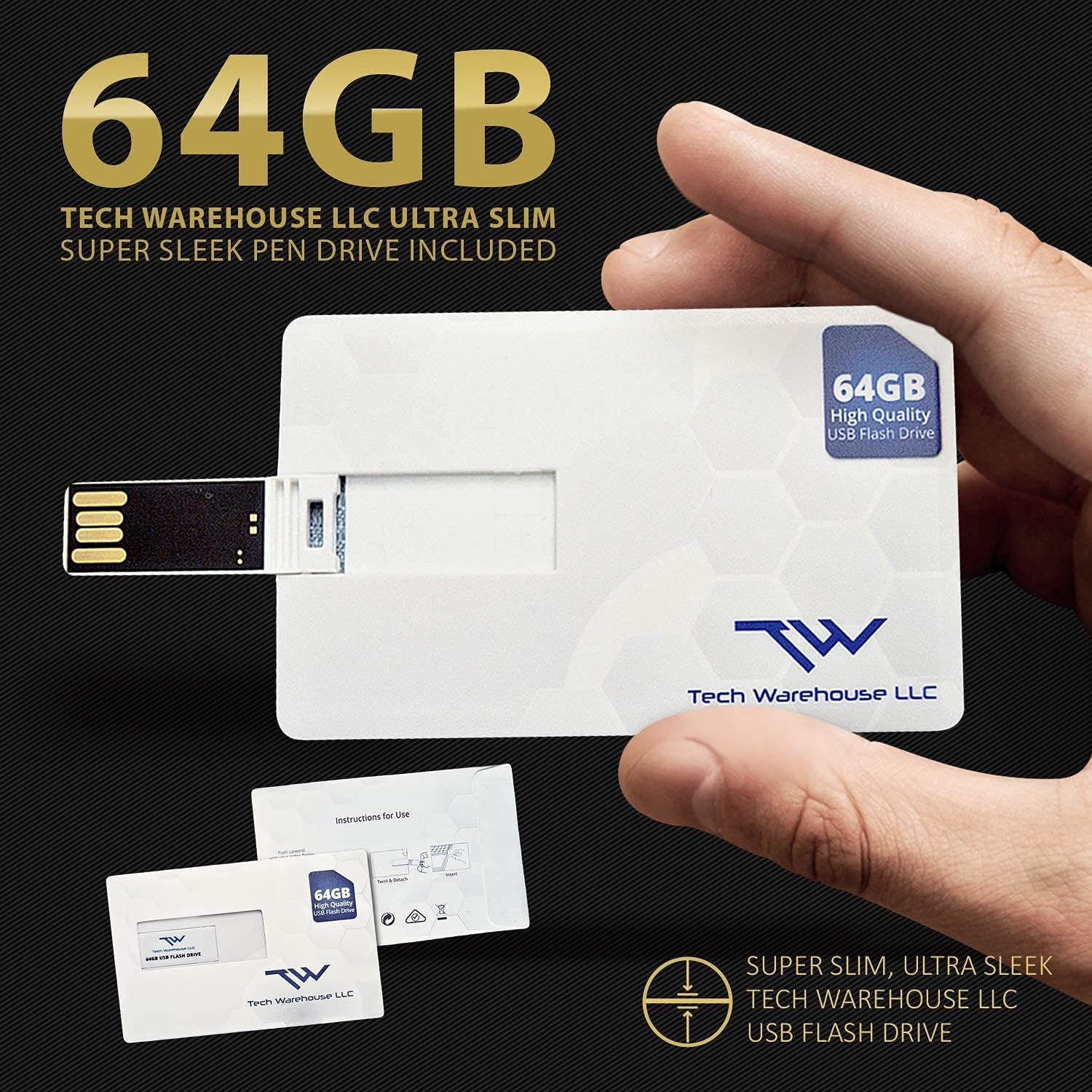
Image: The included 64GB Tech Warehouse LLC USB Flash Drive, designed for convenient data transfer and storage.
4.5 Sigurnosne značajke
- Physical Camera Shutter: Slide the small cover over the webcam lens to ensure privacy when the camera is not in use.
- Čitač otiska prsta: Configure Windows Hello to use the integrated fingerprint reader for secure and quick login.

Image: Close-up of the Lenovo IdeaPad Flex 5's webcam, showing the physical privacy shutter in place for user security.
5. Održavanje
5.1 Čišćenje laptopa
- Uvijek isključite laptop i iskopčajte ga iz struje prije čišćenja.
- Koristite meku krpu koja ne ostavlja dlačiceampočišćen vodom ili sredstvom za čišćenje ekrana.
- Za tastaturu i kućište koristite meku, suhu krpu. Izbjegavajte jake hemikalije ili abrazivne materijale.
5.2 Njega baterija
- Izbjegavajte često potpuno pražnjenje baterije.
- Laptop čuvajte na hladnom i suhom mjestu ako ga ne koristite duži period.
- Za optimalan vijek trajanja baterije, izbjegavajte izlaganje laptopa ekstremnim temperaturama.
5.3 Ažuriranja softvera
Redovno provjeravajte i instalirajte ažuriranja za Windows i ažuriranja upravljačkih programa za Lenovo kako biste osigurali optimalne performanse i sigurnost.
6. Otkrivanje problema
6.1 Uobičajeni problemi i rješenja
- Laptop se ne uključuje: Provjerite je li adapter za napajanje sigurno priključen i je li baterija dovoljno napunjena. Pokušajte s drugom utičnicom.
- Ekran je prazan: Check if the laptop is powered on. Press Fn + F2 (or the display toggle key) to ensure the display is not turned off. Reconnect external monitors if applicable.
- Wi-Fi se ne povezuje: Verify Wi-Fi is enabled in Windows settings. Restart your router and laptop. Ensure you have the correct Wi-Fi password.
- Spore performanse: Close unnecessary applications. Check for background updates. Ensure sufficient free storage space on the SSD.
- Ekran na dodir ne reaguje: Restart the laptop. Ensure no physical obstructions are on the screen. Check for driver updates.
Za detaljnije informacije o rješavanju problema, pogledajte Lenovo podršku websajtu ili kontaktirajte korisničku podršku.
7. Specifikacije
| Feature | Detalj |
|---|---|
| Brand | Lenovo |
| Naziv modela | IdeaPad Flex 5 |
| Veličina ekrana u stojećem položaju | 14 inča |
| Maksimalna rezolucija ekrana | 1920x1080 piksela (FHD) |
| Procesor | Intel Core i5-1135G7 (2.4 GHz, 4 jezgre) |
| RAM | 8 GB DDR4-3200 SDRAM |
| Hard Drive | 512 GB NVMe SSD |
| Grafički koprocesor | Intel Xe Graphics |
| Operativni sistem | Windows 10 Home |
| Bežični tip | Intel Wi-Fi 6 AX 201 (2x2), Bluetooth 5 |
| Prosječno trajanje baterije | 9 sata |
| Težina artikla | 2.96 funte |
| Boja | Bezdan plava |

Image: Information detailing the capabilities and advantages of Intel Iris Xe Graphics, a key component of the laptop's performance.
8. Garancija i podrška
8.1 Informacije o garanciji
Your Lenovo IdeaPad Flex 5 comes with a 1-Year On-site Premium 24/7 Warranty. This warranty includes:
- Repairs performed at your location.
- Front-of-the-queue, VIP access to technicians.
- Getting Started and How-to assistance.
- Support for Hardware, Software and Peripherals.
- Free Annual PC Health Check.

Image: A visual representation of the Lenovo Premium On-site / In-Home 24/7 Warranty, detailing the comprehensive support services provided.
8.2 Korisnička podrška
For technical assistance, warranty claims, or product inquiries, please visit the official Lenovo support website or contact their customer service directly. Have your product's serial number ready when contacting support.