Uvod
This manual provides essential information for setting up, operating, maintaining, and troubleshooting your Amazon Fire HD 10 tablet (2021 Release). Please read this guide thoroughly to ensure optimal use of your device.

Image: The Amazon Fire HD 10 tablet, highlighting its 32/64 GB storage, 12-hour battery, 3 GB RAM, and octa-core processor. This image illustrates the core features of the device.
Setup
1. Raspakivanje i početna naplata
Upon unboxing, ensure all components are present: the Fire HD 10 tablet, a USB-C (2.0) cable, and a 9W power adapter. Before first use, fully charge your tablet using the provided adapter and cable. A full charge from 0% to 100% typically takes approximately 4 hours while the device is in standby.
2. Uključivanje / isključivanje napajanja
- Za uključivanje: Pritisnite i držite dugme za napajanje koje se nalazi sa strane tableta dok se ne pojavi Amazon logo.
- Za isključivanje: Pritisnite i držite dugme za napajanje, a zatim odaberite "Isključi" iz opcija na ekranu.
- Za ponovno pokretanje: Press and hold the power button, then select 'Restart' from the on-screen options.
3. Početno podešavanje
Slijedite upute na ekranu da biste dovršili početno podešavanje:
- Odabir jezika: Odaberite željeni jezik.
- Wi-Fi veza: Select your Wi-Fi network and enter the password. The tablet supports 2.4 GHz and 5.0 GHz networks.
- Registracija Amazon računa: Prijavite se sa svojim postojećim Amazon računom ili kreirajte novi. Ovo povezuje vaš tablet sa vašim Amazon sadržajem i uslugama.
- Vremenska zona i datum: Confirm your local time zone and date settings.
- Ažuriranja softvera: The tablet may check for and install available software updates. Allow this process to complete.

Slika: Prednja strana view of the Amazon Fire HD 10 tablet, showcasing its vibrant home screen filled with various application icons. This image demonstrates the user interface after initial setup.
Operating
1. Navigacija i geste
- Dodirnite: Odaberite stavku ili otvorite aplikaciju.
- Prevucite: Move between screens, scroll through content, or dismiss notifications.
- Zumiranje štipanjem: Uvećajte ili smanjite sadržaj na ekranu.
- Dugi pritisak: Pristupite kontekstualnim menijima ili premjestite ikone aplikacija.
2. Upravljanje aplikacijama
Applications can be downloaded from the Amazon Appstore. Google Play is not supported. To install apps:
- Otvorite Appstore aplikacija.
- Browse or search for desired applications.
- Odaberite aplikaciju i dodirnite Get or the price to download and install.
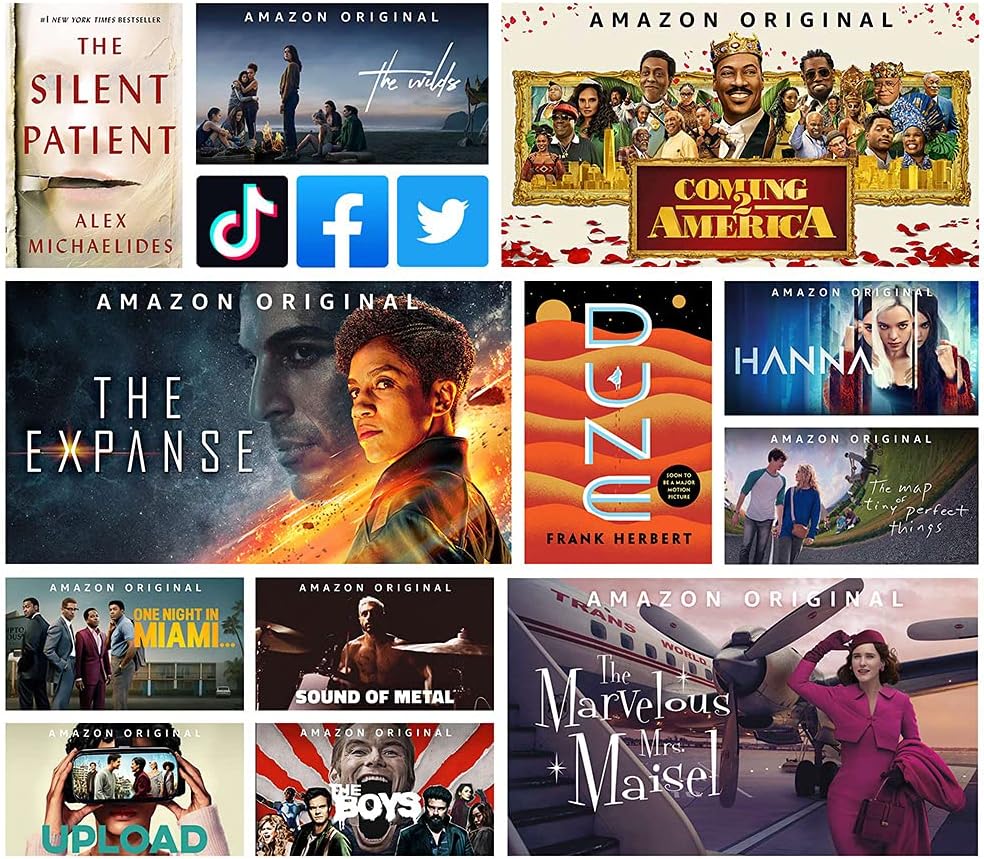
Image: The Amazon Fire HD 10 tablet screen displaying a variety of entertainment content, including Amazon Originals and logos for popular social media apps like TikTok, Facebook, and Twitter. This illustrates the range of content and applications available on the device.
3. Split Screen Feature
The Fire HD 10 supports split-screen multitasking, allowing two compatible applications to run side-by-side. To use this feature:
- Otvorite prvu aplikaciju.
- Swipe up from the bottom of the screen to reveal the navigation bar, then tap the square 'Recent Apps' icon.
- Long-press on the first app's preview i prevucite ga na jednu stranu ekrana.
- Select a second compatible app from the recent apps list to fill the other half of the screen.

Image: The Amazon Fire HD 10 tablet, shown with an optional Bluetooth keyboard case, demonstrating the split-screen feature. The screen displays a calendar application on one side and an email application on the other, illustrating productivity capabilities.
4. Povezivanje
- Wi-Fi: Access Wi-Fi settings from the Quick Settings menu (swipe down from the top of the screen) or through Settings > Wi-Fi & Bluetooth.
- Bluetooth: Enable Bluetooth in Settings > Wi-Fi & Bluetooth to pair with compatible devices like headphones, speakers, or keyboards.
5. Upotreba kamere
The Fire HD 10 features a 2 MP front-facing camera and a 5 MP rear-facing camera, both capable of 720p HD video recording. Open the Camera app to capture photos and videos.
6.Audio
The tablet includes dual integrated speakers and a 3.5 mm stereo jack for headphones. External volume controls are located on the side of the device.
Održavanje
1. Punjenje
Always use the provided USB-C cable and 9W power adapter for charging. Avoid using unapproved chargers, which may damage the device or lead to safety risks.
2. Upravljanje skladištem
The Fire HD 10 comes with 32 GB or 64 GB of internal storage. You can expand storage up to 1 TB using a microSD card (sold separately). To manage storage:
- Idi na Postavke > Pohrana to view korištenje i oslobađanje prostora.
- Insert a microSD card into the designated slot to add external storage. Note that some apps may require installation on internal storage.
3. Čišćenje uređaja
Use a soft, lint-free cloth to clean the screen and body of the tablet. Avoid abrasive materials or harsh chemicals. If necessary, slightly dampNamočite krpu vodom. Ne prskajte sredstva za čišćenje direktno na uređaj.
4. Održavanje baterije
Da produžite vijek trajanja baterije:
- Izbjegavajte ekstremne temperature.
- Reduce screen brightness when possible.
- Zatvorite nekorištene aplikacije koje rade u pozadini.
- Isključite Wi-Fi i Bluetooth kada ih ne koristite.
Rješavanje problema
Uobičajeni problemi i rješenja
- Uređaj se ne uključuje: Ensure the tablet is charged. Connect it to the power adapter for at least 30 minutes, then try powering on again.
- Problemi s Wi-Fi vezom: Check if Wi-Fi is enabled in settings. Restart your Wi-Fi router and the tablet. Ensure you are within range of the network.
- Apps Crashing or Not Responding: Close and reopen the app. If the issue persists, clear the app's cache (Settings > Apps & Games > Manage All Applications > [App Name] > Clear Cache) ili deinstalirajte i ponovo instalirajte aplikaciju.
- Spore performanse: Close unused apps. Check available storage and free up space if necessary. Restarting the tablet can also improve performance.
- Ekran ne reaguje: Perform a forced restart by holding the power button for 20-30 seconds until the device reboots.
Factory Reset
Ako se problemi stalno javljaju, vraćanje na tvorničke postavke može riješiti mnoge probleme povezane sa softverom. Upozorenje: A factory reset will erase all data on your tablet. Back up important data before proceeding. To perform a factory reset, go to Postavke > Opcije uređaja > Vrati na tvorničke postavke.
Specifikacije
| Feature | Detalj |
|---|---|
| Display | 10.1’’ 1080p Full HD (1920 x 1200), 224 ppi, aluminosilicate glass |
| Veličina | 247 mm x 166 mm x 9.2 mm |
| Težina | 465 grams (may vary) |
| CPU & RAM | Octa-core 2.0 GHz sa 3 GB RAM-a |
| Skladištenje | 32 GB or 64 GB internal (expandable up to 1 TB with microSD) |
| Trajanje baterije | Do 12 sati (čitanje, web pregledavanje, video, muzika) |
| Vrijeme punjenja | Approx. 4 hours with provided 9W adapter (standby) |
| Wi-Fi povezivanje | Mreže od 2.4 GHz i 5.0 GHz (bez ad-hoc podrške) |
| Luke | USB-C (2.0) for charging, microSD slot |
| Audio | 3.5 mm stereo priključak, dva integrirana zvučnika |
| Senzori | Akcelerometar, senzori ambijentalnog svjetla |
| Kamere | 2 MP front, 5 MP rear (720p HD video recording) |
| Mikrofoni | 2 ugrađena mikrofona |
| Bluetooth | Bluetooth 5.0 LE (A2DP compatible) |
| Generacija | 11. generacija, izdanje 2021 |
Garancija i podrška
1. Informacije o garanciji
Your Fire HD 10 tablet includes a 1-year limited warranty and service. Optional 1-year, 2-year, and 3-year extended warranties are available for purchase separately for Canadian customers. Use of the Fire HD 10 tablet is subject to Amazon's Conditions of Use.
2. Funkcije pristupačnosti
The Fire HD 10 tablet offers various accessibility features to personalize the device for different needs. To access these features, navigate to Postavke> Pristupačnost. Available features include:
- GlasView čitač ekrana: Pruža govorne povratne informacije korisnicima koji su slijepi ili slabovidni.
- Uvećivač ekrana: Omogućava korisnicima zumiranje i pomicanje po ekranu.
- Pristup prekidačem: Enables control of the device for users with motor impairments via compatible Bluetooth devices.
- Čitanje naglas za Kindle: Alexa može naglas čitati Kindle knjige.
- Additional settings for Closed Captioning, Font Size, Display Size, High Contrast Text, Color Inversion, Color Correction, and Convert Stereo to Mono audio. (Note: Captions are not available for all content.)
3. Dodatna pomoć
For additional support, visit the Amazon Device Support website or contact Amazon Customer Service directly. Refer to the Quick Start Guide included in your product box for initial contact information.


