1. Proizvod je gotovview
The Phomemo M110 is a versatile thermal label printer designed for both smartphone and PC use. It supports various label types for applications such as mailing addresses, price tags, food labeling, package shipping, DIY projects, and organization. This compact and portable device offers efficient printing for both personal and business needs.
1.1 Sadržaj paketa
Molimo Vas da provjerite da li se u Vašem paketu nalaze svi artikli:
- Phomemo M110 Printer Unit
- 40*30mm Sample Label Roll
- Kabel za punjenje tipa C
- Korisnički priručnik (ovaj dokument)

Image: Phomemo M110 printer, sample label roll, and charging cable.
1.2 Komponente proizvoda
Familiarize yourself with the different parts of your Phomemo M110 printer:
- Gornja korica: Protects the label compartment.
- Prikaz: Shows printer status and information.
- Dugme za napajanje/meni: Turns the printer on/off and navigates menus.
- Paper Feed/Select Button: Feeds labels or confirms selections.
- Izlazni otvor za etikete: Where printed labels exit.
- Type-C Cable Connection Port: For charging and PC connection.
- Reset otvor: For factory reset (use a pin).

Slika: Detaljna view of the Phomemo M110 printer with labels indicating its various parts.
2. Podešavanje
2.1 Početna priprema
- Remove any protective films from the printer.
- Press and hold the Power button for 3 seconds until the display lights up.
- Štampač je sada spreman za upotrebu.
2.2 Učitavanje etiketa
The M110 printer supports die-cut labels with widths ranging from 20mm to 50mm. Ensure the labels are thermal-sensitive and have a protective coating for water, oil, and durability.
- Otvorite gornji poklopac štampača.
- Place the label roll into the paper cassette, ensuring the printing side faces upwards.
- Zatvorite gornji poklopac.
- Press the paper feed button to automatically position the label.

Image: The Phomemo M110 printer with the top cover open, showing how to insert a label roll.
2.3 Mobile App Installation (Print Master)
The 'Print Master' app is required for smartphone and tablet operation. It offers various frames, fonts, templates, and icons for label customization.
- Traži 'Print Master' on the App Store (iOS) or Google Play (Android).
- Preuzmite i instalirajte aplikaciju.
- Open the 'Print Master' app.
- Tap 'Auto Connect' and allow necessary permissions. The app will automatically search for and connect to your M110 printer.
Video: Phomemo M110 Quick Start Guide, demonstrating initial setup and mobile app connection.
2.4 PC Software Installation (Labelife)
For PC connectivity, the M110 supports Mac OS and Windows 10 via USB. (Note: Linux and Chromebook systems are not supported).
- Visit the official Phomemo website, navigate to 'Support' -> 'Download Center', and select M110 to download the driver. Alternatively, visit labelife.net.
- Download the appropriate 'Labelife' software for your operating system (Windows or Mac).
- Instalirajte softver prateći uputstva na ekranu.
Video: Guide on downloading and installing the PC application for the Phomemo M110 printer.
3. Uputstvo za upotrebu
3.1 Connecting to a Smartphone/Tablet (Bluetooth)
- Provjerite je li Bluetooth omogućen na vašem pametnom telefonu ili tabletu.
- Open the 'Print Master' app.
- The app will automatically detect and connect to your M110 printer. If not, tap 'Auto Connect' or manually select your printer from the device list.

Image: Visual guide for connecting the M110 printer to a smartphone or tablet via Bluetooth.
3.2 Connecting to a PC (USB)
- Connect the M110 printer to your PC using the provided Type-C USB cable.
- Open the 'Labelife' software on your PC.
- The software should automatically detect and connect to the printer. If not, follow the software's prompts to add a printer.

Image: Visual guide for connecting the M110 printer to a PC via USB cable.
3.3 Kreiranje i štampanje etiketa
Both the 'Print Master' app and 'Labelife' software offer extensive customization options for your labels, including text, QR codes, barcodes, images, and various templates.
- Select your desired label size within the app/software.
- Design your label using the available tools (text, icons, barcodes, etc.).
- Preview your label to ensure accuracy.
- Click the 'Print' button to send the label to the printer.
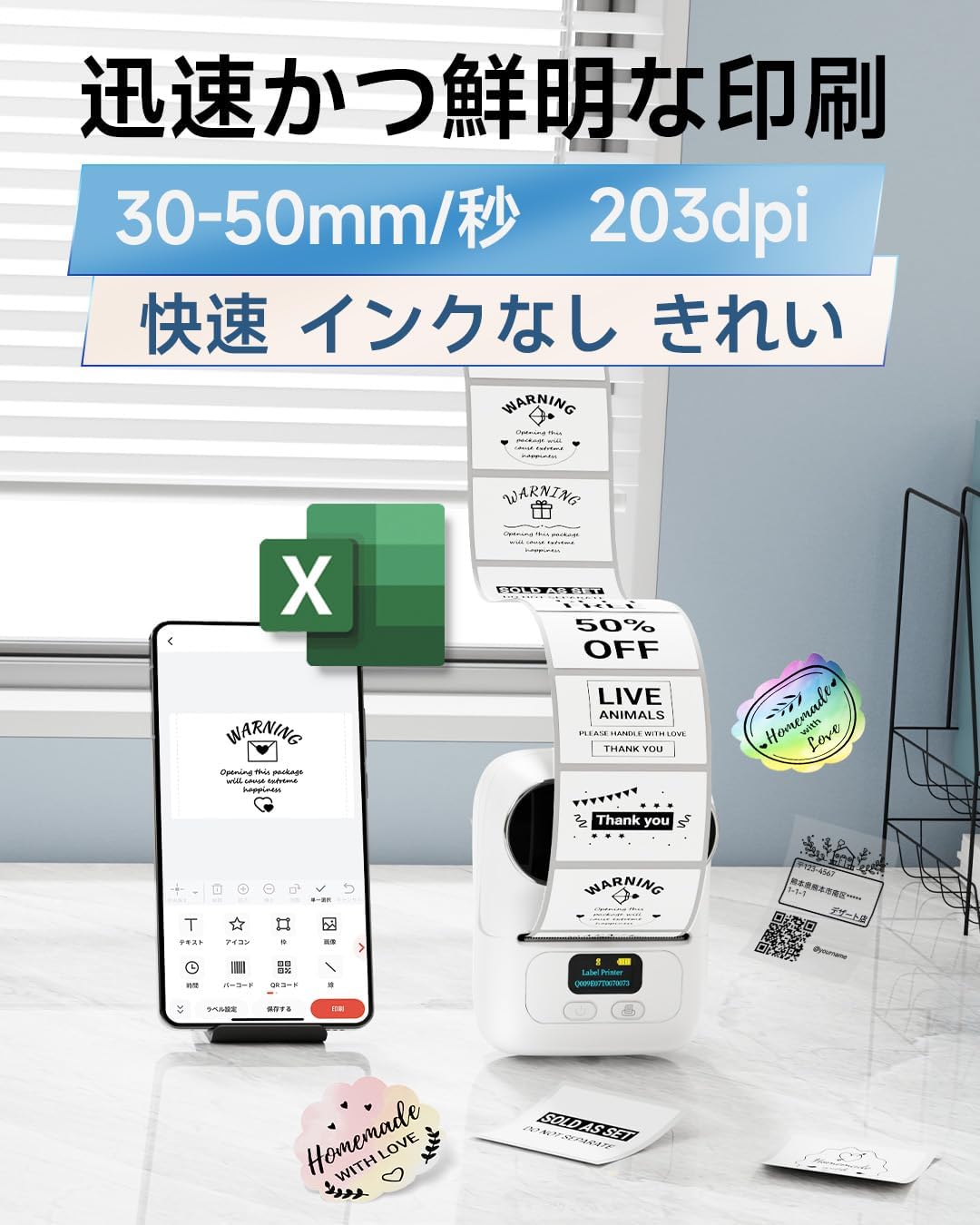
Image: A smartphone displaying the 'Print Master' app interface for designing labels.

Slika: Prekoview of additional app functions including voice-to-text, barcode/QR code recognition, OCR, and PDF/Excel printing.
4. Održavanje
To ensure optimal performance and longevity of your Phomemo M110 printer, regular maintenance is recommended.
- Čišćenje glave štampača: Lagano koristite meku krpu koja ne ostavlja dlačice dampened with isopropyl alcohol to gently wipe the print head. Ensure the printer is off and cool before cleaning.
- Čišćenje eksterijera: Wipe the exterior of the printer with a soft, dry cloth. Avoid using harsh chemicals or abrasive materials.
- Skladištenje: Store the printer in a cool, dry place away from direct sunlight and extreme temperatures. Remove the label roll if storing for an extended period.
- Održavanje baterije: For optimal battery life, avoid fully discharging the battery frequently. Charge the printer regularly, even if not in use, to maintain battery health.
5. Otkrivanje problema
If you encounter issues with your Phomemo M110 printer, refer to the following common troubleshooting steps:
| Problem | Mogući uzrok | Rješenje |
|---|---|---|
| Štampač se ne uključuje | Slaba baterija; Dugme za napajanje nije pritisnuto dovoljno dugo | Charge the printer; Press and hold the Power button for 3 seconds. |
| Povezivanje putem Bluetooth-a nije moguće | Bluetooth off on device; Printer not discoverable; App permissions denied | Ensure Bluetooth is on; Restart printer; Grant app location/Bluetooth permissions. |
| Loš kvalitet štampe | Dirty print head; Incorrect label type; Low battery | Clean print head; Use genuine Phomemo thermal labels; Charge printer. |
| Etikete se ne uvlače ispravno | Label roll incorrectly inserted; Labels jammed | Re-insert label roll correctly; Clear any jammed labels. |
If the issue persists after trying these steps, please contact Phomemo customer support.
6. Specifikacije
| Feature | Specifikacija |
|---|---|
| Dimenzije proizvoda | 11.4 x 6.3 x 8.7 cm (Dubina x Širina x Visina) |
| Max Media (Paper) Size | 50mm |
| Uključene komponente | 40*30mm Sample Label Roll, Type-C Charging Cable, M110 Printer Unit, User Manual |
| Print Media | Etikete |
| Tip skenera | Prijenosni |
| Maksimalni kapacitet listova | 100 |
| Maksimalna brzina kopiranja (crno-bijelo) | 45 stranica/minuti |
| Kompatibilni uređaji | Smartphones, Tablets, Desktop PCs, Laptops |
| Veličina lista | 20~50mm |
| Maksimalna rezolucija ispisa (monohromatski) | 300 dpi |
| Duplex Printing | br |
| Baterije | 1 litijum-jonska baterija (uključena) |
| Boja | Bijelo |
| Form Factor | Štampač |
| Tehnologija povezivanja | Bluetooth, USB |
| OS | Android, iOS |
| Sadržaj energije litijumske baterije | 8.88 vatnih sati |
| Pakovanje litijumskih baterija | Baterije sadržane u opremi |
| Lithium Ion Cell Count | 2 |
| Težina artikla | 228 g |
7. Garancija i podrška
Phomemo products are designed for reliability and performance. For warranty information and customer support, please refer to the following:
- garancija: Molimo Vas da se konsultujete sa garantnim listom koji se nalazi u pakovanju Vašeg proizvoda za specifične uslove i odredbe.
- Korisnička podrška: For technical assistance, troubleshooting, or any product-related inquiries, please visit the official Phomemo website at www.phomemo.com or contact their customer service team directly.


