1. Proizvod je gotovview
The AGPTEK USB3.0 4K HDMI Video Capture Card is designed to capture HD HDMI video signals from various devices. Utilizing high-speed USB 3.0 technology, it supports input and output resolutions up to 4K at 30 frames per second (FPS), with capture resolutions up to 4K30, 1080p120, and 1440p60. It supports RGB real color video format up to 1080p30, enabling high-quality recording, conferencing, and real-time streaming. This device is compatible with HDMI output devices such as Blu-ray players, PS5/PS4, Xbox One, Nintendo Switch, DVD players, HD cameras, camcorders, and DSLRs.

Figure 1: AGPTEK USB3.0 4K HDMI Video Capture Card with cables.

Figure 2: Key features and capabilities of the capture card.
2. Upute za postavljanje
The AGPTEK USB3.0 4K HDMI Video Capture Card is designed for plug-and-play operation, requiring no driver installation or external power supply. Follow these steps to set up your device:
- Povežite HDMI ulaz: Connect your HDMI source device (e.g., game console, camera, Blu-ray player) to the HDMI Input port on the capture card using an HDMI cable.
- Connect HDMI Output (Optional): If you wish to monitor your video feed on a separate display, connect an HDMI cable from the HDMI Output port on the capture card to your HD monitor or TV.
- Povežite se na računar: Connect the USB 3.0 cable from the capture card to an available USB 3.0 port on your computer. The device will be automatically recognized by your operating system.
- Povežite mikrofon (opciono): For commentary, connect a 3.5mm microphone (3-pole Line In or 4-pole headset) to the 3.5mm Microphone input on the capture card.

Figure 3: Typical connection diagram for game consoles.

Figure 4: Laptop and TV setup for capturing and streaming.
For screen sharing in meetings, directly connect a laptop or tablet via HDMI to the capture card's HDMI input, and the capture card's USB output to the conference room computer. No additional software is required for this basic sharing function.

Figure 5: Screen share connection diagram.
3. Uputstvo za upotrebu
Once connected, the capture card functions as a video input device for your computer. You can use various software applications to record or stream your content.
3.1 Kompatibilnost softvera
The capture card is compatible with popular streaming and recording software, including:
- OBS Studio
- VLC
- ezcaplink (included on CD)
- Windows Media Encoder
- Adobe Flash Media Live Encoder
- Real Producer Plus
- QuickTime Broadcaster
- QuickTime Player
- Wirecast
- vMix
- Potplayer

Figure 6: Broad compatibility with devices and software.
3.2 Using OBS Studio (Example)
To use the capture card with OBS Studio:
- Dodaj izvor videa: In OBS Studio, add a new 'Video Capture Device' source.
- Odaberite uređaj: Choose 'ezcap U3 capture' or a similar name for your device from the list.
- Configure Video/Audio: Adjust video resolution, frame rate, and color space as needed. For audio, select the correct audio format (e.g., 'ezcap U3 capture' for digital audio).
- Započni snimanje/streaming: Once configured, you can start recording or live streaming your content.
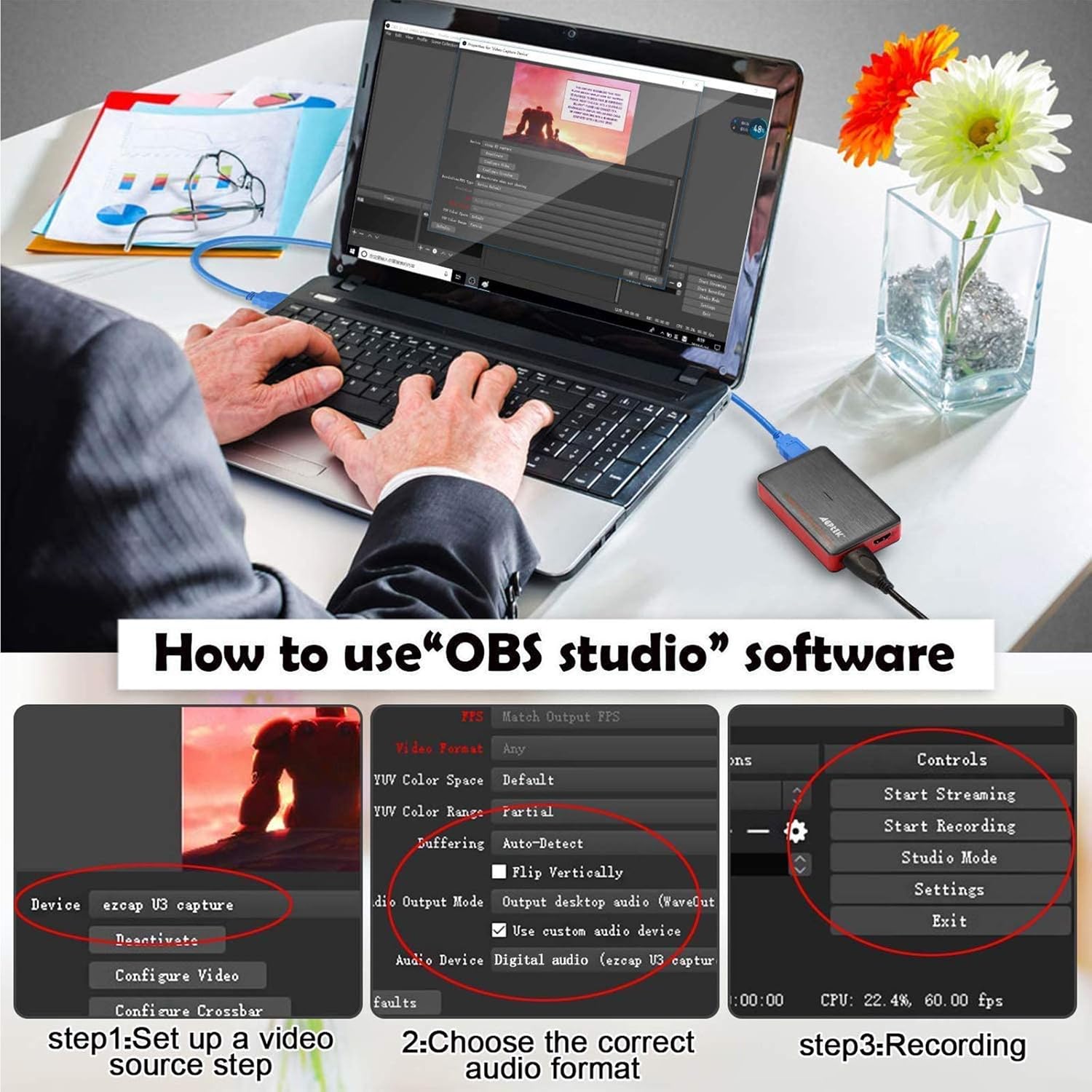
Figure 7: OBS Studio setup for the capture card.
3.3 Ulaz za mikrofon
The 3.5mm microphone input allows you to add external commentary during live streams or recordings. Ensure your microphone is compatible (3-pole Line In or 4-pole headset) and adjust audio levels within your chosen software.

Figure 8: Microphone connection for commentary.
4. Sistemski zahtjevi
To ensure optimal performance, your computer system should meet the following minimum requirements:

Figure 9: Detailed system requirements.
- Operativni sistem: Windows 7, 8, 10, macOS X 10.9 or later, Linux.
- CPU:
- PC: Intel Core i5-3400 + NVIDIA GT630
- Notebook: Intel Core i7-3537U 2.0 GHz + NVIDIA GT735
- Mac: i5 quad-core or above, VGA card supporting DirectX 10
- RAM: 4GB RAM-a
- Zvučna kartica: Obavezno
- USB port: Powered USB 3.0 port (Intel chipset with native USB 3.0 host controller recommended).
- Rezolucija snimanja videa: Supports 720x480 (60p), 720x576 (50p), 1280x720 (50p/60p), 1920x1080 (50i/60i/24p/25p/30p/50p/60p).
5. Otkrivanje problema
If you encounter issues with your AGPTEK Video Capture Card, consider the following common solutions:
- Nema signala/Crni ekran:
- Ensure all HDMI and USB cables are securely connected.
- Verify that your HDMI source device is powered on and outputting a signal.
- Check your software settings (e.g., OBS Studio) to ensure the correct video capture device and resolution are selected.
- Try a different HDMI cable, especially a high-quality one, as some cables may not support the required bandwidth for 4K or high frame rate signals.
- Confirm your source device's HDMI output settings are compatible with the capture card's supported resolutions.
- Nema zvuka:
- Check audio settings in your capture software to ensure the correct audio input device (e.g., 'ezcap U3 capture' audio) is selected and not muted.
- If using an external microphone, ensure it is properly connected to the 3.5mm input and selected as the audio source in your software.
- Verify that the audio is enabled on your HDMI source device.
- Lag or Stuttering Video:
- Ensure the capture card is connected to a USB 3.0 port on your computer. USB 2.0 ports may not provide sufficient bandwidth.
- Zatvorite nepotrebne aplikacije koje rade u pozadini kako biste oslobodili sistemske resurse.
- Smanjite rezoluciju snimanja ili broj sličica u sekundi u postavkama softvera.
- Update your computer's graphics drivers and USB host controller drivers.
- Uređaj nije prepoznat:
- Try connecting the capture card to a different USB 3.0 port.
- Ponovo pokrenite računar.
- Check Device Manager (Windows) or System Information (macOS) to see if the device is listed.
6. Specifikacije
| Feature | Detalj |
|---|---|
| Brand | AGPTEK |
| Naziv modela | 4K HDMI kartica za video snimanje |
| Broj modela stavke | VG0061 |
| Hardversko sučelje | USB 3.0 |
| Rezolucija video snimanja | Up to 2160P30 (4K@30FPS) |
| Supported Capture Resolutions | 4K@30, 1080p120, 1440p60 |
| Supported RGB Video Format | Do 1080p30 |
| Kompatibilnost operativnog sistema | Linux, Windows, macOS |
| Težina artikla | 7 unce |
| Dimenzije proizvoda (DxŠxV) | 3.86 x 2.28 x 0.71 inča |
| Boja | Crveni |

Figure 10: RGB Real Color Video Format support.
7. Šta se nalazi u kutiji
Paket proizvoda uključuje:
- AGPTEK USB3.0 4K HDMI Video Capture Card
- Vodič za instalaciju
8. Garancija i podrška
This product comes with a standard manufacturer's warranty. For detailed warranty information, technical support, or service inquiries, please refer to the contact information provided in the product packaging or visit the official AGPTEK website. Sačuvajte račun o kupovini za reklamacije.


