1. Uvod
This manual provides essential information for the safe and efficient use of your InFocus IF195a Touch Pad. Please read this manual thoroughly before operating the device and retain it for future reference.
2. Sigurnosne informacije
- Ne izlažite uređaj ekstremnim temperaturama, direktnoj sunčevoj svjetlosti ili visokoj vlažnosti.
- Izbjegavajte ispuštanje ili izlaganje uređaja jakim udarima.
- Use only the charger provided or approved by InFocus.
- Ne pokušavajte sami rastavljati ili popravljati uređaj. Za sve servisne radove obratite se kvalifikovanom osoblju.
- Držite uređaj dalje od vode i drugih tečnosti.
- Uređaj i njegovu bateriju odložite odgovorno u skladu s lokalnim propisima.
3. Proizvod je gotovview
The InFocus IF195a is a 20-inch Android-powered touch pad designed for interactive use. Familiarize yourself with its components.
3.1 Prednji View

Slika 1: Front view of the InFocus IF195a Touch Pad. This image shows the large 20-inch display with the Android operating system interface, including various app icons and the Google search bar. The device features a sleek bezel around the screen.
- Prikaz: 20-inch multi-touch screen.
- Prednja kamera: Located at the top center bezel.
- mikrofon: Integrisan za glasovni unos.
3.2 Strana View i luke
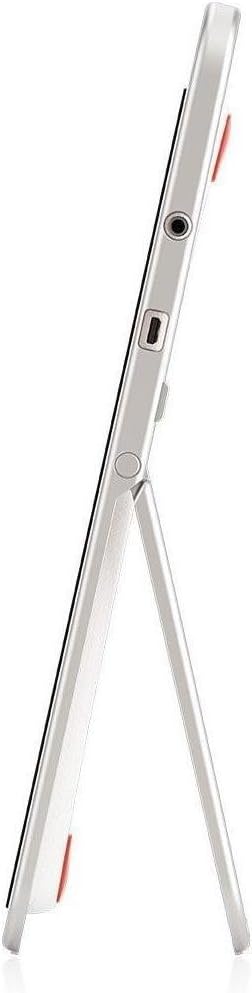
Slika 2: Side view of the InFocus IF195a Touch Pad. This image highlights the device's slim profile and the integrated kickstand, which allows for upright positioning. Visible ports include a headphone jack and a USB port.
- Dugme za napajanje: Used to turn the device on/off or put it to sleep.
- Dugmad za jačinu zvuka: Adjust the device's audio output.
- Priključak za slušalice (3.5 mm): Za povezivanje eksternih audio uređaja.
- Micro-USB port: Za punjenje i prijenos podataka.
- Integrisani oslonac: Allows the device to stand upright.
4. Podešavanje
4.1 Raspakivanje i početna naplata
- Carefully remove the InFocus IF195a Touch Pad and all accessories from the packaging.
- Connect the provided power adapter to the Micro-USB port on the device and plug it into a power outlet. Allow the device to charge fully before first use. The charging indicator will typically show a full battery when complete.
4.2 Uključivanje/isključivanje
- Za uključivanje: Press and hold the Power button until the InFocus logo appears on the screen.
- Za isključivanje: Pritisnite i držite dugme za napajanje dok se ne pojavi meni za isključivanje. Odaberite "Isključivanje" i potvrdite.
- Za spavanje/buđenje: Briefly press the Power button to put the device into sleep mode or wake it up.
4.3 Čarobnjak za početno podešavanje
Prilikom prvog uključivanja, uređaj će vas voditi kroz proces početnog podešavanja:
- Odabir jezika: Odaberite željeni jezik.
- Wi-Fi veza: Select your Wi-Fi network from the list and enter the password. A stable internet connection is required for many features.
- Google račun: Sign in with an existing Google account or create a new one. This is necessary to download apps from the Google Play Store and access Google services.
- Datum i vrijeme: Set the correct date and time or allow the device to set it automatically via the network.
- Postavke privatnosti: Review i prilagodite postavke privatnosti po želji.
5. Rukovanje uređajem
5.1 Pokreti dodirom
- Dodirnite: Dodirnite ekran jednom da biste odabrali stavku ili otvorili aplikaciju.
- Dodirnite i držite: Pritisnite i držite stavku da biste pristupili kontekstualnim menijima ili prevukli stavke.
- Prevucite: Prevucite prstom preko ekrana da biste se kretali kroz liste ili prebacivali između početnih ekrana.
- Zumiranje štipanjem: Use two fingers to zoom in or out on images, maps, or web stranice.
5.2 Početni ekran i navigacija
- Dugme za početnu stranicu: Vraća vas na glavni početni ekran.
- Dugme za povratak: Returns to the previous screen or closes the current application.
- Dugme za nedavne aplikacije: Displays a list of recently used applications for quick switching.
- Panel sa obavještenjima: Prevucite prstom prema dolje s vrha ekrana da biste pristupili obavještenjima i brzim postavkama.
5.3 Instaliranje i upravljanje aplikacijama
- Google Play trgovina: Open the "Play Store" app to browse and download applications. A Google account is required.
- Instaliranje aplikacija: Select an app and tap "Install." Follow on-screen prompts for permissions.
- Deinstaliranje aplikacija: Idi na Postavke > Aplikacije, select the desired app, and tap "Uninstall." Alternatively, touch and hold an app icon on the home screen and drag it to the "Uninstall" option (if available).
5.4 Povezivanje s vanjskim uređajima
- slušalice: Uključite slušalice od 3.5 mm u priključak za slušalice.
- USB uređaji: Connect compatible USB devices (e.g., flash drives, keyboards) to the Micro-USB port using an appropriate adapter if necessary. The device supports USB On-The-Go (OTG).
6. Održavanje
6.1 Čišćenje uređaja
- Za čišćenje ekrana i kućišta uređaja koristite meku krpu koja ne ostavlja dlačice.
- Za tvrdokorne mrlje, lagano dampOperite krpu vodom ili sredstvom za čišćenje ekrana posebno namijenjenim za elektroniku.
- Izbjegavajte upotrebu jakih hemikalija, abrazivnih sredstava za čišćenje ili aerosolnih sprejeva.
6.2 Njega baterija
- Da biste produžili vijek trajanja baterije, izbjegavajte često potpuno pražnjenje baterije.
- Do not leave the device connected to the charger for extended periods after it is fully charged.
- Store the device in a cool, dry place if not used for a long time, with the battery charged to about 50%.
6.3 Ažuriranja softvera
Povremeno provjeravajte ažuriranja softvera kako biste osigurali optimalne performanse i sigurnost. Idite na Settings > About tablet > System updates to check for and install available updates. Ensure your device is connected to Wi-Fi and has sufficient battery charge before starting an update.
7. Otkrivanje problema
| Problem | Moguće rješenje |
|---|---|
| Uređaj se neće uključiti. | Ensure the device is charged. Connect the charger and wait a few minutes before attempting to power on again. If unresponsive, perform a hard reset by holding the power button for 10-15 seconds. |
| Problemi s Wi-Fi vezom. | Provjerite je li Wi-Fi omogućen u postavkama. Ponovo pokrenite Wi-Fi ruter. Zaboravite mrežu i ponovo se povežite. Provjerite jeste li u dometu Wi-Fi signala. |
| Aplikacije se ruše ili zamrzavaju. | Close and restart the application. Clear the app's cache (Postavke > Aplikacije > [Naziv aplikacije] > Pohrana > Obriši keš memoriju). If the problem persists, uninstall and reinstall the app. |
| Ekran ne reagira. | Restart the device. Ensure the screen is clean and free of debris. If the issue continues, contact support. |
| Spore performanse. | Close unnecessary background applications. Clear cache for frequently used apps. Check available storage (Postavke > Pohrana) and free up space if needed. Consider a factory reset as a last resort. |
7.1 Vraćanje na tvorničke postavke
Vraćanje na tvorničke postavke će izbrisati sve podatke s vašeg uređaja i vratiti ga na originalne tvorničke postavke. Napravite sigurnosnu kopiju svih važnih podataka prije nego što nastavite.
- Idi na Postavke > Sigurnosna kopija i resetiranje > Vraćanje na tvorničke postavke.
- Read the warning message carefully.
- Tap "Reset tablet" and then "Erase everything" to confirm.
- Uređaj će se ponovo pokrenuti i započeti proces resetiranja.
8. Tehničke specifikacije
| Feature | Specifikacija |
|---|---|
| Model | IF195a |
| Brand | InFocus |
| Veličina ekrana | 20 inča |
| Maksimalna rezolucija | 1600 x 900 |
| Procesor | ARM Cortex-A15 Quad-Core 1.8 GHz |
| RAM kapacitet | 2 GB |
| Kapacitet pohrane | 16 GB |
| Operativni sistem | Android 4.4 KitKat |
| Rezolucija zadnje kamere | 5 MP |
| Dimenzije (D x Š x V) | 61.6 x 47 x 8.6 cm |
| Težina | 3.7 kg |
| Boja | Grey |
9. Garancija i podrška
For warranty information, please refer to the warranty card included with your product or visit the official InFocus website. For technical support, product registration, or service inquiries, please contact InFocus customer service through their official channels.
Please note that warranty terms may vary by region and retailer. Keep your proof of purchase for warranty claims.


