Uvod
This manual provides essential information for setting up, operating, maintaining, and troubleshooting your Microsoft Surface Pro 3. The Surface Pro 3 is a versatile device designed to function as both a tablet and a laptop, powered by the Windows 10 operating system.
It features a 12-inch high-resolution screen, ample internal storage, dual HD cameras, and robust connectivity options, including a full-size USB 3.0 port. Its integrated kickstand allows for comfortable viewing in various positions, and the magnesium frame ensures a lightweight and durable design.
Sigurnosne informacije
- Ne izlažite uređaj ekstremnim temperaturama, direktnoj sunčevoj svjetlosti ili visokoj vlažnosti.
- Izbjegavajte ispuštanje ili izlaganje uređaja jakim udarcima.
- Use only Microsoft-approved power adapters and accessories.
- Keep the device away from liquids. In case of liquid contact, power off immediately and seek professional assistance.
- Ne pokušavajte sami rastavljati ili popravljati uređaj. To može poništiti garanciju i uzrokovati oštećenje.
- Ensure proper ventilation when using the device to prevent overheating.
Setup
1. Raspakivanje i prvi pregled
Carefully remove the Surface Pro 3 and all accessories from the packaging. Inspect the device for any visible damage. Retain the packaging for future transport or service needs.
2. Uključivanje i početno podešavanje
- Spojite napajanje na Surface Pro 3 i utičnicu.
- Pritisnite dugme za napajanje koje se nalazi na gornjoj ivici uređaja.
- Slijedite upute na ekranu da biste dovršili početno podešavanje sustava Windows 10, uključujući odabir jezika, mrežnu vezu i kreiranje korisničkog računa.
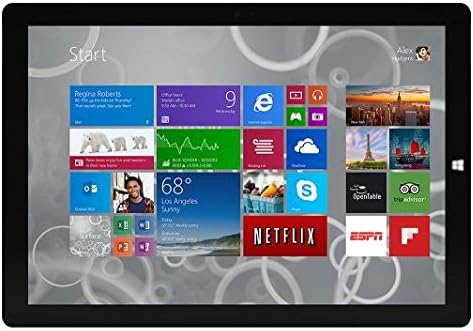
Figure 1: Windows 10 Start Screen during initial setup.
This image shows the Microsoft Surface Pro 3 screen displaying the Windows 10 Start menu, characterized by a grid of live tiles representing various applications and services. This is typically seen during the initial setup or when navigating the operating system.
3. Attaching Accessories (Sold Separately)
The Surface Pro 3 is compatible with various accessories, such as the Surface Type Cover keyboard and the Surface Pen, which are sold separately.
- Tip površine Poklopac: Align the magnetic connector of the Type Cover with the bottom edge of the Surface Pro 3 until it clicks into place.
- Surface olovka: The Surface Pen can be magnetically attached to the side of the Surface Pro 3 for storage. For initial pairing, follow the instructions provided with the pen.
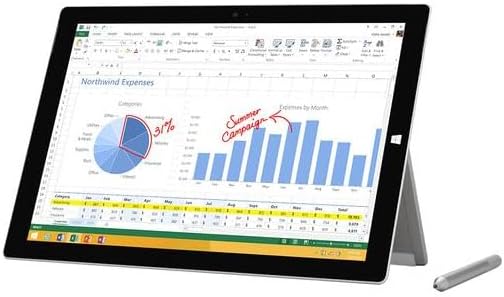
Figure 2: Surface Pro 3 with optional Surface Pen.
This image illustrates the Microsoft Surface Pro 3 in use, displaying an Excel spreadsheet on its screen. A Surface Pen is positioned next to the device, highlighting its compatibility for precise input and navigation.
4. Expanding Storage with a MicroSD Card
You can expand the internal storage of your Surface Pro 3 using a microSD card (sold separately).
- Locate the microSD card slot on the side of the Surface Pro 3, typically behind the kickstand.
- Insert the microSD card into the slot until it clicks into place.
- The device will automatically detect the card. You may need to format it if it's a new card or if prompted by the system.

Figure 3: MicroSD card slot.
This close-up image shows the microSD card slot on the side of the Microsoft Surface Pro 3, with a microSD card partially inserted, demonstrating how to expand the device's storage.
Uputstvo za upotrebu
1. Navigating Windows 10
- Start meni: Click the Windows icon in the bottom-left corner to access applications, settings, and power options.
- Touchscreen: Use gestures for navigation, zooming, and scrolling.
- Edge Browser: Utilize the pre-installed Edge browser for web browsing, which includes features for marking up web stranice.

Figure 4: Using the Surface Pro 3 for productivity.
This image depicts the Microsoft Surface Pro 3 in an active use scenario, showcasing a note-taking application open on its screen. The display features handwritten notes, diagrams, and sketches, illustrating the device's capability for creative and productive tasks.
2. Korištenje integriranog postolja
The multi-position kickstand allows you to adjust the viewing angle for optimal comfort, whether you are typing, watching videos, or drawing.
- Gently pull the kickstand out from the back of the device.
- Adjust it to your desired angle. The kickstand offers a wide range of positions for versatility.
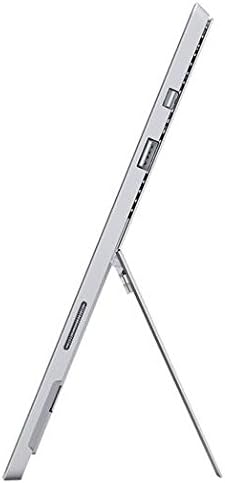
Figure 5: Adjustable kickstand.
Ova slika pruža stranu view of the Microsoft Surface Pro 3, clearly showing its integrated kickstand extended to support the device at an angle, demonstrating its versatile viewing sposobnosti.
3. Funkcionalnost kamere
The Surface Pro 3 is equipped with 5.0MP front and rear cameras.
- Open the Camera application from the Start Menu.
- Switch between front and rear cameras as needed for photos or video calls.

Figure 6: Front camera.
This close-up image focuses on the front-facing camera and associated sensors located at the top edge of the Microsoft Surface Pro 3 screen.
4. Povezivanje
The full-size USB 3.0 port allows for connecting various peripherals and transferring data.
- Insert USB devices (e.g., flash drives, external hard drives, printers) into the USB 3.0 port.
- The device also supports Wi-Fi (802.11a/b/g/n/ac) for wireless internet connectivity.
Održavanje
1. Cleaning Your Surface Pro 3
- Koristite meku krpu koja ne ostavlja dlačice dampočistite vodom ili sredstvom za čišćenje ekrana posebno dizajniranim za elektroniku.
- Izbjegavajte upotrebu jakih hemikalija, abrazivnih sredstava za čišćenje ili aerosolnih sprejeva.
- Gently wipe the screen and exterior surfaces.
2. Ažuriranja softvera
Redovno provjeravajte i instalirajte ažuriranja za Windows kako biste osigurali da vaš uređaj ima najnovije sigurnosne zakrpe i poboljšanja performansi.
- Idi na Postavke > Ažuriranje i sigurnost > Windows Update.
- Kliknite na "Provjeri ažuriranja" i instalirajte sva dostupna ažuriranja.
3. Upravljanje skladištem
To maintain optimal performance, manage your device's storage space.
- Redovno brišite nepotrebne files i aplikacije.
- Utilize cloud storage services or external drives for large files.
- Consider using the Disk Cleanup tool in Windows to remove temporary files.
Rješavanje problema
Ovaj odjeljak se bavi uobičajenim problemima na koje možete naići sa svojim Surface Pro 3 uređajem.
Uređaj se ne uključuje
- Provjerite je li napajanje sigurno spojeno i na uređaj i na ispravnu utičnicu.
- Pokušajte s drugom utičnicom.
- Pritisnite i držite dugme za napajanje 10-15 sekundi da biste izvršili prisilno isključivanje, a zatim ga ponovo pritisnite da biste ponovo pokrenuli računar.
Problemi s Wi-Fi povezivošću
- Provjerite je li Wi-Fi omogućen u postavkama Windowsa.
- Ponovo pokrenite svoj Wi-Fi ruter.
- Zaboravite mrežu i ponovo se povežite, ponovo unoseći lozinku.
- Pokrenite program za rješavanje problema s mrežom u sustavu Windows.
Sporo performanse
- Zatvorite nepotrebne aplikacije koje rade u pozadini.
- Provjerite i instalirajte sva ažuriranja za Windows koja su na čekanju.
- Pobrinite se da imate dovoljno slobodnog prostora za pohranu.
- Pokrenite skeniranje virusa.
For more detailed troubleshooting or issues not covered here, please refer to the official Microsoft Support websajtu ili kontaktirajte korisničku podršku.
Specifikacije
| Feature | Detalj |
|---|---|
| Model | Microsoft Surface 1631 Pro 3 |
| Operativni sistem | Windows 10 |
| Veličina ekrana | 12 inča |
| Rezolucija ekrana | 2160 x 1440 |
| Procesor | Intel Core i3 1.5 GHz |
| RAM | 4 GB |
| Interna pohrana | 128 GB fleš memorije |
| Grafički koprocesor | Intel HD grafika |
| Kamere | 5.0MP Front and Rear |
| Bežični tip | 802.11b, 802.11a, 802.11g |
| Luke | Full-size USB 3.0 |
| Težina artikla | 1.8 funte |
| Dimenzije proizvoda | 11.5 x 0.36 x 7.93 inča |
| Boja | Srebro |
Garancija i podrška
Your Microsoft Surface Pro 3 comes with a standard manufacturer's warranty. For detailed warranty terms and conditions, please refer to the documentation included with your purchase or visit the official Microsoft support website.
For technical assistance, troubleshooting guides, driver downloads, and service requests, please visit the Podrška za Microsoft Surface stranica.


