1. Uvod
This manual provides essential information for the proper installation, operation, and maintenance of your Lenovo ThinkPad 2.5-inch Solid State Drive (SSD), model 4XB0F86403. This internal storage device is designed to enhance the performance and storage capacity of compatible systems. Please read this manual thoroughly before proceeding with installation or use.
2. Sigurnosne informacije
Observe the following safety precautions to prevent damage to the SSD or your system, and to ensure personal safety:
- Mjere opreza pri elektrostatičkom pražnjenju (ESD): Always wear an anti-static wrist strap or frequently touch a grounded metal object before handling the SSD to prevent ESD damage.
- Isključivanje struje: Ensure your computer system is completely powered off and unplugged from the electrical outlet before installing or removing the SSD.
- Pažljivo rukujte: Izbjegavajte ispuštanje ili izlaganje SSD-a fizičkim udarcima.
- Uslovi okoline: Ne izlažite SSD ekstremnim temperaturama, vlazi ili direktnoj sunčevoj svjetlosti.
- Kvalificirano osoblje: If you are unsure about any installation steps, consult a qualified technician or refer to your system's service manual.
3. Sadržaj paketa
Provjerite da li vaš paket sadrži sljedeće stavke:
- Lenovo ThinkPad 2.5-inch Solid State Drive (Model: 4XB0F86403)
- Montažni nosač
- Dokumentacija (ovaj korisnički priručnik)
4. Postavljanje i instalacija
This section outlines the general steps for installing the Lenovo ThinkPad SSD. Specific steps may vary depending on your computer model. Always refer to your system's service manual for detailed instructions on accessing internal components.
4.1 Prije nego počnete
- Back up all important data from your existing storage drive.
- Gather necessary tools (e.g., screwdriver, anti-static wrist strap).
- Ensure your system is powered off and disconnected from all power sources.
4.2 Koraci instalacije
- Otvorite kućište računara: Carefully open your computer's case or access panel to expose the internal drive bays. Refer to your system's manual for specific instructions.
- Pronađite ležište za disk: Identify an available 2.5-inch drive bay. If replacing an existing drive, carefully remove the old drive.
- Pričvrstite nosač za montažu: Secure the provided mounting bracket to the Lenovo SSD, if necessary, to fit it into a larger 3.5-inch bay or for specific system mounting.
- Instalirajte SSD: Slide the SSD into the drive bay and secure it with screws or the system's tool-less retention mechanism.
- Povezivanje kablova: Connect a SATA data cable from the SSD to an available SATA port on your motherboard. Connect a SATA power cable from your power supply unit to the SSD.
- Zatvorite kućište računara: Once the SSD is securely installed and connected, close the computer case or access panel.
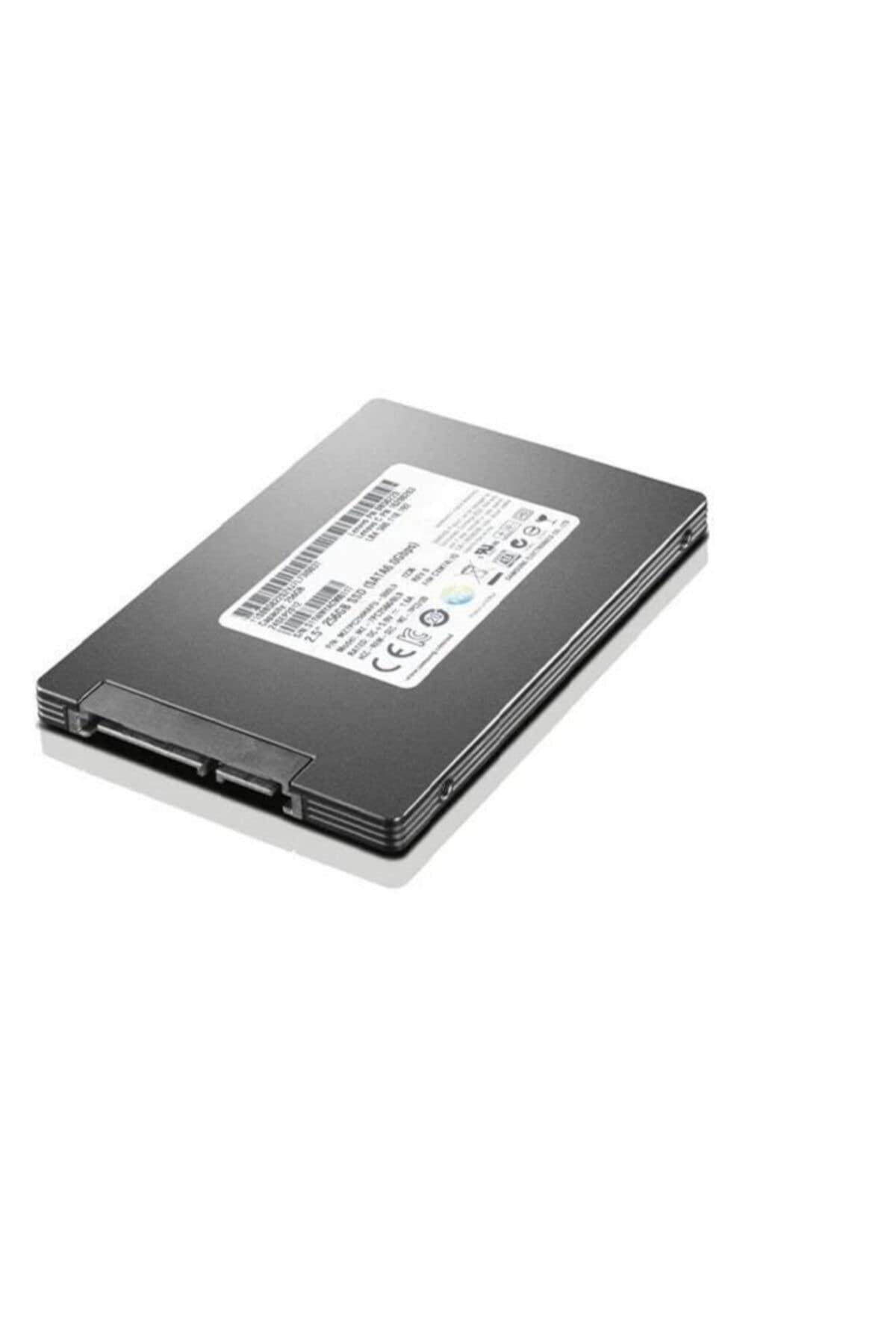
Image 1: Lenovo ThinkPad 2.5-inch Solid State Drive. This image shows the top view of the solid state drive, highlighting its compact 2.5-inch form factor and the label with product information.
4.3 Inicijalizacija i formatiranje SSD-a
After physical installation, you may need to initialize and format the SSD before it can be used by your operating system. This process typically involves:
- Booting your computer and accessing Disk Management (Windows) or Disk Utility (macOS).
- Initializing the new drive (e.g., MBR or GPT partition style).
- Creating a new volume and formatting it with a suitable file sistem (npr. NTFS za Windows, APFS za macOS).
- Installing your operating system or migrating data to the new SSD.
5. Rad sa SSD-om
Once installed, initialized, and formatted, your Lenovo ThinkPad SSD operates like any other internal storage device. It will be recognized by your operating system and applications for storing and retrieving data. SSDs offer faster boot times, quicker application loading, and improved overall system responsiveness compared to traditional hard disk drives.
- Pohrana podataka: Use the SSD for storing your operating system, applications, and frequently accessed files za optimalne performanse.
- File Menadžment: Upravljaj files and folders as you would with any other drive through your operating system's file explorer.
- TRIM podrška: Ensure your operating system has TRIM enabled (usually by default) to maintain the SSD's performance over time.
6. Održavanje
Solid State Drives generally require less maintenance than traditional hard drives. However, following these practices can help ensure optimal performance and longevity:
- Ažuriranja operativnog sistema: Keep your operating system updated to ensure the latest drivers and SSD optimizations are applied.
- Ažuriranja firmvera: Povremeno provjeravajte Lenovo podršku website for any available firmware updates for your SSD model. Firmware updates can improve performance, stability, and compatibility.
- Izbjegavajte puni kapacitet: While SSDs perform well even when nearly full, leaving some free space (e.g., 10-15%) can help maintain performance and extend lifespan.
- Pravilno gašenje: Uvijek pravilno isključite računar kako biste spriječili oštećenje podataka.
- No Defragmentation: Do not defragment an SSD. Defragmentation is unnecessary for SSDs and can reduce their lifespan.
7. Otkrivanje problema
If you encounter issues with your Lenovo ThinkPad SSD, consider the following troubleshooting steps:
- SSD nije otkriven:
- Provjerite sve SATA podatkovne i napojne kablove kako biste se uvjerili da su sigurni.
- Verify that the SATA port on the motherboard is enabled in the system's BIOS/UEFI settings.
- Try connecting the SSD to a different SATA port or with different cables.
- Ensure the SSD is properly initialized and formatted in Disk Management (Windows) or Disk Utility (macOS).
- Spore performanse:
- Ensure your operating system is configured to use AHCI mode for SATA controllers in BIOS/UEFI.
- Verify that TRIM is enabled for your SSD.
- Check for available SSD firmware updates from Lenovo.
- Pazite da SSD nije prepun.
- Operativni sistem se ne pokreće:
- Confirm that the SSD is set as the primary boot device in your system's BIOS/UEFI settings.
- If you migrated your OS, ensure the migration process was completed successfully.
If these steps do not resolve the issue, please contact Lenovo support for further assistance.
8. Specifikacije
| Broj modela | 4XB0F86403 |
| Brand | Lenovo |
| Serije | HDD_BO TP 2.5 512G SSD |
| Digital Storage Capacity | 512 GB |
| Hard Disk Interface | Serijski ATA-600 (SATA III) |
| Tehnologija povezivanja | SATA |
| Faktor oblika tvrdog diska | 2.5 inča |
| Vrsta instalacije | Interni čvrsti disk |
| Kompatibilni uređaji | PC (Desktop, ThinkPad systems) |
| Težina artikla | 6.1 unce |
| Dimenzije proizvoda (DxŠxV) | 6.25 x 0.75 x 4.5 inča |
| Voltage | 240 volti (Note: This specification may refer to system power requirements, not direct SSD voltage. SSDs typically use 5V.) |
| Proizvođač | Lenovo (Sjedinjene Države), Inc. |
9. Informacije o garanciji
This Lenovo ThinkPad Solid State Drive is covered by Lenovo's standard limited warranty. The specific terms and duration of the warranty may vary by region and purchase date. Please retain your proof of purchase for warranty claims.
For detailed warranty information, including coverage, limitations, and the process for making a claim, please visit the official Lenovo support website or refer to the warranty documentation included with your original system or purchase.
10. Podrška
For technical assistance, driver downloads, firmware updates, or additional product information, please visit the official Lenovo Support webstranica:
Lenovo podrška Webstranica: support.lenovo.com
When contacting support, please have your product model number (4XB0F86403) and serial number readily available.


