Uvod
This manual provides essential information for the proper setup, operation, maintenance, and troubleshooting of your AOC E2070Swn 19.5-inch LED Widescreen Monitor. Please read this manual thoroughly before using the product to ensure optimal performance and longevity.

Slika 1: Front view of the AOC E2070Swn monitor, showcasing its 19.5-inch LED display and compact design.
Uputstva za postavljanje
1. Raspakivanje
Pažljivo izvadite sve komponente iz ambalaže. Provjerite da li su sljedeće stavke prisutne:
- AOC E2070Swn Monitor
- Stalak za monitor (baza i vrat)
- Power Cable
- VGA kabel
- Korisnički priručnik (ovaj dokument)
- Driver CD (for software installation)
2. Sastavljanje postolja
- Pričvrstite vrat postolja na ploču monitora. Provjerite da li je sigurno uglavljen na svoje mjesto.
- Attach the stand base to the stand neck. Tighten any screws if provided, usually located at the bottom of the base.

Slika 2: Pozadi view of the AOC E2070Swn monitor, illustrating the stand's attachment area and ventilation.
3. Povezivanje kablova
- Priključak za napajanje: Connect the power cable to the monitor's power input port and then to a power outlet.
- Video veza: Connect one end of the VGA cable to the VGA port on your computer's graphics card and the other end to the VGA input port on the monitor.
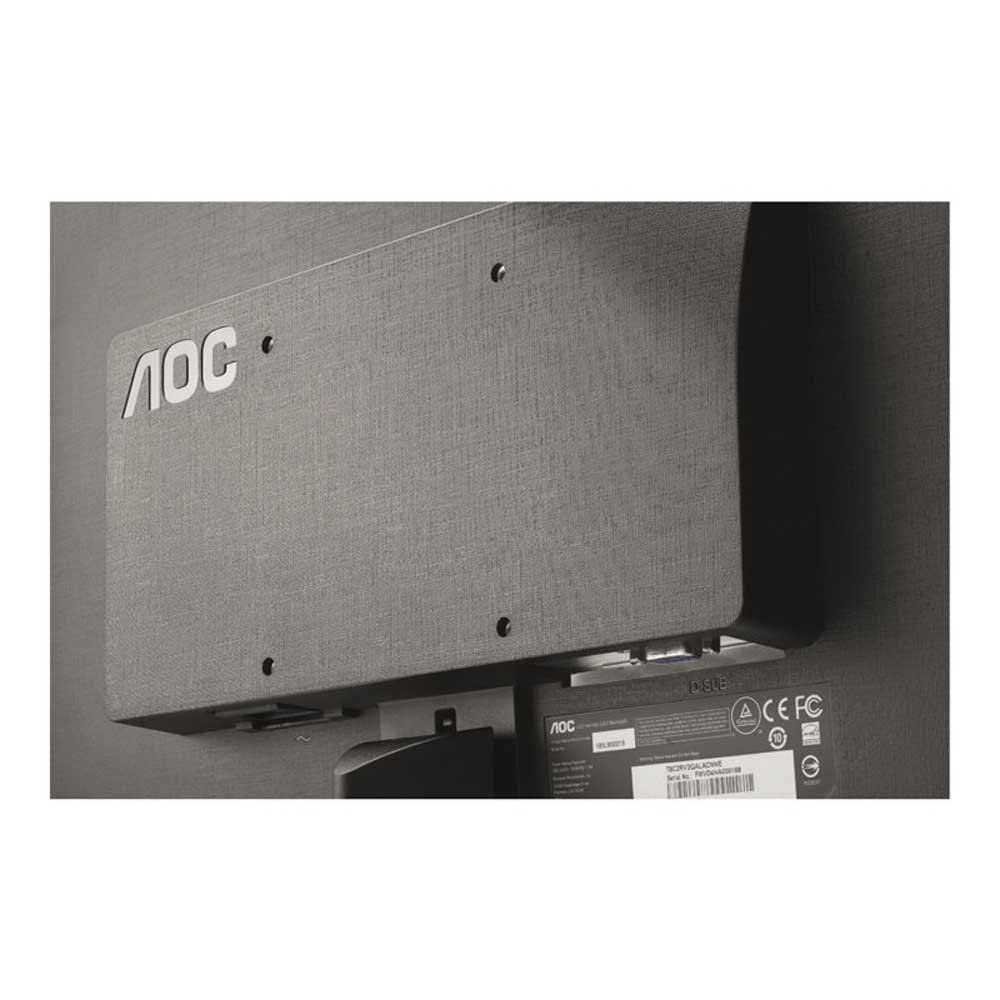
Slika 3: Detaljno view of the monitor's rear panel, highlighting the VGA input and power connector for cable attachment.
4. Početno uključivanje
Press the power button located on the monitor. The monitor should power on and display an image from your connected computer. If no image appears, ensure all cables are securely connected and the computer is powered on.
Uputstvo za upotrebu
1. Uključivanje/isključivanje
Press the power button on the front or bottom bezel of the monitor to turn it on or off.
2. On-Screen Display (OSD) meni
The monitor features an On-Screen Display (OSD) menu for adjusting various settings. Use the physical buttons, typically located on the bottom right bezel, to navigate and select options within the OSD menu.
3. Podešavanje postavki ekrana
Through the OSD menu, you can adjust settings such as:
- Svjetlina: Kontroliše ukupnu luminancu ekrana.
- Kontrast: Podešava razliku između najsvjetlijih i najtamnijih područja slike.
- Temperatura boje: Modifies the color balance (e.g., Warm, Cool, sRGB).
- Odaberite ulaz: Manually switch between available video inputs (if multiple are present).
For advanced display settings and optimal resolution configuration, it is recommended to install the drivers and software provided on the included CD. These tools allow for fine-tuning of display parameters directly from your computer's operating system.
Održavanje
1. Čišćenje monitora
Za čišćenje ekrana monitora i casing:
- Uvijek isključite monitor i iskopčajte kabel za napajanje prije čišćenja.
- Koristite meku krpu koja ne ostavlja dlačiceampvodom ili neabrazivnim sredstvom za čišćenje ekrana.
- Avoid using alcohol, ammonia, or abrasive cleaners, as these can damage the screen surface.
- Pažljivo obrišite; nemojte previše pritiskati ekran.
2. Opća njega
- Izbjegavajte postavljanje monitora na direktnu sunčevu svjetlost ili blizu izvora topline.
- Osigurajte odgovarajuću ventilaciju oko monitora kako biste spriječili pregrijavanje.
- Ne stavljajte teške predmete na monitor ili njegove kablove.
Rješavanje problema
Ako imate problema s monitorom, pogledajte sljedeće uobičajene probleme i rješenja:
- Nema slike na ekranu:
- Ensure the monitor's power cable is securely connected to both the monitor and a working power outlet.
- Verify the video cable (VGA) is firmly connected to both the monitor and the computer.
- Confirm the computer is powered on and not in sleep mode.
- Pritisnite dugme za napajanje monitora kako biste se uvjerili da je uključen.
- Slika je iskrivljena ili nejasna:
- Proverite da li video kabl ima oštećenja ili labave veze.
- Adjust the monitor's resolution settings through your computer's display settings to match the monitor's native resolution (e.g., 640 x 480).
- Use the OSD menu to perform an auto-adjustment or manually adjust brightness, contrast, and phase settings.
- Monitor Power LED is Off:
- Ensure the power cable is properly connected and the power outlet is functional.
- Pritisnite dugme za napajanje na monitoru.
If the problem persists after attempting these solutions, please contact AOC customer support for further assistance.
Specifikacije

Slika 4: Dimenzionalno prekoview of the AOC E2070Swn monitor, indicating height, width, and depth.
| Feature | Detalj |
|---|---|
| Brand | AOC |
| Broj modela | E2070Swn |
| Veličina ekrana | 19.5 inča |
| Display Type | LED široki ekran |
| Rezolucija | 640 x 480 |
| Aspect Ratio | 16:9 |
| Video ulaz | 1 x VGA priključak |
| Voltage | 220 Volts |
| Wattage | 18 Watts |
| Dimenzije proizvoda (DxŠxV) | 52.07 x 10.67 x 11.43 cm |
| Težina artikla | 3.18 kg |
Garancija i podrška
Informacije o garanciji
This AOC E2070Swn monitor comes with a 3 godine garancije from the date of purchase. This warranty covers manufacturing defects and ensures repair or replacement of the product under normal usage conditions. Please retain your proof of purchase for warranty claims.
Korisnička podrška
For technical assistance, warranty claims, or any other inquiries regarding your AOC monitor, please visit the official AOC support website or contact their customer service department. Refer to the contact information provided with your product packaging or on the AOC official website.


