1. Proizvod je gotovview
The Sitecom WLA-5100 N600 Wi-Fi Dual Band USB Adapter provides wireless connectivity for your computer. It supports Wi-Fi 4 (802.11n) standards and operates on dual bands (2.4 GHz and 5 GHz) for optimal performance. This adapter connects via a USB interface, offering a convenient solution for adding or upgrading Wi-Fi capabilities to desktop or laptop computers.

Image 1: The Sitecom WLA-5100 N600 Wi-Fi Dual Band USB Adapter. This image shows the compact black USB adapter with the Sitecom logo, featuring a removable cap for the USB connector.
2. Sadržaj paketa
- 1 x Sitecom WLA-5100 N600 Wi-Fi Dual Band USB Adapter
- 1 x Quick Installation Guide (may vary by region)
- 1 x Driver CD (drivers may also be available for download online)
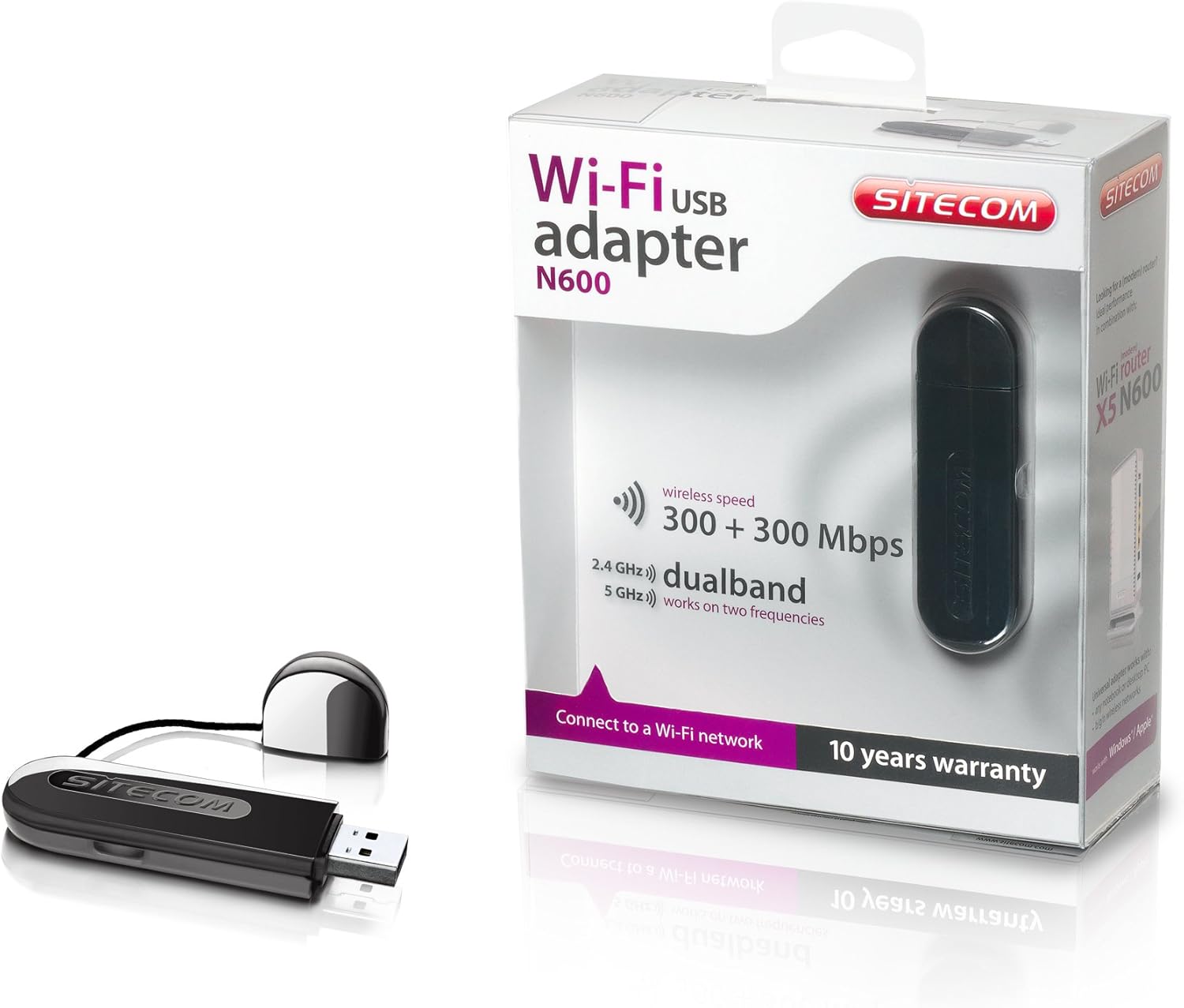
Image 2: The Sitecom WLA-5100 N600 Wi-Fi Dual Band USB Adapter shown alongside its retail packaging. The packaging highlights features such as wireless speed (300 + 300 Mbps) and dual-band functionality (2.4 GHz and 5 GHz).
3. Sistemski zahtjevi
- Available USB port (USB 2.0 or higher recommended)
- Operating System: Compatible with Windows and Mac OS X (e.g., Mac OS X 10.8 Mountain Lion and later versions).
- Internet connection for driver download (if not using the included CD).
4. Podešavanje
4.1 Instalacija drajvera
- Before inserting the adapter, it is recommended to install the necessary drivers.
- Insert the included Driver CD into your computer's optical drive, or download the latest drivers from the official Sitecom support website.
- Pratite uputstva na ekranu da biste dovršili proces instalacije drajvera.
4.2 Instalacija hardvera
- Carefully insert the Sitecom WLA-5100 USB adapter into an available USB port on your desktop or laptop computer.
- Ensure the adapter is fully seated in the USB port. The operating system should detect the new hardware.
4.3 Povezivanje na Wi-Fi mrežu
- Once the drivers are installed and the adapter is connected, your computer should detect available wireless networks.
- Access your operating system's network settings (e.g., Wi-Fi icon in the system tray for Windows, Wi-Fi menu bar item for macOS).
- Select your desired Wi-Fi network (SSID) from the list of available networks.
- Unesite sigurnosni ključ mreže (lozinku) ako se to od vas zatraži, a zatim kliknite na "Poveži se".
- Your computer should now be connected to the Wi-Fi network.
5. Operativni
The WLA-5100 adapter supports dual-band operation, allowing connection to both 2.4 GHz and 5 GHz Wi-Fi networks. The 2.4 GHz band offers wider coverage and better penetration through obstacles, while the 5 GHz band provides faster speeds and less interference, making it ideal for activities like online gaming and high-definition video streaming.
Your computer's operating system will automatically detect and display available networks on both bands. You can choose which band to connect to based on your proximity to the router and your performance needs. For optimal performance, connect to a 5 GHz network if available and you are in close range to your router.
6. Održavanje
- Održavajte adapter čistim i bez prašine. Za čišćenje koristite meku, suhu krpu.
- Izbjegavajte izlaganje adaptera ekstremnim temperaturama, direktnoj sunčevoj svjetlosti ili vlazi.
- Ne pokušavajte rastavljati ili modificirati uređaj, jer će to poništiti garanciju i može uzrokovati oštećenje.
- When not in use, store the adapter in a safe place to prevent physical damage.
7. Otkrivanje problema
7.1 Nema Wi-Fi veze
- Provjerite vezu adaptera: Ensure the adapter is securely plugged into a functional USB port. Try a different USB port.
- Provjerite instalaciju drajvera: Confirm that the drivers are correctly installed. Check your computer's Device Manager (Windows) or System Information (macOS) to see if the adapter is listed without errors. Reinstall drivers if necessary.
- Status rutera: Provjerite je li vaš Wi-Fi ruter uključen i emituje li signal.
- Mrežni domet: Make sure your computer is within range of your Wi-Fi network.
- Ponovo pokrenite računar: Ponekad jednostavno ponovno pokretanje može riješiti probleme s povezivanjem.
7.2 Spora brzina veze
- Odabir benda: If available, connect to the 5 GHz network for faster speeds, especially if you are close to the router.
- smetnje: Move the adapter or computer away from potential sources of interference (e.g., microwaves, cordless phones, Bluetooth devices).
- Ažuriranje drajvera: Ensure you have the latest drivers installed for the adapter.
- Performanse rutera: Check your router's settings and ensure it is operating optimally.
7.3 Adapter Not Recognized
- USB port: Try plugging the adapter into a different USB port on your computer.
- Ponovo instalirajte drajvere: Uninstall existing drivers and perform a clean reinstallation.
- Ažuriranja operativnog sistema: Provjerite da li je vaš operativni sistem ažuriran.
8. Specifikacije
| Feature | Detalj |
|---|---|
| Brand | Sitecom |
| Model | WLA-5100 |
| Tehnologija povezivanja | Bežični |
| Interfejs domaćina | USB |
| Bežični standard | IEEE 802.11a, 802.11b, 802.11g, 802.11n (Wi-Fi 4) |
| Bežična brzina | Do 300 Mbps (2.4 GHz) + 300 Mbps (5 GHz) |
| Frekvencijski opseg | Dvofrekventni opseg (2.4 GHz i 5 GHz) |
| Boja | Crna |
| Dimenzije (D x Š x V) | 7.5 x 2.5 x 1 cm (približno) |
| Težina | 10 g |
| Izvor napajanja | Pokreće se USB |
| Kompatibilni uređaji | Desktop computer, Laptop computer |
| Globalni broj trgovinske jedinice (GTIN) | 08716502026821 |
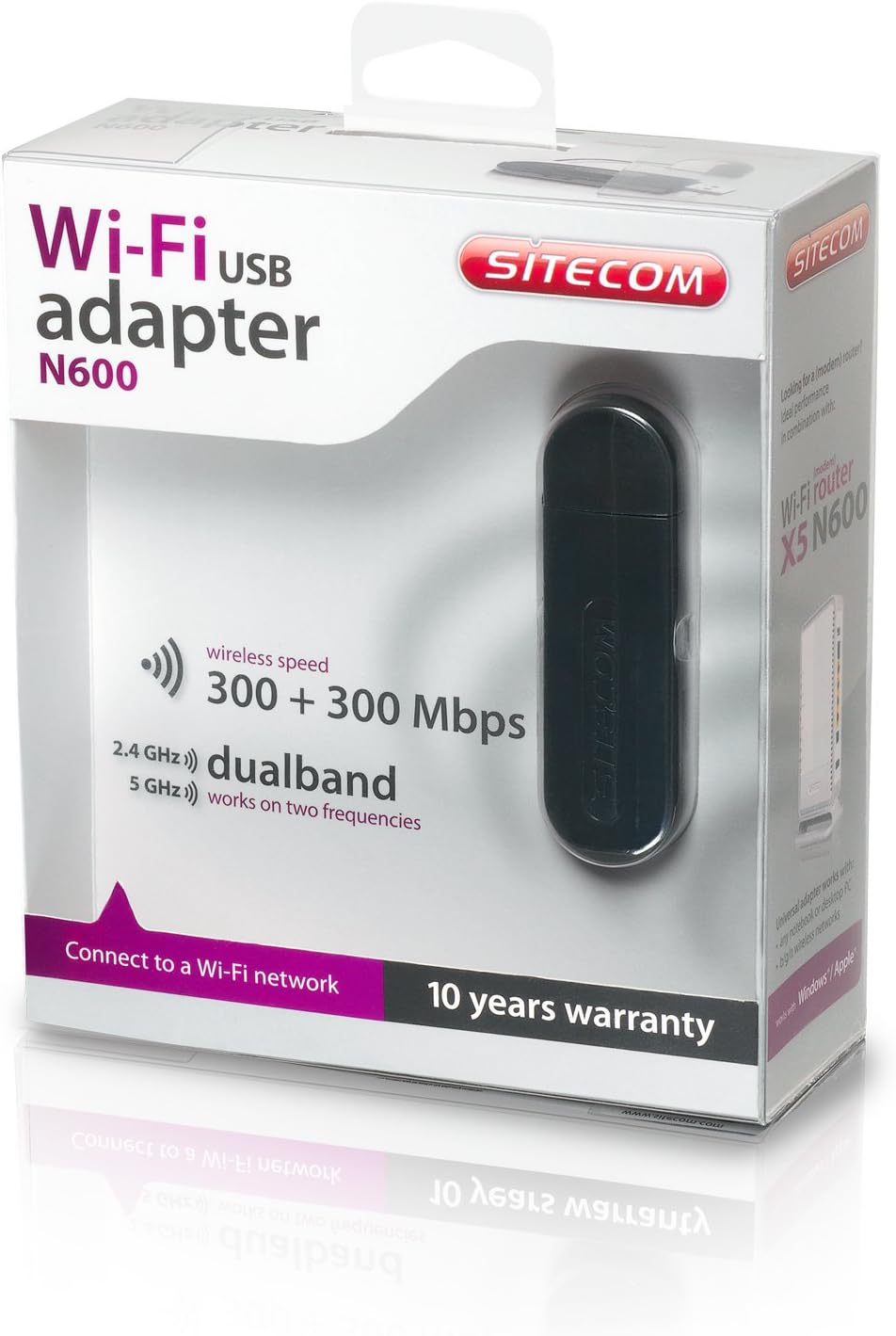
Image 3: The retail packaging for the Sitecom WLA-5100 N600 Wi-Fi Dual Band USB Adapter. The box prominently displays the product name, N600 rating, wireless speed, and dual-band capabilities.
9. Garancija i podrška
The Sitecom WLA-5100 N600 Wi-Fi Dual Band USB Adapter typically comes with a 10 godine garancije, kao što je naznačeno na pakovanju proizvoda. Molimo sačuvajte dokaz o kupovini za potrebe reklamacije.
For technical support, driver downloads, frequently asked questions, or further assistance, please visit the official Sitecom website or contact their customer support. Refer to the packaging or the Sitecom webstranicu za najnovije kontakt informacije za podršku.