1. Uvod
Welcome to the user manual for your HP EliteBook 2560p laptop. This document provides essential information for setting up, operating, maintaining, and troubleshooting your device. Please read this manual thoroughly to ensure proper use and to maximize the lifespan of your laptop.
2. Sigurnosne informacije
To prevent injury, damage to the product, or loss of data, observe the following safety precautions:
- Koristite samo adapter za napajanje koji dolazi s vašim laptopom.
- Ne izlažite laptop ekstremnim temperaturama, vlazi ili direktnoj sunčevoj svjetlosti.
- Izbjegavajte stavljanje teških predmeta na laptop.
- Držite tečnosti dalje od uređaja.
- Ne pokušavajte sami rastavljati ili popravljati laptop. Obratite se kvalifikovanom servisnom osoblju.
- Osigurajte odgovarajuću ventilaciju kako biste spriječili pregrijavanje.
3. Sadržaj paketa
Provjerite da li se sve stavke nalaze u vašem paketu:
- HP EliteBook 2560p laptop
- AC adapter i kabel za napajanje
- Baterija
- Dokumentacija (ovaj priručnik, informacije o garanciji)
4. Proizvod je gotovview
Familiarize yourself with the components of your HP EliteBook 2560p.
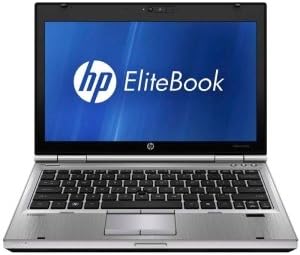
Slika 4.1: Front view of the HP EliteBook 2560p laptop. This image shows the laptop open, revealing the 12.5-inch display, keyboard, and touchpad. The screen displays the "HP EliteBook" logo.
4.1. Front and Top Components
- 12.5-inch HD Anti-Glare LED Display: For visual output.
- tastatura: Standard QWERTY layout for text input.
- Touchpad: For cursor control and navigation.
- Webkamera: Integrated for video conferencing and imaging.
- Fingerprint Reader (FPR): Za poboljšanu sigurnost.
4.2. Side and Rear Components
- USB 2.0 portovi: Za povezivanje perifernih uređaja.
- DVD+/-RW Optical Drive: For reading and writing CDs/DVDs.
- Priključak za napajanje: Za spajanje AC adaptera.
- Ethernet priključak: Za žičanu mrežnu vezu.
- Portovi za prikaz: Za povezivanje eksternih monitora.
- Audio priključci: Za slušalice i mikrofon.
5. Podešavanje
5.1. Spajanje adaptera za napajanje
- Povežite kabl za napajanje sa AC adapterom.
- Uključite AC adapter u uzemljenu električnu utičnicu.
- Connect the DC output plug of the AC adapter to the power connector on your laptop.
- Allow the battery to charge fully before initial use, or use the laptop while connected to power.
5.2. Initial Boot-Up and Operating System Setup
- Otvorite poklopac laptopa.
- Press the power button, typically located above the keyboard.
- Follow the on-screen instructions to complete the Windows 7 Professional setup, including language selection, user account creation, and network configuration.
6. Uputstvo za upotrebu
6.1. Uključivanje i isključivanje
- Za uključivanje: Pritisnite dugme za napajanje.
- Za isključivanje: Click the Start button, then select "Shut Down."
- Za ponovno pokretanje: Click the Start button, then select "Restart."
- Za spavanje: Close the lid or click the Start button and select "Sleep."
6.2. Korištenje dodirne table
The touchpad allows you to control the cursor on the screen.
- Dodirnite: Single tap to click, double tap to double-click.
- Povucite: Tap and hold, then drag your finger across the touchpad.
- Scroll: Use two fingers to scroll vertically or horizontally.
6.3. Connecting to a Wireless Network (Wi-Fi)
- Kliknite na ikonu mreže u sistemskoj paleti (donji desni ugao ekrana).
- Odaberite željenu Wi-Fi mrežu s popisa.
- Kliknite na "Poveži se" i unesite sigurnosni ključ mreže (lozinku) ako se to od vas zatraži.
6.4. Korištenje optičkog pogona
The integrated DVD+/-RW drive allows you to read and write CDs and DVDs.
- Pritisnite dugme za izbacivanje na disku da biste otvorili ladicu.
- Place a disc gently onto the tray, label side up.
- Push the tray back into the laptop until it clicks shut.
7. Održavanje
7.1. Čišćenje laptopa
- Uvijek isključite laptop i iskopčajte ga iz struje prije čišćenja.
- Koristite meku krpu koja ne ostavlja dlačiceampoprano vodom ili specijaliziranim sredstvom za čišćenje ekrana.
- Za tastaturu i kućište koristite meku krpu. Izbjegavajte jake hemikalije.
- Koristite komprimirani zrak za uklanjanje prašine iz ventilacijskih otvora i pukotina na tastaturi.
7.2. Održavanje baterije
- Izbjegavajte često potpuno pražnjenje baterije.
- Laptop čuvajte na hladnom i suhom mjestu ako ga ne koristite duži period.
- If the battery is removable, ensure it is securely seated.
7.3. Ažuriranja softvera
Regularly check for and install operating system updates (Windows Update) and driver updates from the HP support webstranice kako bi se osigurale optimalne performanse i sigurnost.
8. Otkrivanje problema
| Problem | Moguće rješenje |
|---|---|
| Laptop se ne uključuje. | Ensure the AC adapter is securely connected and the power outlet is functional. Check battery charge. |
| Nema Wi-Fi veze. | Verify Wi-Fi is enabled (check physical switch or function key). Restart router and laptop. Re-enter Wi-Fi password. |
| Ekran je prazan. | Connect an external monitor to check if the display is faulty. Adjust brightness settings. Restart the laptop. |
| Sistem je spor ili ne reaguje. | Close unnecessary applications. Check for malware. Ensure sufficient free disk space. Restart the laptop. |
Za složenije probleme, obratite se HP podršci websajtu ili kontaktirajte korisničku podršku.
9. Specifikacije
| Feature | Detalj |
|---|---|
| Model | HP EliteBook 2560p (LJ467UT#ABA) |
| Procesor | Intel Core i5-2520M |
| Display | 12.5-inch HD Anti-Glare LED (1366 x 768 pixels) |
| RAM | 4 GB DDR3 (1333 MHz) |
| Skladištenje | 320 GB HDD |
| Optical Drive | DVD+/-RW |
| Grafika | Integrisana Intel grafika |
| Bežični | 802.11a/b/g/n, Bluetooth |
| Luke | USB 2.0 (x1), DisplayPort, VGA, Ethernet, Audio Jacks |
| Operativni sistem | Windows 7 Professional 64-bit |
| Webcam | Integrisano Webcam |
| Sigurnost | Čitač otiska prsta |
| Trajanje baterije | Do 8.5 sati (prosječno) |
| Dimenzije (DxŠxV) | 16.5 x 13.5 x 4.5 inča |
| Težina | 6.8 funte |
10. Garancija i podrška
For information regarding your product's warranty, please refer to the warranty document included with your purchase or visit the official HP support website.
HP provides various support resources, including online documentation, driver downloads, and customer service contact options.
- HP podrška Webstranica: www.hp.com/support
- Kontaktirajte podršku: Pogledajte HP webstranica za regionalne kontaktne brojeve i opcije za chat.


