Microsoft Wireless Optical Desktop Executive Keyboard and Mouse Combo
Uputstvo za upotrebu
1. Uvod
This manual provides comprehensive instructions for the Microsoft Wireless Optical Desktop Executive Keyboard and Mouse Combo. Please read this manual thoroughly before use to ensure proper setup and operation. This combo is designed for use with personal computers running Windows or Mac operating systems.
2. Sadržaj paketa
- Microsoft Wireless Optical Desktop Executive Keyboard
- Microsoft Wireless Optical Desktop Executive Mouse
- USB bežični prijemnik
- 4 AA Batteries (2 for keyboard, 2 for mouse)
- Korisnički vodič (ovaj dokument)
3. Podešavanje
3.1 Instalacija baterije
- tastatura: Locate the battery compartment on the underside of the keyboard. Open the cover and insert two AA batteries, ensuring correct polarity (+/-). Close the cover.
- miš: Locate the battery compartment on the underside of the mouse. Open the cover and insert two AA batteries, ensuring correct polarity (+/-). Close the cover.
3.2 Connecting the USB Wireless Receiver
- Priključite bežični USB prijemnik u dostupan USB priključak na računaru.
- Vaš operativni sistem bi trebao automatski prepoznati i instalirati potrebne upravljačke programe. Ovaj proces može potrajati nekoliko trenutaka.
- Once drivers are installed, the keyboard and mouse should be ready for use. If not, press the 'Connect' button on the receiver and then on the keyboard/mouse (if available) to establish a connection.
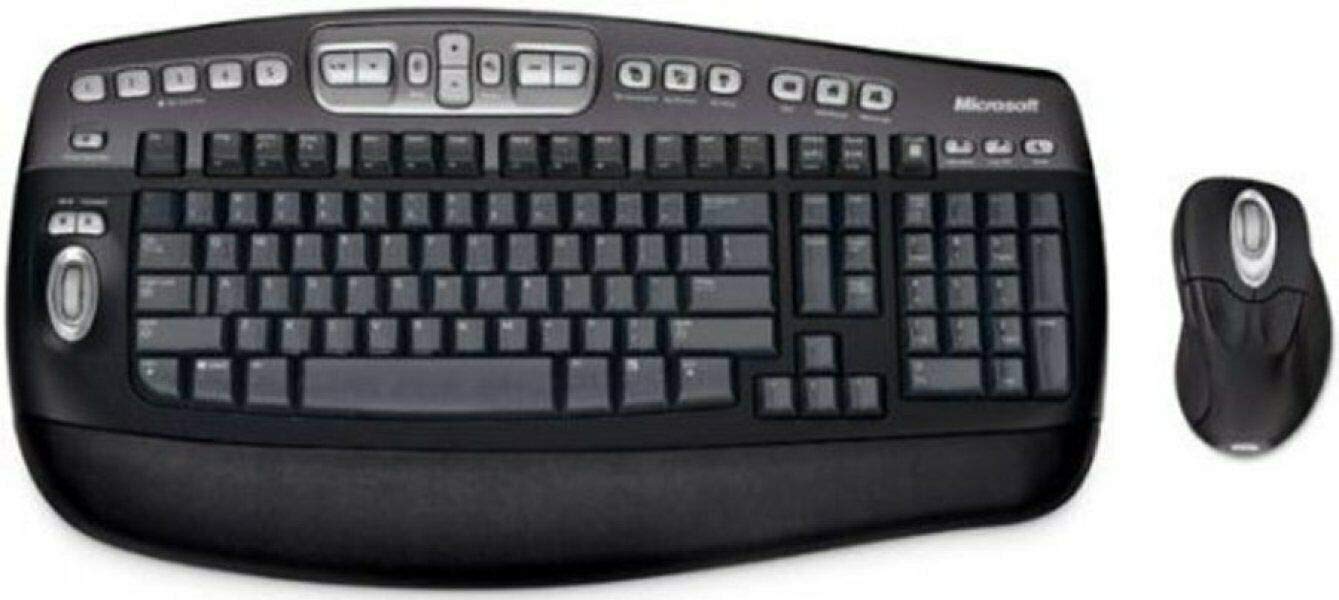
An image showing the Microsoft Wireless Optical Desktop Executive Keyboard and Mouse Combo, highlighting its ergonomic design and wireless components.
4. Operacija
4.1 Funkcije tastature
- Wider Keys with Softer Edges: Dizajniran za udobno kucanje.
- Vrući tasteri: Provides one-touch access to frequently used computer functions and files such as Mail, Web/Home, Messenger, My Documents, and My Pictures.
- 5 Programmable 'My Favorites' Keys: Customize these keys for one-touch access to your favorite webweb stranice ili aplikacije.
4.2 Funkcije miša
- High-Performance Optical Technology: Ensures precise control without the need for maintenance.
- Ergonomski dizajn: Shaped for comfortable use during extended periods.
- Scroll Wheel with Application Switching: Push down on the scroll wheel to easily move between open windows.
- 5 programabilnih dugmadi: Includes two side buttons for forward/back navigation in web browsers. All five buttons, including the wheel button, can be reassigned to various functions.
4.3 Customizing Keys and Buttons
To customize the programmable keys on the keyboard and buttons on the mouse, you may need to install Microsoft's IntelliType Pro and IntelliPoint software, respectively. These can typically be downloaded from the official Microsoft support website. Follow the on-screen instructions within the software to assign desired functions.
5. Održavanje
5.1 Čišćenje
- tastatura: Koristite meku krpu koja ne ostavlja dlačiceampened with water or a mild cleaning solution. Avoid excessive moisture. Do not spray cleaners directly onto the keyboard.
- miš: Očistite spoljašnjost mekom, damp cloth. For the optical sensor, use a dry cotton swab to gently remove any dust or debris.
5.2 Zamjena baterije
Replace the AA batteries in both the keyboard and mouse when performance degrades or the low battery indicator (if present) illuminates. Always use fresh, high-quality AA alkaline batteries. Dispose of old batteries according to local regulations.
6. Otkrivanje problema
6.1 Tastatura ili miš ne reagiraju
- Provjerite da li su baterije ispravno instalirane i da nisu ispražnjene. Zamijenite ih ako je potrebno.
- Verify the USB wireless receiver is securely plugged into a working USB port. Try a different USB port.
- Ensure the keyboard and mouse are within range of the receiver (typically up to 30 feet or 10 meters).
- Re-establish the connection: Press the 'Connect' button on the receiver, then on the keyboard and mouse.
- Ponovo pokrenite računar.
6.2 Erratic Mouse Movement
- Očistite optički senzor na donjoj strani miša.
- Pazite da miš koristite na odgovarajućoj površini. Visoko reflektirajuće ili prozirne površine mogu uzrokovati probleme. Preporučuje se podloga za miša.
- Provjerite ima li smetnji od drugih bežičnih uređaja.
6.3 Hot Keys or Programmable Buttons Not Working
- Ensure Microsoft IntelliType Pro (for keyboard) and IntelliPoint (for mouse) software is installed and up to date.
- Check the software settings to confirm keys/buttons are assigned correctly.
7. Specifikacije
| Brand | Microsoft |
| Model | Wireless Optical Desktop Executive |
| Tehnologija povezivanja | Radio frekvencija |
| Posebna karakteristika | Ergonomski dizajn |
| Kompatibilni uređaji | Personal Computer (Windows/Mac) |
| Baterije | Potrebne 4 AA baterije (uključene) |
| Težina artikla | 4.75 funte |
| Dimenzije paketa | 20.4 x 10.9 x 3.5 inča |
8. Garancija i podrška
8.1 Informacije o garanciji
For detailed warranty information, please refer to the documentation included with your product packaging or visit the official Microsoft support webstranica. Uslovi garancije mogu se razlikovati u zavisnosti od regije i proizvoda.
8.2 Korisnička podrška
For further assistance, technical support, or driver downloads, please visit the official Microsoft support website. You can typically find support resources by searching for your product model on their site.