
Uvod
This manual provides detailed instructions for the EPOMAKER Aula S102 PRO Membrane Gaming Keyboard. This keyboard features tri-mode wireless connectivity (2.4Ghz, Bluetooth, USB), a TFT screen, a multi-function volume knob, and RGB backlighting. Designed for both gaming and office use, it offers a full-size layout with a number pad and a quiet, comfortable typing experience thanks to its creamy silicone structure and adjustable height.
Šta je u kutiji
- AULA S102 PRO Wireless Keyboard
- Uputstvo za upotrebu
- USB A-C kabel
Product Overview
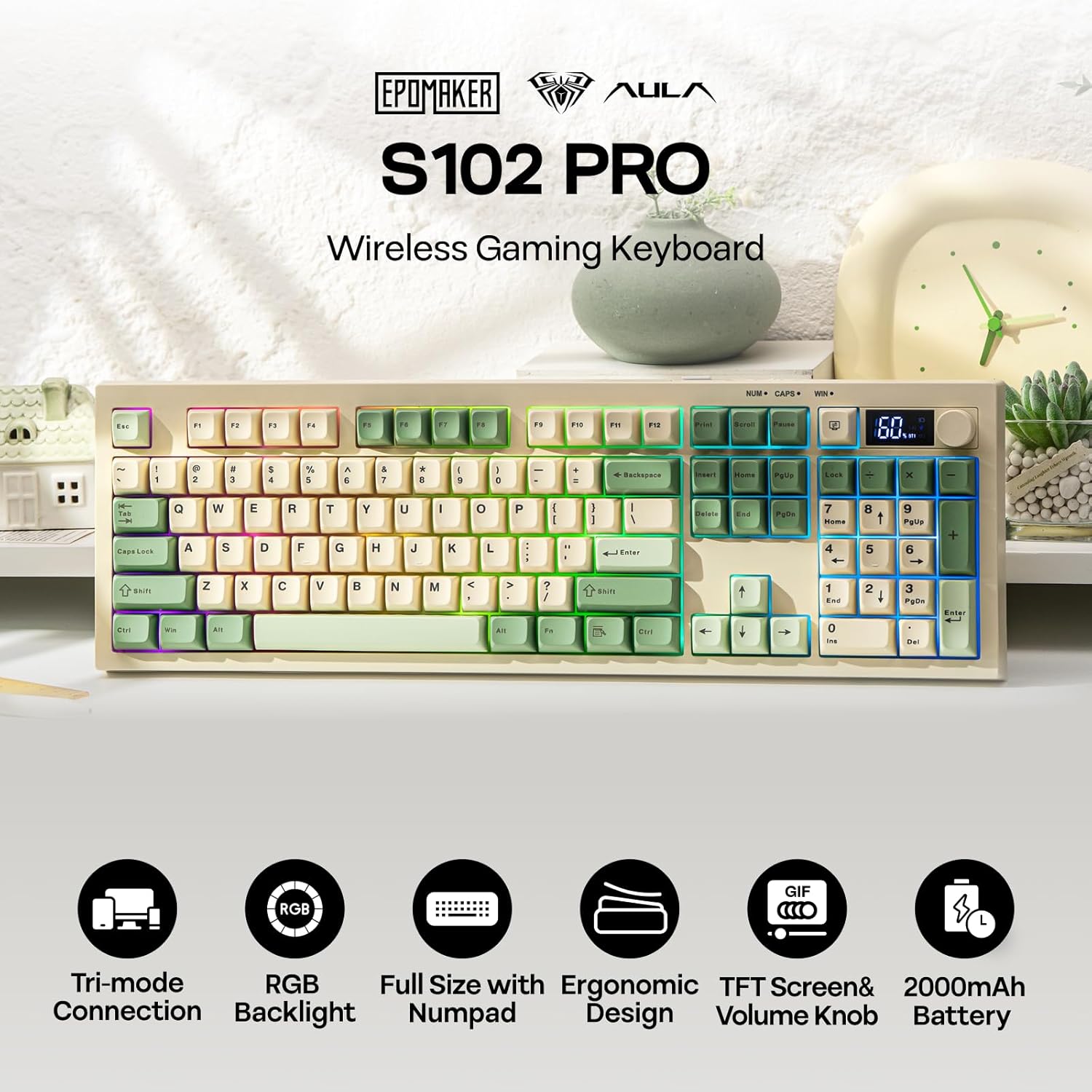
Slika 1: Gotovoview of the EPOMAKER Aula S102 PRO keyboard highlighting its tri-mode connection, RGB backlight, full size with numpad, ergonomic design, TFT screen & volume knob, and 2000mAh battery.

Slika 2: Detaljno view of keyboard features including fixed key design, TFT screen and knob, 2-stage adjustable kickstand, convenient on/off switch, and ABS keycaps.

Slika 3: Illustration of the quiet and creamy membrane structure, emphasizing silent keystrokes for home, office, and co-working spaces.

Slika 4: Diagram showing tri-mode connectivity options: Bluetooth (FN+1/2), 2.4GHz (FN+3), and USB Cable (Plug and Play), compatible with Windows (FN+S) and Mac (FN+A).

Slika 5: Prikaz slikeasing the wireless membrane keyboard with clear tactile feedback, wear-resistant keycaps, and fixed key design.

Slika 6: Dynamic RGB backlight features with shortcuts for changing light effect (Fn+Enter), turning on/off backlight (Fn+Backspace), changing light color (Fn+\), and adjusting brightness/speed (Fn+Up/Down arrows).
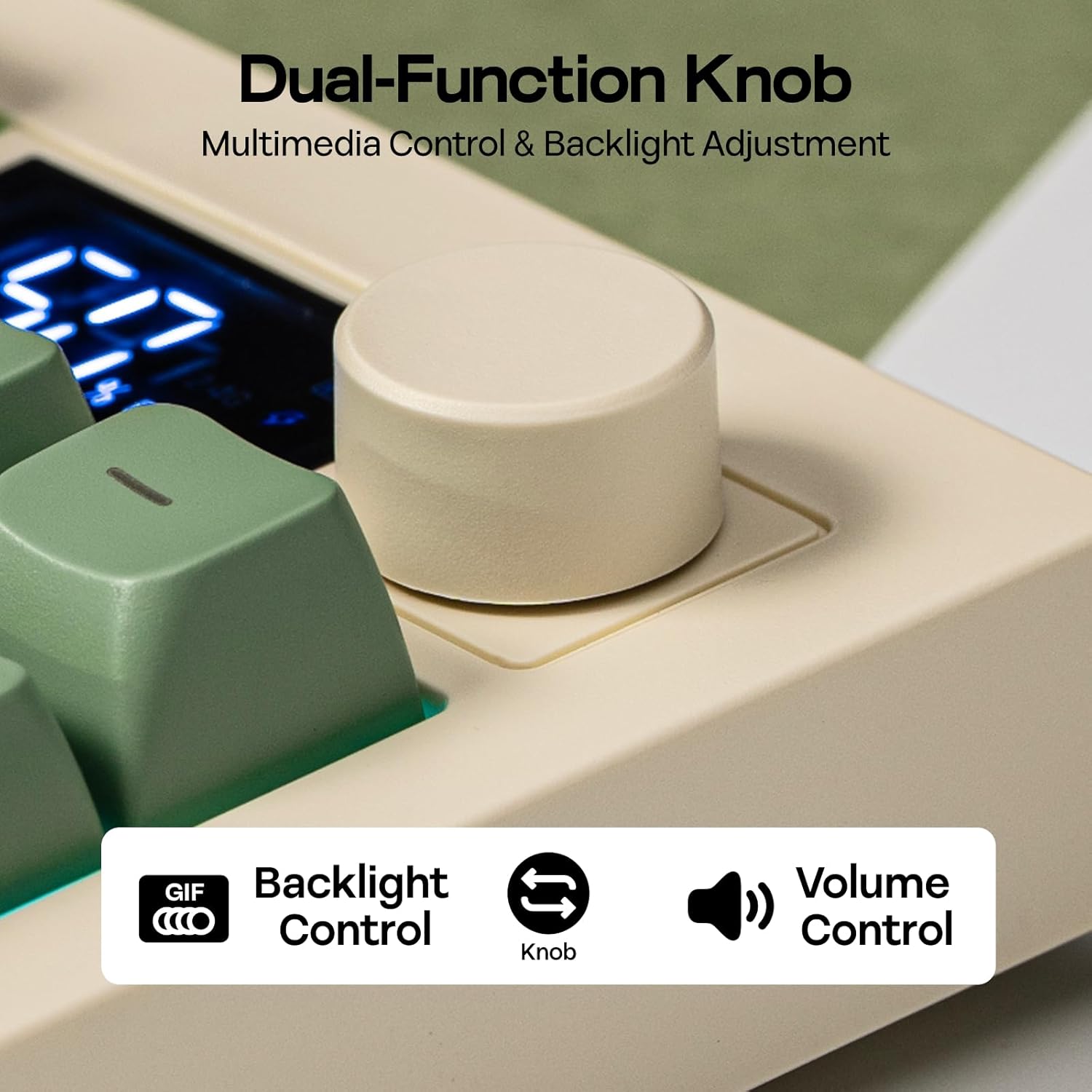
Slika 7: Close-up of the dual-function knob for multimedia control and backlight adjustment, indicating backlight control and volume control.

Slika 8: Technical specifications including length, width, height, weight, 100% functional compact US layout with 105 keys, and ergonomic height with R1-R4 key profiles.
Setup
1. 2.4G bežična veza
- Ensure the keyboard's power switch is in the ON position.
- Dugo pritisnite FN + 3# keys for approximately 3 seconds. The TFT screen will indicate 2.4G pairing mode.
- Umetnite 2.4G USB prijemnik u slobodan USB port na računaru.
- The keyboard will automatically connect. The TFT screen will confirm successful connection.
Klip 1: Demonstrates how to connect the EPOMAKER Aula S102 PRO keyboard via 2.4G receiver and Bluetooth channels BT1/BT2.
2. Bluetooth veza (BT1 / BT2)
- Ensure the keyboard's power switch is in the ON position.
- For BT1, single press FN + 1!. For BT2, single press FN + 2@. The TFT screen will indicate the selected Bluetooth channel.
- Da biste ušli u način uparivanja, dugo pritisnite FN + 1! (ili FN + 2@) for 3 seconds. The Bluetooth indicator on the TFT screen will flash.
- On your device (PC, Mac, tablet, phone), open Bluetooth settings and search for "AULA-S102Pro".
- Select the keyboard and click "Pair" to connect. The TFT screen will confirm successful connection.
3. Žičana USB veza
- Connect the provided USB A-to-C cable from your computer to the keyboard's USB-C port.
- The keyboard will be recognized automatically as a plug-and-play device.
4. Mac/Windows Compatibility
- To switch to Mac mode, press FN + A.
- To switch to Windows mode, press FN + S.
Uputstvo za upotrebu
1. Volume Knob Functionality
- Kontrola jačine zvuka: Scroll the knob clockwise to increase volume, counter-clockwise to decrease volume.
- Isključi/Uključi zvuk: Pritisnite dugme da biste isključili ili uključili zvuk.
2. RGB Backlight Adjustment
The keyboard's RGB backlighting can be adjusted using the knob or dedicated function key combinations.
Korištenje dugmeta:
- Hold the knob for 5 seconds to switch from volume control to brightness adjustment mode.
- Turn the knob clockwise to decrease backlight brightness.
- Turn the knob counter-clockwise to increase backlight brightness.
- Single tap the knob to cycle through various lighting effects.
Using FN Shortcuts:
- FN + Backspace: Turn backlight On/Off.
- FN + Enter: Cycle through 15 different RGB lighting effects.
- FN + \: Cycle through lighting colors (Red, Green, Blue, Purple, Yellow, Cyan).
- FN + strelica gore: Increase backlight brightness (cycles through 0% → 25% → 50% → 75% → 100%).
- FN + strelica dolje: Decrease backlight brightness (cycles through 100% → 75% → 50% → 25% → 0%).
- FN + strelica lijevo: Decrease lighting speed (5 adjustable levels).
- FN + strelica udesno: Increase lighting speed (5 adjustable levels).
Klip 2: Demonstrates how to toggle RGB backlights using both the knob and various shortcut key combinations.
3. Način igranja
- FN + W: Activates gaming mode, which converts the ASDW keys into arrow keys for convenient left-hand control during gameplay.
4. TFT ekran
- The integrated TFT screen displays essential information such as keyboard connection status (2.4G, BT1, BT2, Wired) and battery percentage.
5. Quiet Typing Demonstration
Klip 3: A short demonstration showcasing the silent typing sound of the S102 PRO membrane keyboard, highlighting its suitability for quiet environments.
Održavanje
- čišćenje: Koristite meku, suhu krpu za brisanje površine tastature. Za dublje čišćenje, laganoamp Može se koristiti krpa s blagim sapunom, pazeći da tekućina ne uđe u prekidače ili unutrašnje komponente.
- Uklanjanje tipkovnice: If removing keycaps for cleaning, use a keycap puller to avoid damage. Reinstall carefully, aligning the keycap stems with the switch crosses.
- Održavanje baterije: To prolong battery life, avoid fully discharging the keyboard frequently. Charge the keyboard when the battery indicator on the TFT screen is low.
- Skladištenje: Tastaturu čuvajte na hladnom i suhom mjestu, dalje od direktne sunčeve svjetlosti i ekstremnih temperatura.
Rješavanje problema
- Tastatura ne reaguje: Check the connection (USB cable, 2.4G receiver, or Bluetooth pairing). Ensure the keyboard is powered on and charged.
- Kašnjenje ili prekidi veze u bežičnom režimu: Ensure the keyboard is within range of the receiver/device. Minimize interference from other wireless devices. Try reconnecting or re-pairing.
- Pozadinsko osvjetljenje ne radi: Check if the backlight is turned off (FN + Backspace). Adjust brightness levels (FN + Up/Down Arrow).
- Ključevi se ne registruju: Ensure the keyboard is clean and free of debris. If specific keys are affected, contact support.
- TFT screen not displaying: Ensure the keyboard is powered on. If the issue persists, try restarting the keyboard.
For further assistance, please refer to the support section or contact EPOMAKER customer service.
Specifikacije
| Feature | Detalj |
|---|---|
| Brand | EPOMAKER |
| Naziv modela | S102 PRO |
| Opis tastature | Membranska gaming tastatura |
| Tehnologija povezivanja | 2.4Ghz, BT, USB Wired |
| Kompatibilni uređaji | Igraća konzola, laptop, računar, tablet |
| Broj ključeva | 105 |
| Raspored tipkovnice | QWERTY |
| Tip prekidača | Linearno |
| Pozadinsko osvetljenje tastature | RGB |
| Posebne karakteristike | 2-stage Adjustable Kick-Stand, Backlit, Quiet Gaming Keyboard, Rechargeable, Volume Roller |
| Materijal | Plastika |
| Boja | Žuta (kao što je trenutna varijanta proizvoda) |
| Dimenzije (Dužina) | 40.5cm |
| Dimenzije (širina) | 14.4cm |
| Dimenzije (visina) | 3.5cm |
| Težina | 0.82kg |
Garancija i podrška
The EPOMAKER Aula S102 PRO Membrane Gaming Keyboard comes with a 1 godina garancije od proizvođača.
For product support, troubleshooting, or warranty claims, please visit the official EPOMAKER store or contact their customer service directly. You can find more information and contact details by visiting the EPOMAKER trgovina na Amazonu.