
1. Uvod
This manual provides essential information for setting up, operating, maintaining, and troubleshooting your Auusda 16-inch FHD Laptop T161N. Please read this manual thoroughly before using your device to ensure proper function and longevity.
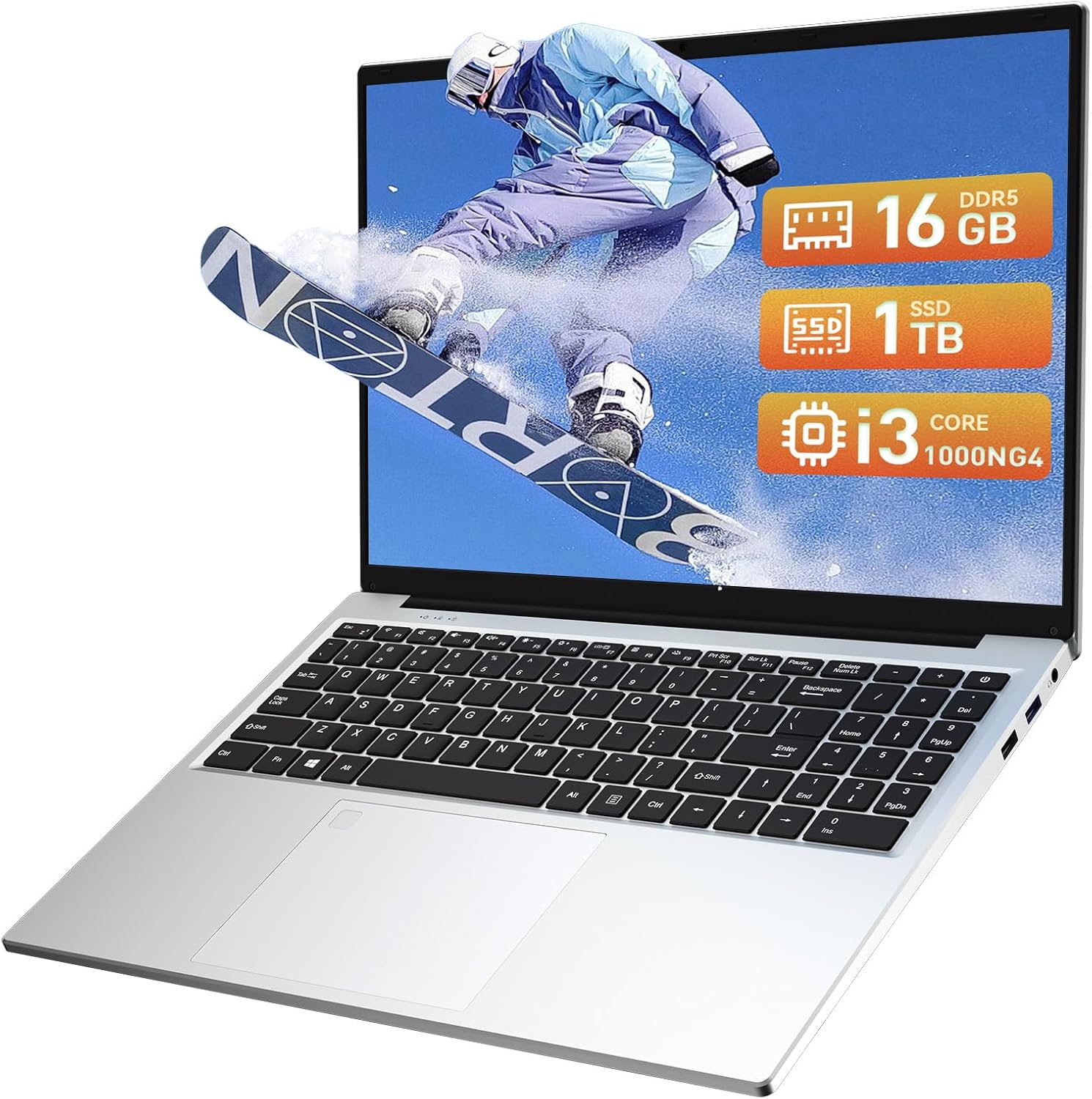
Image: The Auusda 16-inch FHD Laptop T161N, showcasing njegovim elegantnim dizajnom i ekranom.
2. Šta se nalazi u kutiji
Upon opening your Auusda T161N laptop package, verify that all the following items are included:
- Auusda 16-inch FHD Laptop T161N
- Adapter/punjač
- Uputstvo za upotrebu (ovaj dokument)
- Poklopac tastature

Image: A visual representation of the items included in the Auusda T161N laptop packaging.
3. Proizvod je gotovview
3.1 Ključne karakteristike
- Prikaz: 16-inch Full HD (1920x1080) IPS screen with 180° viewing kut.
- procesor: Intel Core i3-1000NG4 (up to 3.2GHz).
- Memorija: 16GB DDR4 RAM memorije.
- Skladištenje: 1TB PCIe SSD.
- Povezivanje: Wi-Fi 6, Bluetooth 5.3.
- sigurnost: Čitač otiska prsta.
- Unos: Pozadinsko osvjetljenje tastature.
- Operativni sistem: Windows 11 Pro.
3.2 Portovi i konektori
The Auusda T161N laptop is equipped with various ports for versatile connectivity:
- USB 3.0 portovi (x2)
- Full-Function Type-C Port (x1) - Supports data transfer, screen mirroring, and charging.
- USB 2.0 port (x1)
- Mini HDMI Port (x1)
- 3.5mm Standard Headphone Jack (x1)
- Microphone Input (shared with headphone jack)
- Port za punjenje

Image: A detailed diagram illustrating the location and type of ports on the Auusda T161N laptop.
3.3 Vizualni overview
Video: Prekorview of the Auusda 16-inch FHD Laptop T161N, demonstrating its design and key features.
4. Podešavanje
4.1 Početno punjenje
- Spojite adapter za napajanje na priključak za punjenje na laptopu.
- Uključite adapter za napajanje u zidnu utičnicu.
- Prije prve upotrebe, ostavite laptop da se puni najmanje 30 minuta ili dok indikator baterije ne pokaže dovoljno napunjenosti.
4.2 Uključivanje i početno podešavanje Windowsa
- Pritisnite dugme za napajanje koje se nalazi na tastaturi da biste uključili laptop.
- Slijedite upute na ekranu da biste dovršili proces instalacije sustava Windows 11 Pro. To uključuje odabir regije, jezika, povezivanje s Wi-Fi mrežom i kreiranje korisničkog računa.
- Ensure you have an active internet connection for Windows updates and driver installations during the setup.
5. Uputstvo za upotrebu
5.1 Keyboard Functions (Fn + Function Keys)
The laptop features a full-size keyboard with dedicated function keys that can be accessed by pressing the Fn tipku u kombinaciji s odgovarajućom funkcijskom tipkom (F1-F12).
- Tastatura sa pozadinskim osvetljenjem: Pritisnite Fn + F9 to cycle through 2 brightness levels. Pressing it a third time turns the backlight off.
- Num Lock: Pritisnite Fn + Num Lk to toggle the numeric keypad on or off.
- Kontrola jačine zvuka: Koristi Fn + Speaker keys (F1-F3) to mute, decrease, or increase volume.
- Kontrola svjetline: Koristi Fn + Sun keys (F4-F5) to decrease or increase screen brightness.

Image: A visual guide to using the Fn (Function) keys on the Auusda T161N keyboard for various controls.
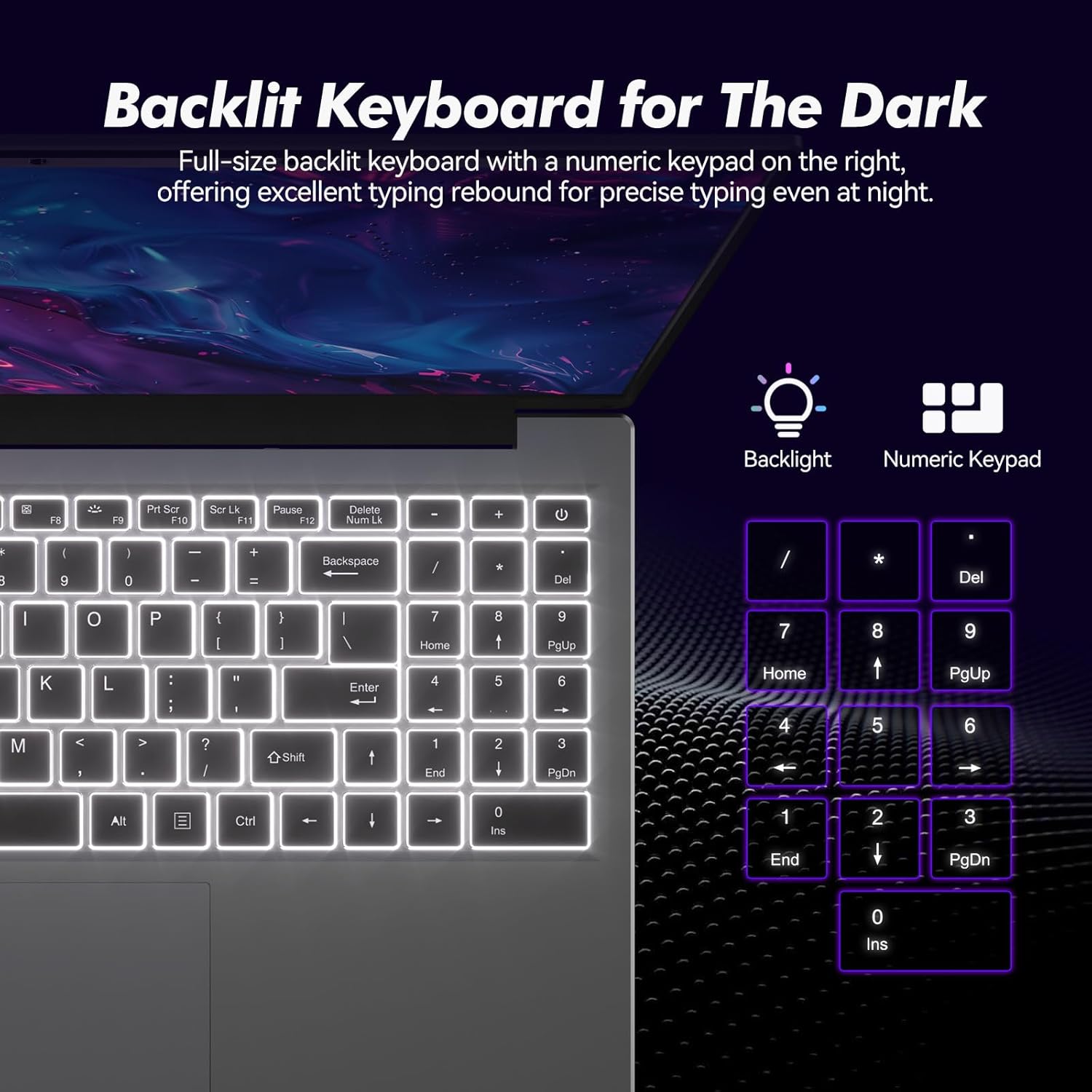
Slika: Krupni plan view of the backlit keyboard and numeric keypad, highlighting their functionality.
5.2 Čitač otiska prsta
The integrated fingerprint reader provides a secure and fast way to unlock your laptop. To set up fingerprint recognition:
- Idite na Postavke sustava Windows > Računi > Opcije prijave.
- Pod opcijom 'Windows Hello Fingerprint' kliknite na 'Postavi'.
- Slijedite upute na ekranu da biste registrirali svoj otisak prsta.
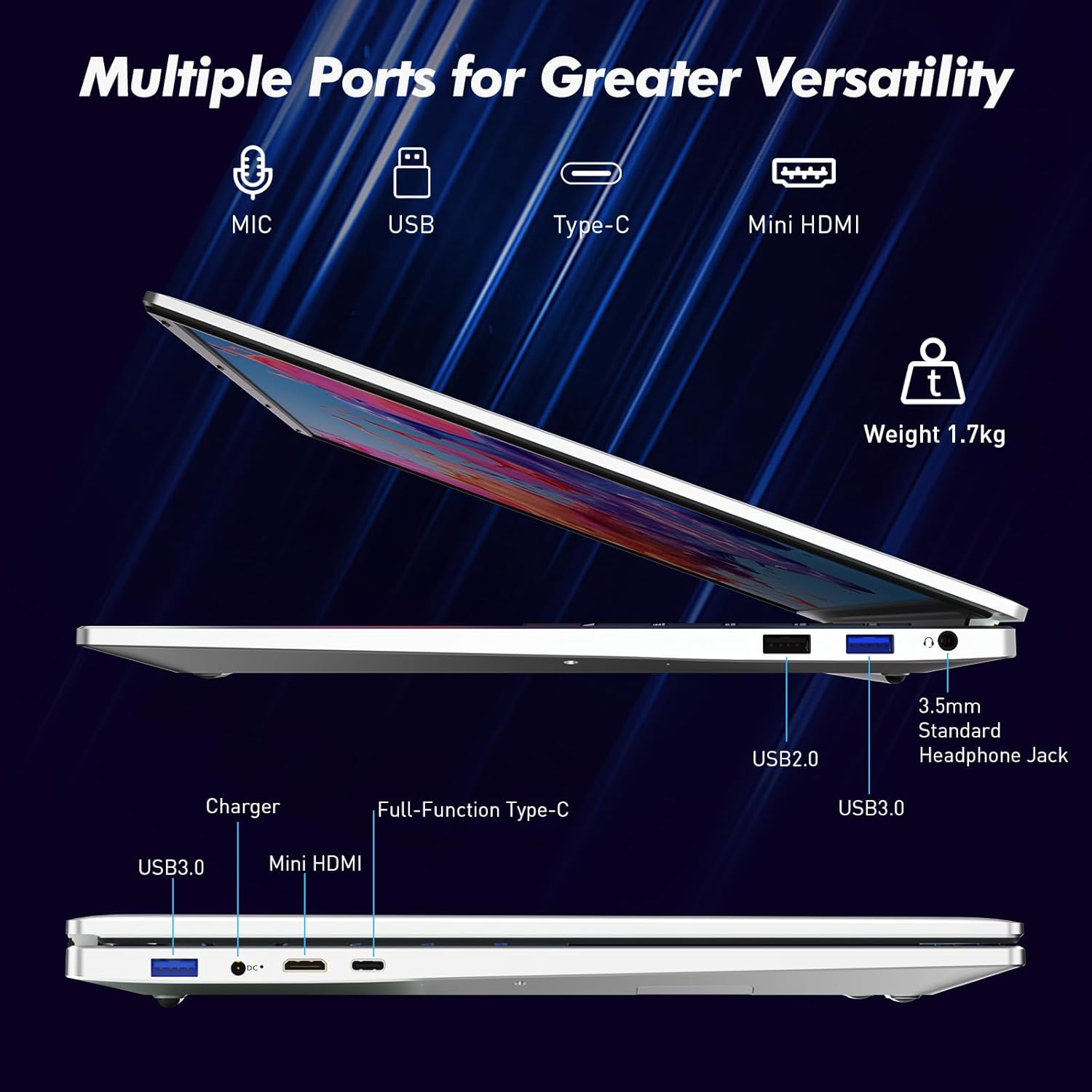
Image: A visual representation of the fingerprint reader location and its quick unlock capability.
5.3 Type-C Connectivity
The full-function Type-C port offers versatile connectivity options:
- Prijenos podataka: Connect compatible devices for high-speed data exchange.
- Preslikavanje ekrana: Output video to an external display using a compatible Type-C to HDMI/DisplayPort adapter (sold separately).
- Punjenje: Charge the laptop using a compatible Type-C power delivery charger.
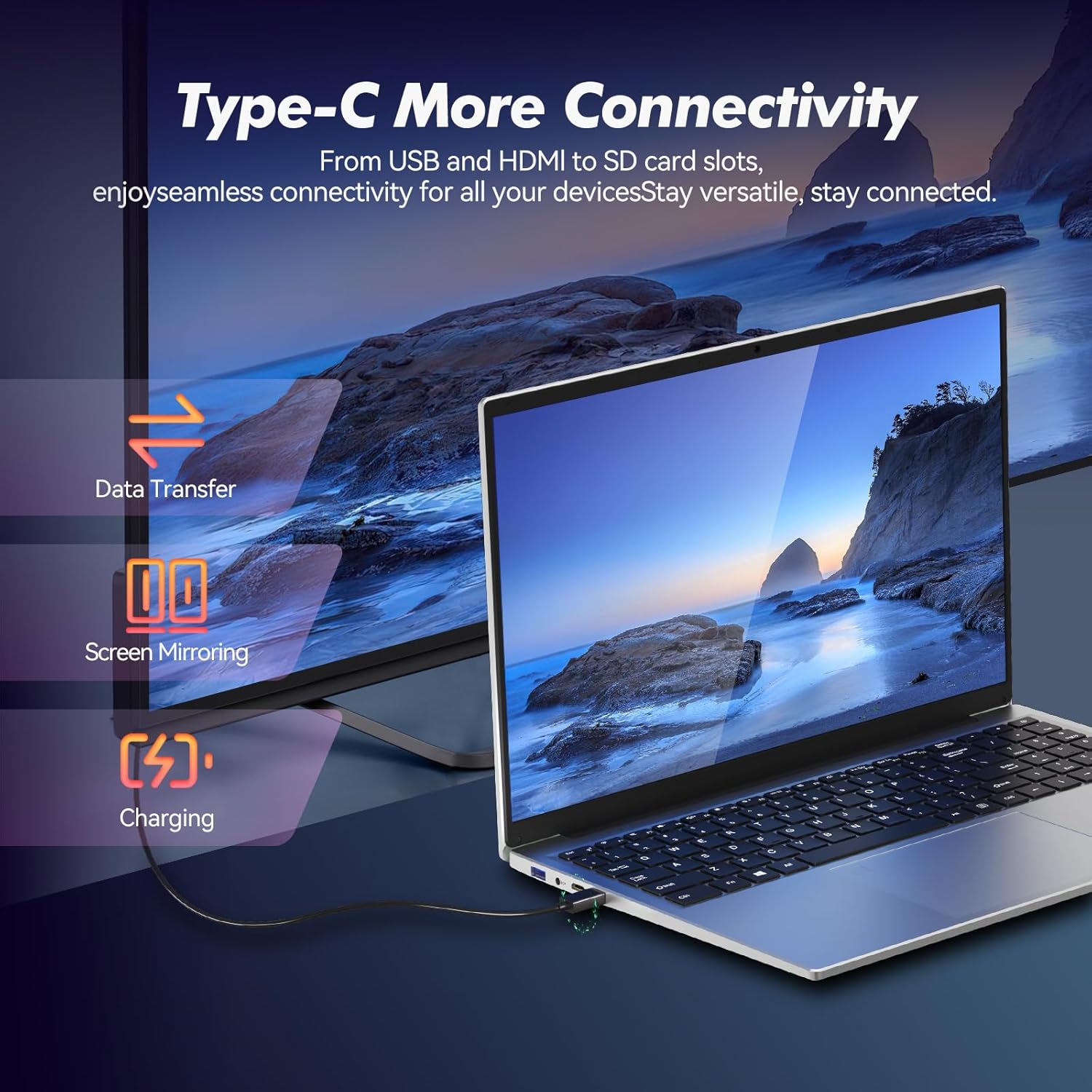
Image: Illustrates the multi-functional capabilities of the Type-C port, including data transfer, screen mirroring, and charging.
5.4 Wi-Fi 6 and Bluetooth 5.3
The laptop supports Wi-Fi 6 for faster and more stable wireless internet connections and Bluetooth 5.3 for connecting wireless peripherals.
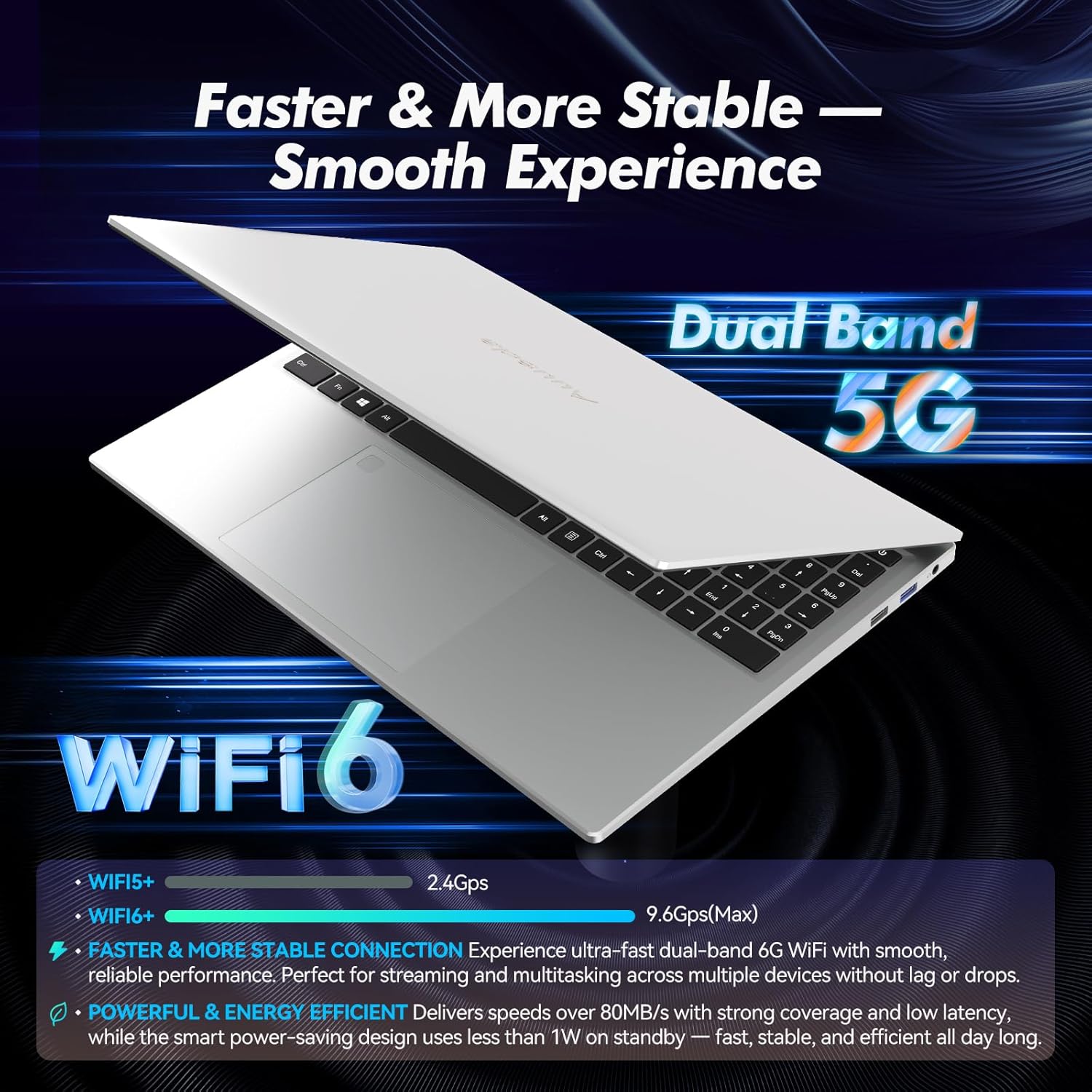
Image: Highlights the advanced wireless connectivity of the laptop, including Wi-Fi 6 and Dual Band 5G support.
6. Specifikacije
Below are the detailed technical specifications for the Auusda 16-inch FHD Laptop T161N:
| Feature | Specifikacija |
|---|---|
| Broj modela | T161N |
| Veličina ekrana | 16 inča |
| Rezolucija ekrana | 1920 x 1080 piksela (FHD) |
| Procesor | Intel Core i3-1000NG4 (1.09 GHz, up to 3.2 GHz) |
| RAM | 16 GB DDR4 SDRAM |
| Hard Drive | 1 TB SSD (PCIe) |
| Grafički koprocesor | Iris Plus Graphics G4 48EUs (Integrated) |
| Operativni sistem | Windows 11 Pro |
| Bežični tip | 802.11ax (Wi-Fi 6), Bluetooth 5.3 |
| USB 3.0 portovi | 2 |
| USB 2.0 portovi | 1 |
| Težina artikla | 5.21 funte |
| Dimenzije proizvoda | 14.17 x 10.83 x 0.71 inča |
| Boja | Srebro |
| Baterije | 1 baterija od 12 V (uključena) |
7. Održavanje
Regular maintenance helps ensure the optimal performance and longevity of your laptop.
7.1 Čišćenje
- Za čišćenje ekrana i vanjskih površina koristite meku krpu koja ne ostavlja dlačice. Za tvrdokorne mrlje, lagano obrišiteampobrišite krpu vodom ili sredstvom za čišćenje ekrana.
- Izbjegavajte prskanje tekućina direktno na laptop.
- Koristite komprimirani zrak za uklanjanje prašine s tipki na tastaturi i ventilacijskih rešetki.
7.2 Ažuriranja softvera
- Redovno provjeravajte i instalirajte ažuriranja za Windows kako biste osigurali stabilnost i sigurnost sistema. Idite na Postavke > Windows Update.
- Keep your drivers updated. Windows Update typically handles this, but you may occasionally need to check the Auusda support website for specific driver updates.
7.3 Njega baterija
- Izbjegavajte često potpuno pražnjenje baterije.
- Laptop čuvajte na hladnom i suhom mjestu ako ga ne koristite duži period.
8. Otkrivanje problema
Ovaj odjeljak se bavi uobičajenim problemima s kojima se možete susresti prilikom korištenja laptopa.
8.1 Laptop se ne uključuje
- Provjerite je li adapter za napajanje sigurno priključen i na laptop i na ispravnu utičnicu.
- Provjerite da li je utičnica funkcionalna tako što ćete priključiti drugi uređaj.
- Ako je baterija potpuno prazna, ostavite je da se puni najmanje 15-30 minuta prije nego što je ponovo pokušate uključiti.
8.2 Problemi s Wi-Fi povezivošću
- Check if Wi-Fi is enabled in Windows settings (Settings > Network & internet > Wi-Fi).
- Ponovo pokrenite ruter i modem.
- Provjerite jeste li u dometu vaše Wi-Fi mreže.
- Update your Wi-Fi drivers if necessary.
8.3 Keyboard or Touchpad Not Responding
- Ponovo pokrenite laptop.
- Check for any physical obstructions or debris under the keys or on the touchpad.
- Ensure the touchpad has not been accidentally disabled (some laptops have a function key or a setting to toggle the touchpad).
Za dodatnu pomoć, pogledajte odjeljak za podršku u nastavku.
9. Garancija i podrška
Auusda provides customer support and warranty services for its products.
9.1 Informacije o garanciji
Auusda laptops typically come with a two-year after-sales service period. Please retain your proof of purchase for warranty claims.
9.2 Korisnička podrška
If you encounter issues or require technical assistance, please contact Auusda customer support:
- Podrška putem e-pošte: Send your order number and a video demonstrating the problem to Auusda.ltd@gmail.com.
- Amazon Buyer Account: Log in to your Amazon buyer account, find your order, and click "Get Help" or "Ask questions" for direct support.