
1. Uvod
This manual provides essential information for setting up, operating, and maintaining your Thunderobot Storm 15 4050 Gaming Laptop. Please read this manual thoroughly before using your device to ensure optimal performance and longevity.
2. Sadržaj paketa
Provjerite da li se sve stavke nalaze u pakovanju vašeg proizvoda:
- Thunderobot Storm 15 4050 Gaming Laptop
- Adapter za napajanje i kabl
- Korisnički priručnik (ovaj dokument)
- Garantni list
Note: Additional accessories may be included depending on your specific purchase configuration.
3. Fizički overview
3.1. Laptop Exterior
Familiarize yourself with the external components of your laptop.
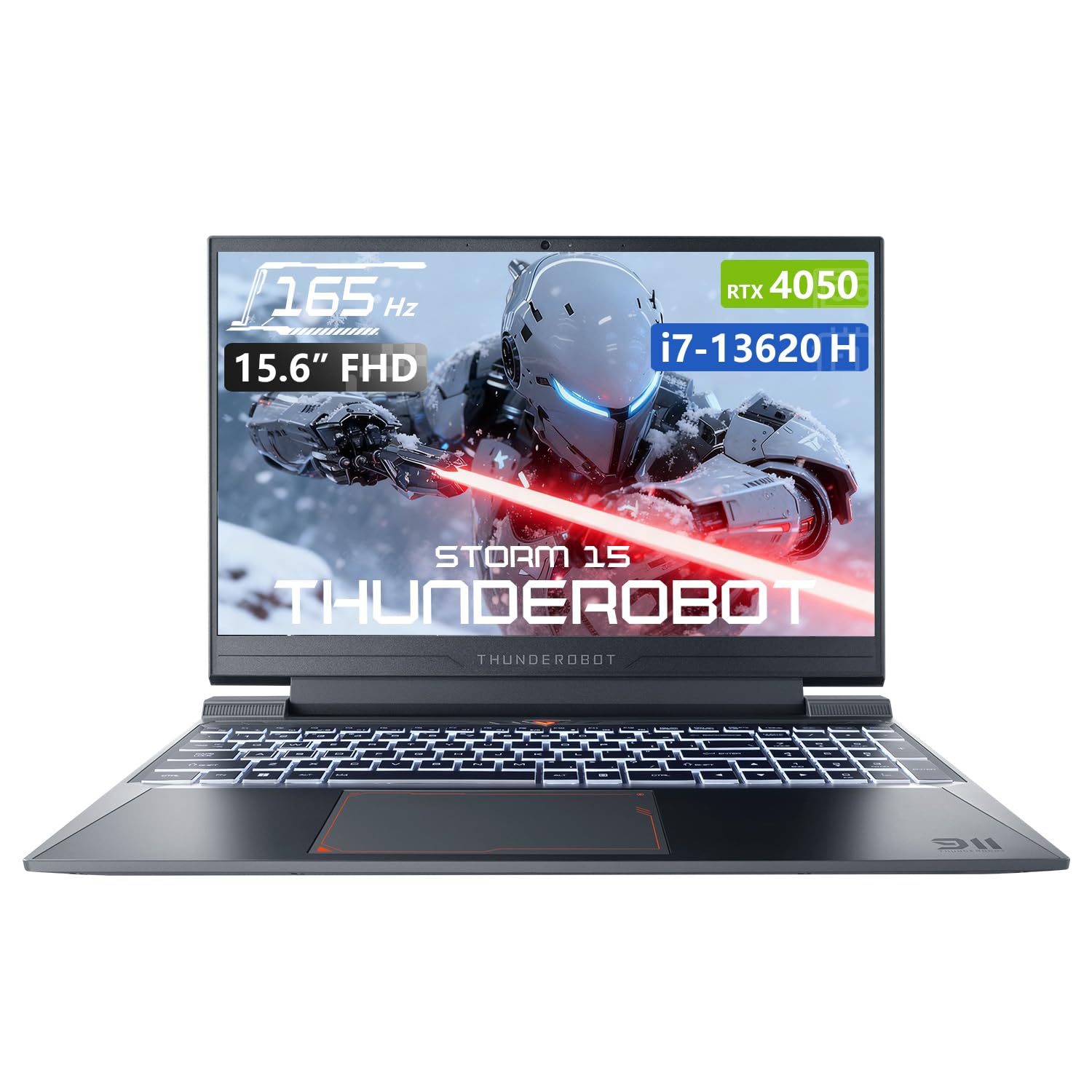
Slika 3.1: Od vrha prema dolje view of the Thunderobot Storm 15 4050 Gaming Laptop.

Slika 3.2: Otvori view of the Thunderobot Storm 15 4050 Gaming Laptop, highlighting the keyboard and display.
3.2. Portovi i konektori
The Thunderobot Storm 15 4050 is equipped with various ports for connectivity. Refer to the diagram below for port locations and functions.

Figure 3.3: Port layout of the Thunderobot Storm 15 4050 Gaming Laptop.
- USB 3.1 Gen 2 Type-C: For high-speed data transfer and display output.
- RJ-45 Ethernet port: Za žičanu mrežnu vezu.
- USB 3.1 Tip-A (x3): Za povezivanje USB uređaja.
- HDMI priključak: Za povezivanje s eksternim ekranima.
- Kombinovani priključak od 3.5 mm: Za slušalice ili slušalice s mikrofonom.
- Ulazna snaga: Za povezivanje strujnog adaptera.
3.3. Tastatura i dodirna tabla
The laptop features a full-size backlit keyboard with a numeric keypad for enhanced usability. The touchpad supports multi-touch gestures.

Slika 3.4: Detaljno view of the backlit keyboard.
4. Podešavanje
4.1. Početno uključivanje
- Spojite adapter za napajanje na ulazni priključak za napajanje laptopa, a zatim na utičnicu.
- Otvorite poklopac laptopa.
- Pritisnite dugme za napajanje da uključite laptop.
- Slijedite upute na ekranu da biste dovršili postavljanje Windows 11 Home sistema.
4.2. Povezivanje na mrežu
You can connect to the internet via Wi-Fi or a wired Ethernet connection.
- Wi-Fi: After initial setup, click the Wi-Fi icon in the taskbar, select your network, and enter the password.
- Ethernet: Connect an Ethernet cable from your router or modem to the RJ-45 port on the laptop.
5. Upravljanje laptopom
5.1. Načini rada
The Thunderobot Storm 15 4050 features an Intelligent Control Center allowing you to switch between different performance modes to optimize for various tasks. These modes typically include:
- Berserk Mode: Full performance release for demanding applications and gaming.
- Način igre: Optimized for smooth gaming performance.
- Audio and Video Office Mode: Balances performance with power efficiency for everyday tasks.
Access the Control Center by searching for "Control Center" in the Windows search bar or by using dedicated function keys (if available). Note: System mode switching in Control Center requires the device to be connected to a power source.

Figure 5.1: Intelligent Control Center interface.
5.2. Sistem hlađenja
The laptop incorporates an advanced Frost Cooling System designed for efficient heat dissipation, crucial during intensive use. This system includes multi-heat-pipe design, high-pressure turbine fans, and high-density copper fins.
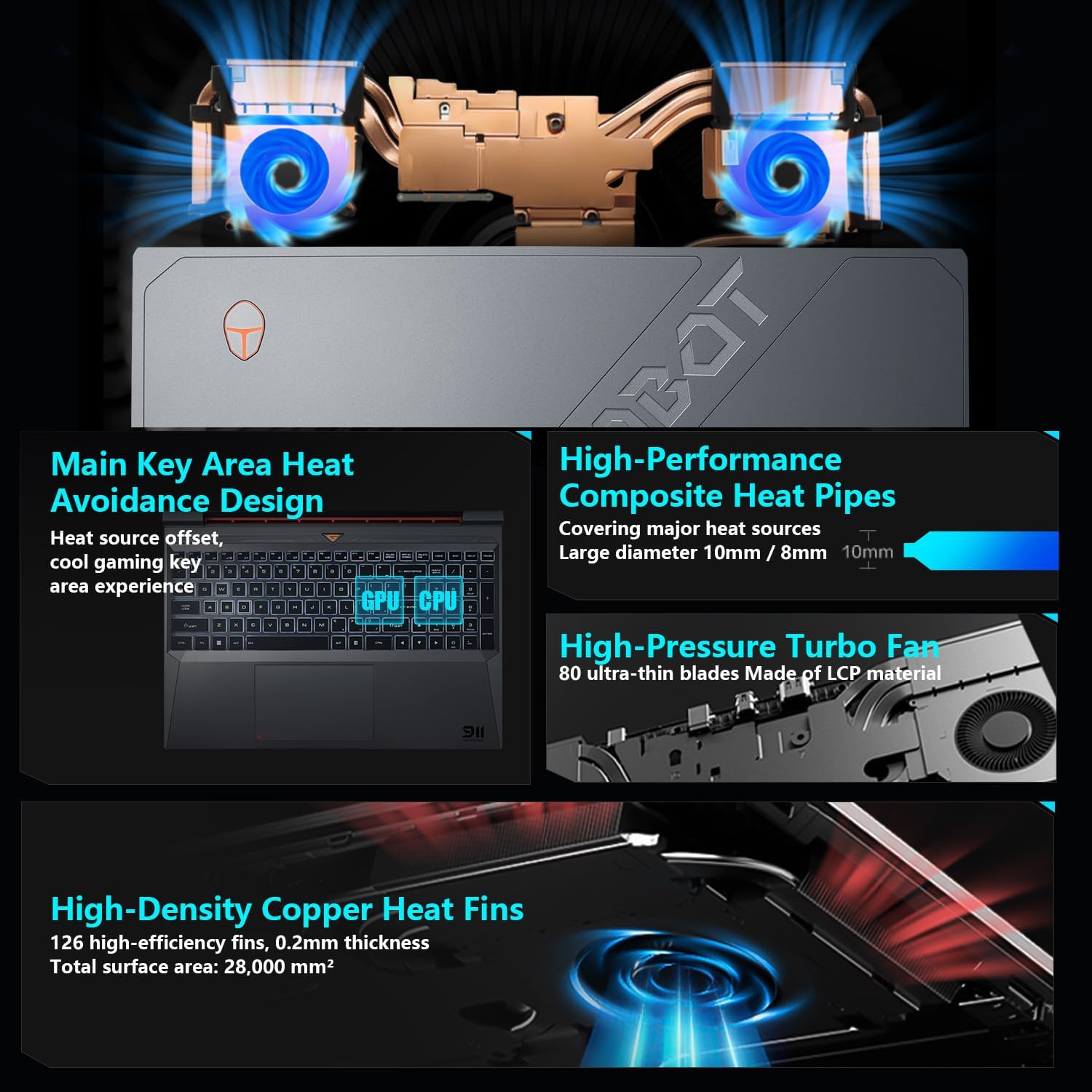
Slika 5.2: Interni view of the Frost Cooling System.
Ensure that the air vents are not obstructed to maintain optimal cooling performance. Fan speed can be adjusted via the Control Center.
5.3. Postavke ekrana
Your laptop features a 15.6-inch Full HD (1920x1080) display with a 165Hz refresh rate. You can adjust display settings through Windows settings (Right-click on desktop > Display settings) to customize resolution, refresh rate, and color profiles.
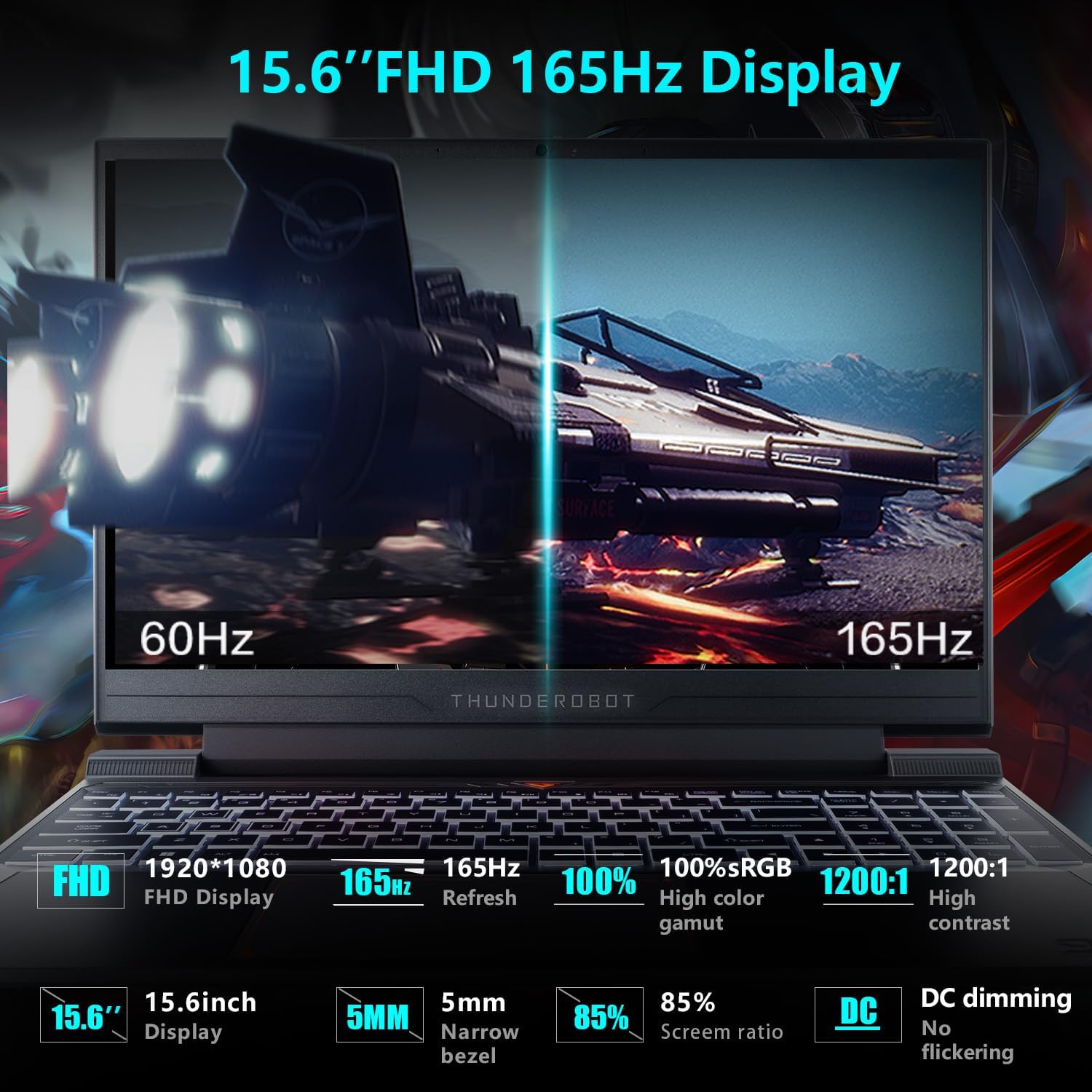
Figure 5.3: Display features of the Thunderobot Storm 15 4050.
5.4. Audio sistem
The laptop is equipped with a professional sound system for an immersive audio experience. Adjust volume and sound settings through the Windows sound control panel.
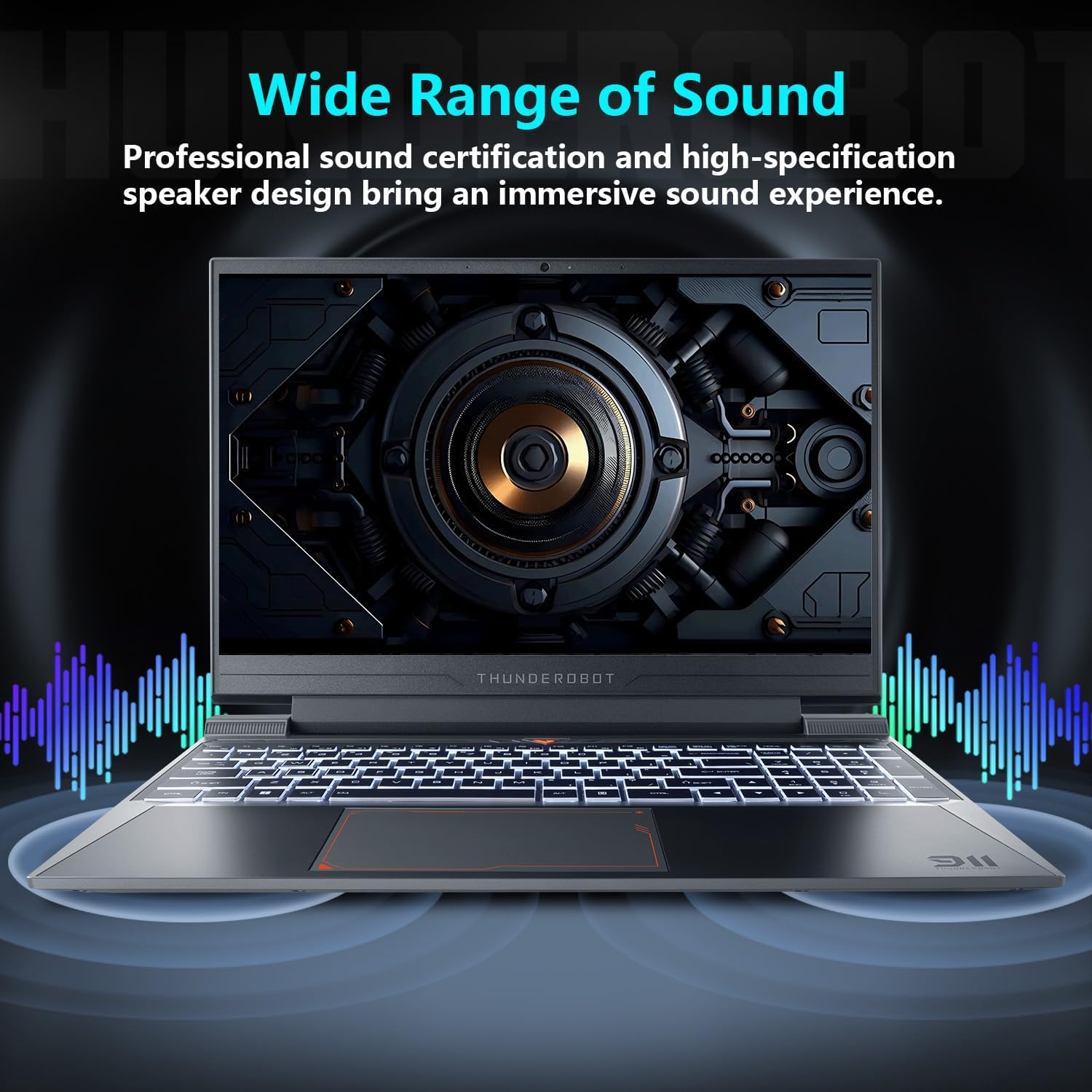
Figure 5.4: Audio system overview.
6. Održavanje
Proper maintenance ensures the longevity and performance of your laptop.
- čišćenje: Use a soft, dry cloth to clean the screen and chassis. For stubborn marks, a slightly damp cloth with a mild cleaning solution can be used, ensuring no liquid enters the device.
- ventilacija: Regularly check and clean the air vents to prevent dust buildup, which can hinder cooling performance.
- Održavanje baterije: Za optimalan vijek trajanja baterije, izbjegavajte stalno potpuno pražnjenje baterije ili njeno duže držanje na 100% napunjenosti.
- Ažuriranja softvera: Redovno ažurirajte operativni sistem i upravljačke programe kako biste osigurali stabilnost i sigurnost.
7. Otkrivanje problema
Ovaj odjeljak se bavi uobičajenim problemima s kojima se možete susresti.
| Problem | Mogući uzrok | Rješenje |
|---|---|---|
| Laptop se ne uključuje. | Battery depleted, power adapter not connected properly. | Ensure the power adapter is securely connected and the laptop is charging. Try a different power outlet. |
| Ekran ostaje crn nakon uključivanja. | External display connected, display driver issue. | Disconnect any external displays. Try pressing Fn + F1 (or the appropriate function key for display toggle) to switch display output. |
| Problemi s Wi-Fi vezom. | Wi-Fi onemogućen, netačna lozinka, problem sa ruterom. | Ensure Wi-Fi is enabled in Windows settings. Verify the Wi-Fi password. Restart your router. |
| Laptop radi sporo ili se pregrijava. | Too many applications running, obstructed vents, outdated drivers. | Close unnecessary applications. Clean air vents. Update drivers. Adjust fan speed in Control Center. |
Ako naiđete na probleme koji nisu ovdje navedeni ili ako predložena rješenja ne riješe problem, obratite se korisničkoj podršci.
8. Specifikacije
Detailed technical specifications for the Thunderobot Storm 15 4050 Gaming Laptop:
- Model: Oluja 15
- procesor: Intel Core i7-13620H (10 jezgara, 16 niti, do 4.9 GHz)
- Grafika: NVIDIA GeForce RTX 4050 Laptop GPU (Dedicated)
- Prikaz: 15.6-inch Full HD (1920x1080) 165Hz
- RAM: 16GB DDR4 3200MHz
- Skladištenje: 1TB PCIe M.2 SSD
- Operativni sistem: Windows 11 Home
- Bežična povezanost: 802.11ac Wi-Fi, Bluetooth
- luke: USB 3.1 Gen 2 Type-C, 3x USB 3.1 Type-A, HDMI, RJ-45 Ethernet, 3.5mm Combo Jack, Power Input
- tastatura: Tastatura pune veličine sa pozadinskim osvjetljenjem i numeričkom tastaturom
- Dimenzije: 14.12 x 10.14 x 0.94 inča
- Težina: Otprilike 12 funti
9. Garancija i podrška
Every Thunderobot laptop includes a 12-month warranty, offering expert support, thorough diagnostics, and genuine parts if a repair is needed. We also provide a 90-day warranty on all warranty replacement parts, ensuring hassle-free repairs.
For technical support, warranty claims, or service inquiries, please visit the official Thunderobot website or contact their customer service department. Keep your purchase receipt and warranty card for reference.
Video 9.1: Kratki uvodview video prezentacijaasing the Thunderobot Storm 15 4050 Gaming Laptop's features and design. This video is provided by the seller and offers a quick visual overview proizvoda.
Video 9.2: Another short preview video highlighting the Thunderobot Storm 15 4050 Gaming Laptop's design elements and user interaction. This video is provided by the seller and offers a quick visual overview proizvoda.