
1. Uvod
Thank you for choosing the Blackstorm 27-inch QHD Mini-LED Gaming Monitor. This monitor is designed to provide an exceptional visual experience for gaming enthusiasts, offering unparalleled precision and performance. Featuring a 27-inch IPS panel with advanced Mini-LED backlighting, it delivers superior image quality, making every gaming moment vivid and immersive. This manual will guide you through the setup, operation, and maintenance of your new monitor.
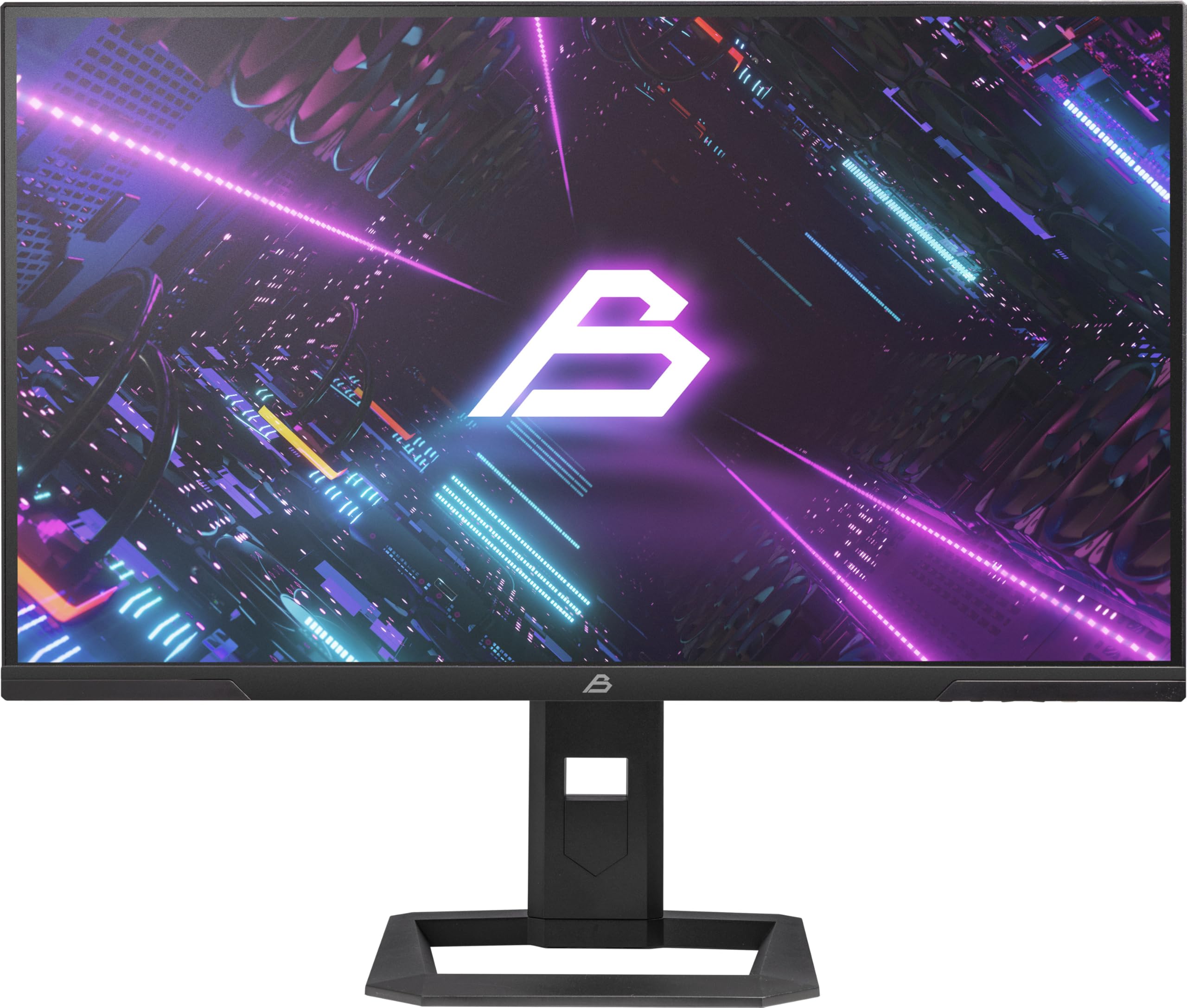
Slika 1: Prednja strana view of the Blackstorm 27-inch QHD Mini-LED Gaming Monitor.
2. Ključne karakteristike
- High-Performance Gaming Display: A 27-inch IPS panel with Mini-LED backlighting provides exceptional brightness, contrast, and color reproduction, ideal for visual precision and performance in all game types.
- Glatko iskustvo igranja: WQHD resolution (2560 x 1440) and a 180 Hz refresh rate ensure smooth, detailed visuals. A rapid 2 ms response time is crucial for fast-paced games.
- Superior Color Reproduction and Brightness: Covers 99% of AdobeRGB and DCI-P3 color spaces for accurate and vibrant colors. Features 450 nits (SDR) brightness and HDR1000 compatibility for an impressive gaming experience in any environment.
- Ergonomic Design and Connectivity: The ergonomic stand allows for height, tilt, swivel, and pivot adjustments. VESA 100x100 mount compatible. Includes HDMI 2.1 and DisplayPort 1.4 connections for high-resolution, fast image transfer.
- Napredna tehnologija prikaza: IPS panel with Mini-LED technology, 576 dimming zones, and a 1,000,000:1 contrast ratio.
3. Sadržaj paketa
Molimo vas da pažljivo provjerite sadržaj paketa. Ako bilo koji artikl nedostaje ili je oštećen, obratite se prodavaču.
- Blackstorm 27-inch QHD Mini-LED Gaming Monitor
- Stalak za monitor (baza i vrat)
- Power Cable
- HDMI kabl
- DisplayPort kabel
- Korisnički priručnik (ovaj dokument)
- Garantni list (ako postoji)
4. Upute za postavljanje
4.1 Sastavljanje postolja
- Pažljivo izvadite komponente monitora i postolja iz ambalaže.
- Pričvrstite vrat postolja na ploču monitora. Provjerite da li je sigurno uglavljen na svoje mjesto ili da je pričvršćen vijcima kao što je naznačeno u kratkom vodiču za početak.
- Pričvrstite bazu postolja na vrat postolja. Čvrsto zategnite sve vijke kako biste osigurali stabilnost.
- Postavite sastavljeni monitor na stabilnu, ravnu površinu.

Slika 2: Pozadi view of the monitor showing the stand attachment and port area.
4.2 Povezivanje sa računarom
- Ensure both your computer and the monitor are powered off.
- Spojite jedan kraj priloženog HDMI ili DisplayPort kabla na odgovarajući priključak na grafičkoj kartici vašeg računara.
- Connect the other end of the cable to the HDMI 2.1 or DisplayPort 1.4 input on the back of the monitor.
- Connect the power cable to the monitor's power input, then plug the other end into a power outlet.
- Power on your computer, then power on the monitor. The monitor should automatically detect the input signal.
4.3 Ergonomska podešavanja
Stalak za monitor omogućava razna podešavanja za optimizaciju vašeg viewudobnost:
- Podešavanje visine: Lagano gurnite ili povucite monitor gore ili dolje do željene visine.
- Podešavanje nagiba: Tilt the monitor screen forward or backward to find the optimal viewing kut.
- Podešavanje okretanja: Okrenite monitor lijevo ili desno na njegovom postolju.
- Podešavanje osovine: Rotate the monitor 90 degrees to switch between landscape and portrait orientation.

Slika 3: Bočna strana view koji ilustruje podesivo postolje monitora.
5. Rukovanje monitorom
5.1 On-Screen Display (OSD) meni
The OSD menu allows you to adjust various monitor settings. Typically, buttons are located on the back or bottom edge of the monitor. Refer to the quick start guide for exact button locations.
- Pritisnite dugme OSD da biste otvorili meni.
- Use the navigation buttons (up/down/left/right) to browse through menu options.
- Press the select button to enter a sub-menu or confirm a setting.
- Press the exit button to return to the previous menu or close the OSD.
5.2 Podešavanje postavki ekrana
Ključne postavke koje možete prilagoditi uključuju:
- Svjetlina/kontrast: Adjust for optimal visual comfort.
- Postavke boja: Fine-tune color temperature, gamma, and color space (e.g., AdobeRGB, DCI-P3).
- Brzina osvježavanja: Ensure your computer's display settings are configured to utilize the monitor's 180 Hz refresh rate for the smoothest experience.
- HDR način rada: Enable HDR1000 for compatible content to experience enhanced dynamic range.
- Dinamičko pozadinsko osvjetljenje: This feature enhances depth and realism. For competitive gaming requiring extreme responsiveness, you may choose to disable dynamic backlighting for a more consistent and precise image.
6. Održavanje
Pravilna njega osigurava dugotrajnost i optimalne performanse vašeg monitora.
- Čišćenje ekrana:
- Uvijek isključite monitor i iskopčajte ga iz struje prije čišćenja.
- Lagano koristite meku krpu koja ne ostavlja dlačice dampočišćeno vodom ili sredstvom za čišćenje ekrana na bazi amonijaka i alkohola.
- Wipe the screen gently to remove dust and smudges. Avoid applying direct pressure.
- Čišćenje C-aasing:
- Koristite meku, suhu krpu za brisanje monitora casing.
- Izbjegavajte korištenje abrazivnih sredstava za čišćenje ili rastvarača koji mogu oštetiti površinu.
- ventilacija: Pazite da ventilacijski otvori monitora nisu blokirani kako biste spriječili pregrijavanje.
- Skladištenje: Kada se monitor ne koristi duži period, čuvajte ga na hladnom i suhom mjestu, idealno u originalnom pakovanju.
7. Otkrivanje problema
Ako naiđete na probleme s monitorom, pogledajte sljedeća uobičajena rješenja:
| Problem | Moguće rješenje |
|---|---|
| Nema slike na ekranu / poruka "Nema signala" |
|
| Slika je mutna ili iskrivljena |
|
| Monitor se ne uključuje |
|
| Boje izgledaju netačno |
|
If the problem persists after trying these solutions, please contact Blackstorm customer support.
8. Tehničke specifikacije
| Feature | Specifikacija |
|---|---|
| Brand | Crna oluja |
| Model | GMF27QHD180-MLED |
| Veličina ekrana | 27 inča |
| Display Technology | IPS with Mini-LED |
| Rezolucija | 2560 x 1440 piksela (WQHD) |
| Refresh Rate | 180 Hz |
| Vrijeme odgovora | 2 milisekundi |
| Brightness (SDR) | 450 candela/square meter |
| Kontrast Ratio | 1,000,000:1 |
| Gamut boja | 99% AdobeRGB, DCI-P3 |
| HDR podrška | HDR1000 |
| Dimming Zones | 576 |
| Aspect Ratio | 16:9 (1.77:1) |
| Hardversko sučelje | DisplayPort 1.4, HDMI 2.1 |
| Posebne karakteristike | HDR, Height Adjustment, Tilt Adjustment, Swivel Adjustment, Pivot Adjustment, Adjustable Stand |
| VESA kompatibilnost | 100x100 mm |
| Dimenzije proizvoda | 23.5 x 54 x 96 cm; 12.66 kg |

Figure 4: Energy efficiency label. For more details, visit EPREL baza podataka.
9. Garancija i podrška
For warranty information, please refer to the separate warranty card included with your product or visit the official Blackstorm website. For technical support, troubleshooting assistance beyond this manual, or service inquiries, please contact Blackstorm customer support through their official channels.
Više informacija i kontakt podatke možete pronaći na Blackstorm Store on Amazon.