
Uvod
Thank you for choosing the Upperizon 14-inch 4K OLED Portable Monitor. This manual provides essential information for setting up, operating, and maintaining your new monitor. Please read it thoroughly before use to ensure optimal performance and longevity of the device.
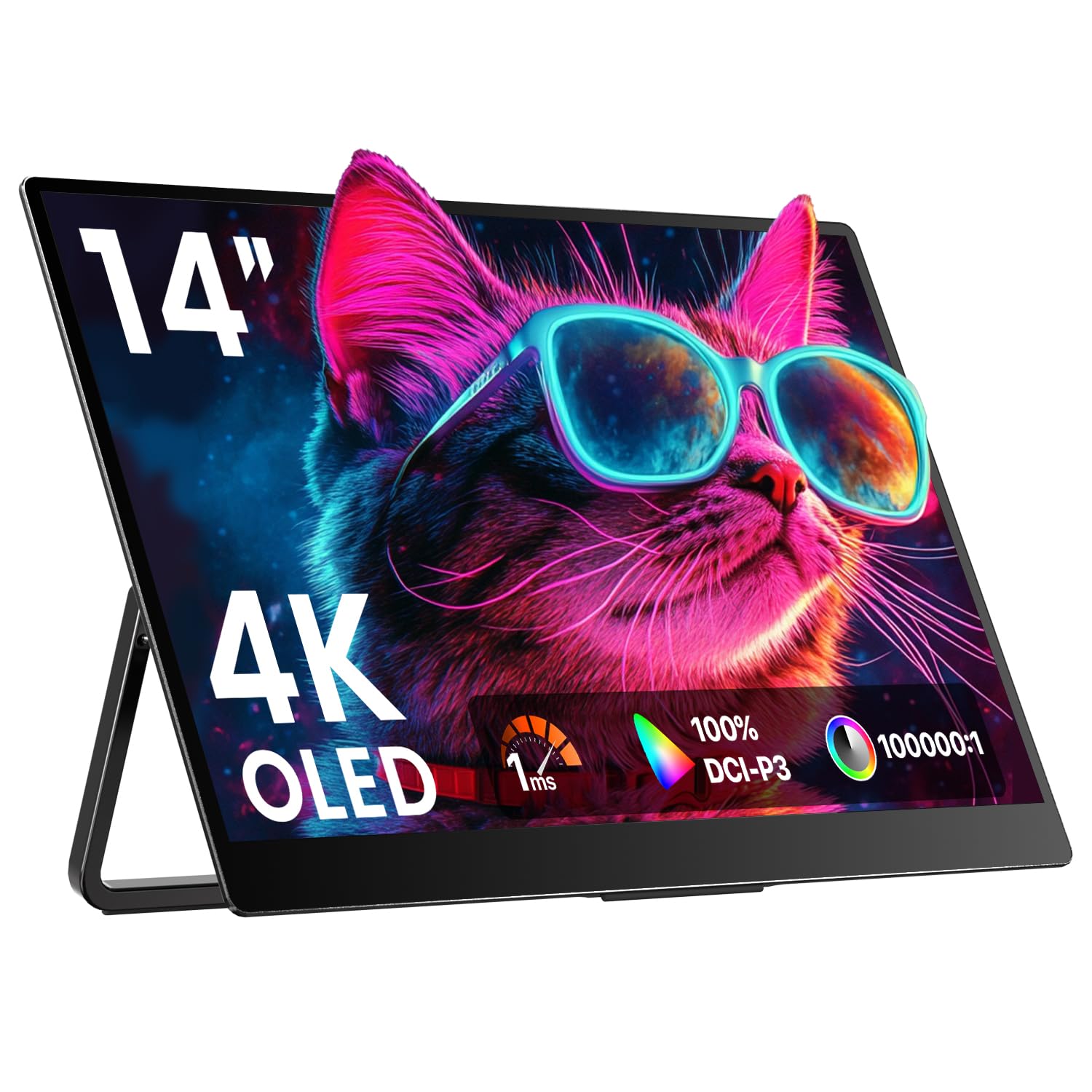
Image: The Upperizon 14-inch 4K OLED Portable Monitor, showcasing its sleek design and integrated kickstand.
Šta je u kutiji
Provjerite da li se u vašem paketu nalaze sve dolje navedene stavke. Ako neke stavke nedostaju ili su oštećene, obratite se korisničkoj podršci.
- 1 × Portable Monitor
- 2 × USB-C to USB-C display cable
- 1 × HDMI cable
- 1 × adapter za napajanje
- 1 × Sleeve Case

Image: A visual representation of the items included in the product packaging: the 14-inch portable monitor, two USB-C to USB-C cables, one HDMI cable, a power adapter, and a protective sleeve case.
Product Overview
Značajke monitora
- OLED Self-Luminous Display: Each pixel emits light independently for deep blacks and vivid colors.
- 4K UHD rezolucija (3840x2400): Provides sharp, detailed visuals.
- Pixel-Perfect Color Precision: Factory-calibrated to ΔE < 2, 100% DCI-P3, and 10-bit color depth.
- Vrijeme odziva od 1 ms: Reduces motion blur for smooth visuals.
- Ugrađeni dvostruki zvučnici: Delivers integrated audio.
- Ultra-tanak i lagan: Designed for portability.
- Integrisani oslonac: Offers adjustable viewuglovi od 0° do 180°.
- VESA za montažu: Compatible with 75x75mm VESA mounts (M4*5mm screws).
Portovi i kontrole
The monitor features various ports and control buttons for connectivity and settings adjustment.

Slika: Detaljna view of the monitor's side, highlighting two USB-C ports, one HDMI port, and control buttons (Power/Exit, Down/Up, Menu/Confirm).
- USB-C portovi (x2): Full-featured ports for video, audio, and power delivery.
- HDMI priključak (x1): For video and audio input from compatible devices.
- Power/Exit Button: Turns the monitor on/off and exits menu options.
- Down/Up Buttons: Navigates menu options and adjusts values (e.g., brightness, volume).
- Dugme za izbor/potvrdu: Accesses the On-Screen Display (OSD) menu and confirms selections.
- Audio Jack: Za spajanje eksternih slušalica ili zvučnika.
Setup
Connecting via USB-C (Single Cable Solution)
For devices supporting DisplayPort Alt Mode or Thunderbolt 3/4/5, a single USB-C cable can transmit video, audio, and power.
- Connect one end of the provided USB-C to USB-C cable to a full-featured USB-C port on your device (laptop, MacBook, Surface, etc.).
- Connect the other end of the USB-C cable to either USB-C port on the portable monitor.
- The monitor should automatically detect the signal and display your device's screen.
Važna napomena: Ensure your device's USB-C port supports DisplayPort Alt Mode or Thunderbolt 3/4/5 for single-cable functionality. If the screen flickers, use the original power adapter provided. Old MacBooks may require a Mini DP to HDMI adapter. Apple M1/M2/M3 chips do not support two external monitors simultaneously.

Image: A laptop connected to the portable monitor using a single USB-C cable, illustrating the plug-and-play setup.
Connecting via HDMI (Two Cable Solution)
For devices with an HDMI output, you will need both an HDMI cable for video/audio and a USB-C cable for power.
- Connect one end of the provided HDMI cable to the HDMI port on your device (PC, PS5, Xbox, etc.).
- Connect the other end of the HDMI cable to the HDMI port on the portable monitor.
- Connect one end of a USB-C to USB-A cable (or USB-C to USB-C if your power source supports it) to one of the USB-C ports on the monitor.
- Connect the other end of the power cable to the provided power adapter, and plug the adapter into a power outlet.
- The monitor should automatically detect the signal.
Važna napomena: Always use the original power adapter to ensure stable power delivery and prevent screen flickering, especially when using HDMI.

Image: A laptop connected to the portable monitor using an HDMI cable for video and a separate USB-C cable for power, demonstrating the two-cable connection method.
Kickstand and VESA Mounting
The monitor features an integrated kickstand for flexible positioning and is VESA compatible for alternative mounting options.
- Integrisani oslonac: Adjust the kickstand to achieve your desired viewing angle, supporting 0° to 180° rotation.
- VESA montaža: The monitor has two VESA holes (75x75mm, M4*5mm screws) on the back. This allows for stable mounting on a VESA stand (not included) for both landscape and vertical orientations.
Napomena: The VESA stand is not included. Portrait mode is not supported when connecting to an iPad or smartphone.

Image: The monitor positioned on a desk, demonstrating the flexibility of its adjustable kickstand for different viewing angles.

Image: A close-up of the VESA mounting holes on the monitor, showing it attached to a VESA-compatible stand for both landscape and portrait orientations.
Uputstvo za upotrebu
On-Screen Display (OSD) meni
OSD meni vam omogućava podešavanje različitih postavki ekrana.
- Pritisnite Meni/Potvrdi dugme da biste otvorili OSD meni.
- Koristite Dole i Up dugmad za navigaciju kroz opcije menija.
- Pritisnite Meni/Potvrdi button to select an option or enter a sub-menu.
- Koristite Dole i Up buttons to adjust values or select sub-options.
- Pritisnite Power/Exit button to go back to the previous menu or exit the OSD.
Quick Adjustments (Brightness & Volume)
You can quickly adjust brightness and volume without entering the full OSD menu.
- Svjetlina: Pritisnite Up button (without OSD open) to quickly adjust brightness.
- Volumen: Pritisnite Dole button (without OSD open) to quickly adjust volume.

Image: Illustration of the quick access controls for brightness and volume using the monitor's physical buttons.
HDR tehnologija
The monitor supports HDR (High Dynamic Range) technology for enhanced contrast and color.
- To enable HDR, navigate to the OSD menu, find the "Other Settings" or "Display" section, and set HDR to "Auto" or "On".
- Provjerite je li HDR omogućen i u postavkama ekrana vašeg povezanog uređaja (npr. Postavke ekrana Windowsa, Postavke ekrana macOS-a).

Image: A visual guide to enabling HDR through the monitor's OSD menu and the corresponding settings on a connected operating system.
Igra Crosshair
For gaming, you can enable a customizable crosshair directly on the monitor.
- Access the OSD menu and locate the "Game" or "Gaming Features" section.
- Toggle the "Crosshair" option to "On" to activate it.

Image: A comparison showing a game scene with the customizable crosshair enabled and disabled, highlighting its function.
Održavanje
Pravilno održavanje osigurava dugotrajnost i optimalne performanse vašeg monitora.
- Čišćenje ekrana:
- Isključite monitor i isključite ga iz napajanja.
- Nežno obrišite ekran mekom krpom koja ne ostavlja dlačice.
- Za tvrdokorne mrlje, lagano dampOperite krpu vodom ili sredstvom za čišćenje ekrana. Ne prskajte tekućinu direktno na ekran.
- Avoid using harsh chemicals, abrasive cleaners, or alcohol-based solutions, as these can damage the OLED panel.
- Čišćenje C-aasing:
- Obrišite monitor casing mekom, suhom krpom.
- Izbjegavajte ulazak vlage u bilo kakve otvore.
- Skladištenje:
- When not in use, especially during travel, store the monitor in the provided sleeve case to protect it from scratches and impacts.
- Čuvati na hladnom i suvom mestu dalje od direktne sunčeve svetlosti i ekstremnih temperatura.
- Rukovanje:
- Izbjegavajte postavljanje teških predmeta na monitor.
- Ne pritiskajte ekran pretjerano.
- Handle the monitor by its edges, not by the screen itself.
Rješavanje problema
Ako naiđete na probleme s monitorom, pogledajte sljedeće uobičajene probleme i rješenja.
| Problem | Mogući uzrok | Rješenje |
|---|---|---|
| Nema signala / Crni ekran |
|
|
| Ekran treperi |
|
|
| Nema zvuka iz zvučnika |
|
|
| Slika je mutna ili iskrivljena |
|
|
If the problem persists after trying these solutions, please contact Upperizon customer support.
Specifikacije
| Feature | Detalj |
|---|---|
| Broj modela | Y14UHO |
| Veličina ekrana | 14 inča |
| Tip panela | OLED |
| Rezolucija | 3840 x 2400 piksela (4K UHD) |
| Aspect Ratio | 16:10 |
| Kontrast Ratio | 100,000:1 |
| Gamut boja | 100% DCI-P3 |
| Dubina boje | 10-bit (1.07 milijardi boja) |
| Osvetljenost | 350 kandela (nita) |
| Vrijeme odgovora | 1ms |
| Refresh Rate | 60Hz |
| Povezivanje | 2 x USB-C (Full-featured), 1 x HDMI |
| Audio | Built-in Dual Speakers, 1 x 3.5mm Audio Jack |
| Montaža | Integrated Kickstand, VESA Compatible (75x75mm) |
| Dimenzije proizvoda | 0.47 x 12.28 x 8.38 inča |
| Težina artikla | 1.33 lbs (604 g) |
Garancija i podrška
Your Upperizon portable monitor is backed by a manufacturer's warranty.
- Garantni period: The product comes with a 2-year warranty. Please refer to the warranty card included in your package or the official Upperizon websajt za posebne uslove i odredbe.
- Povratak: Products purchased from Amazon are eligible for return within 30 days of receipt, subject to Amazon's return policy.
- Korisnička podrška: For technical assistance, troubleshooting beyond this manual, or warranty claims, please contact Upperizon customer support. Contact information can typically be found on the official Upperizon webweb-stranice ili putem vaše platforme za kupovinu.